
How to add users in Microsoft office 365
Here I am going to explain the steps how to add standard user and admin user in Office 365
Steps: Login to admin.microsoft.com with admin privileges.
I am creating first Standard User.
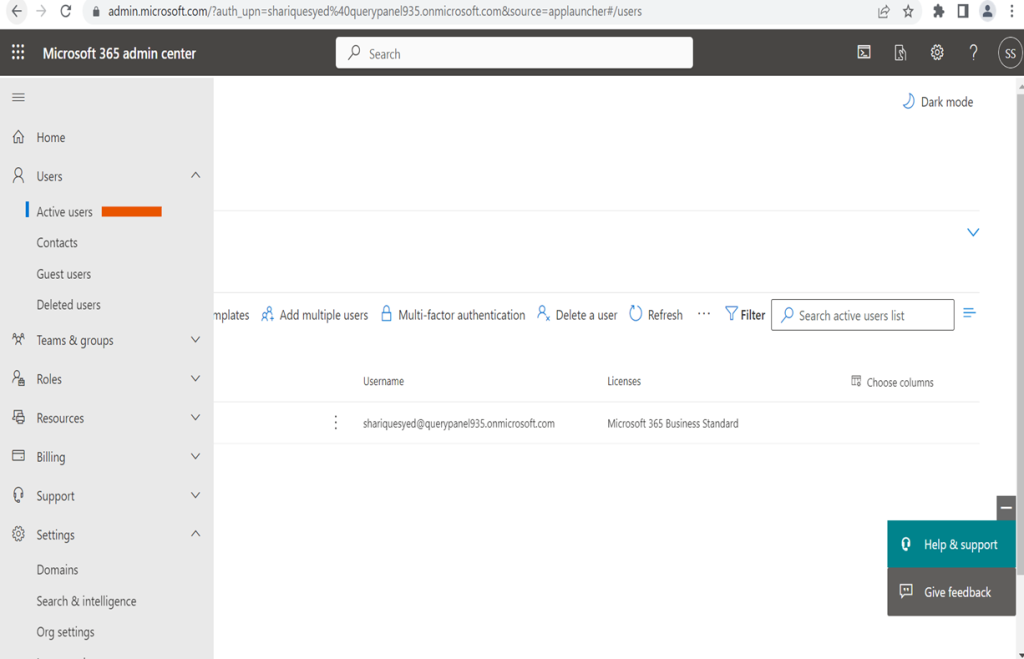
Click to active users
Active users list will be appear
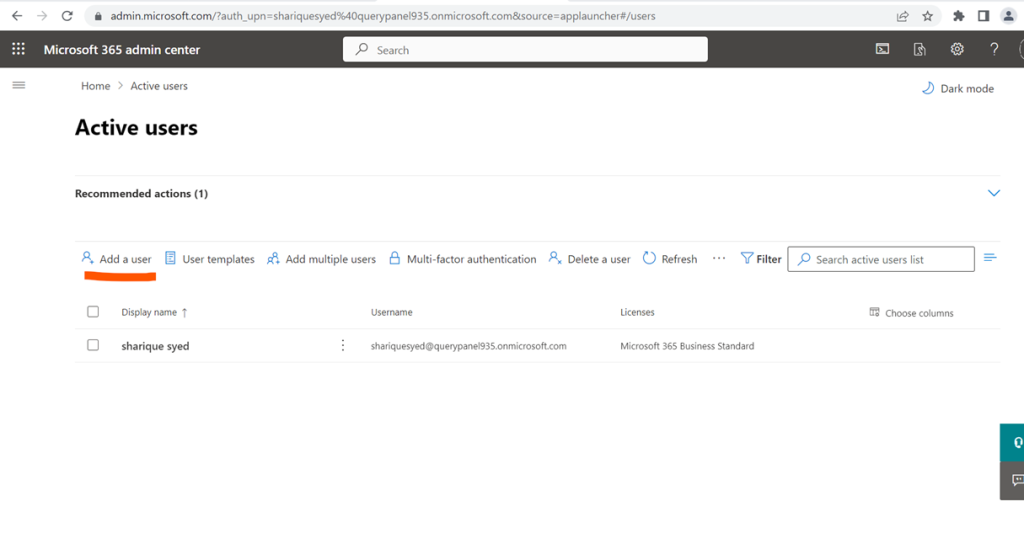
Now here creating new user in custom domain
Click to add user
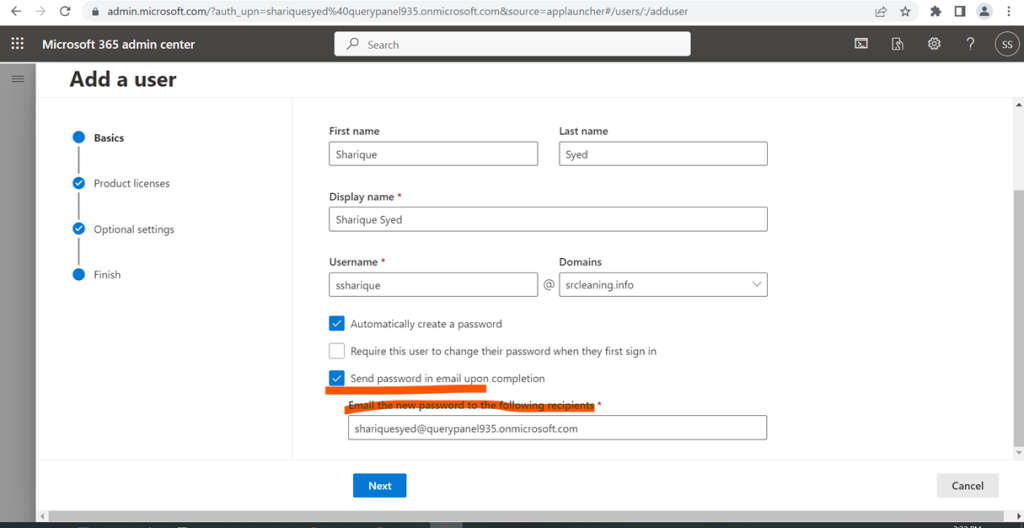
Basic Details about creating user
And next

User cannot changed password and password will send to administrator account
And click to next
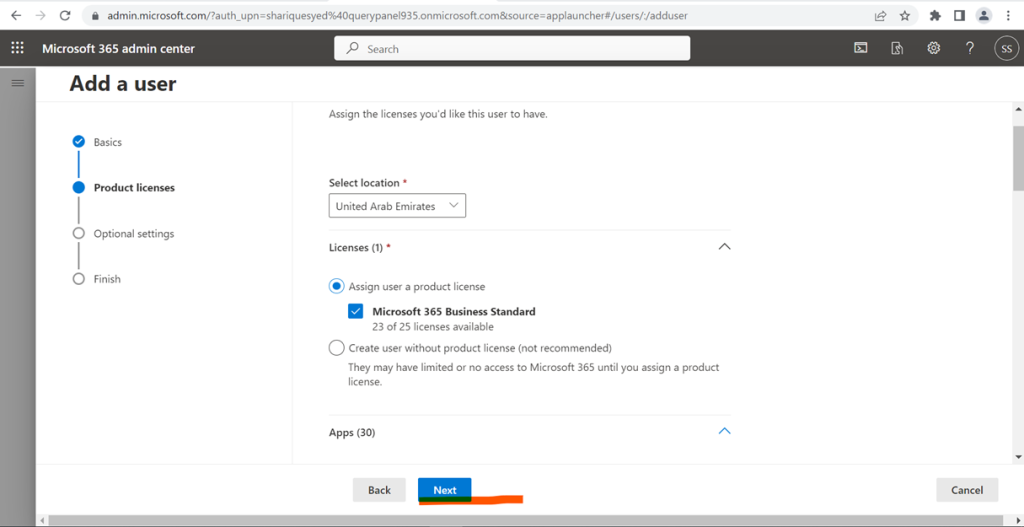
Have selected here Business Standard
Now to click next
Select no admin center access and click next
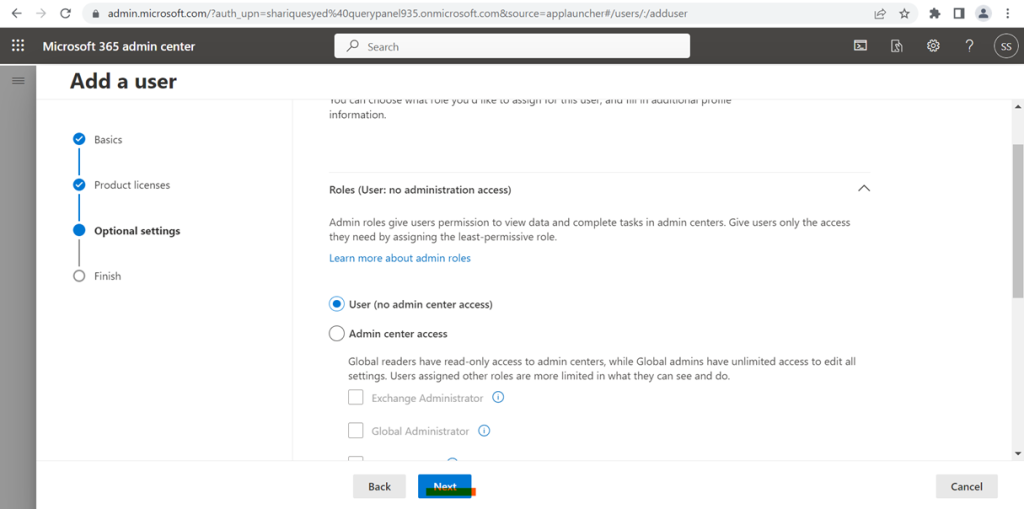
Finish now and login to created user or reset password

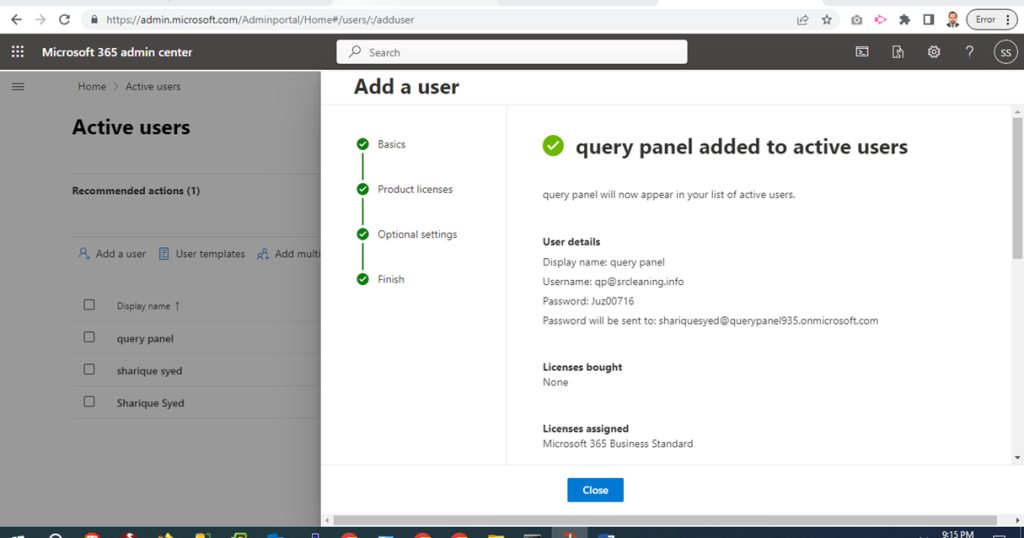
So here is the created user’s details

Login as user
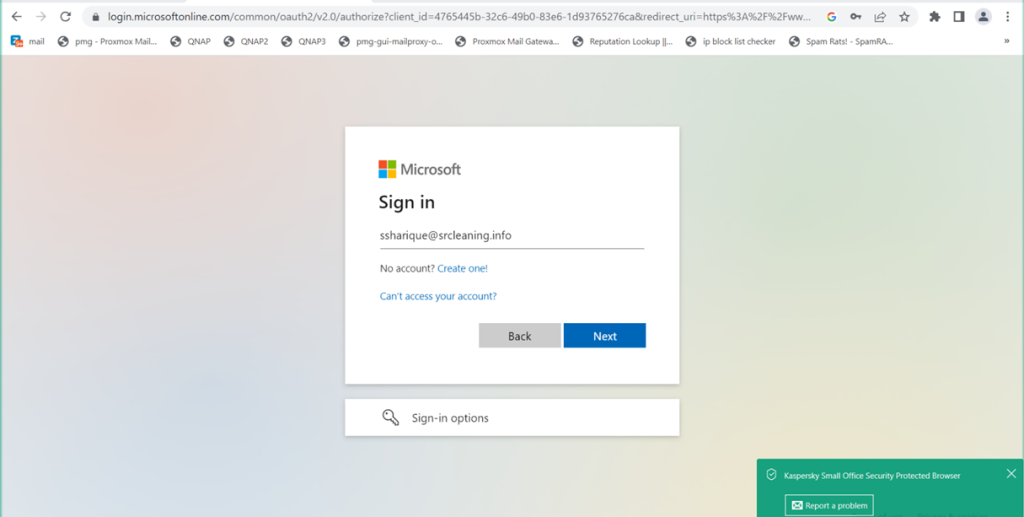
Click next here will be authentication check

Download Microsoft authenticator application
Scan and authenticate
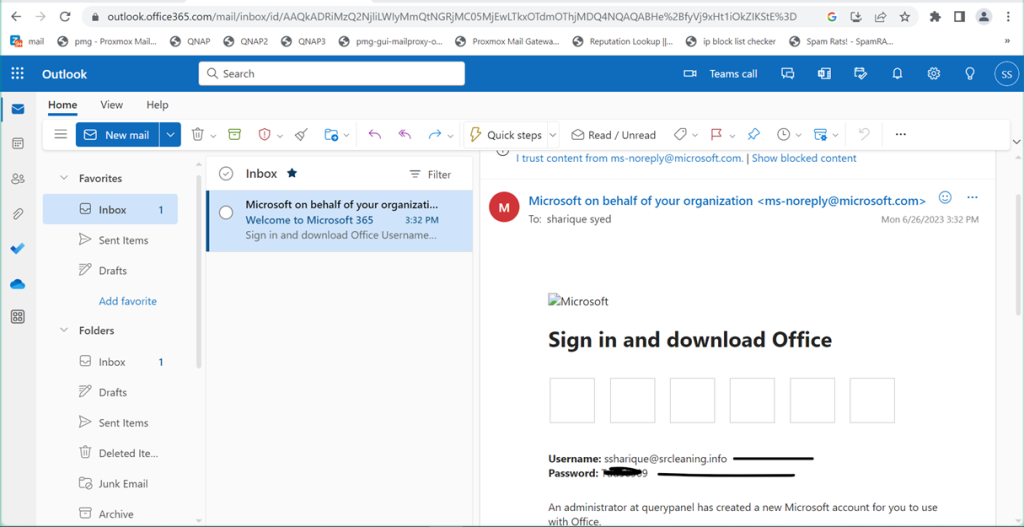
Standard User Password
Have Login to Created standard user
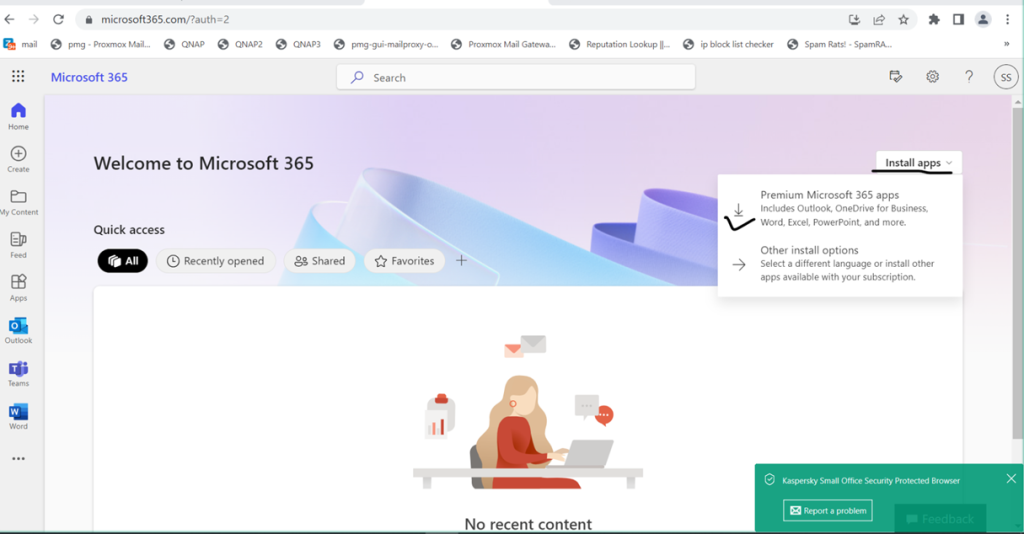
Click on Install apps select app and download it
MS Office Setup File Downloaded
Install Downloaded file and use the office 365 Services.

ADD Admin User IN Microsoft Office 365
Fill here required details about Administrator which you wanted to create
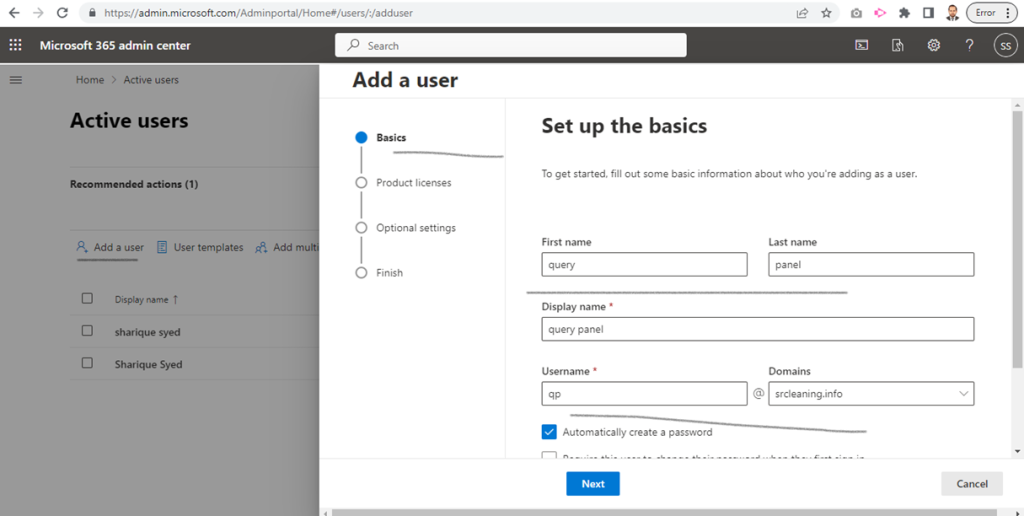
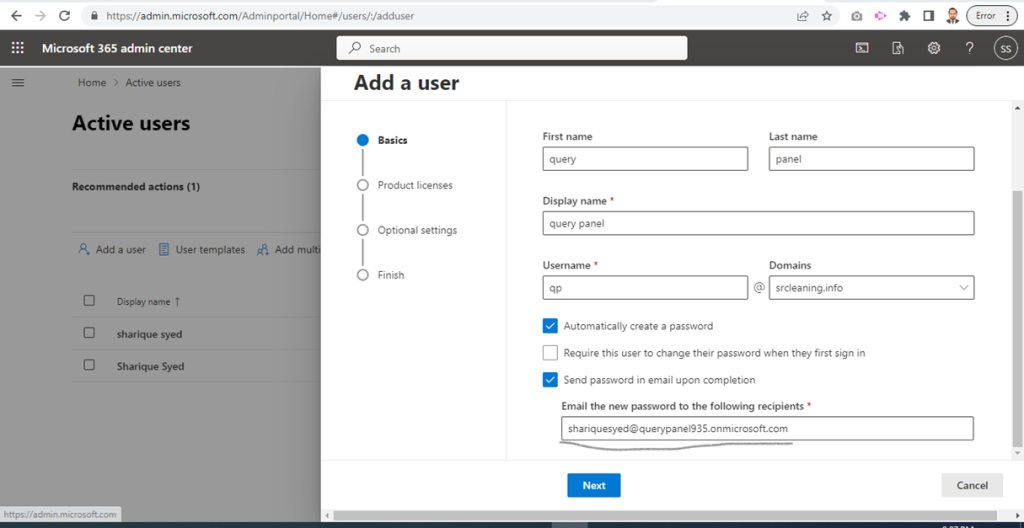
Here password automatic generated and Global Admin will received the admin password on registered email id
Once done next button
Select office license and click to next

Administrator account assign
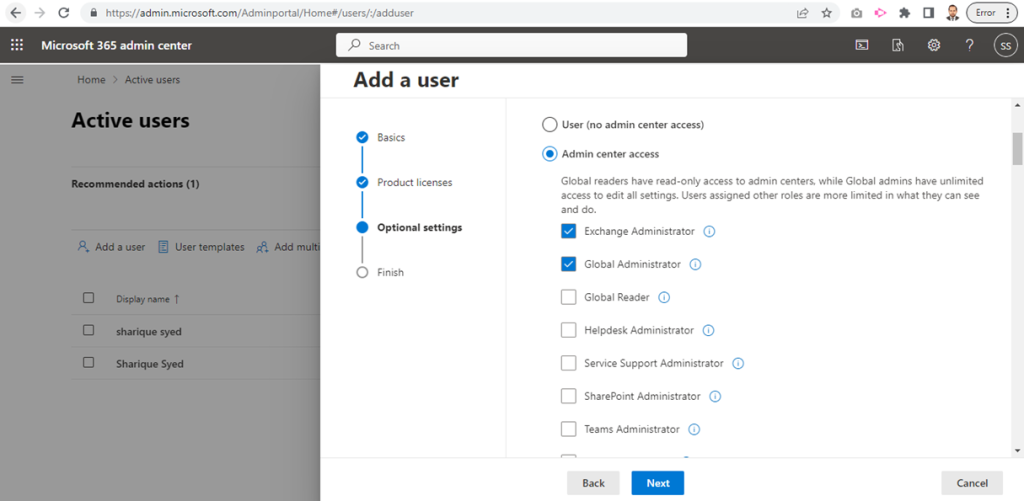
Selected administrator roles and click to finish
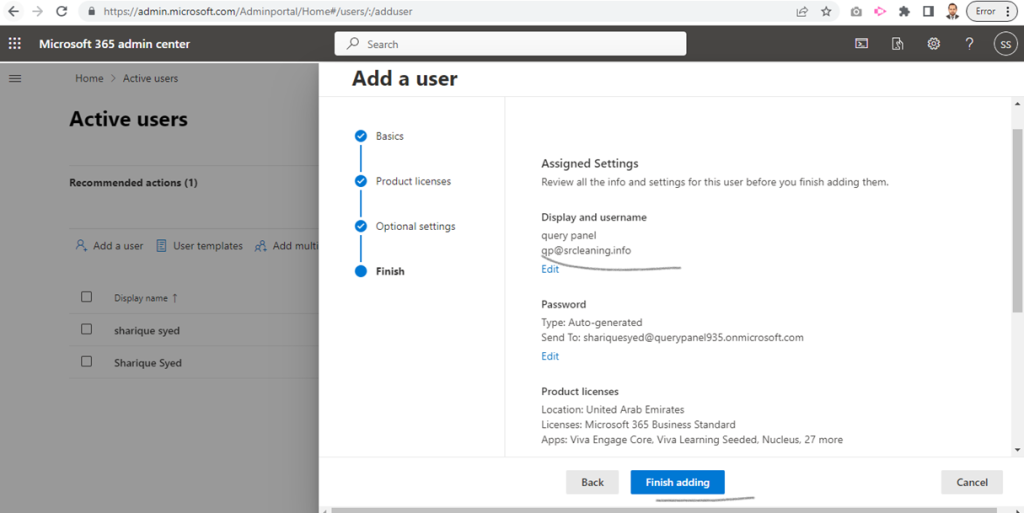
Created admin user
Created admin user Dashboard
