Adds Blocker Pi-Hole Installation
(DHCP Server – in this Pi-hole we can also use as a DHCP server if we want to run but mostly I suggestion don’t use in ads Blocker because if some specific user need the Blocked sites Access soand that condition use separately)
How to Block Ads Network-Wide with Pi-hole on Raspberry Pi
Need to update and upgrade machine.
shariq@vpn:~$ sudo apt update -y
shariq@vpn:~$ sudo apt upgrade -y
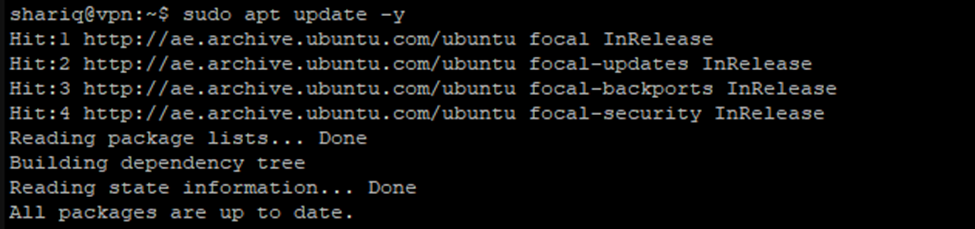
Now going to install Pihole required Libraries
This command will download the script and then run the installer in the terminal.
The Pi-hole installer will start by updating the available software, and then a menu based installation wizard will start. Press Enter to progress through the installation.
Directly we can also use this single line scritps.
curl -sSL https://install.pi-hole.net | sudo bash
shariq@vpn:~$ wget -O basic-install.sh https://install.pi-hole.net

Then a standard Debian wizard will start
shariq@vpn:~$ sudo bash basic-install.sh
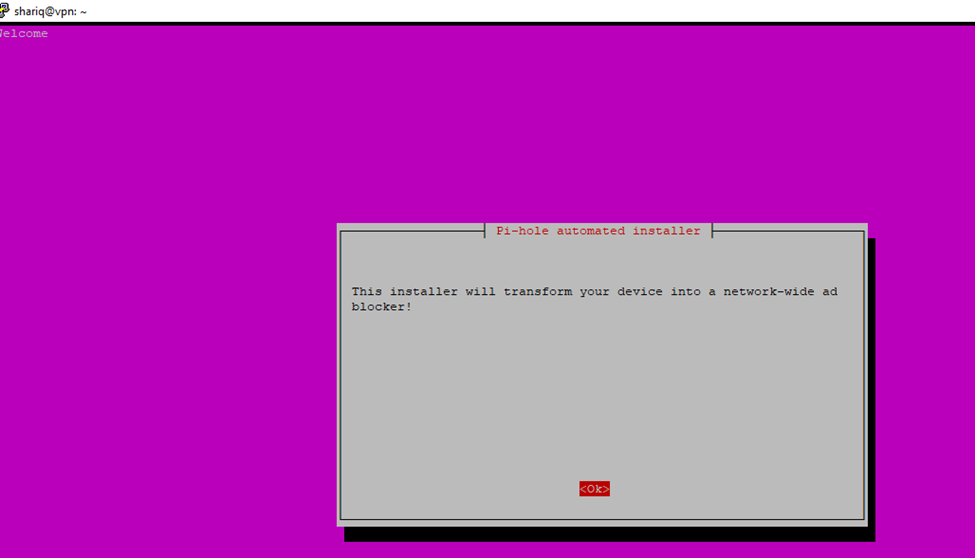
Click to next
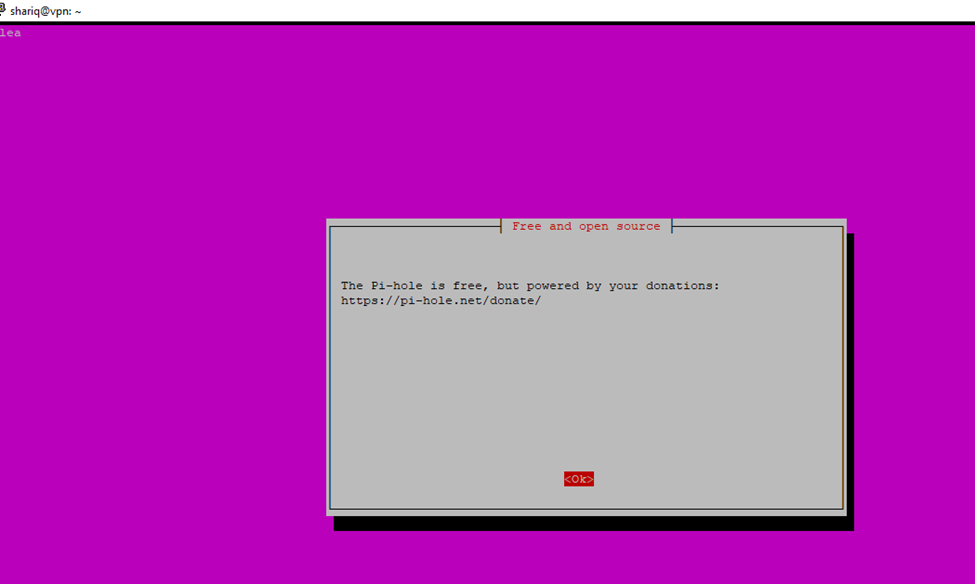
Okay for accepting the required protocol
And click to yes for static IP
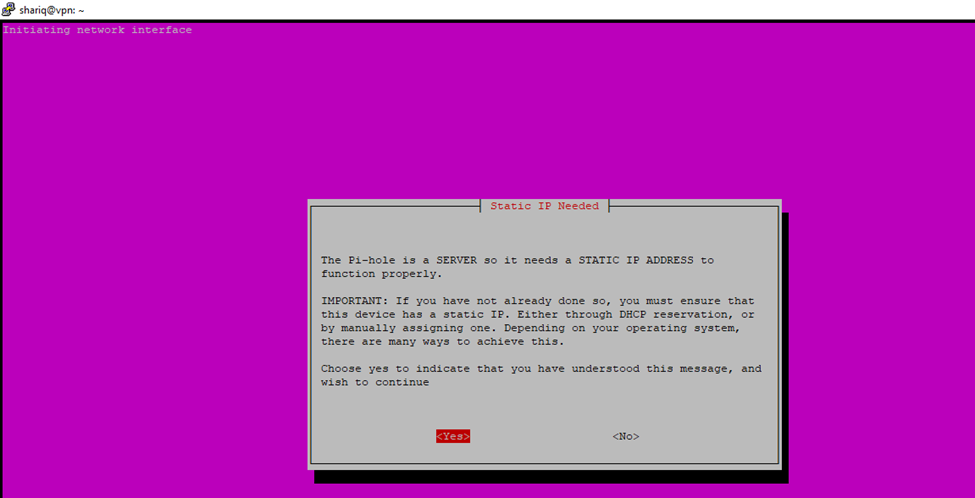
Accept the current network settings, and set them as static. Do make a note of the details as we will need them later.
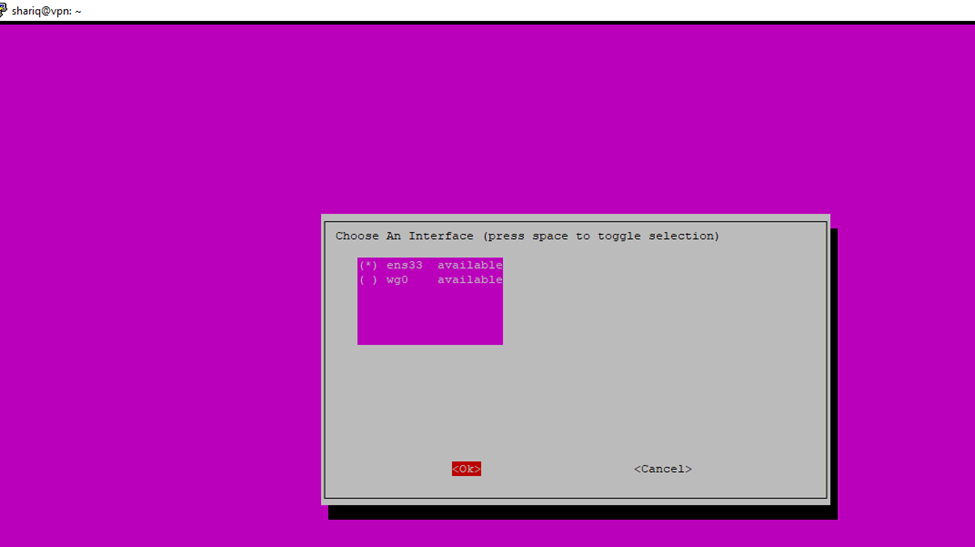
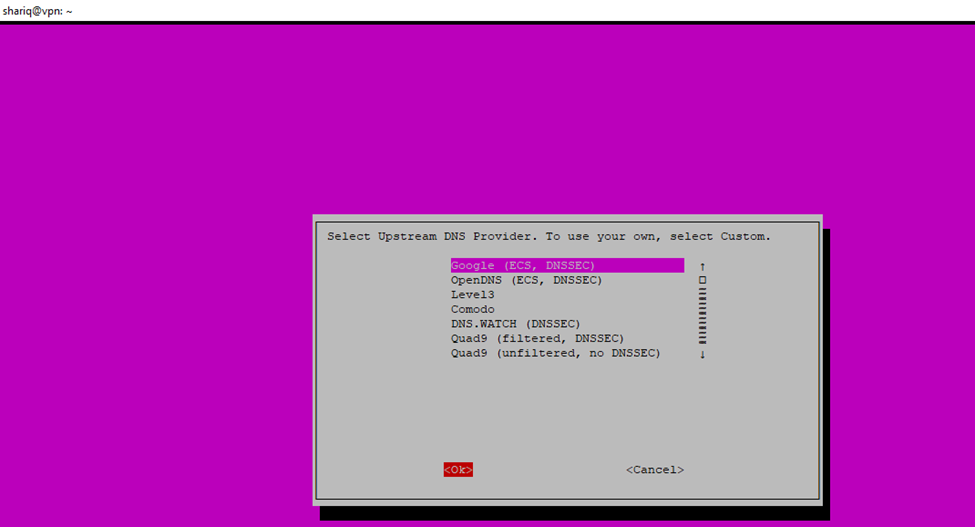
Then you have to choose a
DNS provider.
Pi-Hole will forward all requests to DNS servers
after filtering them
We can also configure our own DNS Server
Here I am using custom:
192.168.60.2 and 192.168.60.254
Or we can select the Google ECS
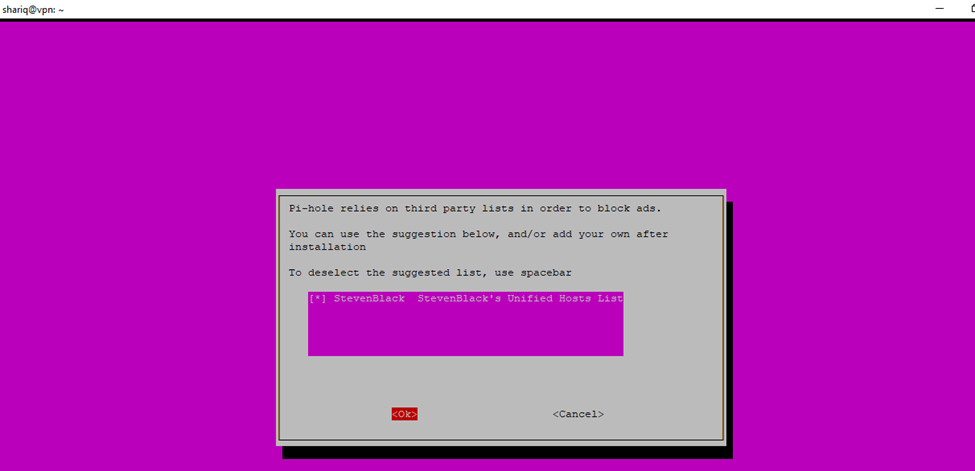
The wizard now asks you to select third-party lists to use for blocking ads
Check with web interface Enable web interface
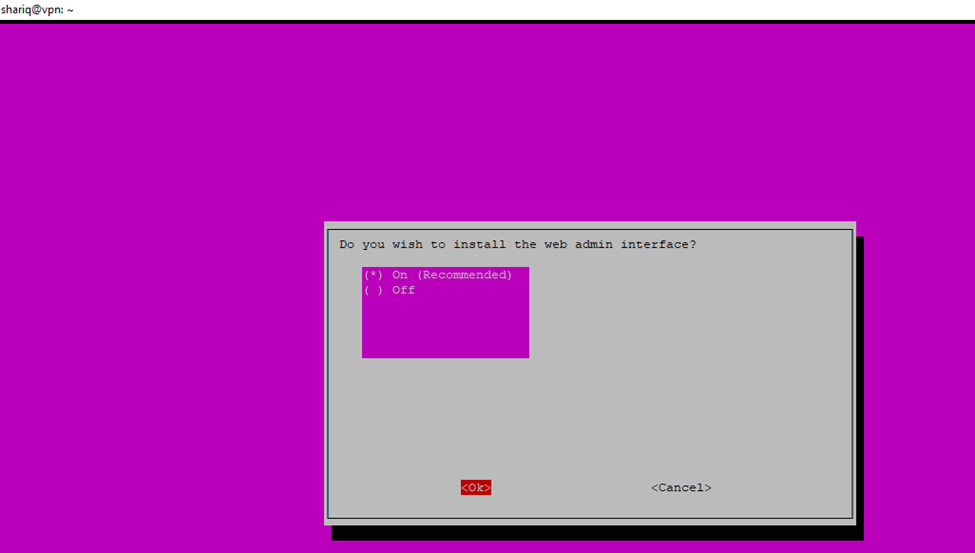
You can proceed with this
Install Pi-hole web dashboard
Install lighttpd web server
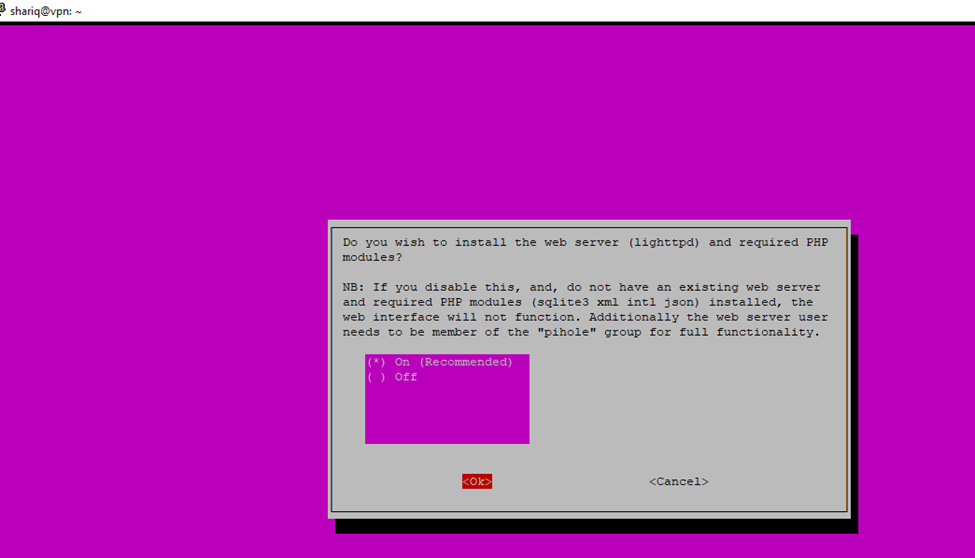
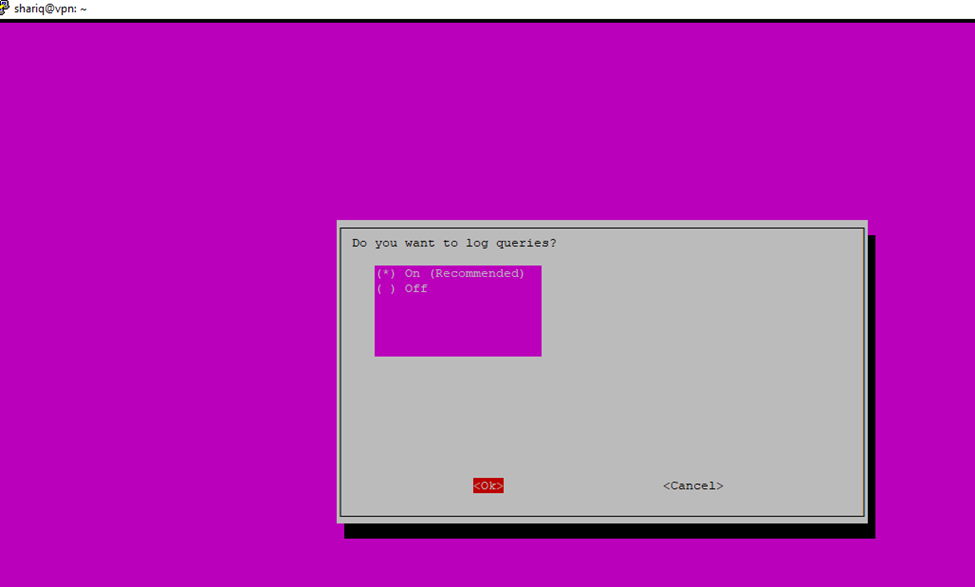
Yes, I have chosen the logs queries
Now, you need to choose if you want to enable queries log.
The software will store any DNS request you make and display stats about them.
I recommend enabling it for the moment, you can disable it later on the interface.
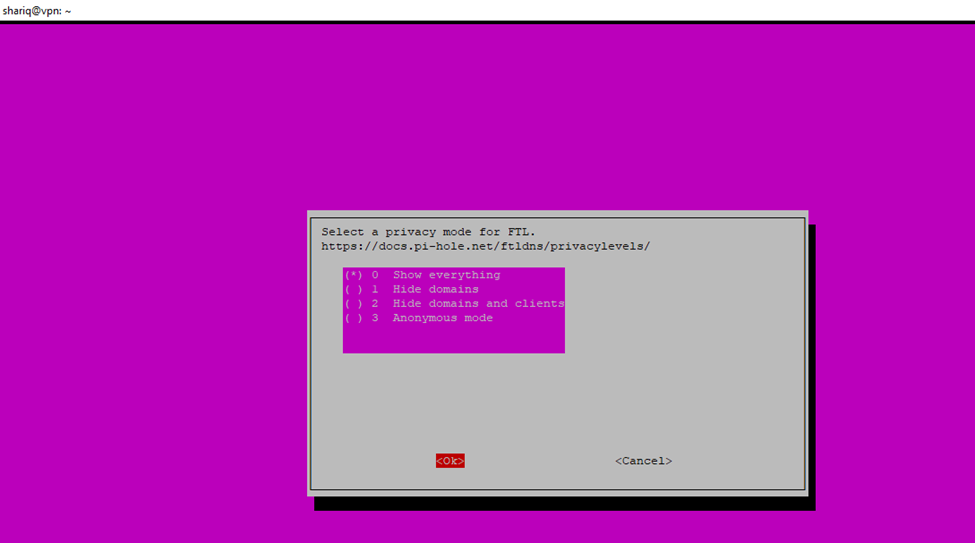
On the next dialog box, select “Show everything” and press “OK”. It will let you monitor all the queries and the IP addresses to know where these requests are coming from. You don’t need to worry about the privacy aspect as everything happens locally on the Raspberry Pi
Static IP for web interface login
In the bottom there is mention default generated password so after that change needed for better security
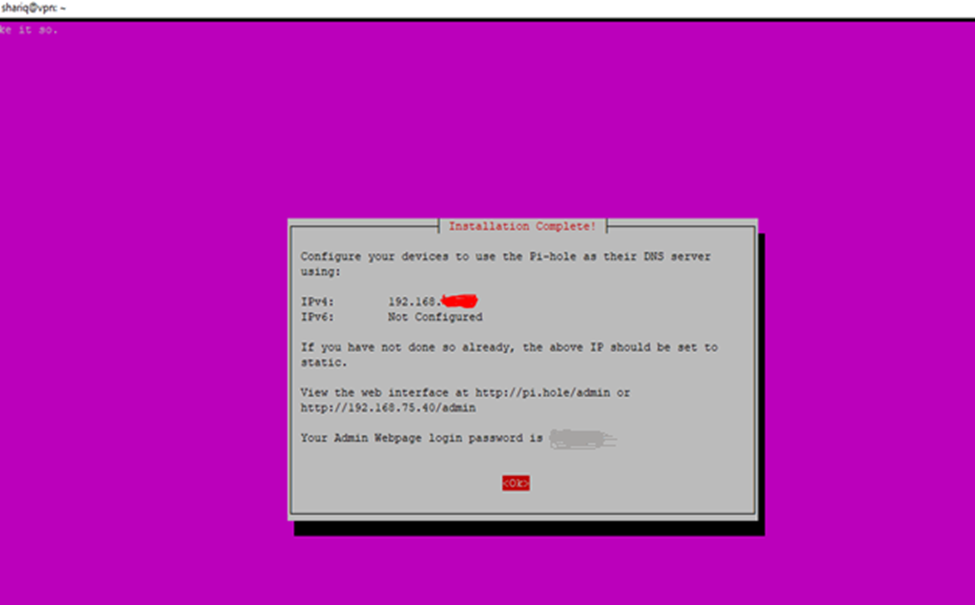
First time login to add blocker need to change the default password
shariq@vpn:~$ sudo pihole -a -p

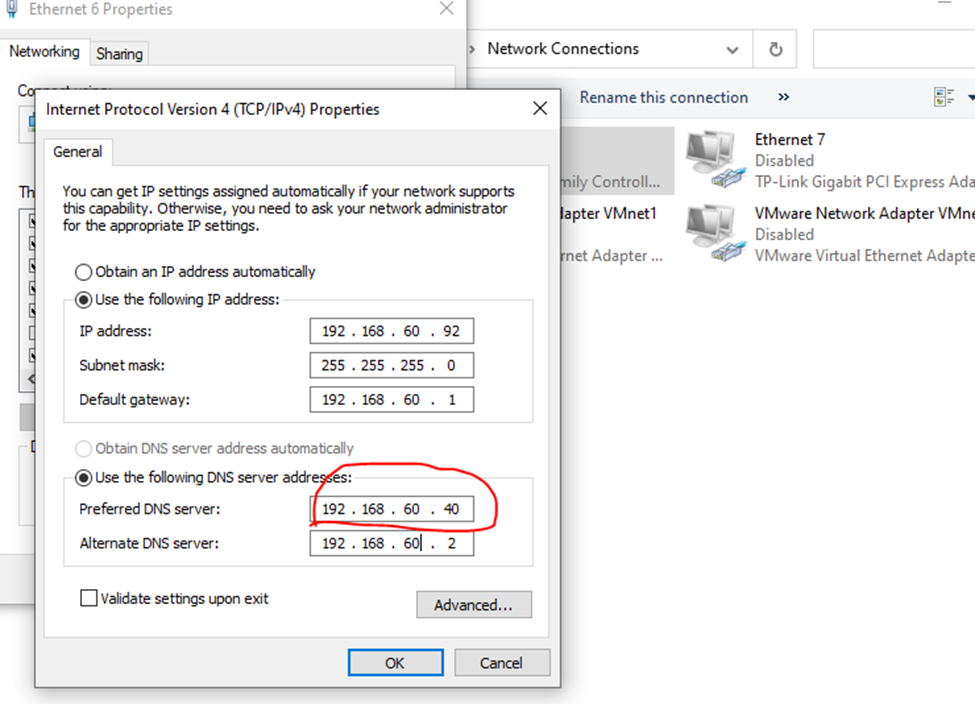
Win+r – ncpa.cpl or you can go to networking setting mention the your static ip address in preferred DNS Server.
So, if you will add static in user computers
Ads will be disable
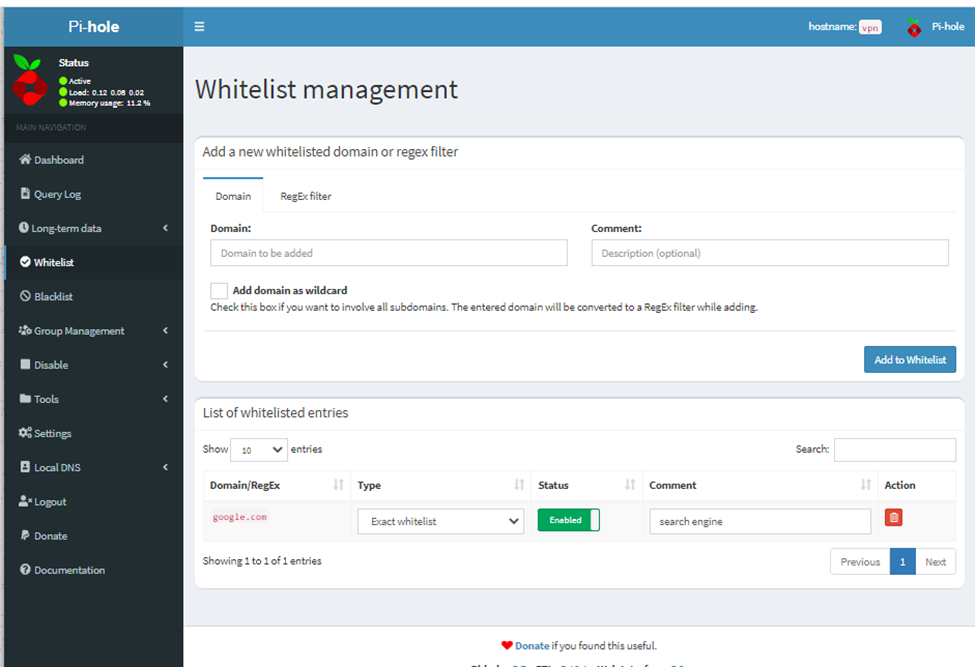
And if you want to whitelist and Blacklists the websites that particular user couldn’t browse that particular sites
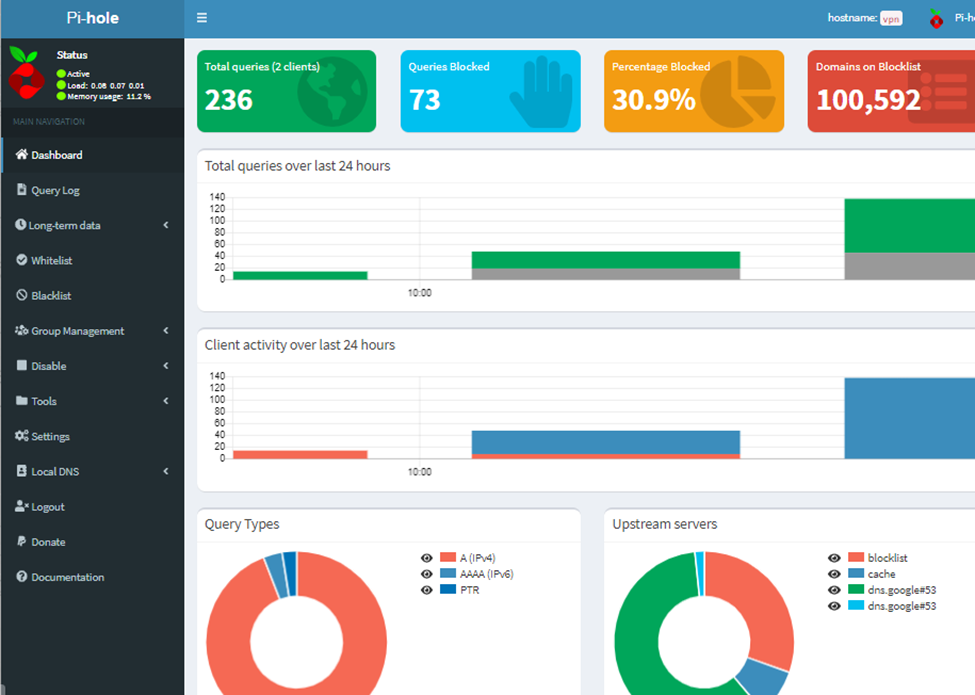
Web interface dashboard need to login to check the complete details.
Whitelist
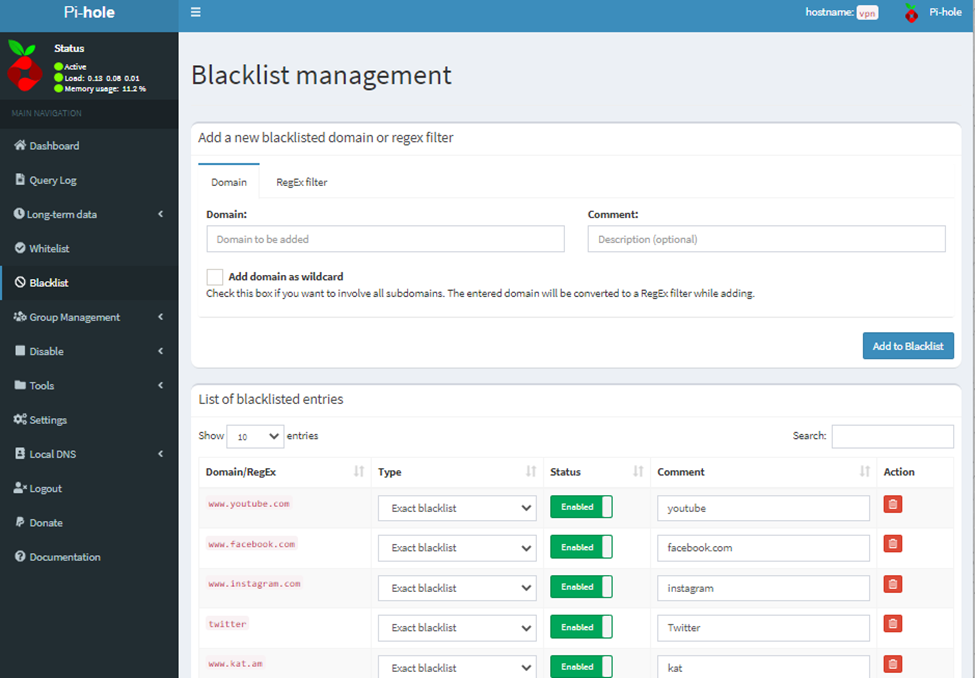
Blacklist