Logical Volume Manager (LVM) is a Linux mechanism for dynamically managing disks and disk partitions.
How to Configure LUN or Datastore to exsi host
Check Disks
lsblk - list block devices
Check the Disk
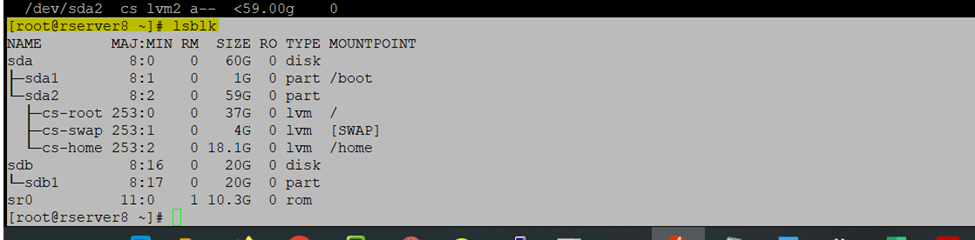
[root@rserver8 ~]# lsblk
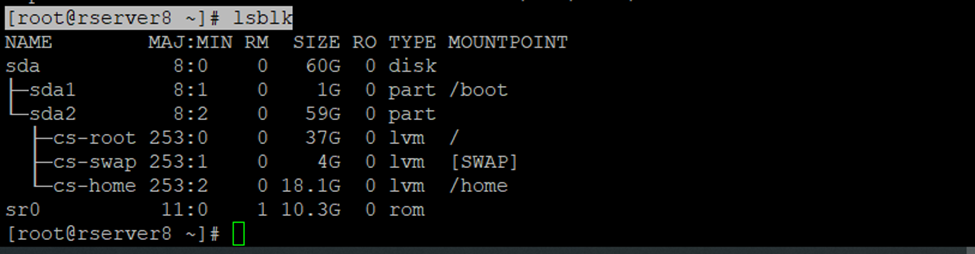
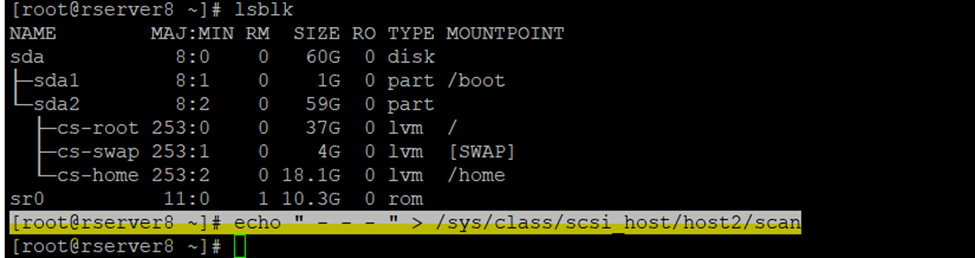
Need to Scan disk drive to add new storage in RedHAT/Centos Linux.
Echo “ – – – “ > /sys/class/scsi_host/host2/scan
- (scan the channel)
- (scan the scsi target)
- (scan the LUN)
Here I have mention host 2 because I am having only 1 datastore activated currently so now I am adding 2nd datastore so, have selected host2 if I am having already two disk then need to target on host3
[root@rserver8 ~]# echo ” – – – ” > /sys/class/scsi_host/host2/scan
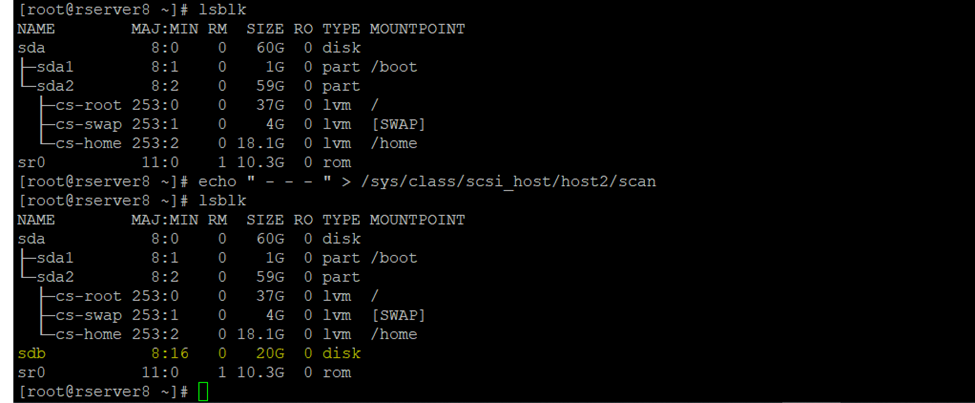
So, now after scanning disk checking the disk using lsblk
..
I am getting new disk sdb 2
Fdisk -l
[root@rserver8 ~]# fdisk -l

Now Creating the Partition for sdb drive
And press enter command
[root@rserver8 ~]# fdisk /dev/sdb
Once enter
Then press p
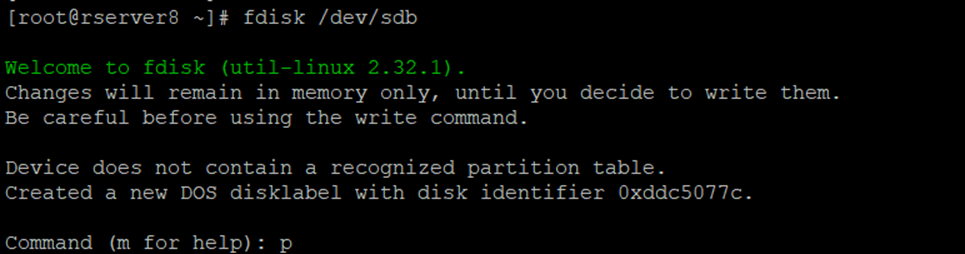
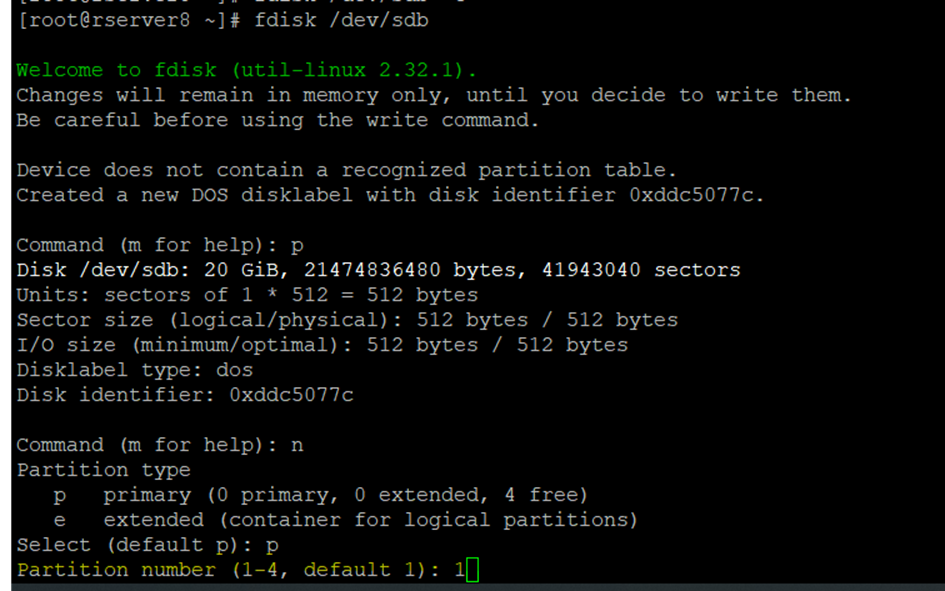
Then and press n
And select partition type
So here creating the default partition
And press p

Press 1 because I am creating the complete disk as default
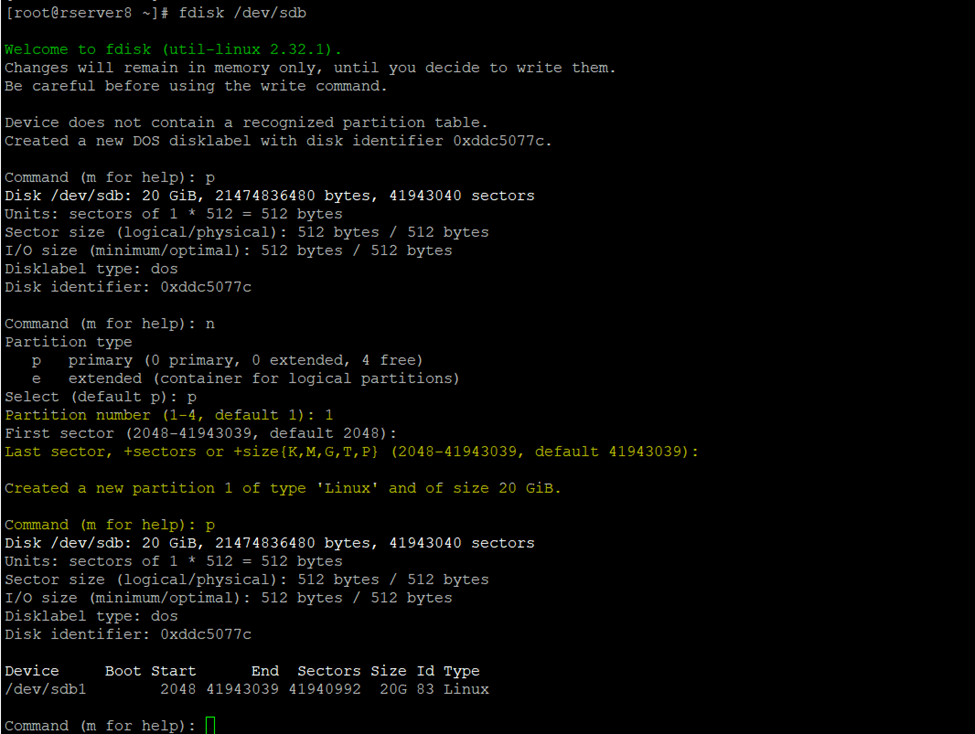
And press 1 as default and enter and enter
Verify created Disk
Now converting to LVM Format currently this is only linux format now
So, press t
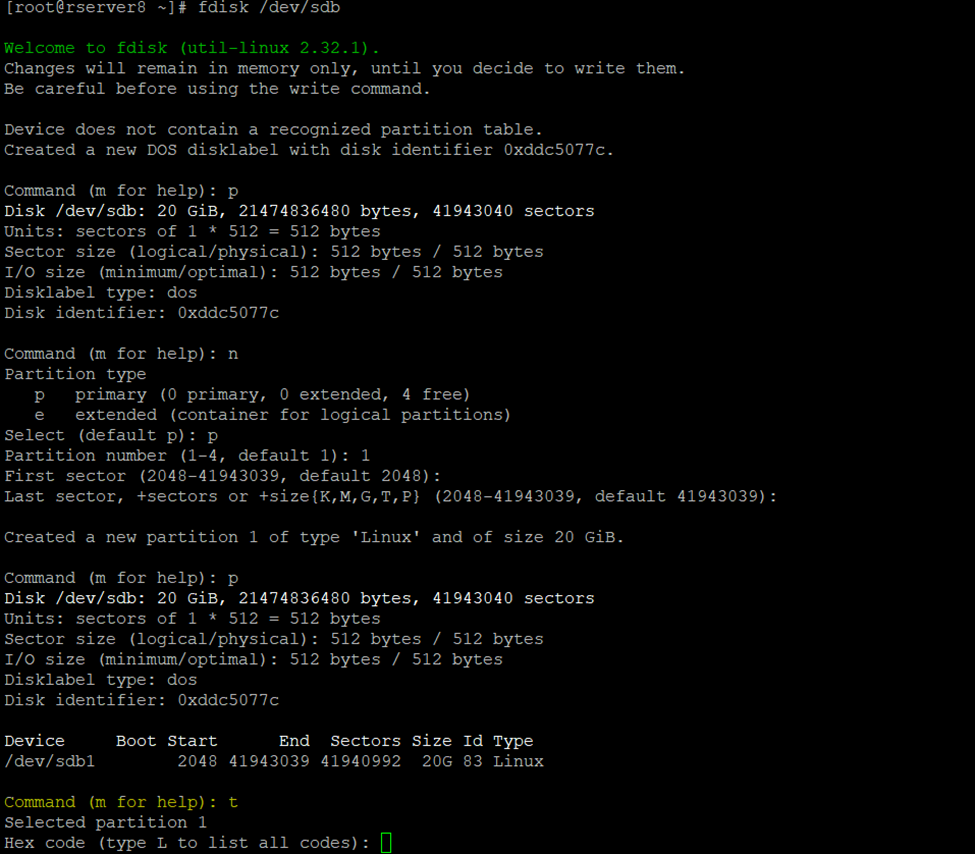
Now press L – capital L type for checking the ID (LVM ID)
Select Linux LVM

Now type 8e

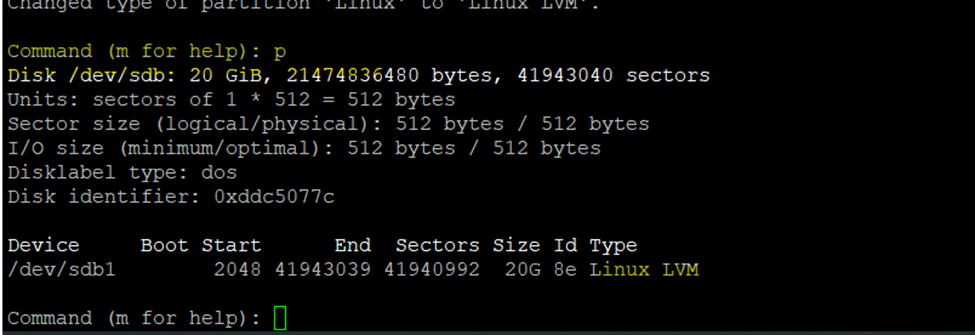
Now press w for exit;

Physical Volume
PVS
[root@rserver8 ~]# pvs

Creating new Physical volume
Pvcreate /directorystrucure/and_volume_name
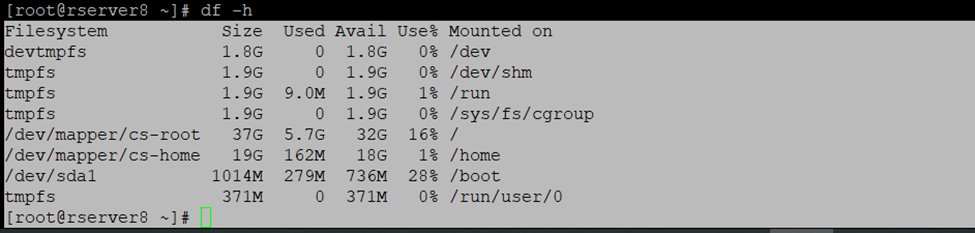
Df -h
Pvcreate /dev/sdb1 /dev/sdc1
[root@rserver8 ~]# pvcreate /dev/sdb1 /dev/sdc1

Creating Volume Group
Vgs
[root@rserver8 ~]# vgs

So, here I am having 59GB Volume group
Now creating new volume group
Vgcreate volumegroup(name) /directorystructure
[root@rserver8 ~]# vgcreate vg01 /dev/sdb1

So, as you can check created volume group is appearing — vg01

Logical Volume
So,
Here creating Logical Volume
Lvcreate -L +VolumeSize -n LogicalVolumeName and created volume Group name
Like
Lvcreate -L +10G -N lv1 vg01
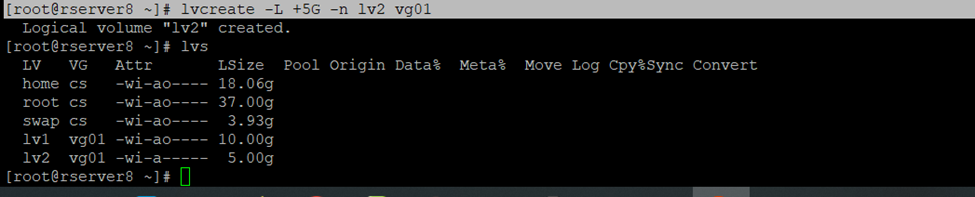
Logical volume created
[root@rserver8 ~]# lvcreate -L +10G -n lv1 vg01

[root@rserver8 ~]# lvcreate -L +5G -n lv2 vg01
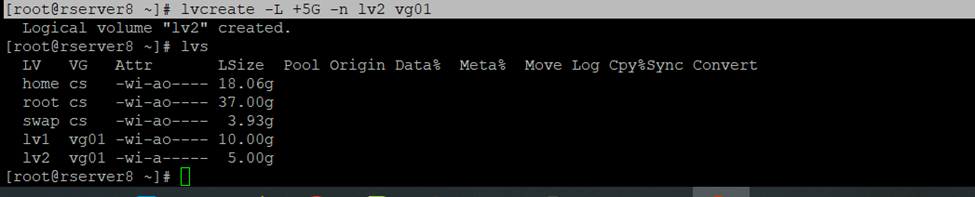
[root@rserver8 ~]# lvs

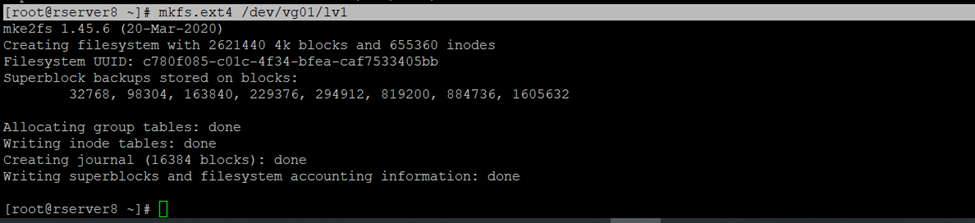
Now formating Created Logical Volume
Mkfs.ext4 /dev/vg01/lv1
[root@rserver8 ~]# mkfs.ext4 /dev/vg01/lv1
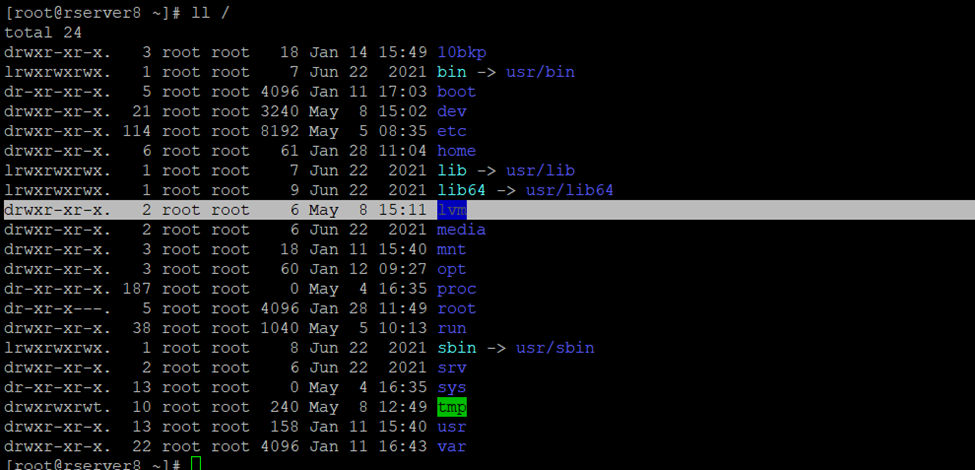
Now need to create a directory or folder to mount the logical volume
Mkdir folder name
[root@rserver8 ~]# mkdir /lvm

Created directory
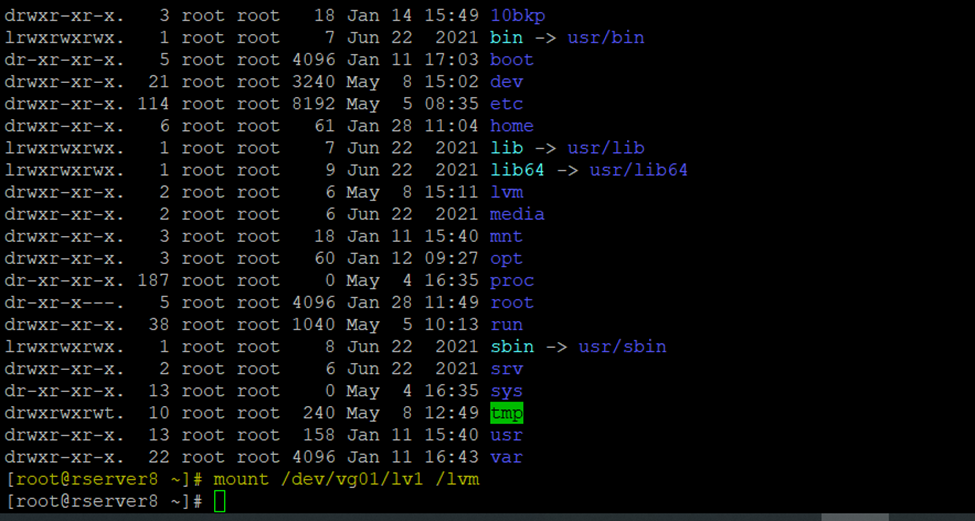
Now,need to mount the created directory
Mount /direcotry(dev)/volumegroup/logicalVolume /direcotry
Mount /dev/vg01/lv1 /lvm
[root@rserver8 ~]# mount /dev/vg01/lv1 /lvm
Df -h
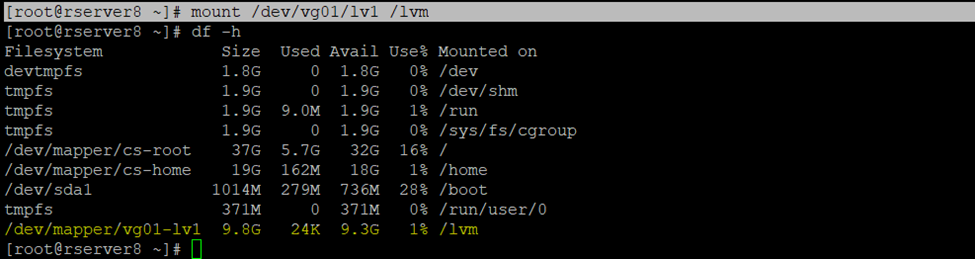
Currently this is temporary mount
Using bulkid make permanent mount
Blkid
[root@rserver8 ~]# blkid
UUID=”c780f085-c01c-4f34-bfea-caf7533405bb”
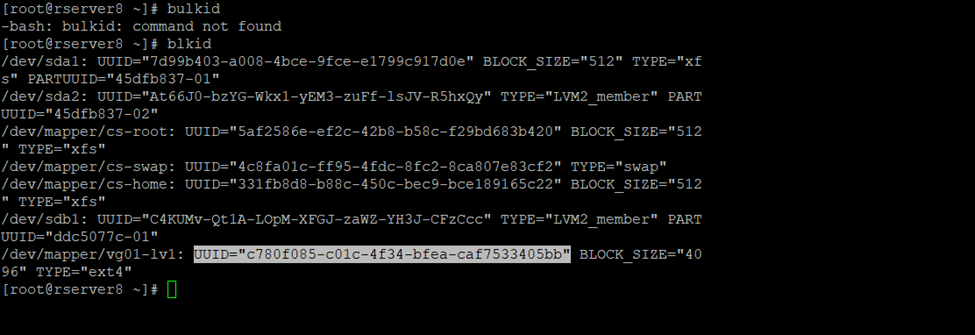
So now mounting the permanent disks using uuid
Go to etc/fstab
[root@rserver8 ~]# vi /etc/fstab
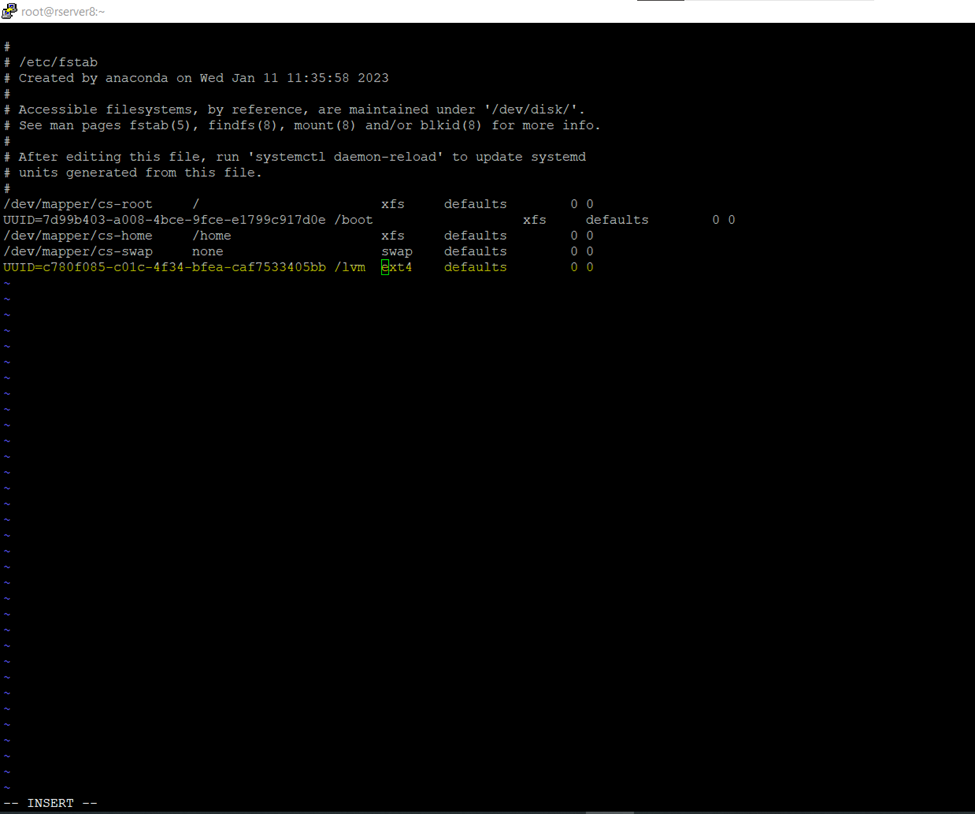
Now updating the file
Mount -a
[root@rserver8 ~]# mount -a

Df -h

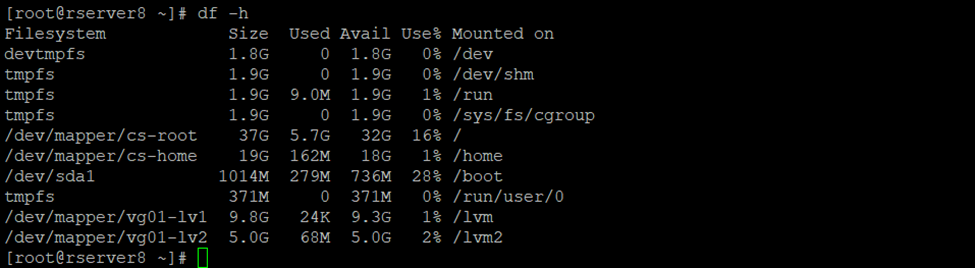
Pvdisplay
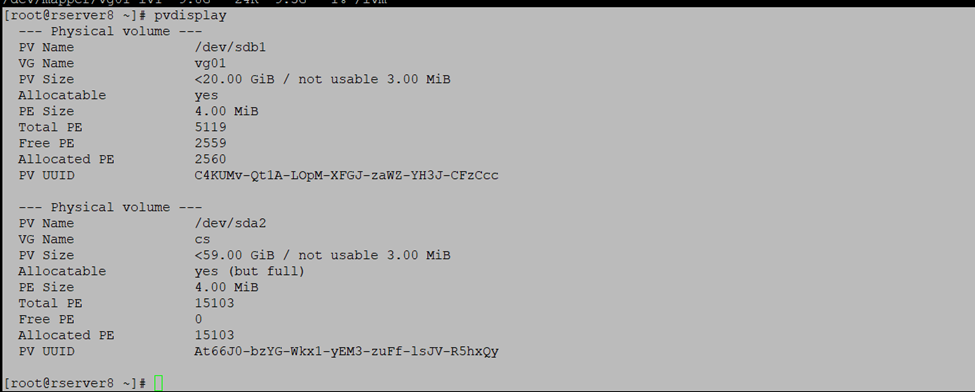
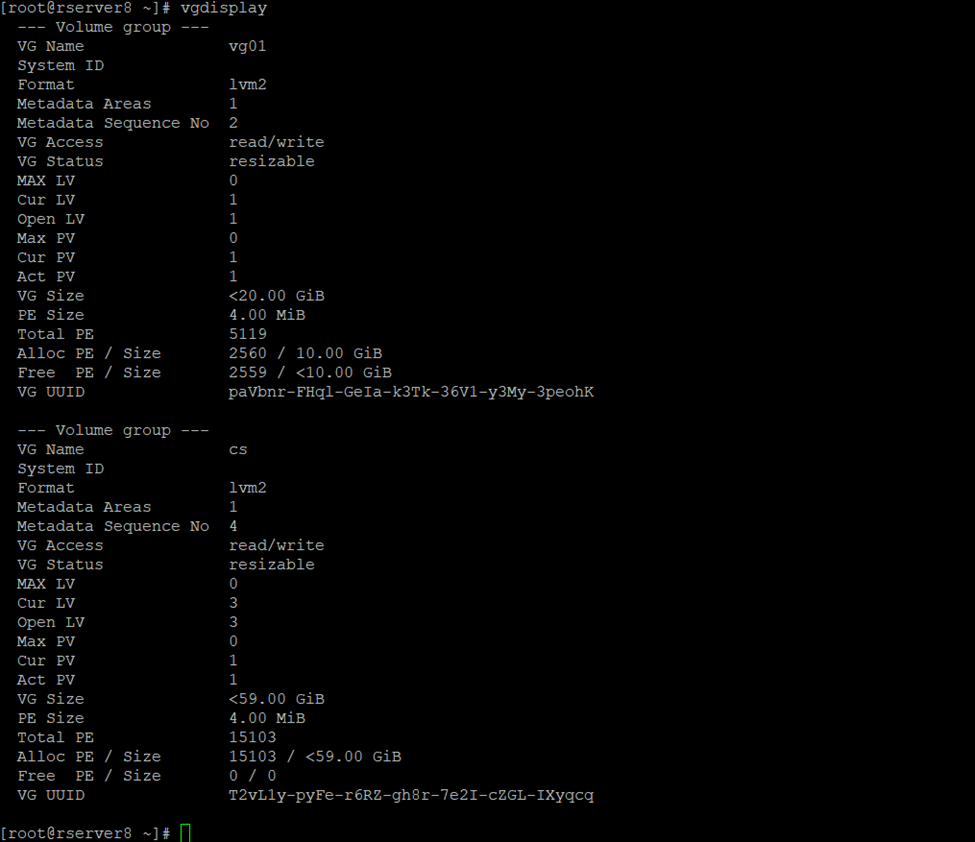
Volume gorup
[root@rserver8 ~]# vgdisplay
Lvdisplay
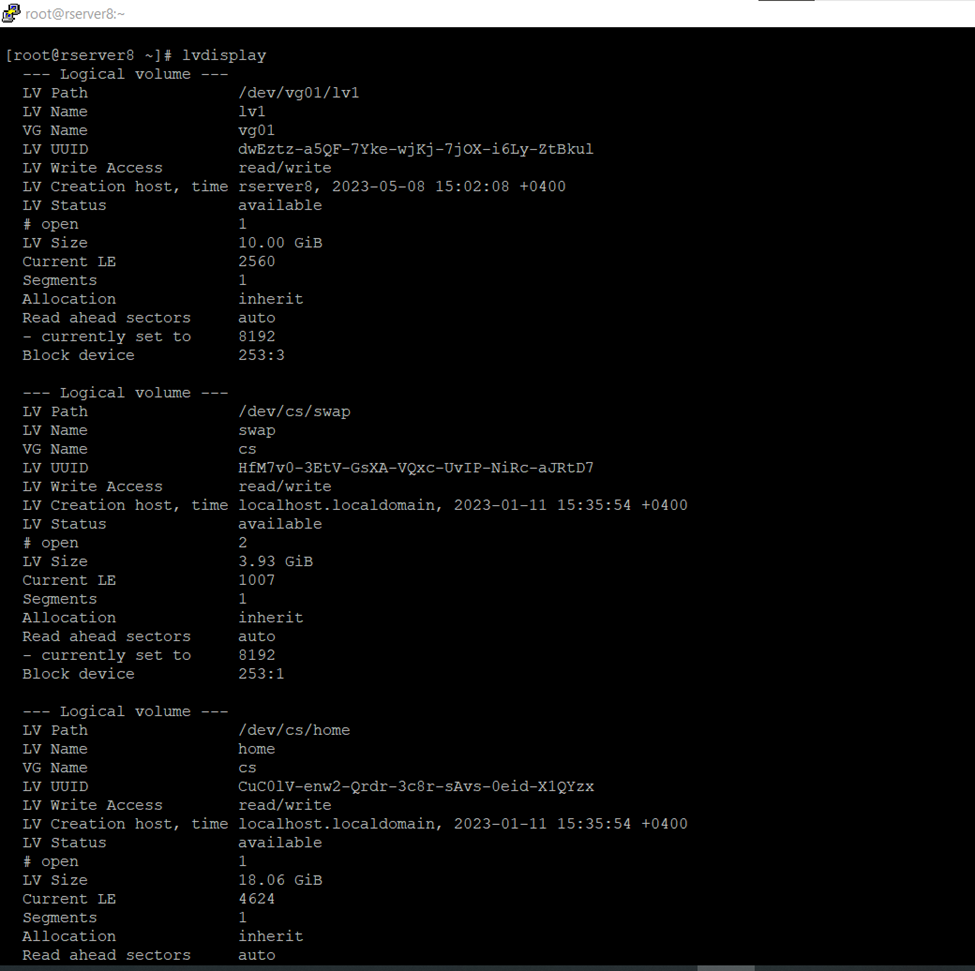
How to Increase Logical Volume size in RedHAT/Centos
Steps to Create Logical Volume in Centos or RedHat Linux Server.
First
check the already associated disks
fdisk -l
Add the new Virtual Disk to Server
–Scan the new created disks- if you are having host1 or till host2 disk scan according to that.
i am having only host1 disk active need to scan host2 disk like
echo “- – -” > /sys/class/scsi_host/host2/scan
–now creating new partition
fdisk /dev/sdb
and follow the instruction
–now creating Physical Volume
pvcreate /dev/sdb1
— extending VG – Volume group (working on default centos – So, VG Group is centos)
vgextend centos /dev/sdb1
–now increasing the Logical volume
vgextend centos /dev/sdb1
— Increasing the Logical Volume size
lvresize -L +5G /dev/centos/home
Adding 5GB to Home Directory and 5GB to Root Directory
Extend Disk Size
Add the New Drive and scan it
Fdisk -l
[root@centos ~]# fdisk -l
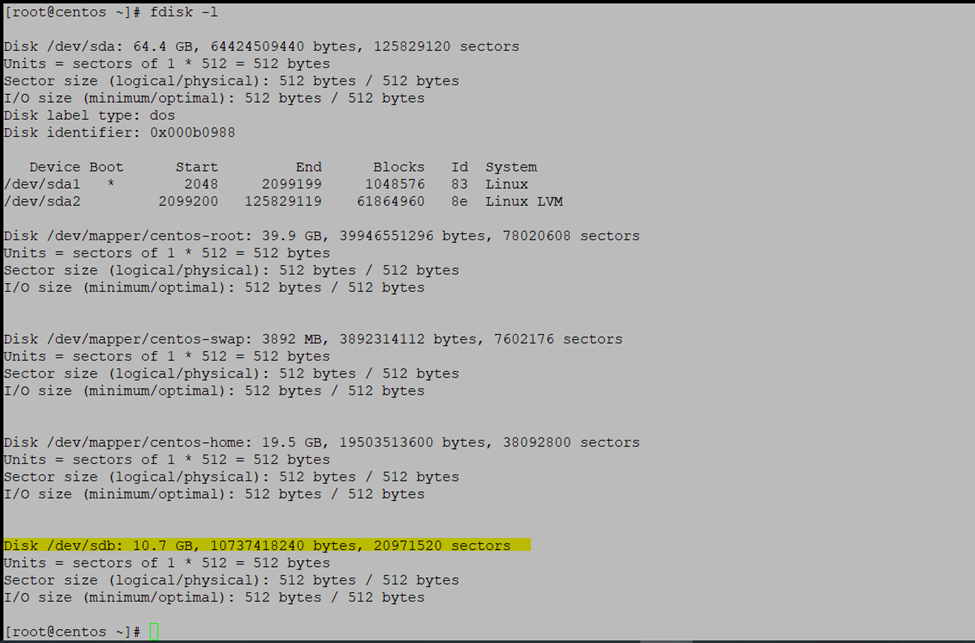
[root@centos ~]# lsblk

Now scanning the new added drive
[root@centos ~]# echo “- – -” > /sys/class/scsi_host/host2/scan
New added drive sdb
lblsk
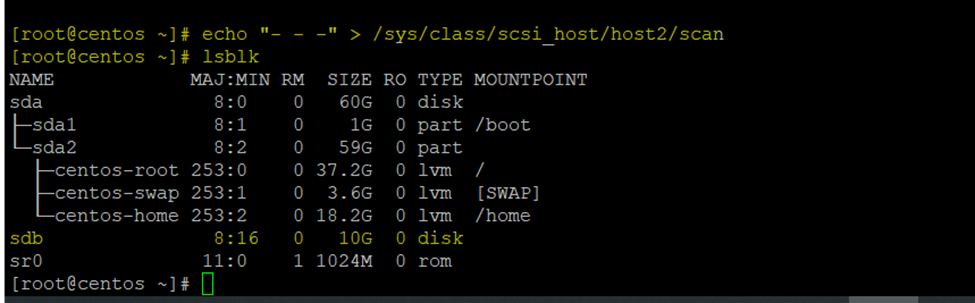
Now creating the partition
Fdisk /dev/sdb
Create a new partition type n
Create primary partition type p
In the single disk can create 4 partation so here creating only 1 partation
Type 1 single partition
And just press enter
And giving complete size
Just press enter
And type p for checking the created disk type
So, we want linux LVM type type
Type t and enter
And type p and check the type
Now press w and enter
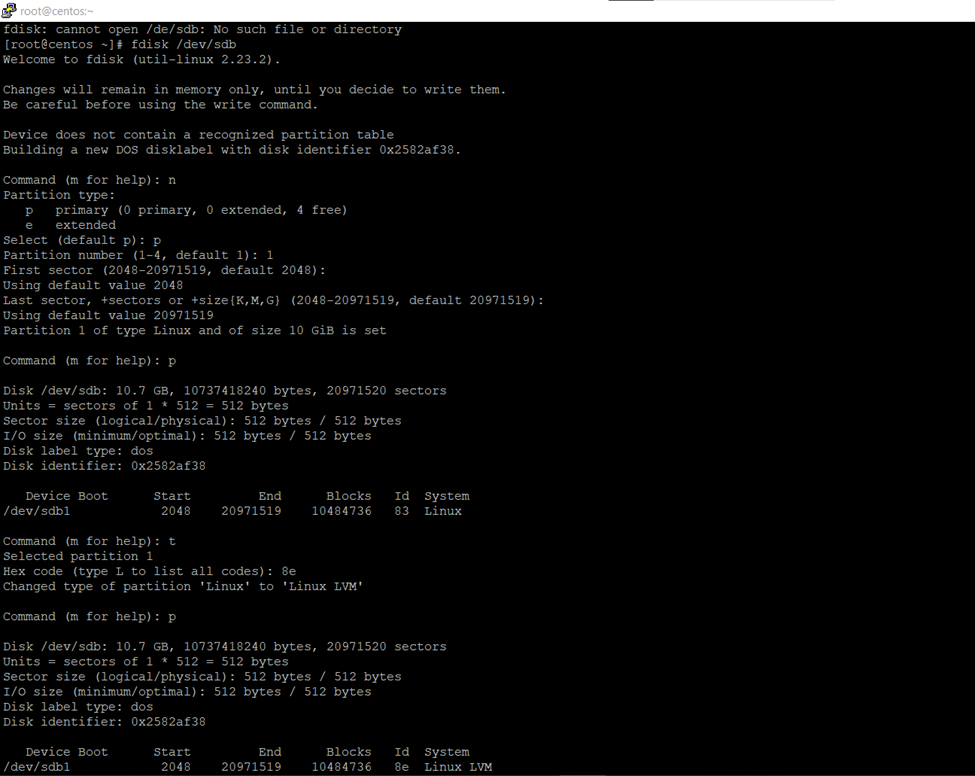
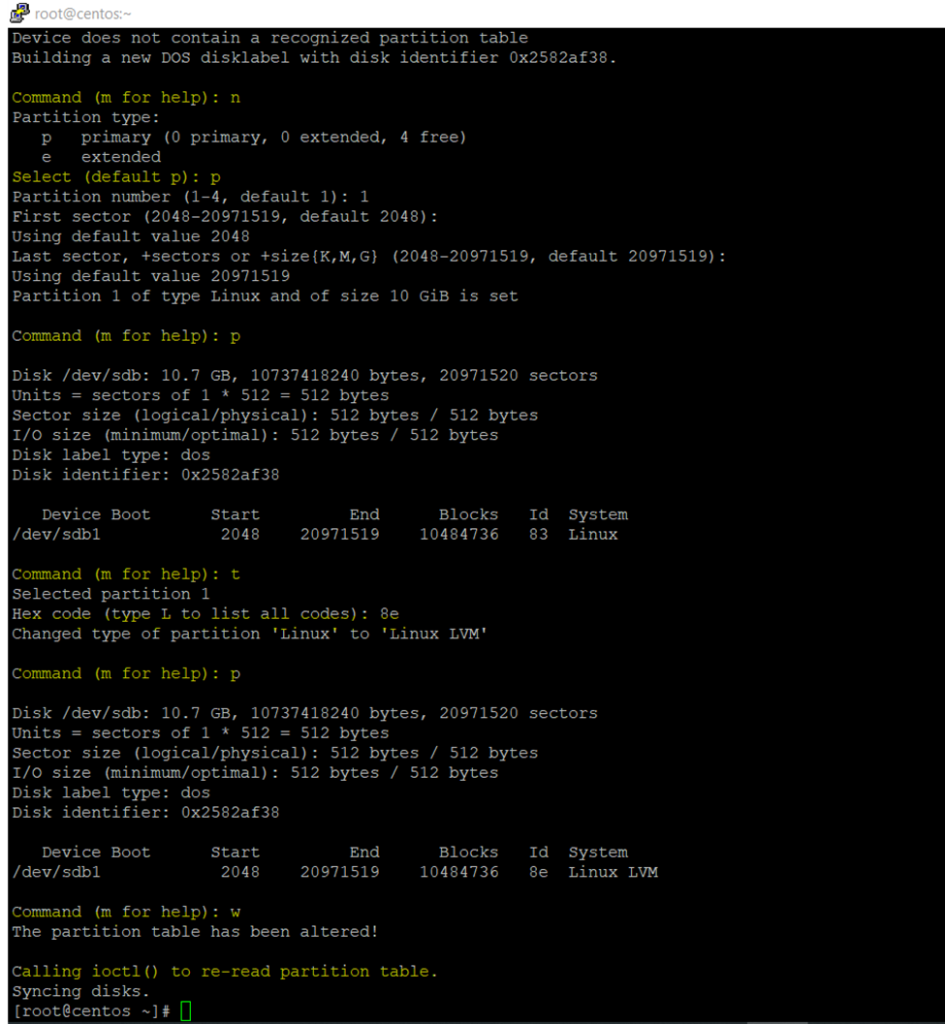
To check newly created disk
Fdisk -l /dev/sdb
[root@centos ~]# fdisk -l /dev/sdb
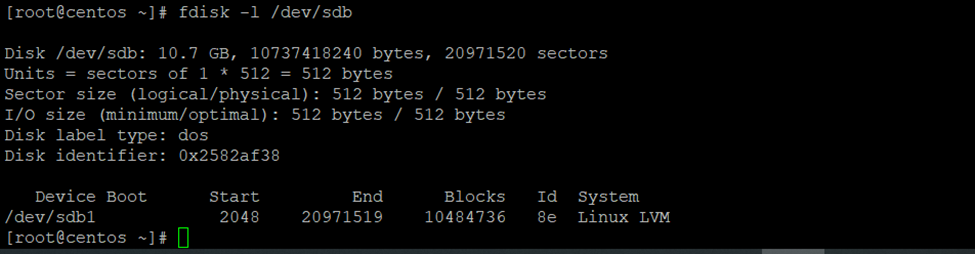
So here I will increase the centos-home dir size
Will use xfs (because very fast processing speed)
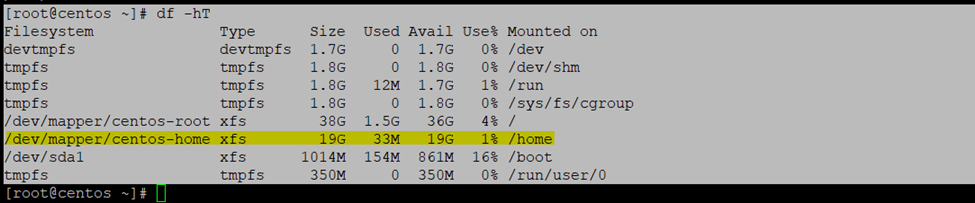
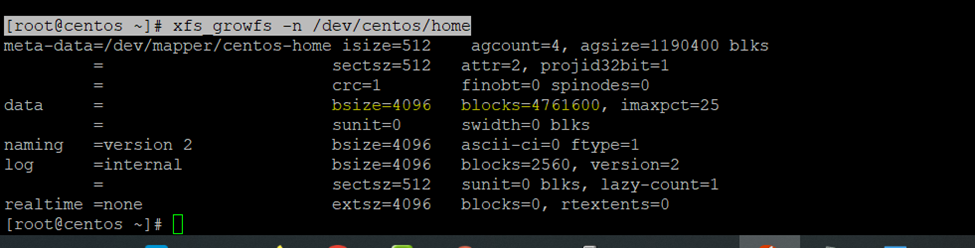
Checking the current blocks size
[root@centos ~]# xfs_growfs -n /dev/centos/home
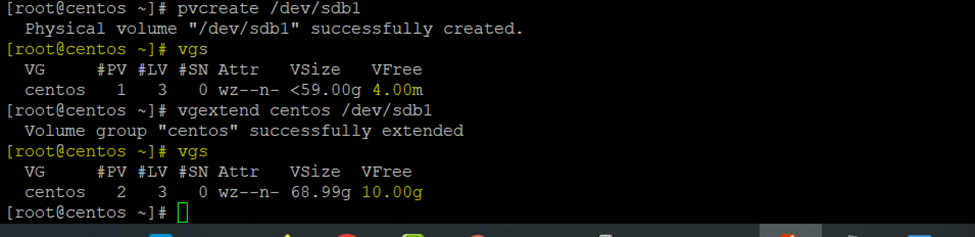
Now creating the PHYSICAL VOLUME
PVCREATE –
Pvcreate /dev/sdb1
[root@centos ~]# pvcreate /dev/sdb1

Check the volume group
[root@centos ~]# vgs

Extending logical volume size
Vgextend— volume group name / logical volume directory
[root@centos ~]# vgextend centos /dev/sdb1

After increased size
vgs

So, if you can check now having 10GB Volume Group free size
Df -h T
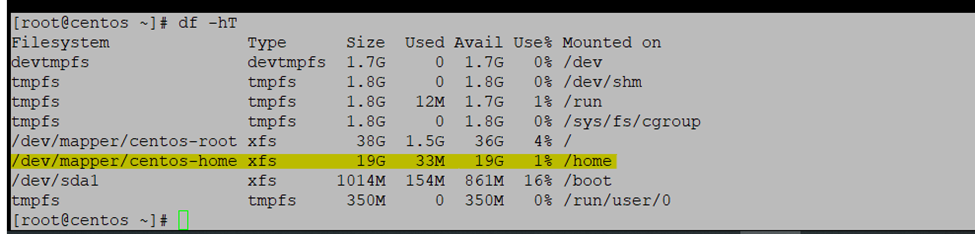
Increase the Home directory Size
Volume group : centos
Directory : home
Increasing disk size 5GB – Home Directory
[root@centos ~]# lvresize -L +5G /dev/centos/home

[root@centos ~]# xfs_growfs /dev/centos/home
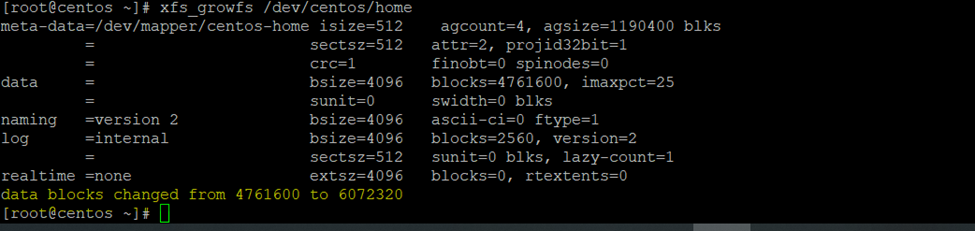
[root@centos ~]# df -hT /home

[root@centos ~]# df -hT
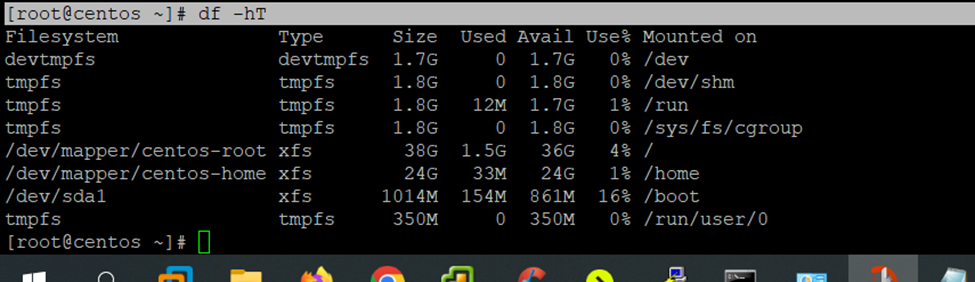
Extending root size
Steps to Create Logical Volume in Centos or RedHat Linux Server.
First
check the already associated disks
fdisk -l
Add the new Virtual Disk to Server
–Scan the new created disks- if you are having host1 or till host2 disk scan according to that.
i am having only host1 disk active need to scan host2 disk like
echo “- – -” > /sys/class/scsi_host/host2/scan
–now creating new partition
fdisk /dev/sdb
and follow the instruction
–now creating Physical Volume
pvcreate /dev/sdb1
— extending VG – Volume group (working on default centos – So, VG Group is centos)
vgextend centos /dev/sdb1
–now increasing the Logical volume
vgextend centos /dev/sdb1
— Increasing the Logical Volume size
lvresize -L +5G /dev/centos/home
)
Increasing disk size 5GB – Root Directory
[root@centos ~]# lvresize -L +5G /dev/centos/root

[root@centos ~]# xfs_growfs /dev/centos/root
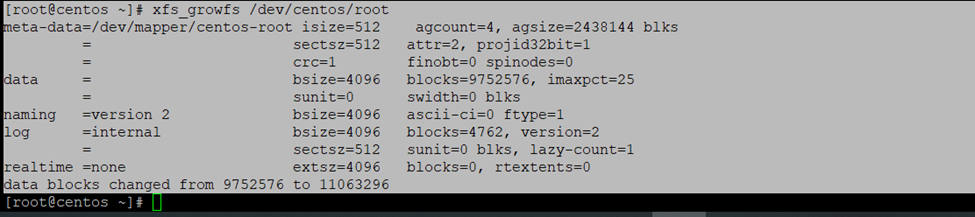
[root@centos ~]# df -hT /root/

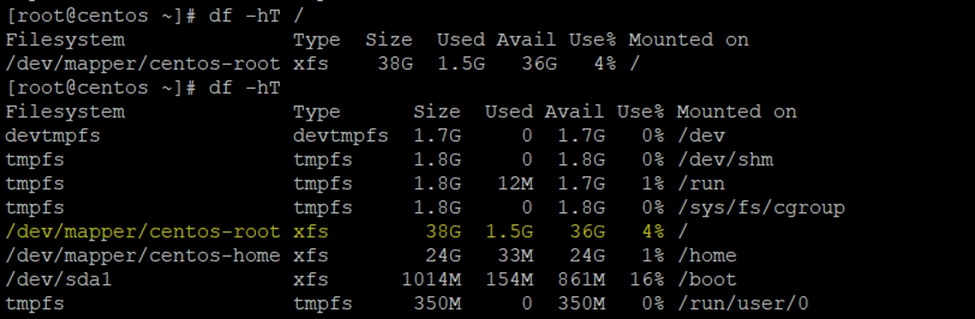
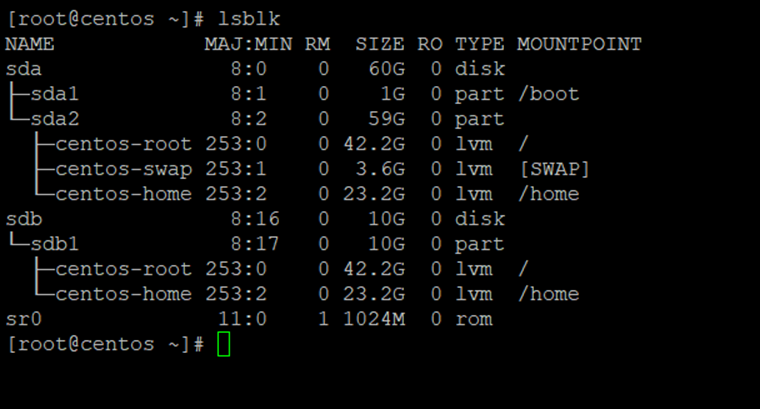
Df -Ht
After extend root
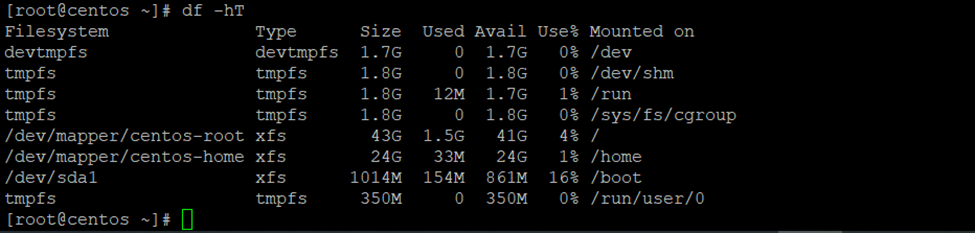
Before extended root
How to Increase Logical Volume size in RedHAT/Centos
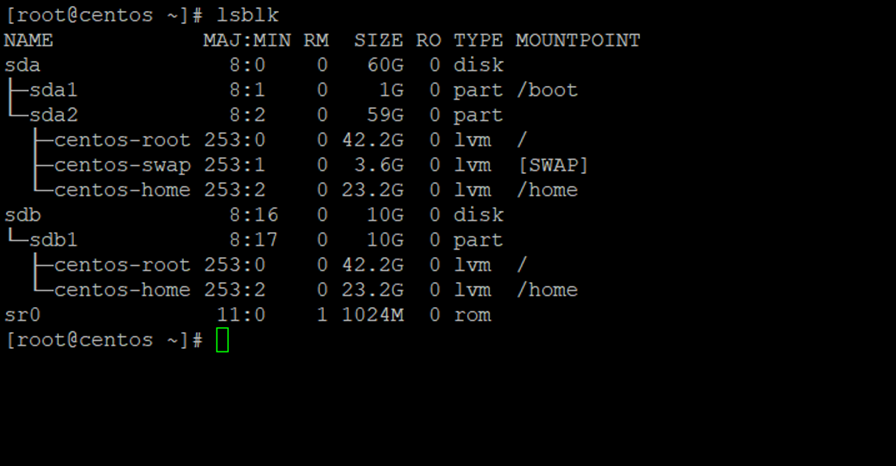
Here I am increasing the Root 30 GB size
Current Disk Structure
lsblk
[root@centos ~]# echo “- – -” > /sys/class/scsi_host/host0/scan
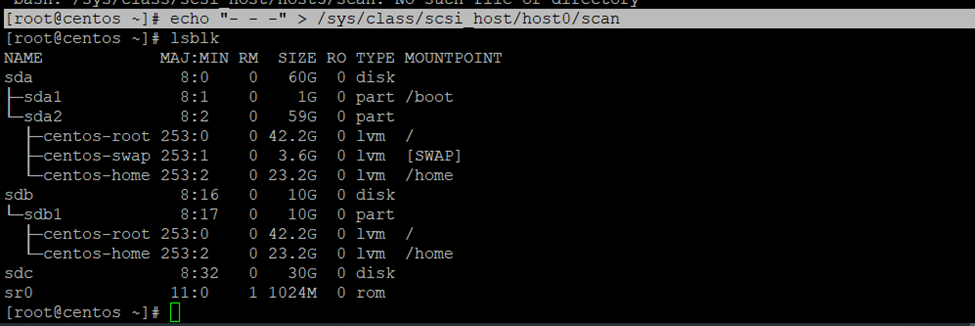
Lblsk
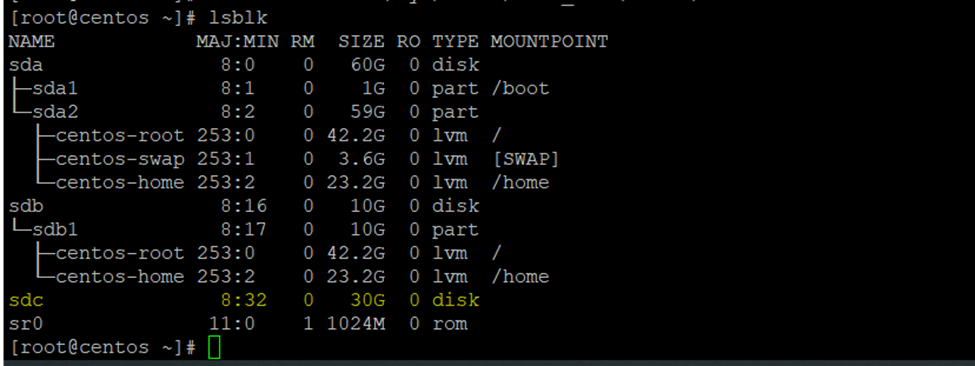
Fdisk -l

[root@centos ~]# fdisk /dev/sdc
Type n
Then p
Then 1
Then enter and enter
Then t
Then L
Then 8e
Then type p to check system type
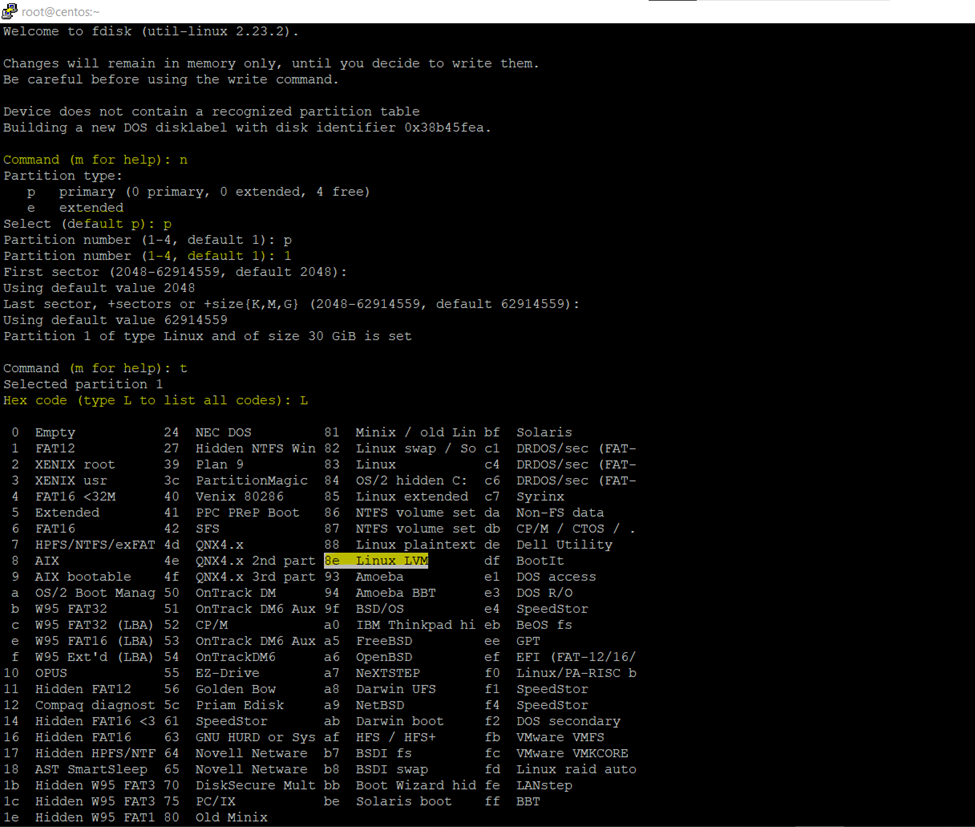
8e
Then p
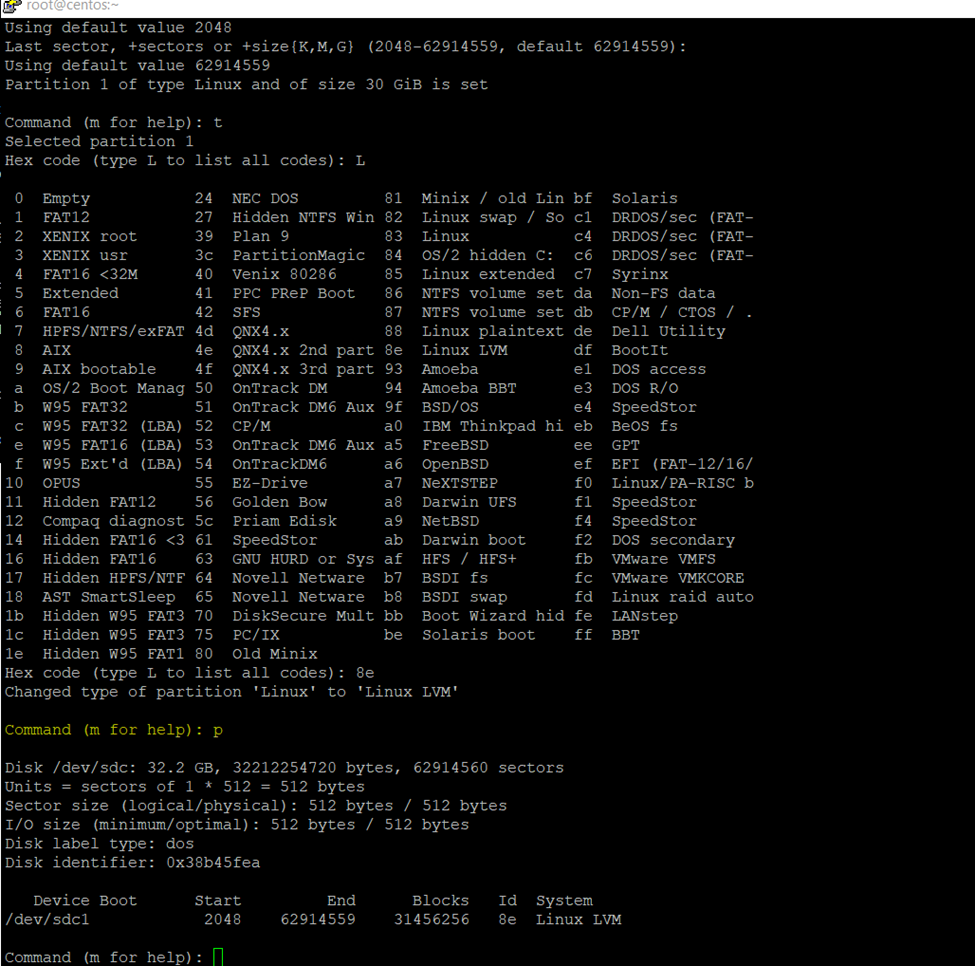
Then w exit
Now Checking the status newly created disk
[root@centos ~]# fdisk -l /dev/sdc
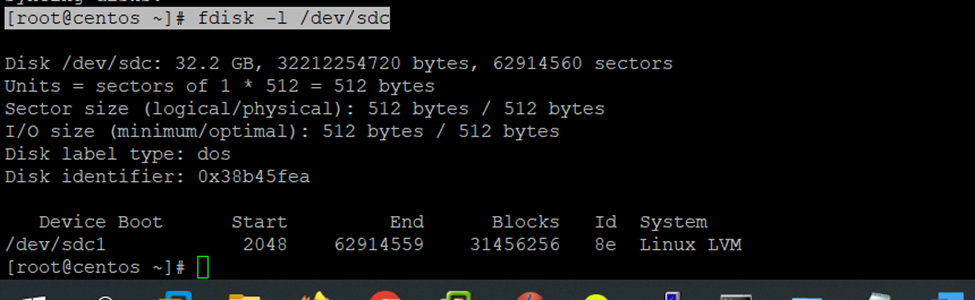
So, I have decided to add the disk size in root directory
Checking the blocks size
[root@centos ~]# xfs_growfs -n /dev/centos/root

Creating physical volume
Pvcreate /dev/sdc1
[root@centos ~]# pvcreate /dev/sdc1

Current volume group details
[root@centos ~]# vgs

Now increasing the volume size to volume group
[root@centos ~]# vgextend centos /dev/sdc1
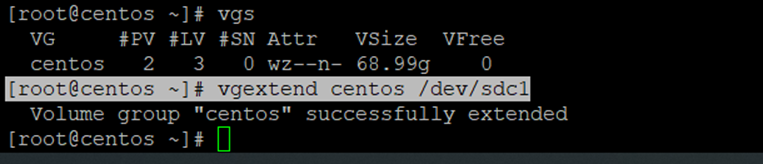
After extended the volume size

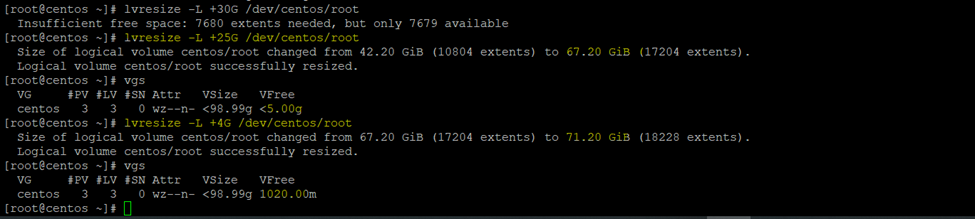
So, here increasing the root directory disk size
[root@centos ~]# lvresize -L +25G /dev/centos/root
[root@centos ~]# lvresize -L +4G /dev/centos/root
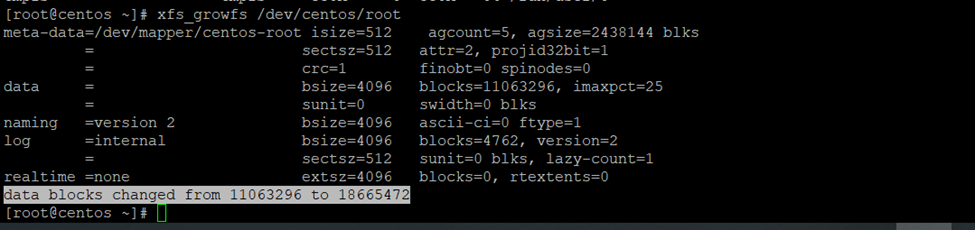
Xfs_growfs /dev/centos/root
[root@centos ~]# df -hT /root/
[root@centos ~]# df -hT
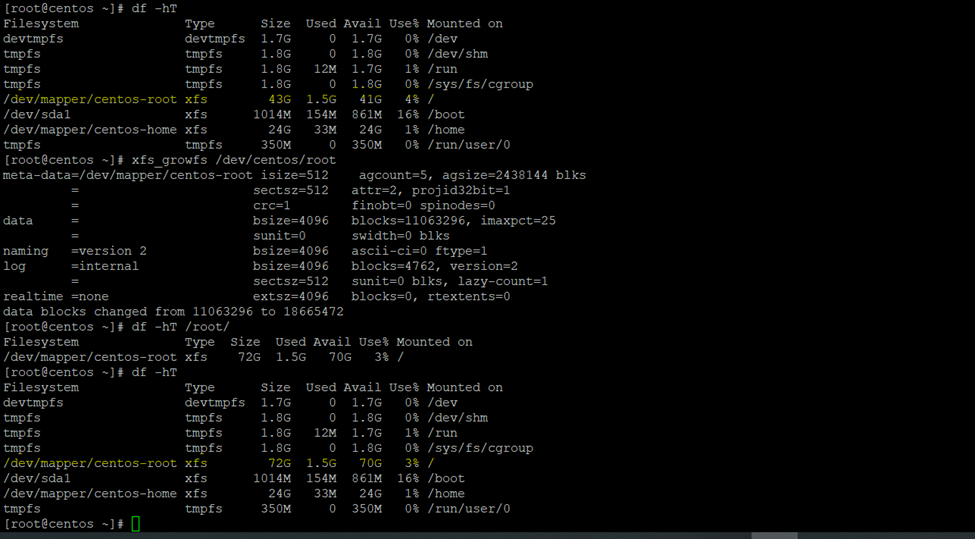
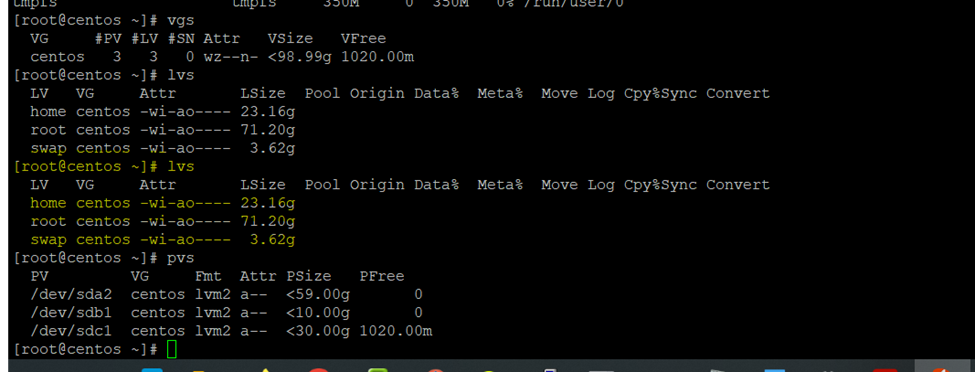
Physical Volume current scenario structure
Pvs
[root@centos ~]# pvs

Volume Group current scenario structure
Vgs

Logical Volume current scenario structure
Lvs