Here we will cover Basic to Advanced Common DHCP and DNS Issues
Troubleshooting DHCP, DNS Free Training Course
How to Troubleshoot DHCP
How to Troubleshoot Internet Issues DHCP – DNS Issues
DHCP Troubleshoot
Step 1: First need to check your ethernet cable or wifi connection.
Step 2:
First Open Network and Sharing Center
Select Active Network
Go to IPV4 properties
Select Obtain IP Address Automatically
shortcut key to open Network sharing center: win key + r and type: ncpa.cpl
Step 3:
Open Command Prompt open command prompt as Administrator
And type in command prompt
Here Releasing IP Address
Ipconfig /release
And now
Renewing new ip address
Ipconfig /renew
If still not getting IP
Step 4:
Press windows key and r together
And type services.msc
And search dhcp client
Restart dhcp client if still not getting ip
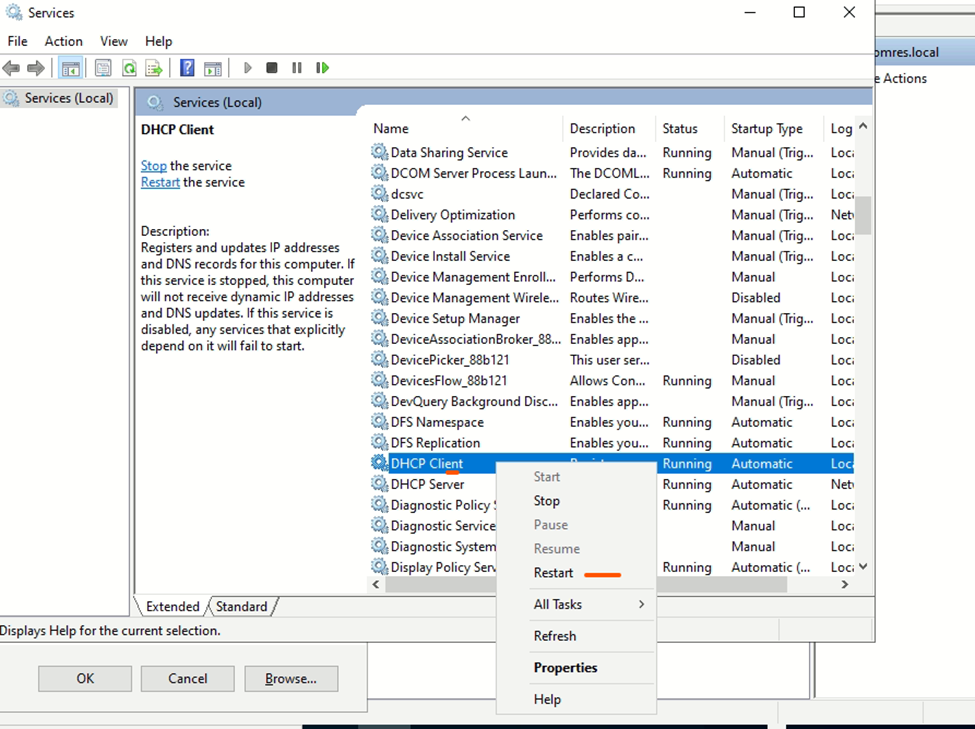
Now search dhcp server
Right click and restart DHCP Server

PowerShell command:
Restart DHCP Server
Restart-Service DhcpServer
Stop DHCP Server
Stop-Service DhcpServer
Start DHCP Server
Start-Service DhcpServer
If you are using an earlier version of Windows Server, you can use the following command:
Get-Service DhcpServer | Stop-Service
Get-Service DhcpServer | Start-Service
also can use command prompt methods: you will need to open a Command Prompt window with administrator privileges. Then, you can type the following command
netsh interface ip set address “Ethernet” dhcp restart
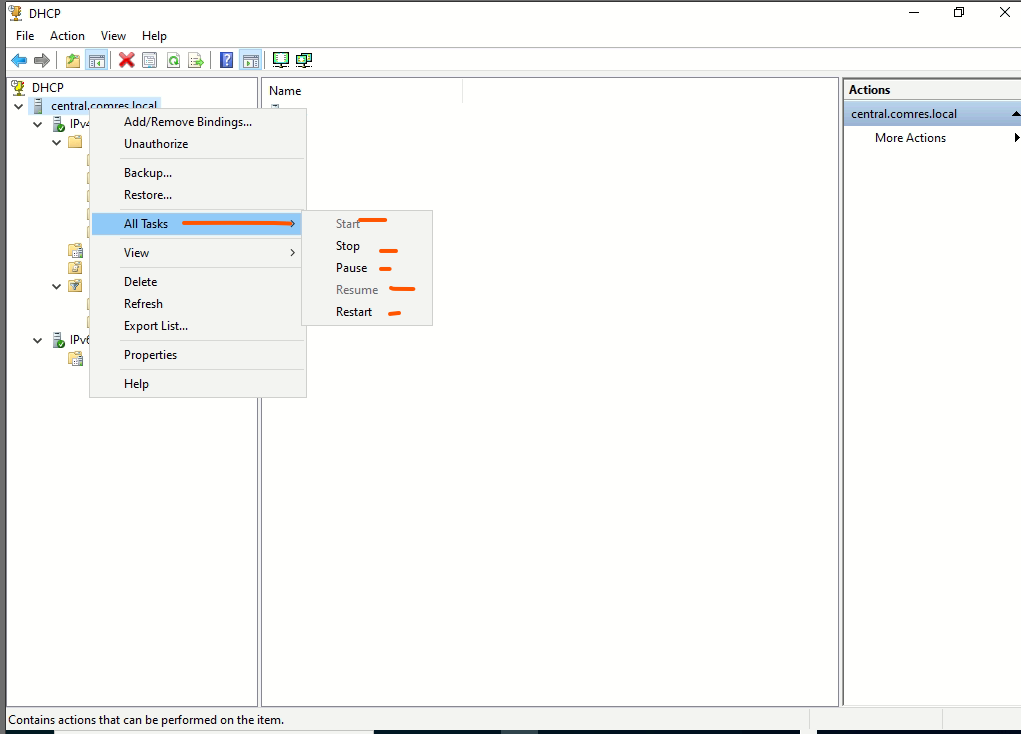
You can Restart DHCP server also from DHCP, Open dhcp from Server Manager
Select the server and right click on it
check authorize or unauthorize if unauthorize you need to authorize dhcp server

if you wanted to restart you can restart /stop and start from DHCP Interface
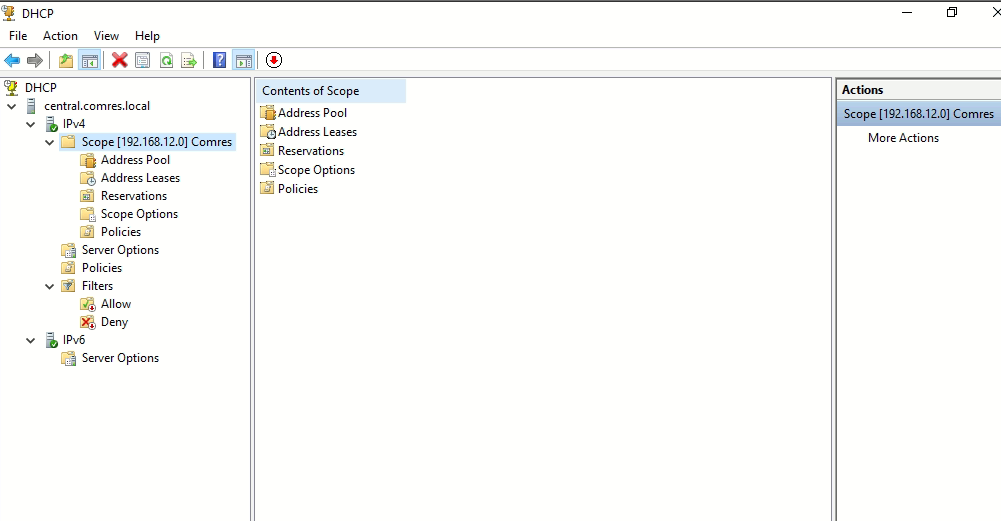
we can also check the scope status
DNS Troubleshoot
Step 1:
Ping your DNS IP or DNS Name
Open command Prompt Flush DNS
Ipconfig /flushdns
If ping then go ahead
Step 2:
Now go to network and sharing center
ncpa.cpl – go to properties

Check assign static ip inserted or no if dns is not inserted in Preferred DNS please type DNS
Step 3:
Now disable and again enable network
Right click disable and enable
Step 4:
Login to your Domain Controller
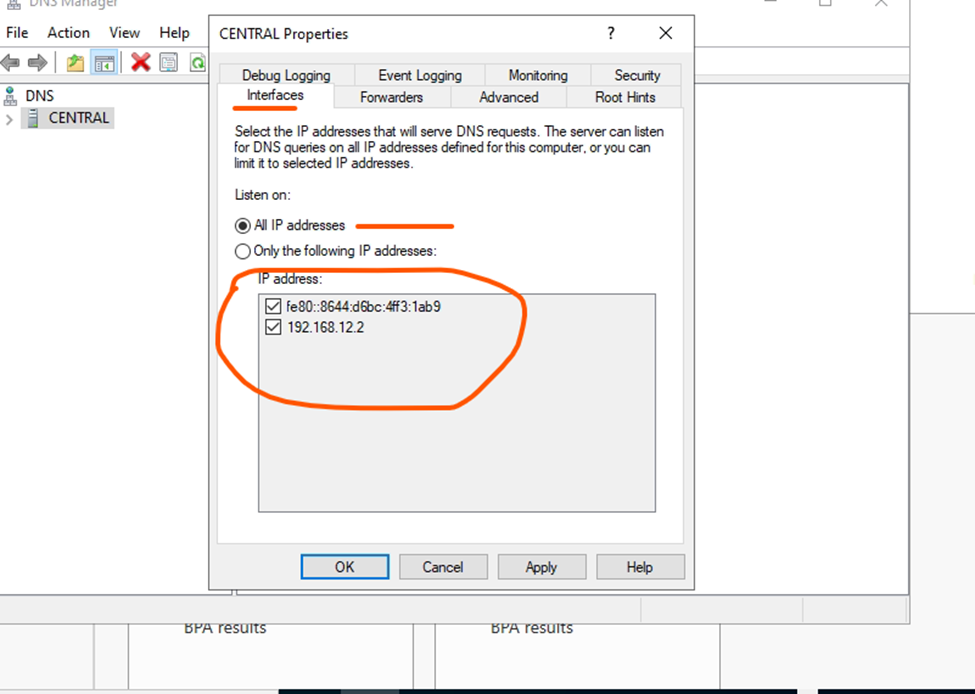
Open windows server Manager go to tools and click to DNS
Check the DNS Server Status

Now click to interface
kindly check to select IPV6 & IPV4
Step 5:
Restart your DNS Server

Restart dns server
Method 2: Using PowerShell
- Open PowerShell.
- Type the following command and press Enter:
PowerShell
Restart-Service DnsServer
Stop dns server in windows server
Stop-Service DnsServer
Start DNS Server
Start-Service DnsServer
or you can also check Reverse Lookup
open command prompt as administrator
type
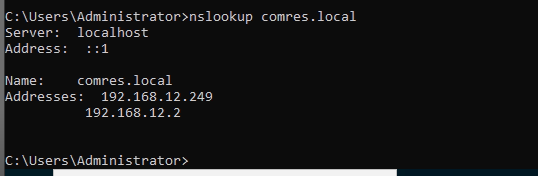
nslookup domainname