
What Is Apache?
Apache is a free and open-source software that allows users to deploy their websites on the internet. It is one of the oldest and most reliable web server software maintained by the Apache Software Foundation, with the first version released in 1995.
The job of a web server is to serve websites on the internet. To achieve that goal, it acts as a middleman between the server and client machines. It pulls content from the server on each user request and delivers it to the web.
Here are some of the reasons why Apache is so popular:
- It is free and open-source software.
- It is very reliable and stable.
- It is very scalable and can handle a large amount of traffic.
- It is very extensible and can be customized to meet the needs of different websites.
If you are looking for a reliable, scalable, and extensible web server, Apache is a great choice.
How to Install Apache Server
Steps:
Update Centos/RedHAT Linux Server
sudo yum update – y

Apache Installation
[root@qp ~]# sudo yum install httpd

Apache Services
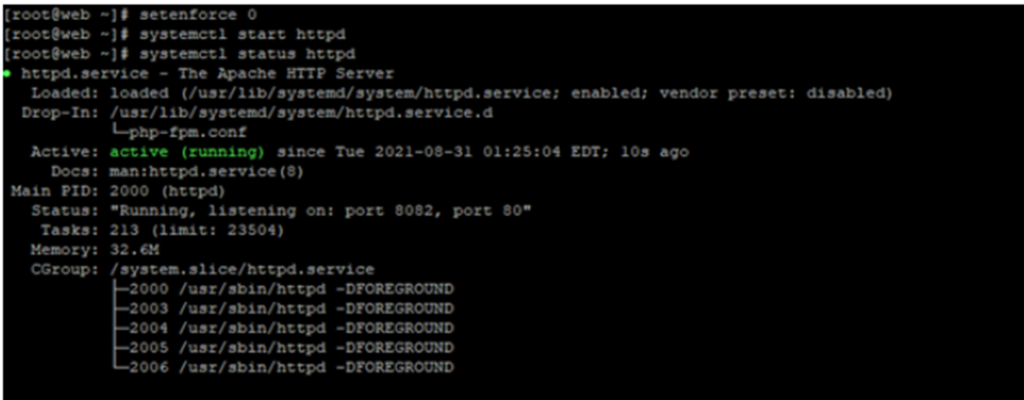
Activate Apache
sudo systemctl start httpd
Start/ Restart/ stop
Enable
sudo systemctl enable httpd
Start Apache Services
Systemctl start httpd.services or systemctl start httpd
Verify Apache Service
Systemctl status httpd.services systemctl status httpd
Assign Ports to Apache Server
vi /etc/httpd/conf/httpd.conf
assign Public port and permanent
firewall-cmd –zone=public –permanent –add-service=http
firewall-cmd –zone=public –permanent –add-service=https
firewall-cmd –permanent –add-port=80/tcp
firewall-cmd –permanent –add-port=81/udp
firewall-cmd –permanent –add-port=81/tcp
firewall-cmd –permanent –add-port=80/udp
192.168.60.49/index.html
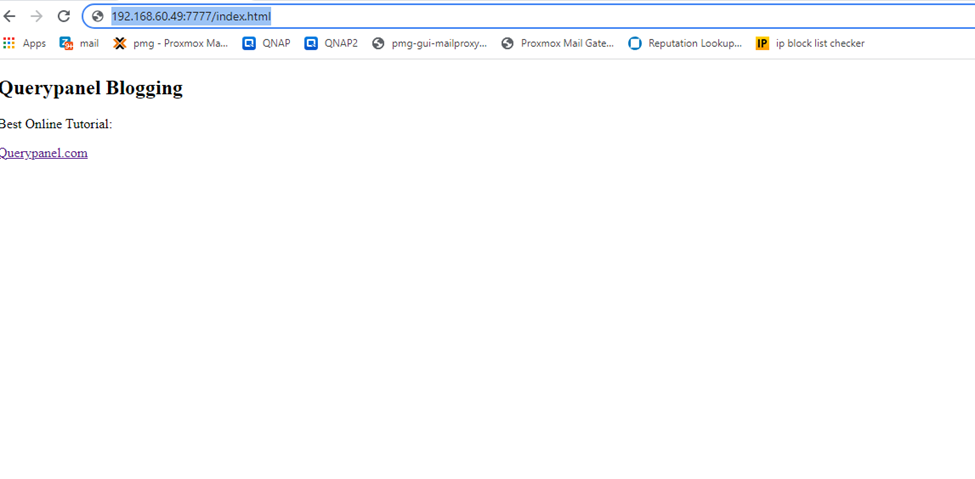
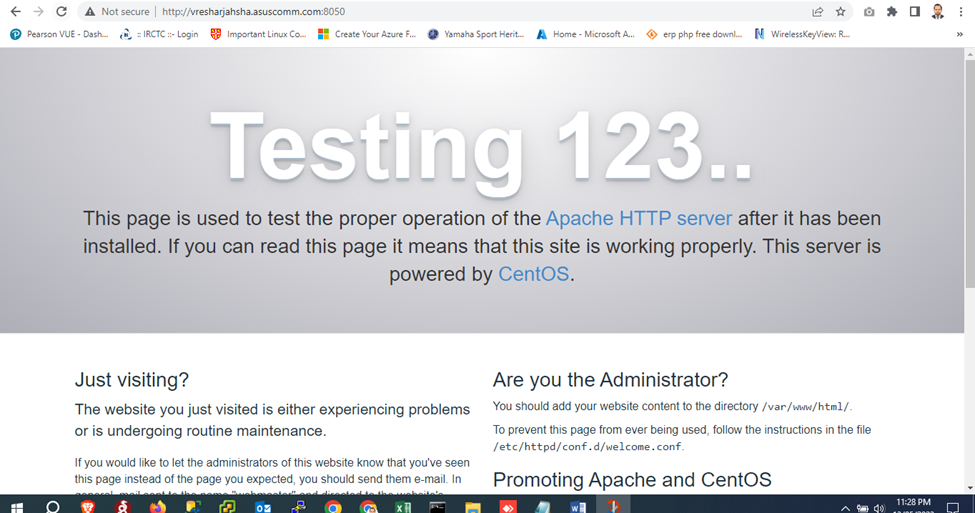
Public domain example
Configure firewalld to Allow Apache Traffic
Normal web traffic uses the http protocol on Port 80, while encrypted web traffic uses the https protocol, on Port 443.
Modify your firewall to allow connections on these ports
http
sudo firewall-cmd ––permanent ––add-port=80/tcp
sudo firewall-cmd ––permanent ––add-port=80/udp
https
sudo firewall-cmd ––permanent ––add-port=443/tcp
sudo firewall-cmd ––permanent ––add-port=443/tcp
Now reload the firewall
firewall-cmd –reload or sudo firewall-cmd ––reload