On-Premises sys Azure

On-Premises sys Azure

synchronize on premises ad with azure ad

Click on Azure Active Directory

Click on all users and create new user

Create new user

Basic user details

USER PROPERTIES DETAILS

IN ASSIGNEMENTS tab

Click on Add role

Need to select Global Admin

Click to create Global Admin user for syns on Premises Ad to Azure Claud

Once user Global Admin User created need to verify it
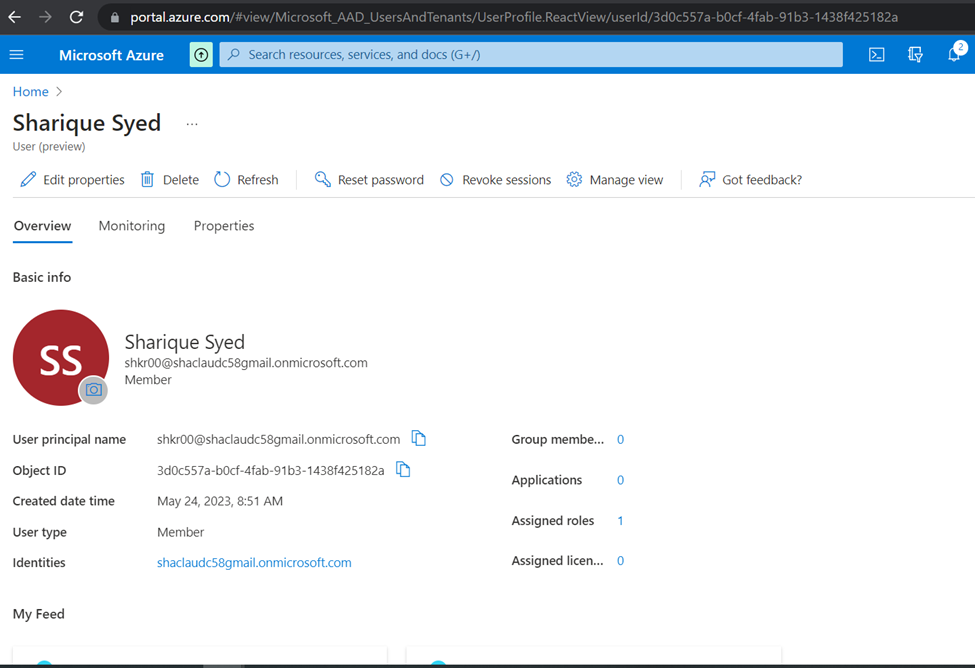
Once user created while login to first time need to reset the default password and authenticate with your phone application

Click to next
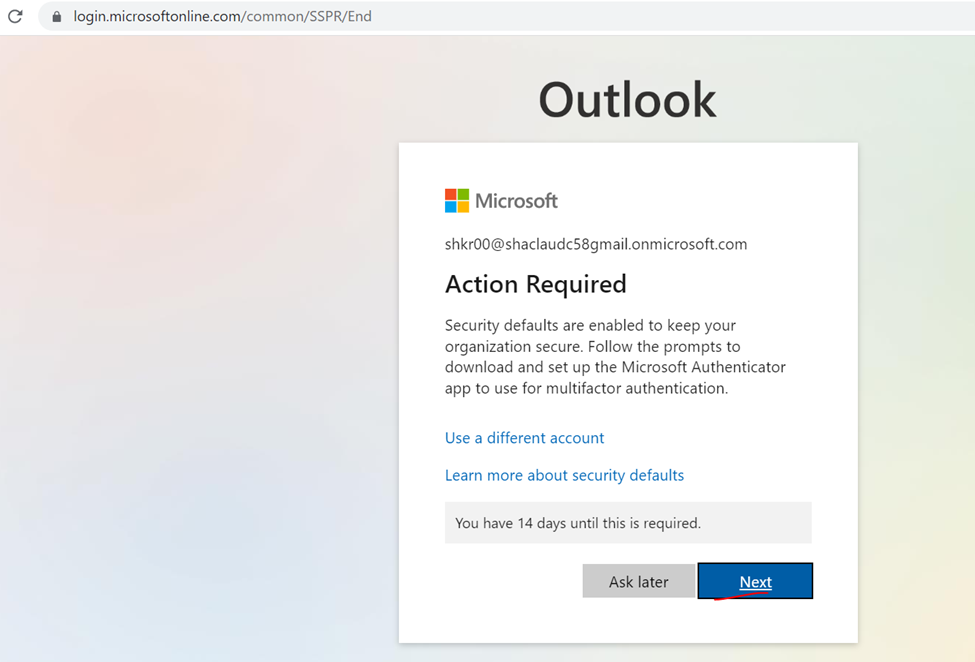
Click next

Click next
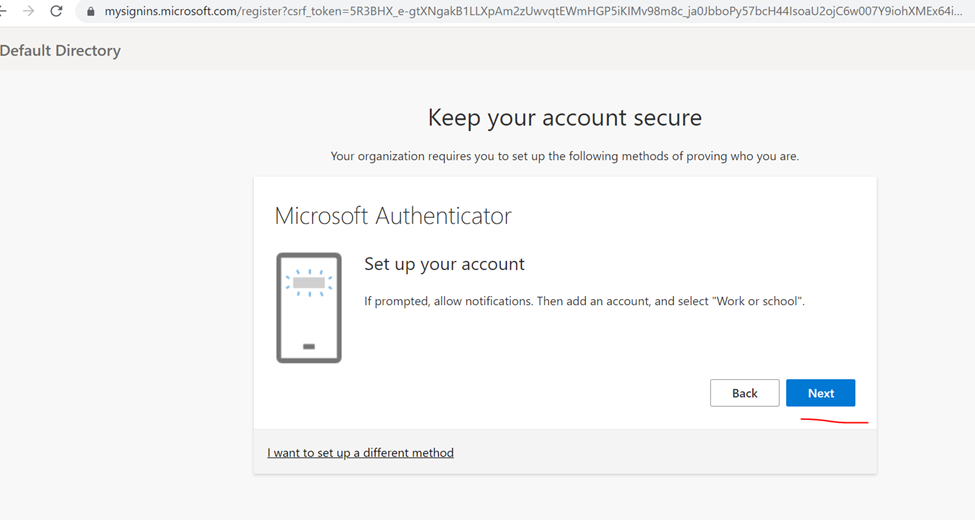
Scan phone app authenticator

Authentication done

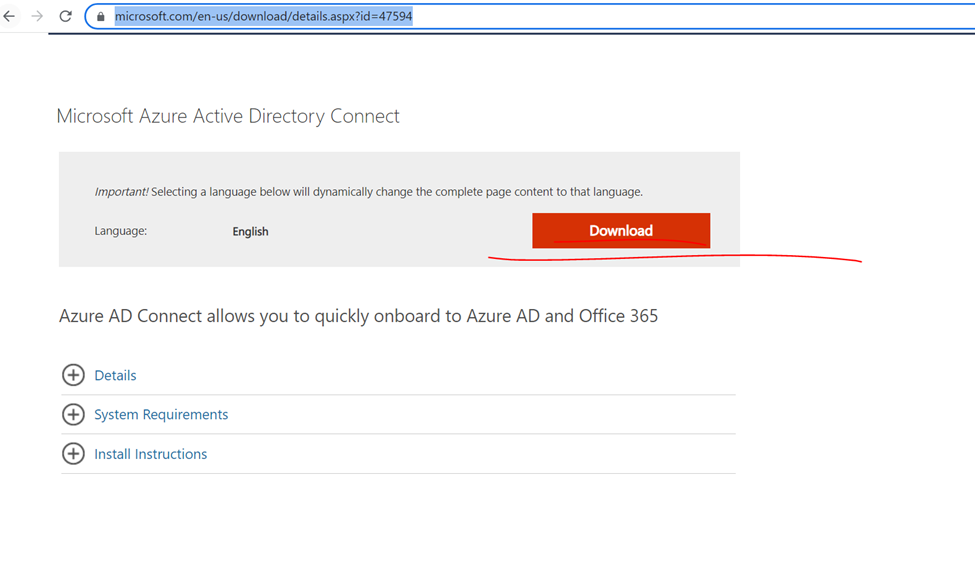
Now need to Install Azure AD Connect to on-premises Domain

Once download done click to install AD Connect

Link : https://www.microsoft.com/en-us/download/details.aspx?id=47594
Now installing AD Connect

Click to continue

Can use customize and express but here implementing…. Custom

Click to install

If you  get error click to specify custom location

Click to next

Azure global admin user

Authenticate it

Click on add directory
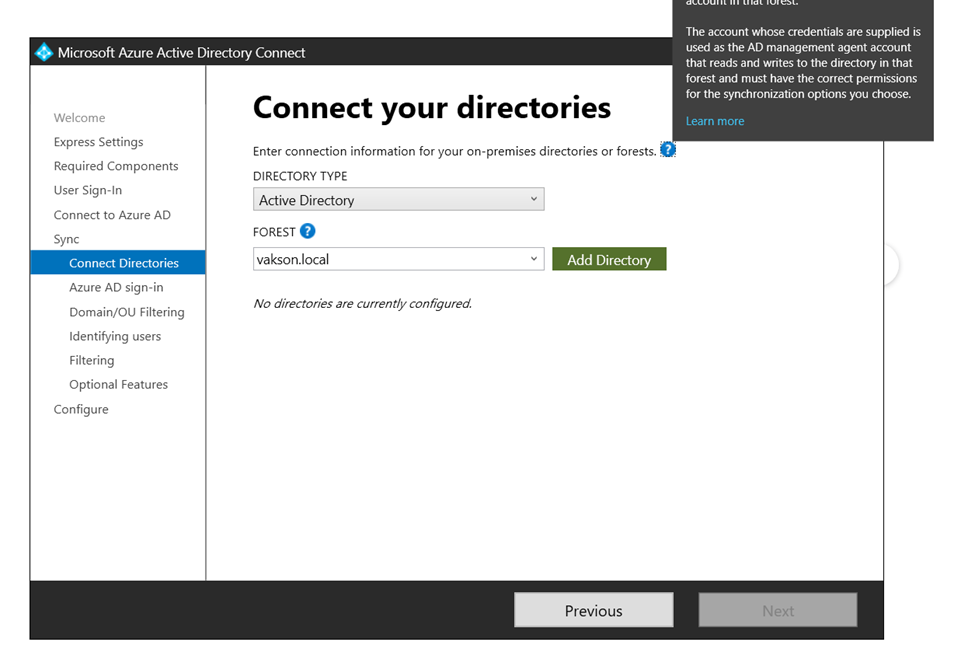
Type domain admin username and password

Click and next

Click too next

Synchronization all AD and ou

Identify user and Click to next

Filtering all users

And click to next

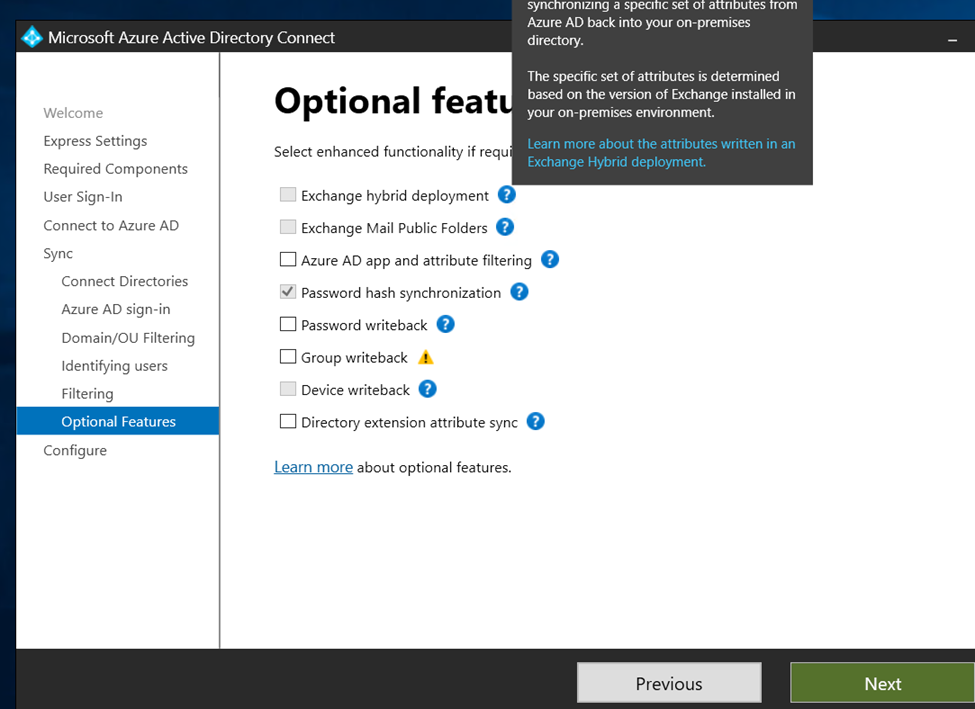
Optional features
Configure

And click to install

So, configuration completed

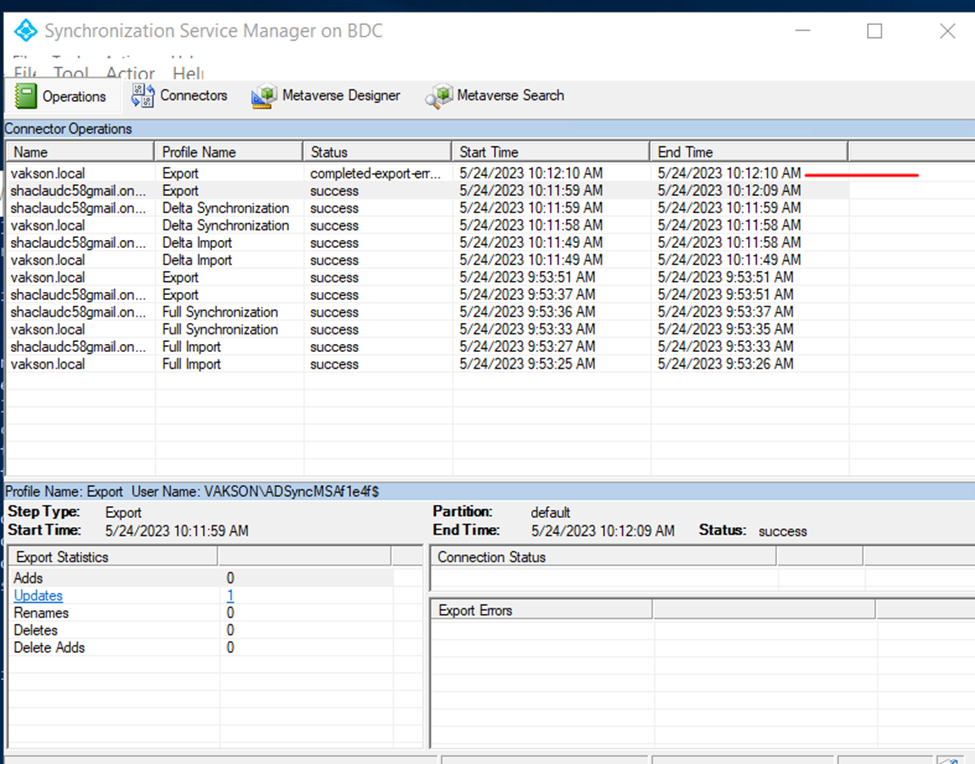
Open synchronization service manager check the status

Check the adds

Status user synchronization with azure directory

Status

Check on azure portal user synchronization status

Overview

Click on azure active directory click all user

Audit logs

Sign and logs

Get-ADSyncScheduler

In every 30 Minutes it’s sync

Forcing a Delta sync on Azure AD

As illustrated above, a delta sync synchronizes all the changes made since the last sync. Forcing a delta sync is crucial, for example, when you have made key changes to users in your Active Directory, and you’d like the changes to reflect immediately. Carrying out a delta sync, for example, speeds up the sync of a new user to Microsoft 365, enabling the assignment of licenses immediately. 

Start-ADSyncSyncCycle -PolicyType Delta
Force to sync status


Forcing a Full Azure AD sync

You rarely need to do a full Azure Active Directory sync as and Azure AD administrator. A full Azure AD sync takes a lot of time to sync as it goes through all the Active Directory objects and synchronizes them again. The only use case that you need to do a full synchronization is when you change the Azure AD Connect configuration.
However, in case you’d like to run a full Azure AD sync, then use this policy type initial PowerShell command:


Verify Custom Domain to Azure Cloud


Verify Your Custom Domain in Azure Active Directory


Add your custom domain to Azure AD

  • Go to Azure portal then Sign in to the Azure portal.
  • Then Select Azure Active Directory
  • Select “Custom Domain Name” from Azure Active Directory,
  • And then Click “Add custom domain“.
·       Custom domain name field, enter your registered domain name.


The unverified domain is added. domain page appears showing your DNS information. You need it later to create a TXT record to configure DNS.

Log in to your GoDaddy account

and add field add new record in TXT format mention below

Configure DNS with a TXT Record
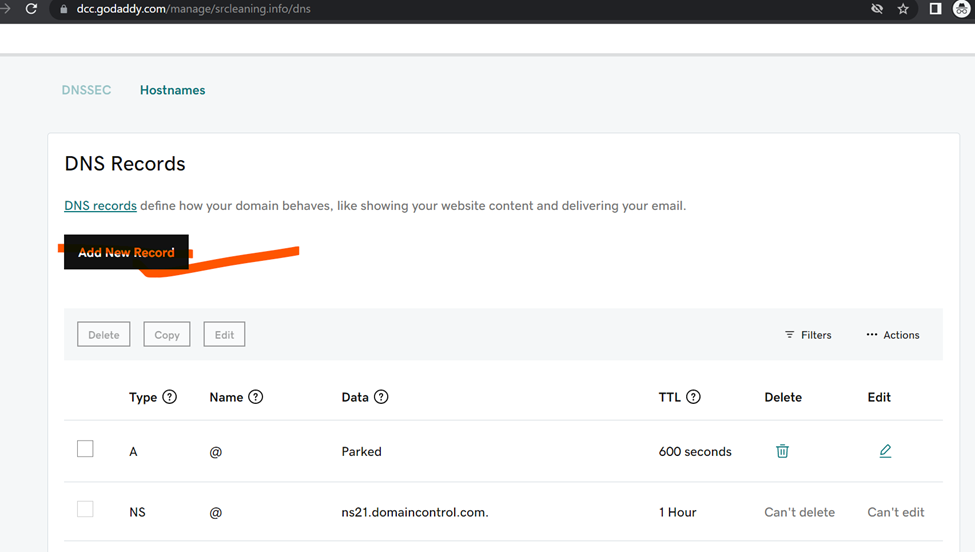
Then click Add to add a TXT record then add Record

Now click to verify
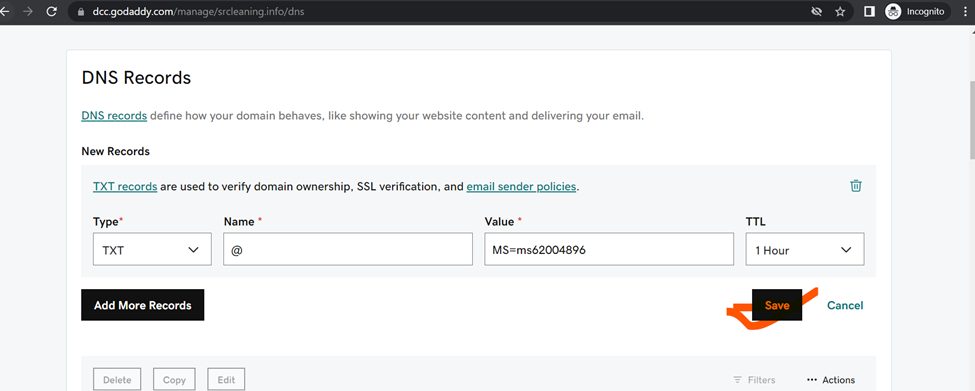
https://account.godaddy.com/products

Custom Domain Name is successfully verified

Custom Domain Name is successfully verified

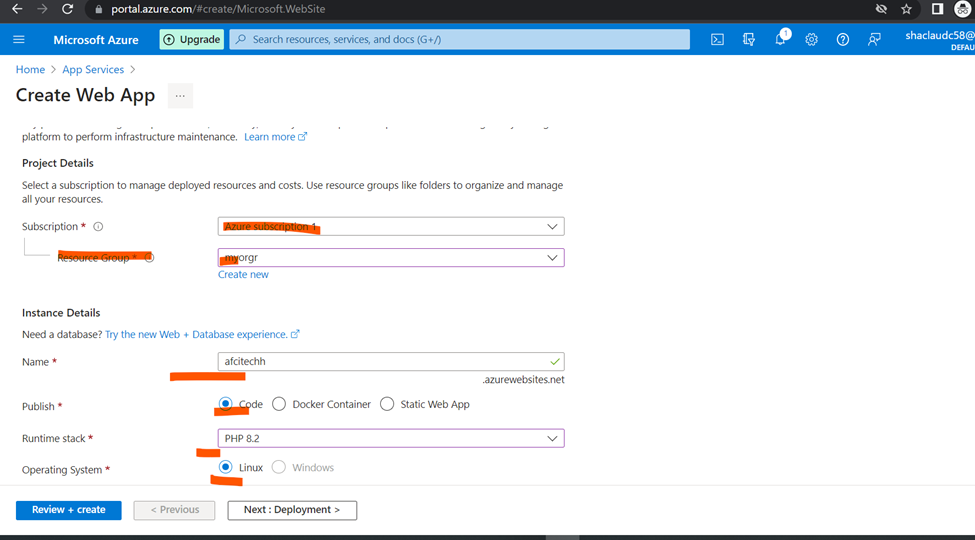
HOW to Host web application in Azure CLOUD

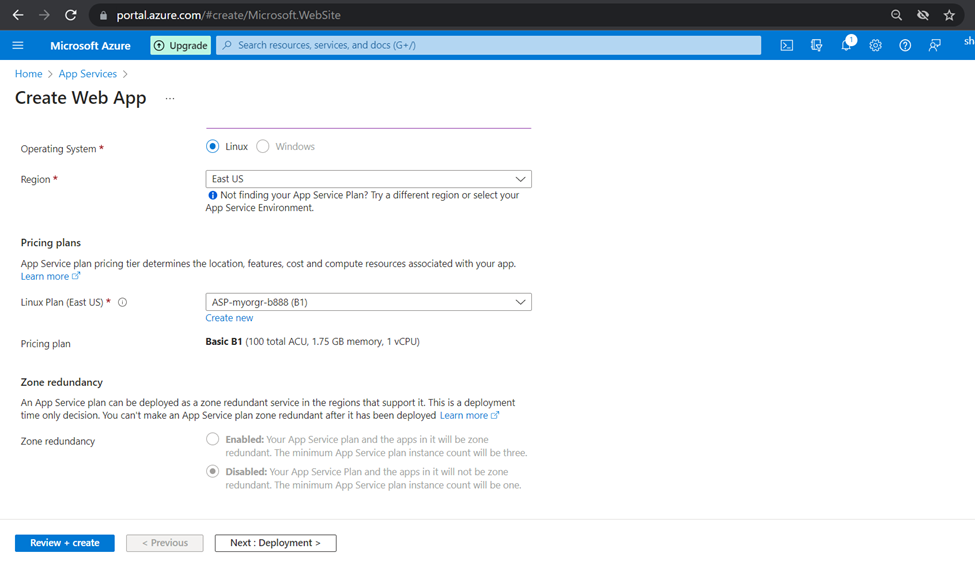
CREATE NEW app services

Assign new application name and select the plan click to next
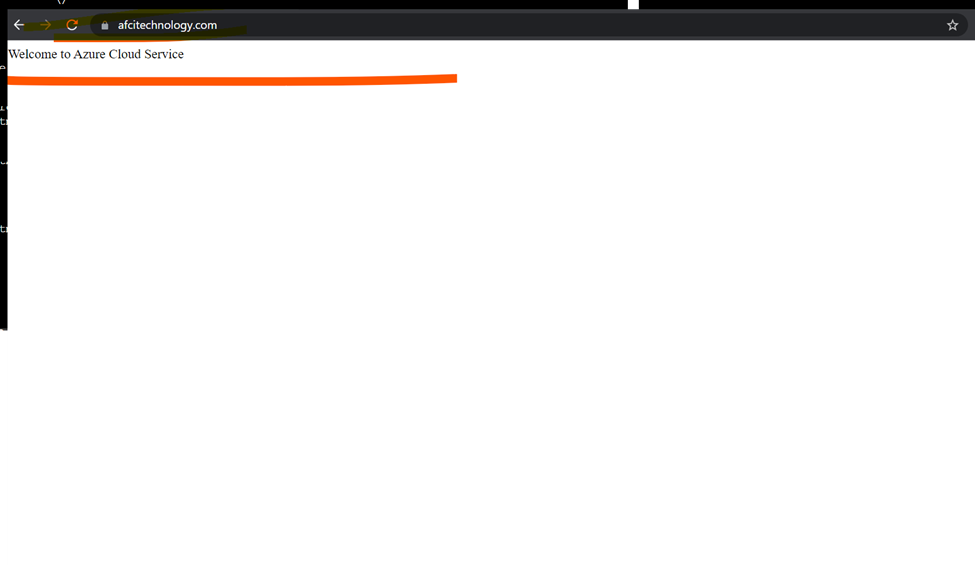
Adding Custom domains


Note:

Need to add CNAME and TXT record to hosting provider

So I am using godaddy domain services

Login to domain provider

Add the details

Cname


Updated records
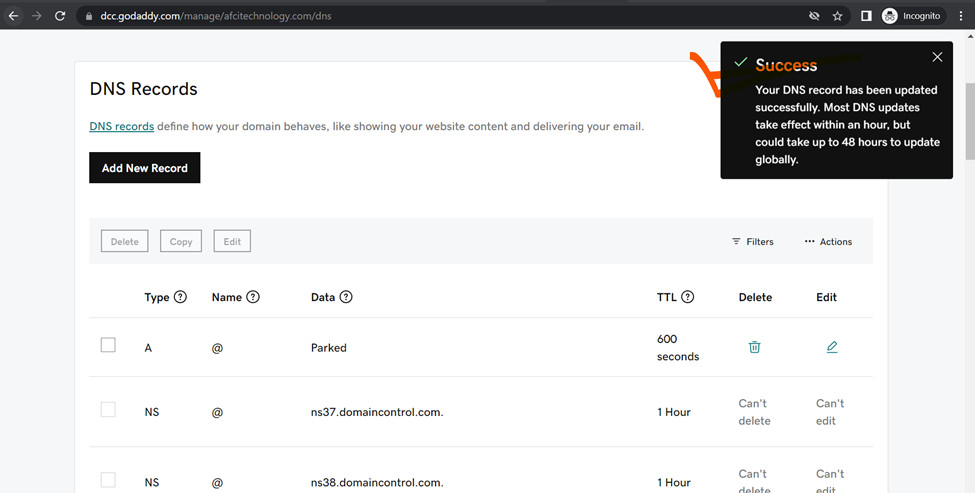


Now need to validate domain

Domain validated and click to add

SSH Login


Centralize Printer Server 

How to add centralize Printer Server

Install Print and documents and services using Windows Server Manager

Once install done click on tools and start Print Management

Expand print Servers and click to printers

Now click on add printer

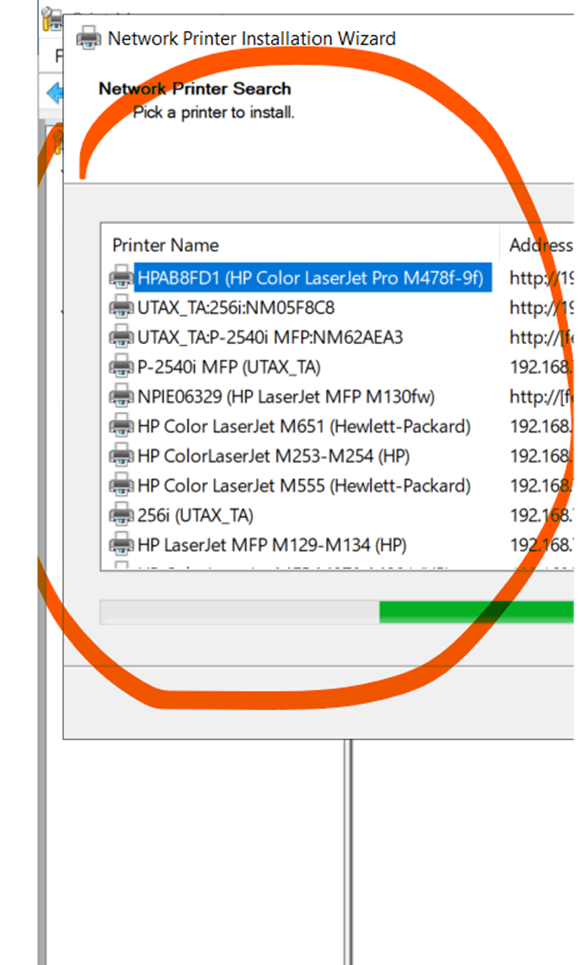
If printers running in your network search or add using IPV4 Address

Having multiple printers select one of them and click to add

Add printer

Click next and add it

Once done windows key + r

Type server ip or name

Right click and connect the server attached printer

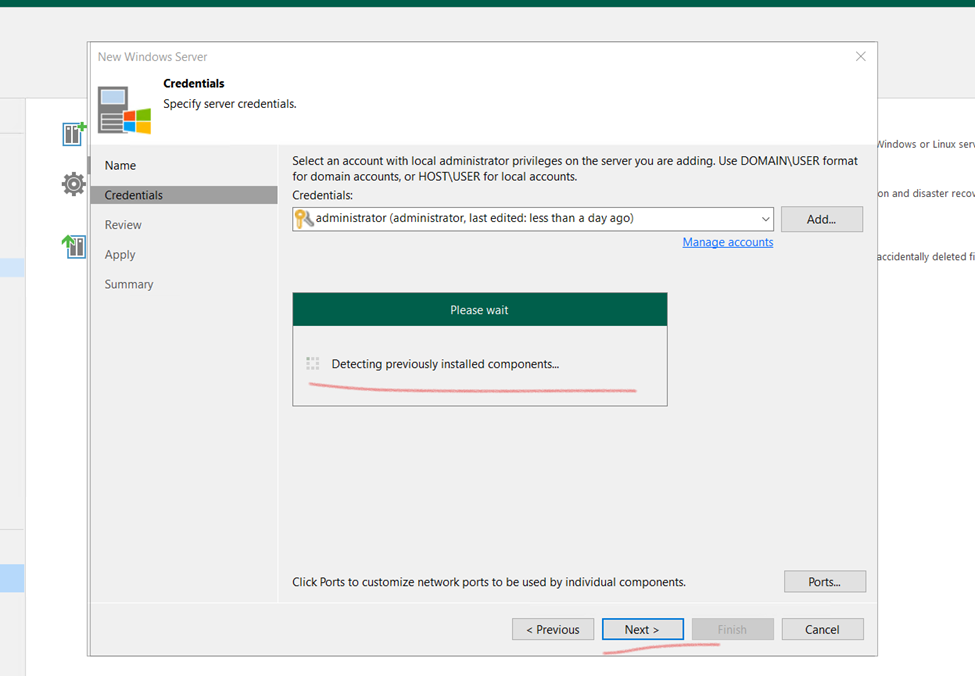
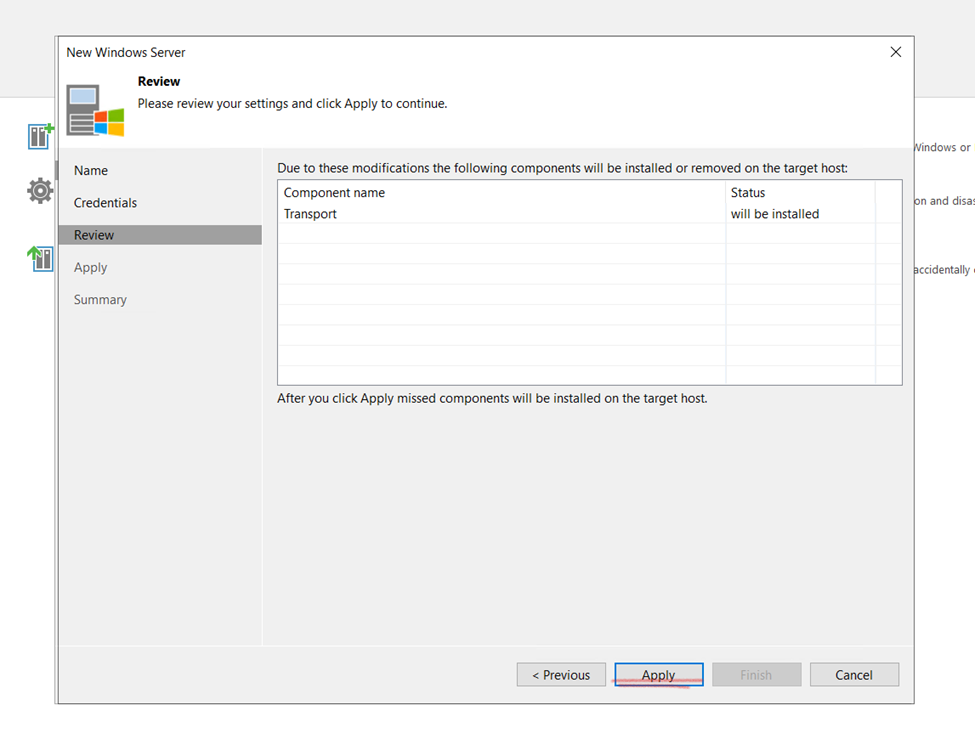
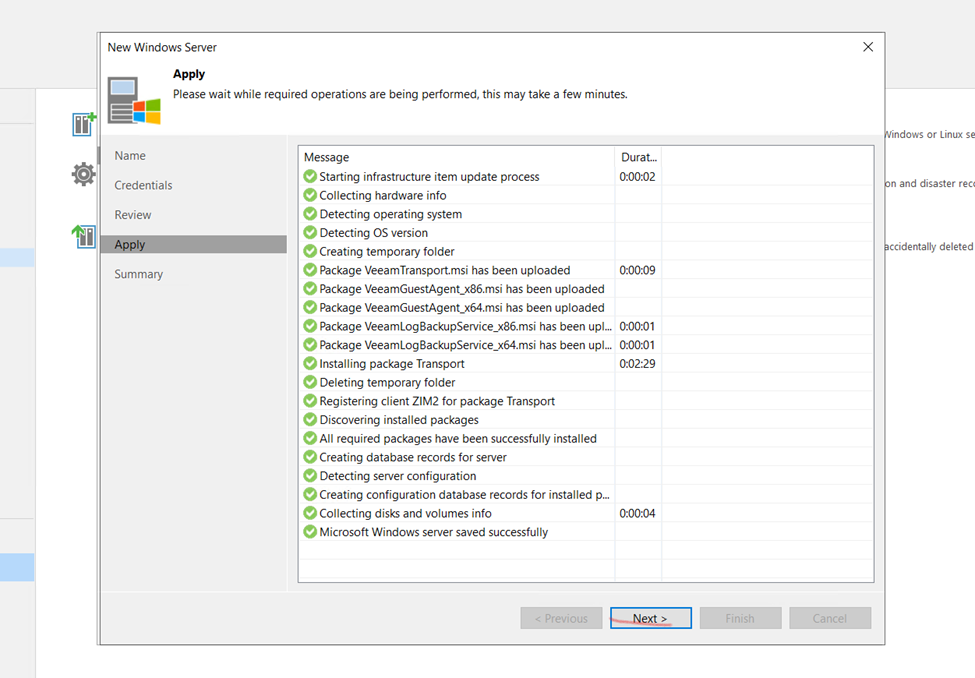
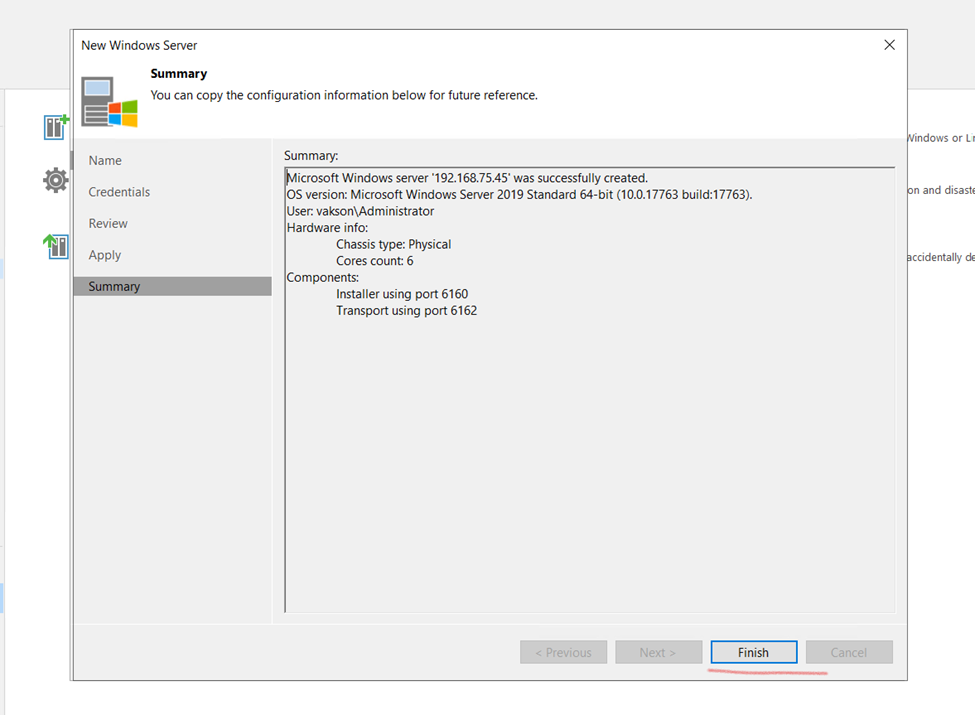
Veeam Solution

Veeam replication and backup

Veeam Backup & Replication is a software solution that protects your data by performing backup, replication, and recovery operations. With this product, you can recover your data fast from all types of infrastructure: virtual, physical, and cloud.

Start the installation by mounting the Veeam Backup & Replication image downloaded from Veeam’s product download page. Use the application of your choice to mount the ISO image or burn the image to a removable device with sufficient storage.

Veeam Backup & Replication is a comprehensive data protection and disaster recovery solution that helps businesses protect their virtual, physical, and cloud workloads.

If you are looking for a comprehensive data protection and disaster recovery solution, Veeam replication and backup is a good option to consider.

Here will cover every single steps

Steps to Veeam replication and backup:

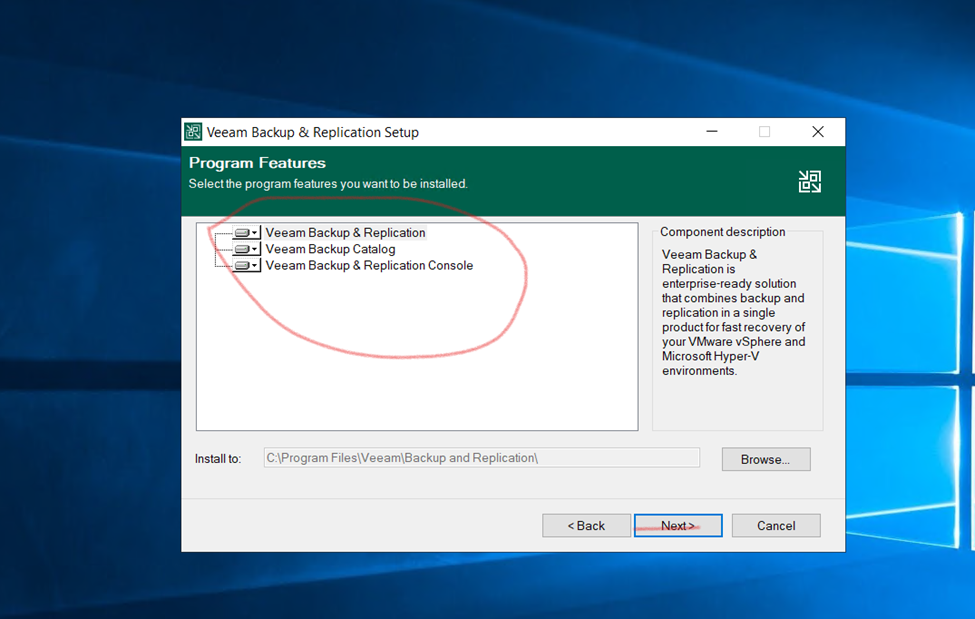
Click to Install

Select Community Edition and click to next

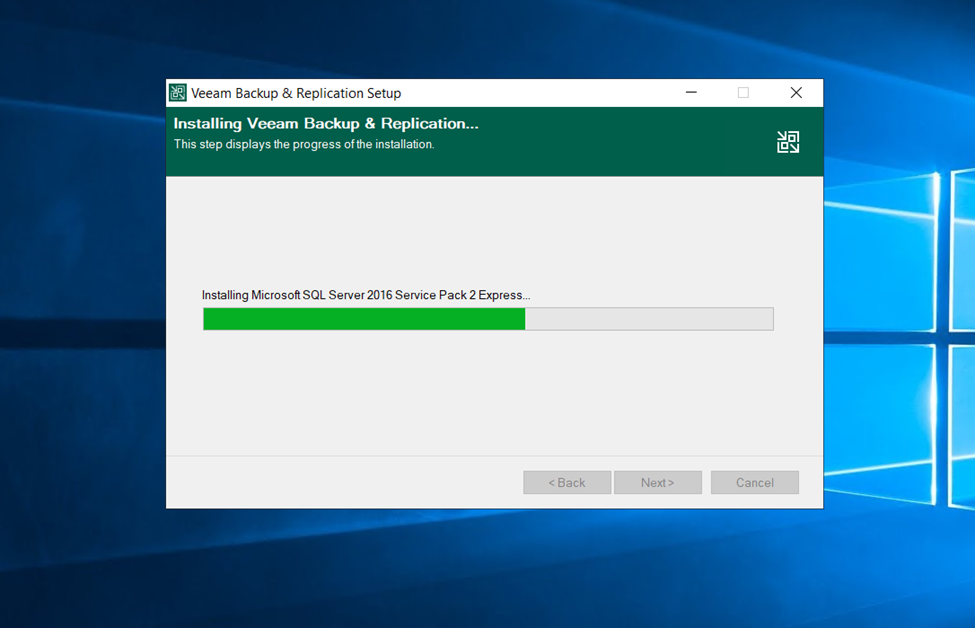
Installing Program Features

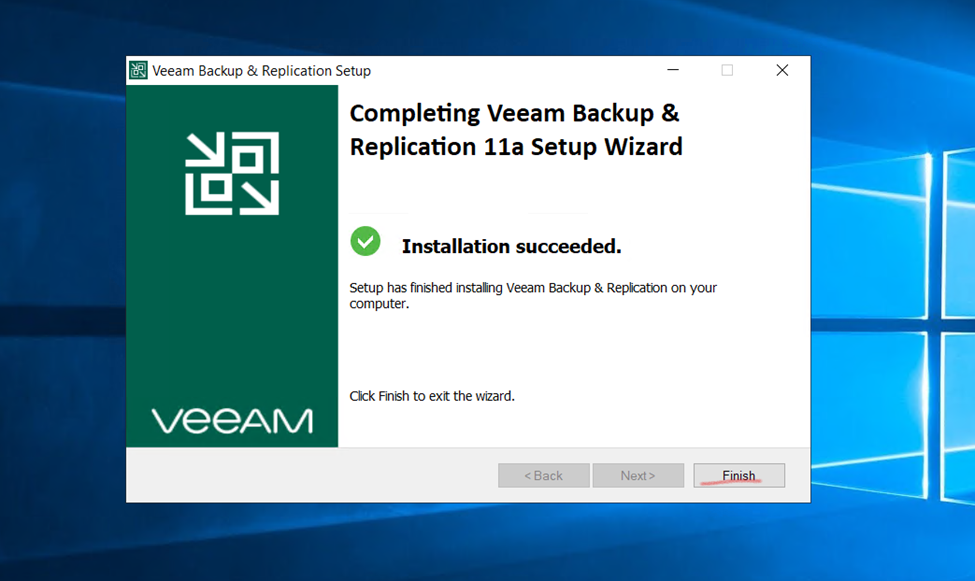
Veeam replication and backup Installation is Completed.

here,

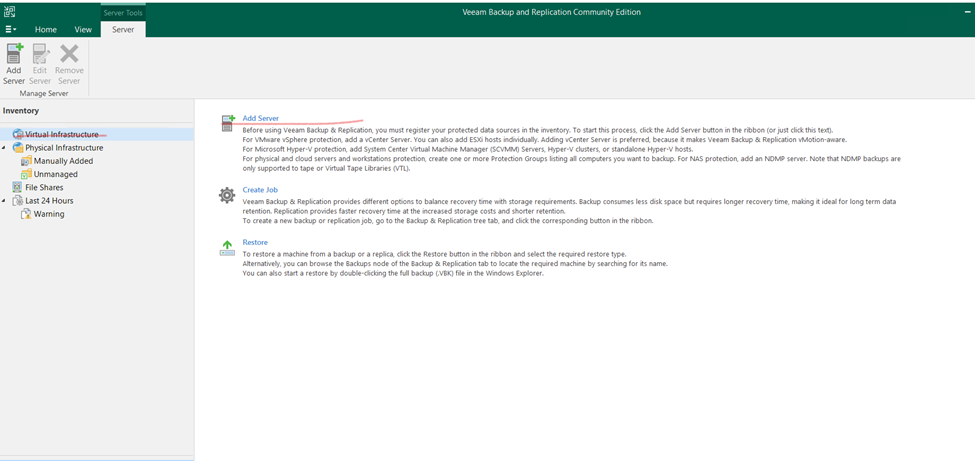
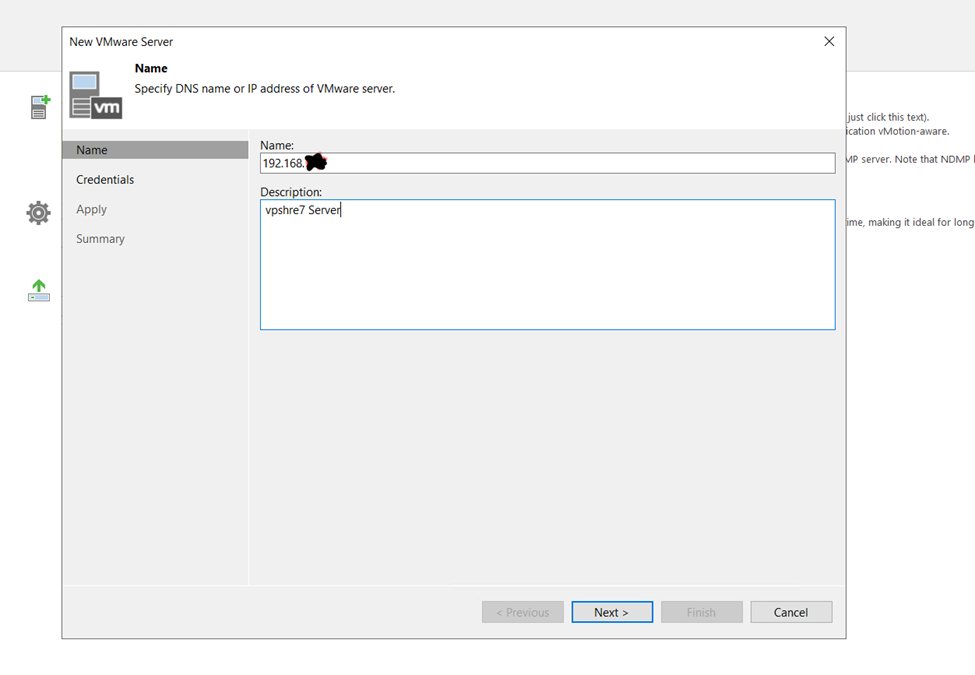
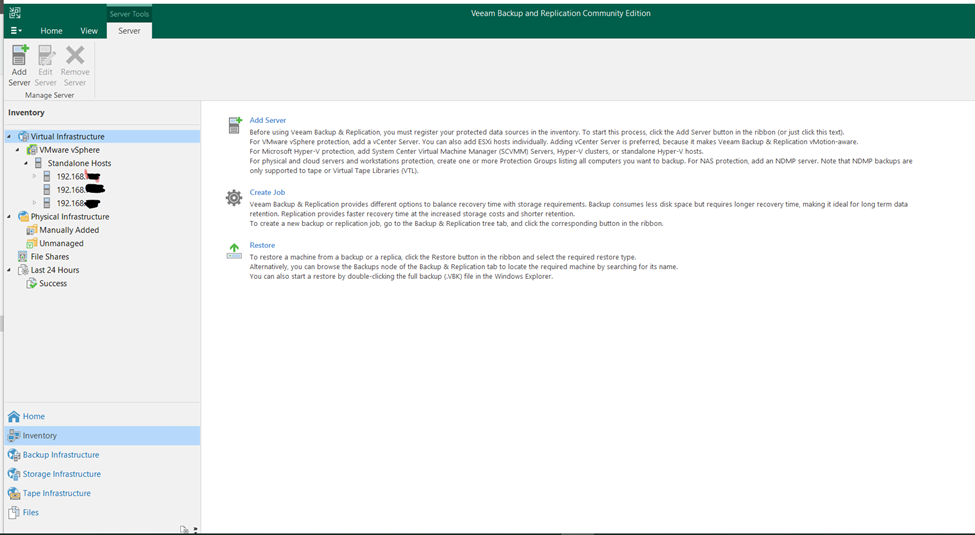
First Adding Virtual bare metal Esxi Server.

Adding Esxi Server into Veeam Backup & Replication

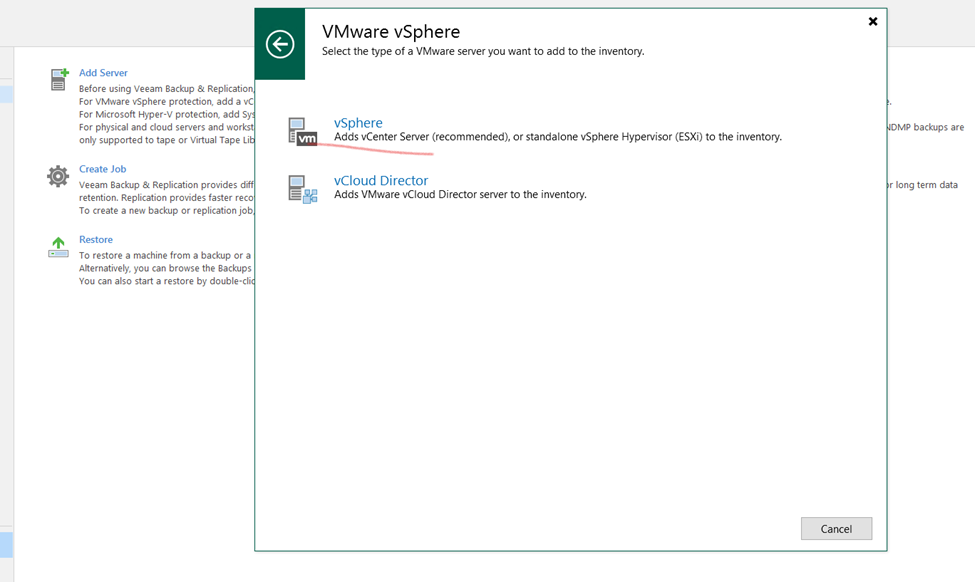
SELCT your Vmware vSphre Virtualization 

Enter your Vsphre hosts details

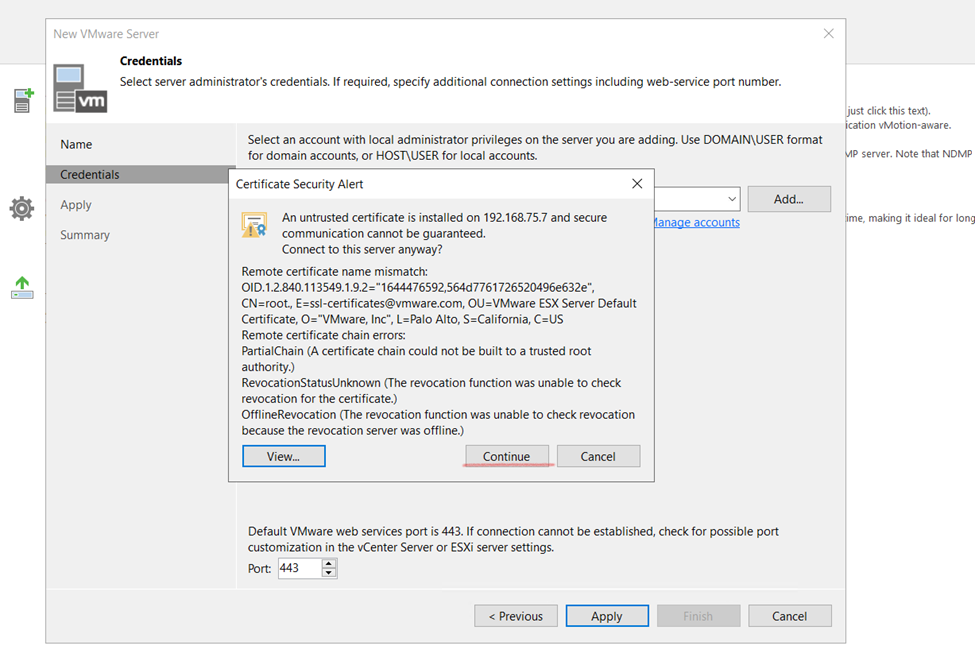
Vpshre username and password

Generate Certificate

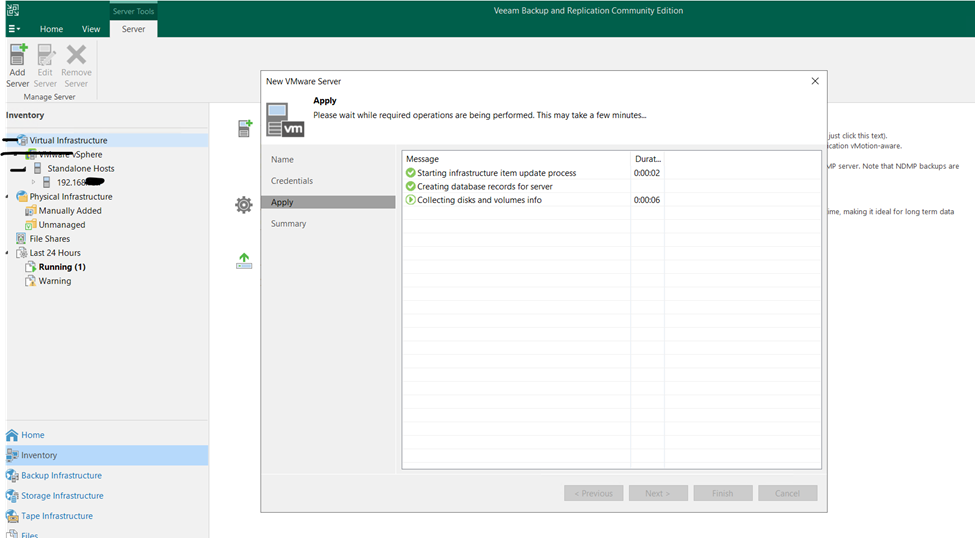
click to apply and add

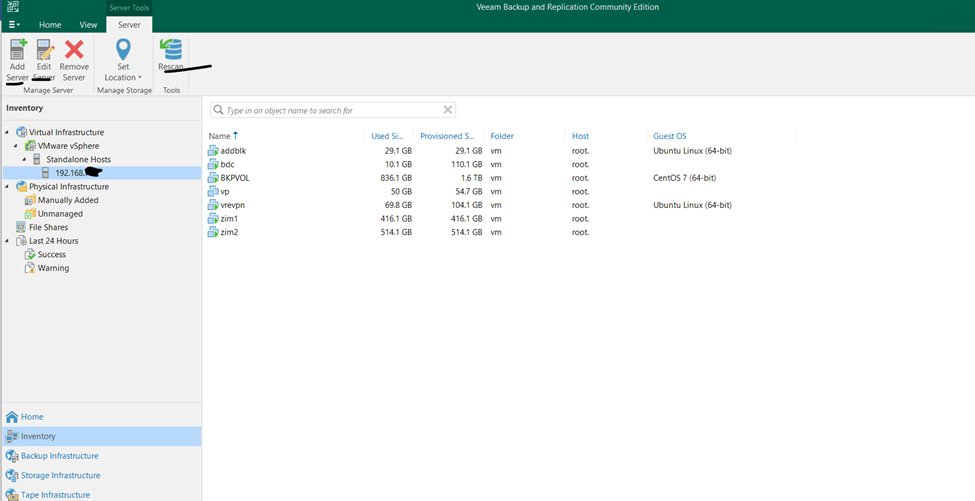
Finish it and check the added Vsphre satatus

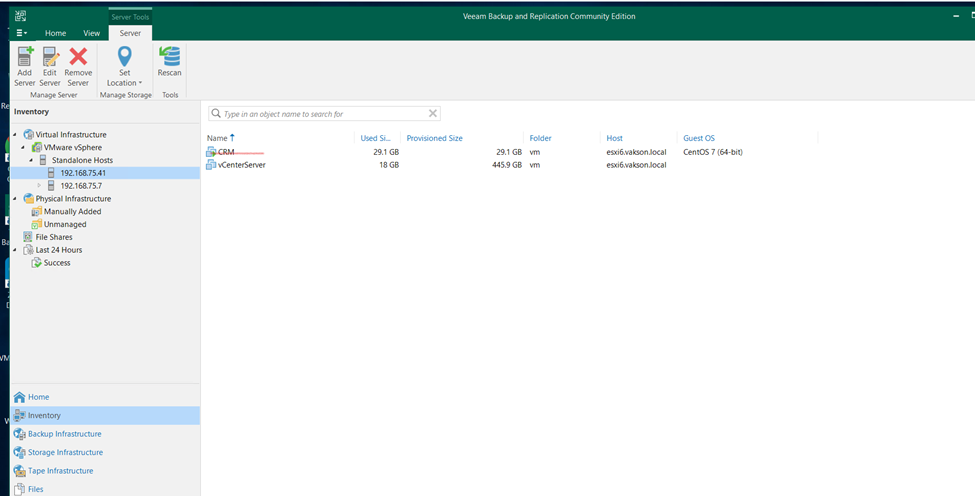
so, as you can check the screen attached Vsphre Server all vm is appearing

Hypervisor VSphres Server Attached

SO HERE I AM ADDING EXTRAL BACKUP REPOSOTORIES

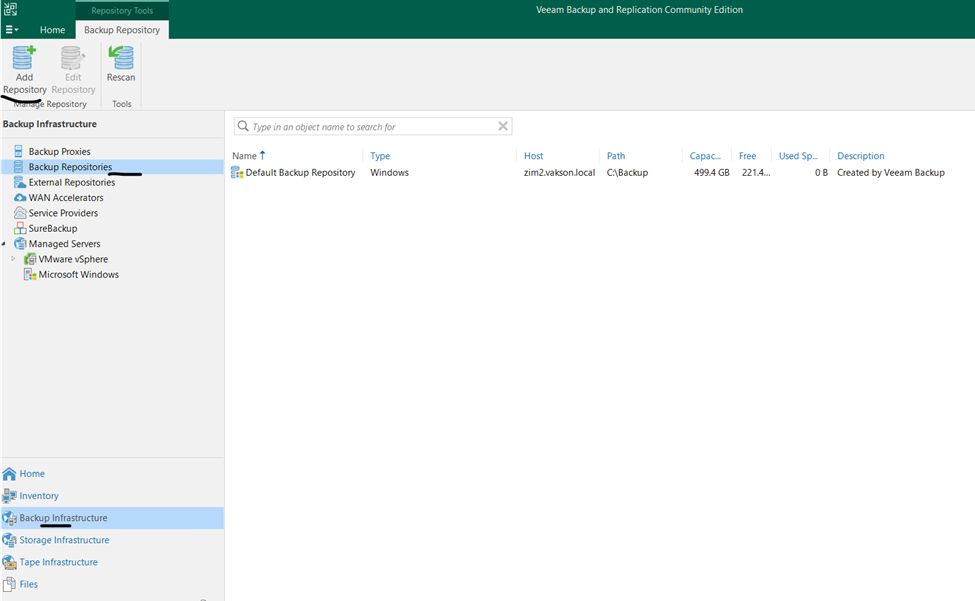
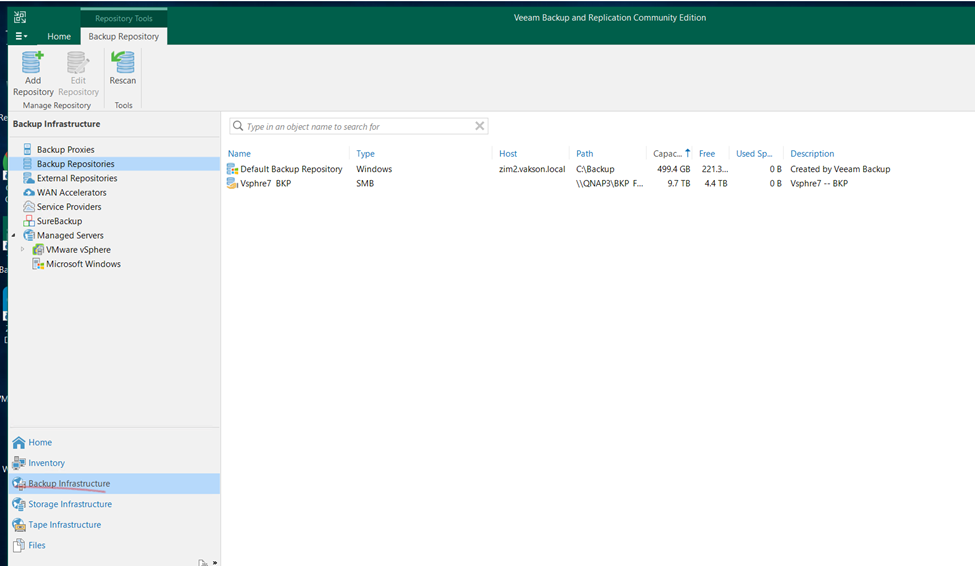
Click to Veeam

Backup infrastructure

Backup Repositories

(Using this method to externalally taking backing to another server not to same server)

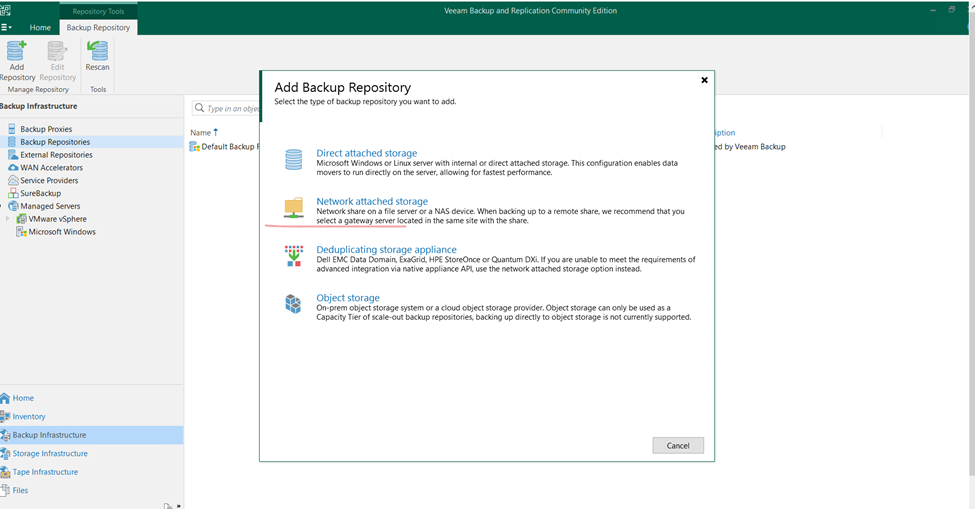
Now click to add

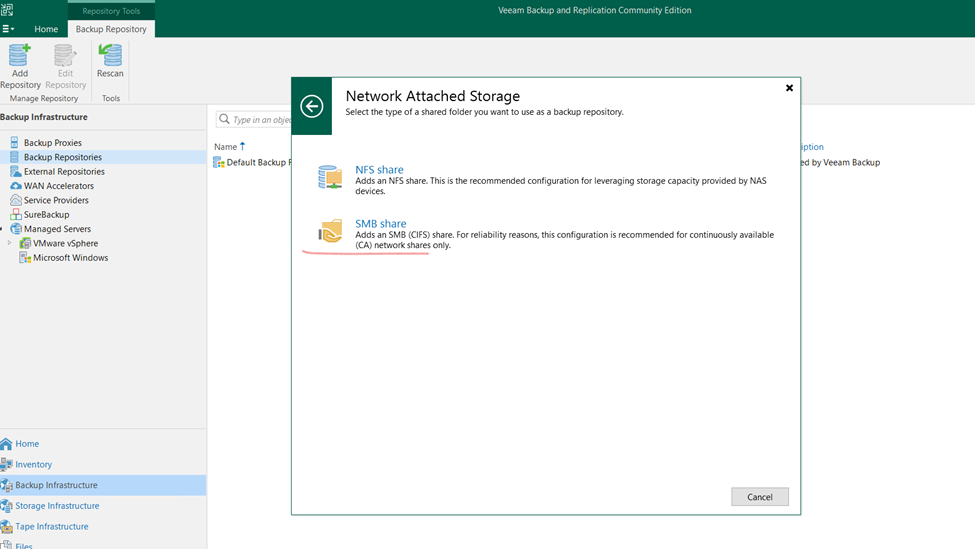
Selecting Network Storage

SMB Share

Give the name to Repository

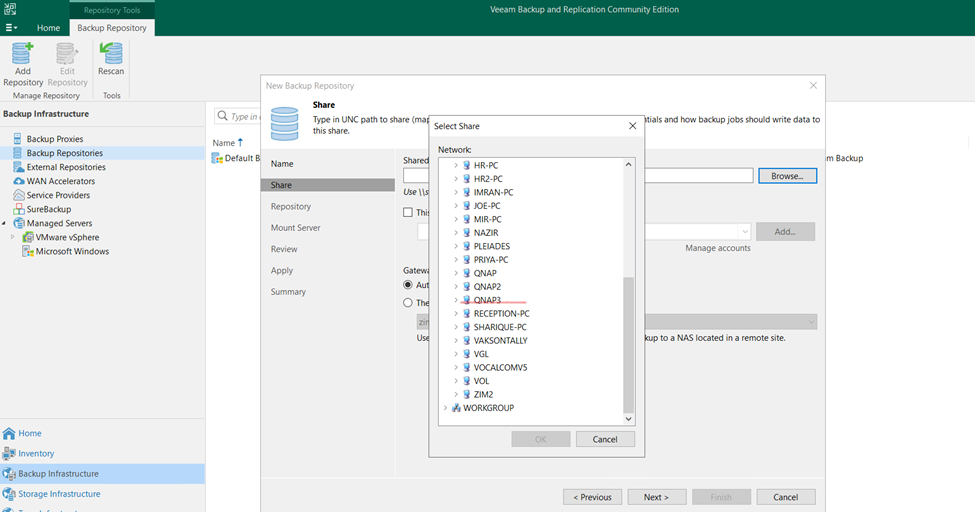
SELECTING BACKUP Storage server

Backup Server Location

Backup Server Location

in below scree that’s the backup repository location

click to next

Mount Server

Click next

Review and check and click to next

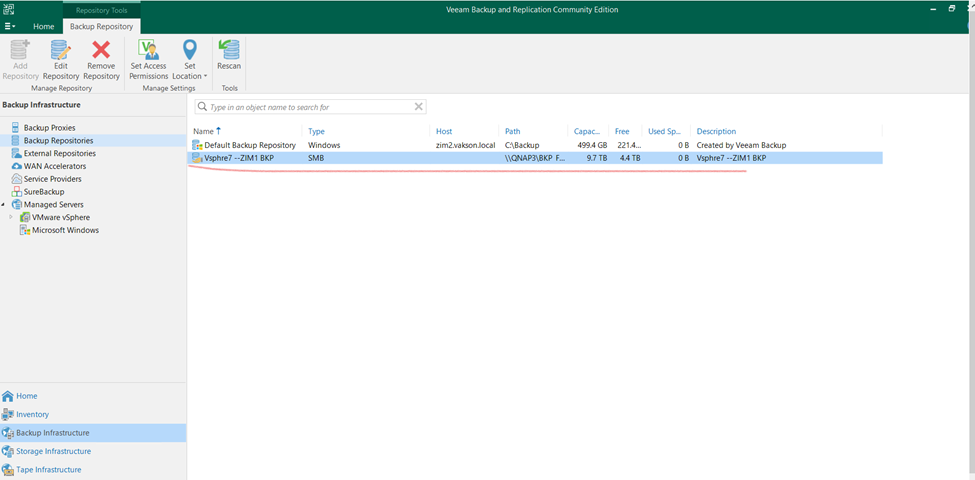
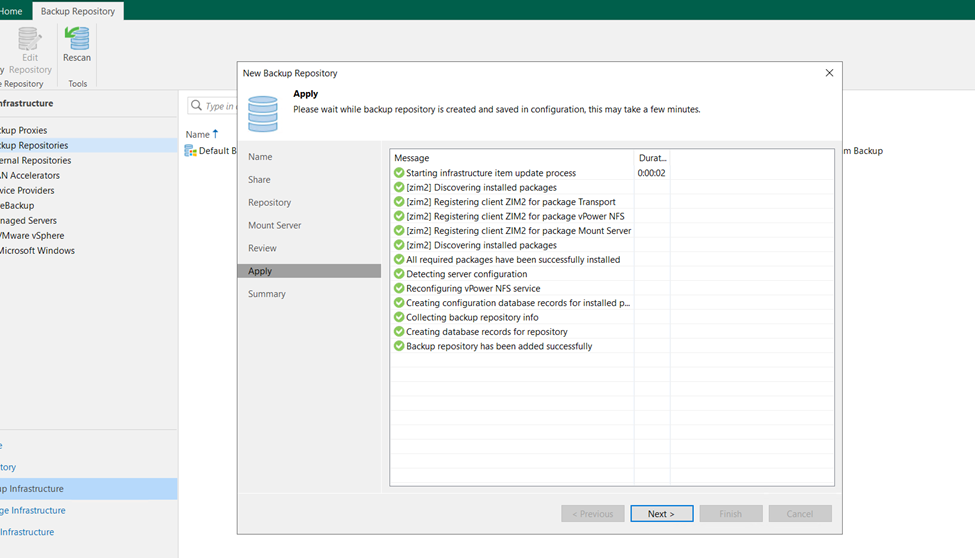
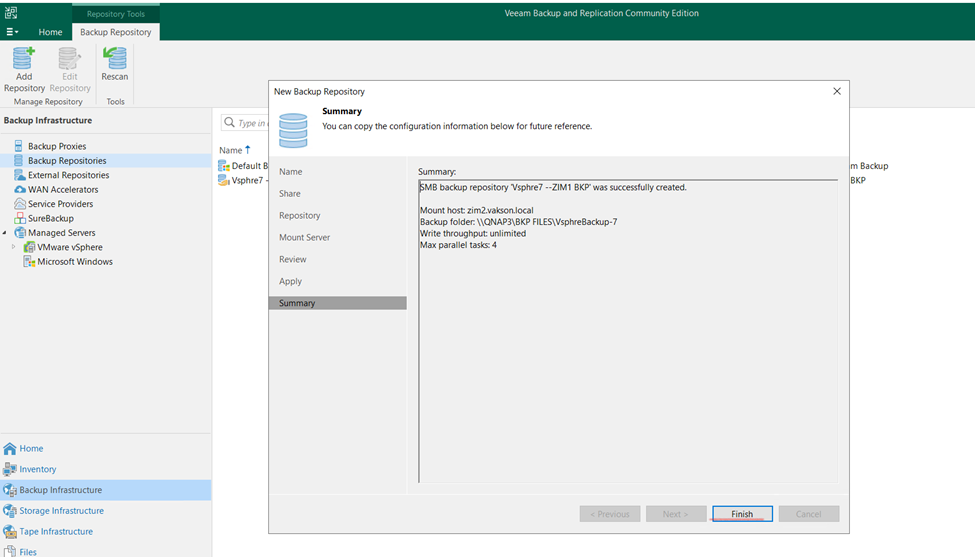
so, Backup repositories created successfully 

Click yes and okay

newly created backup repository

now I wanted to take my VM BACKUP NOW Creating VM BACKUP

Assign VM Backup name

here, I will create backup from vsphre virtual machines

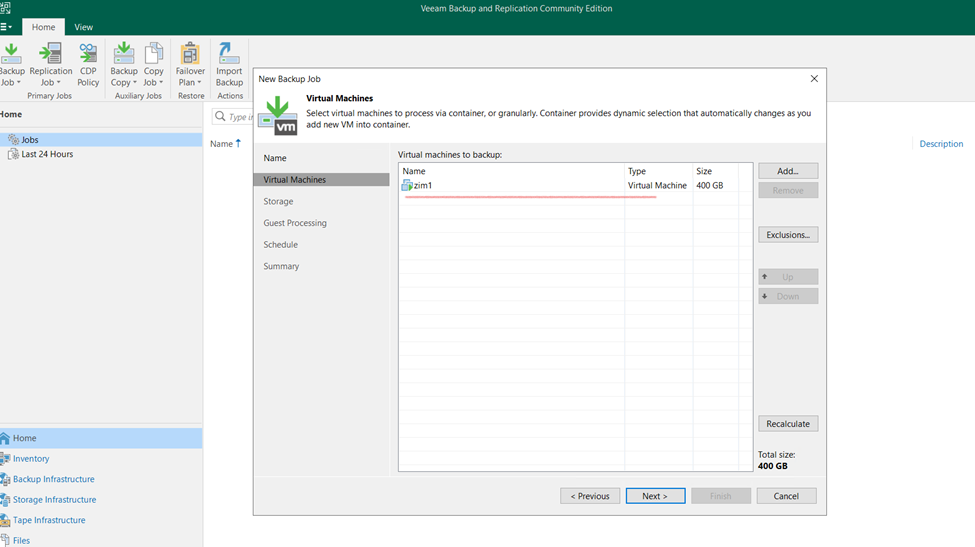
select vsphre vm

ADD MACHINE need vm username and password

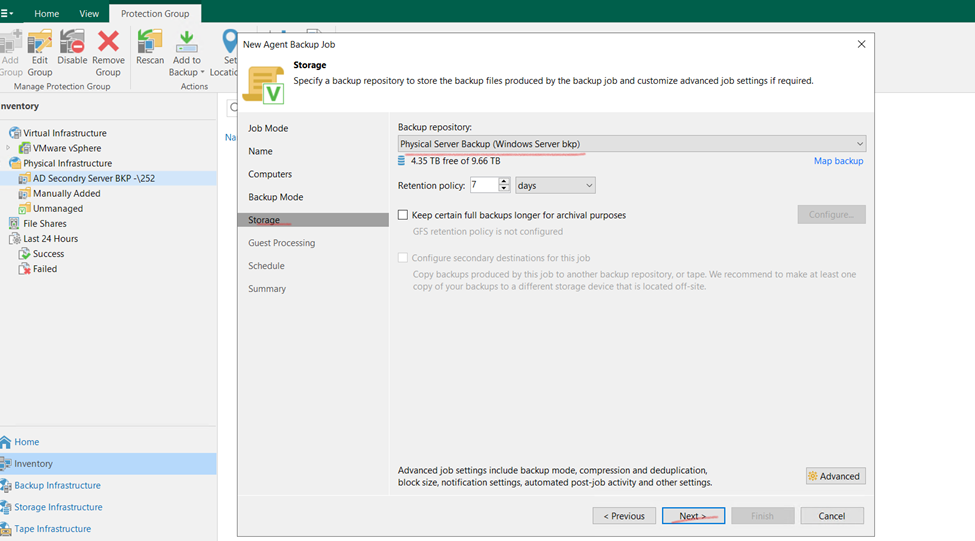
Select backup repository

Incremental backup

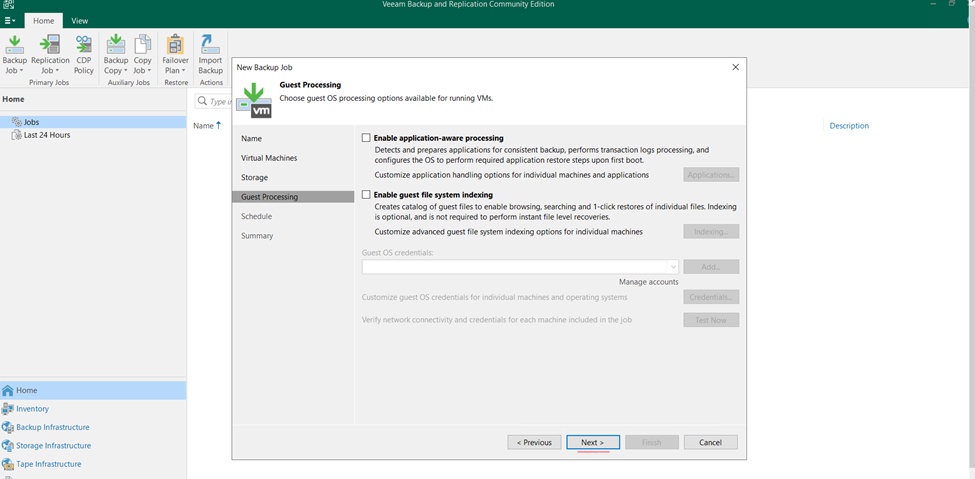
Guest processing make as default and click to next

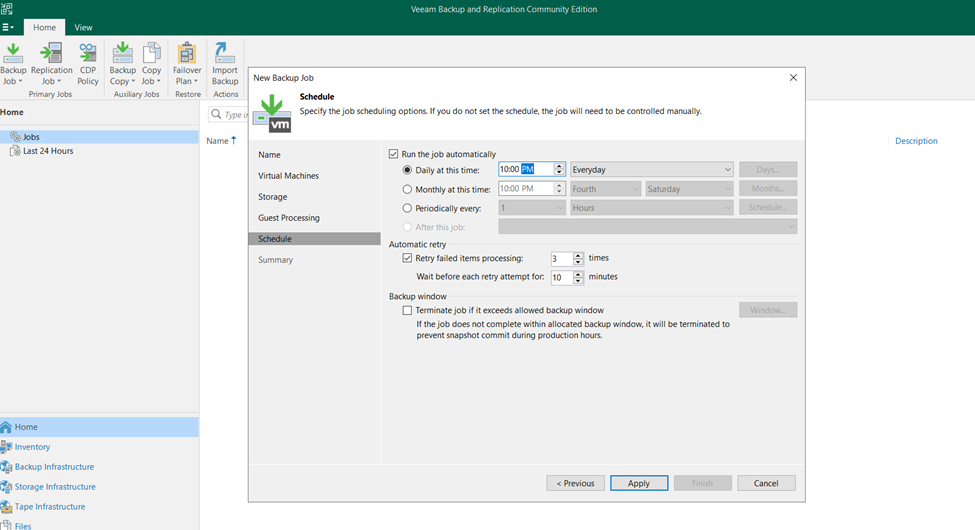
schedule backup synchronize time and apply

so finally finish VM Backup schedule

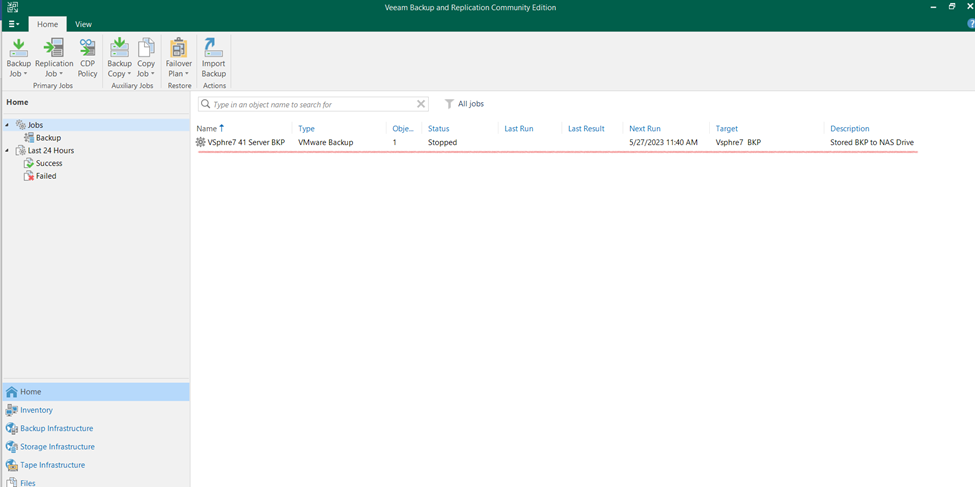
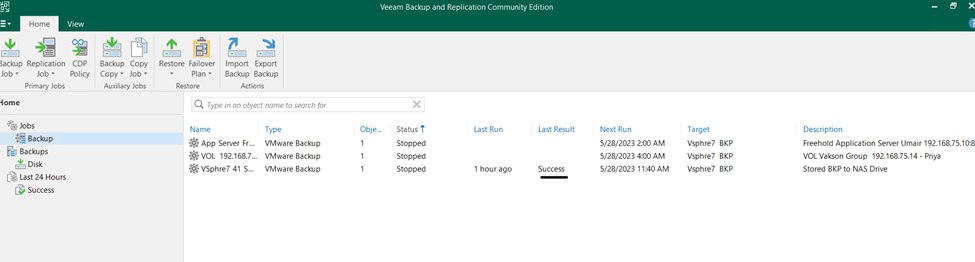
created vm backup

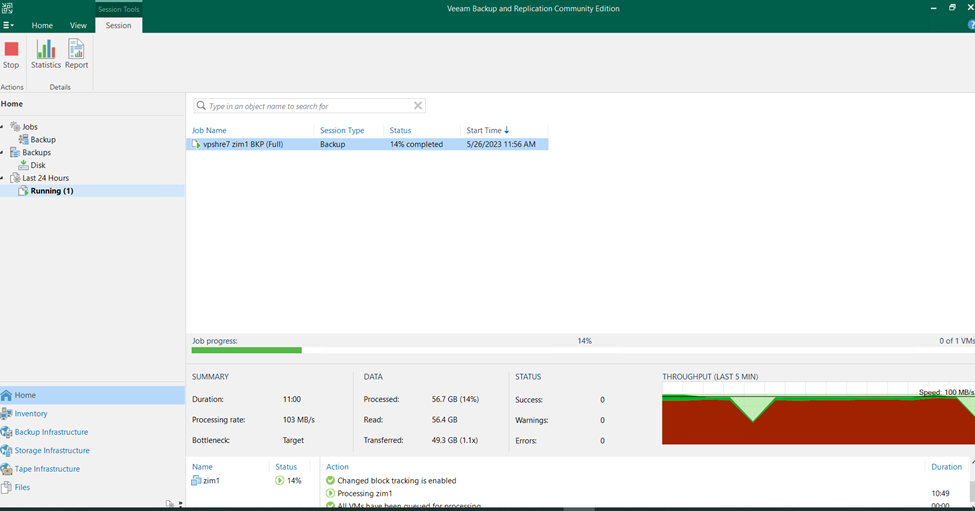
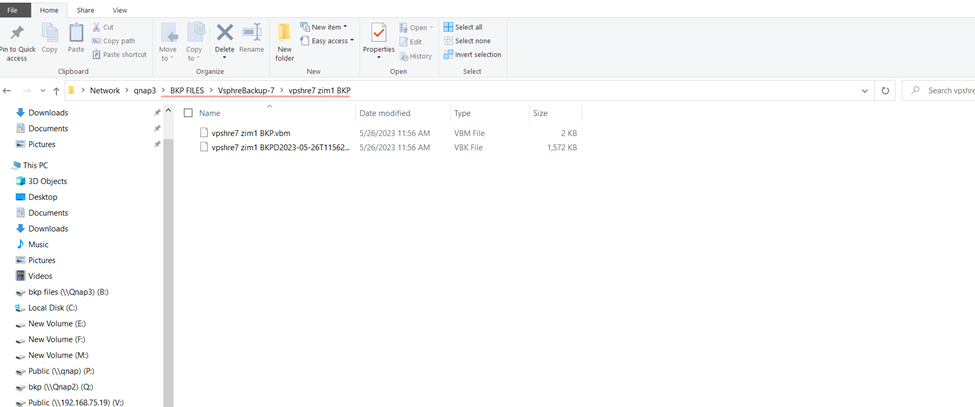
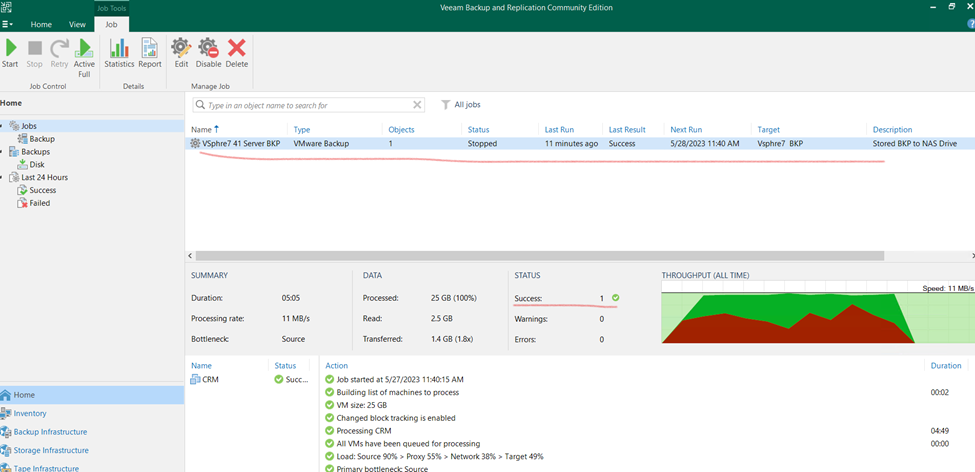
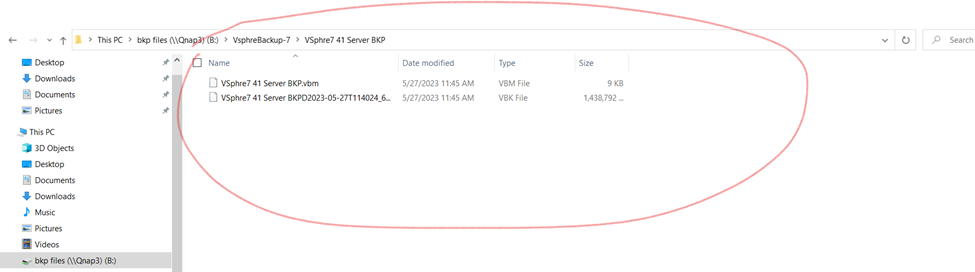
so check the vm backup status once backup done check the backup repository directory

as you can check here backup vbm and vbk file created

Here Taking Backup to Linux Apache Server Using Veeam Backup & Replication

So here I am having Apache server running on Cnetos 7 server in vpshre 6.7.

First, I will schedule the backup and also will restore the backup.

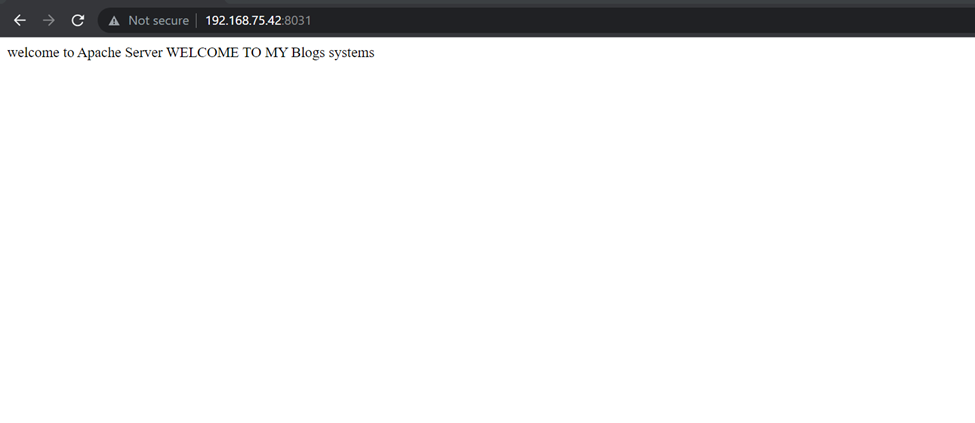
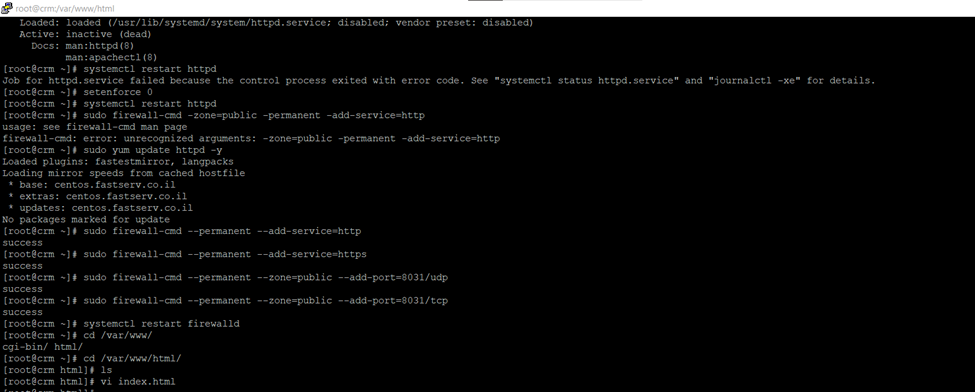
Having this running server

Running Server

Creating backup to crm application server

Click on Backup Infrastructure

Having backup repositories

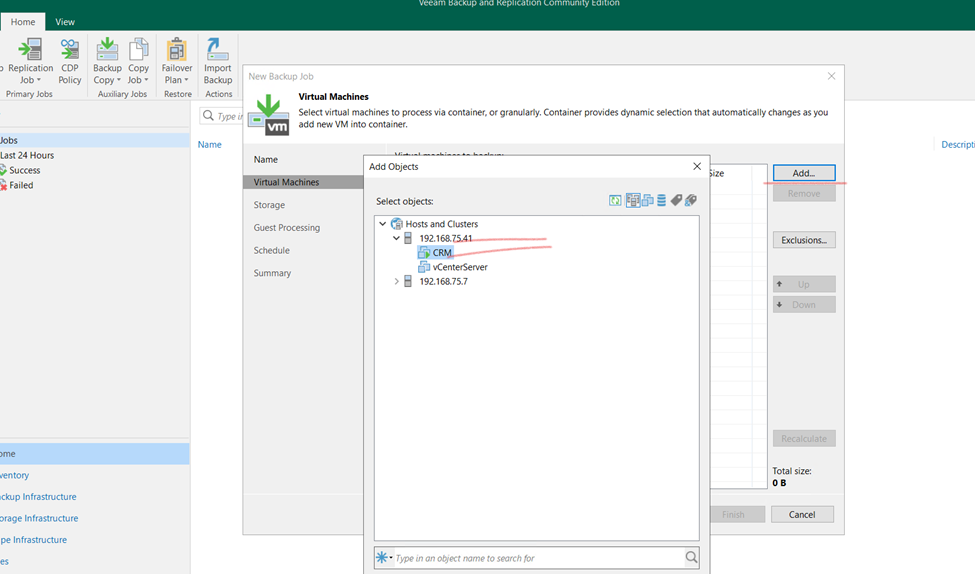
Click to home and select backup job having virtual machine need to select that.

Assign the name

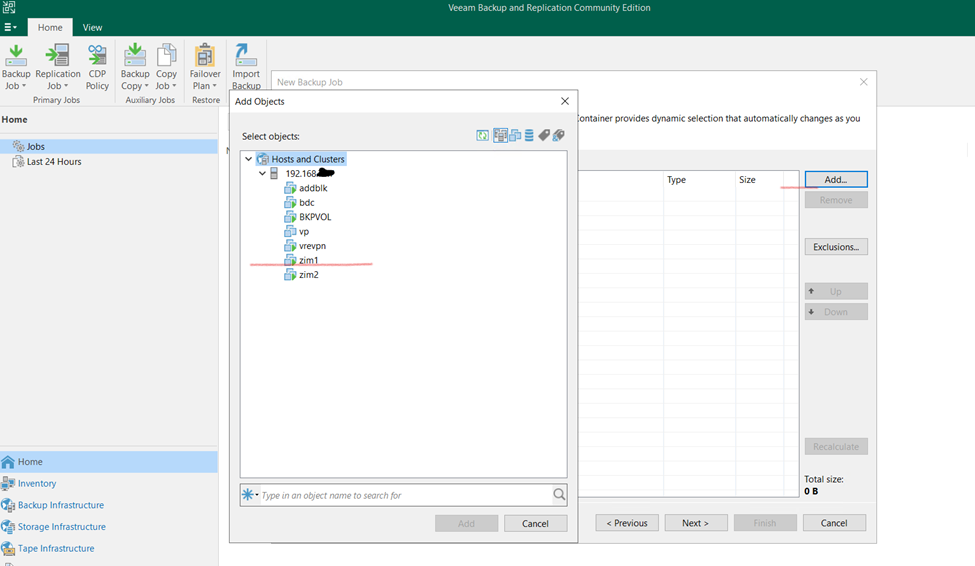
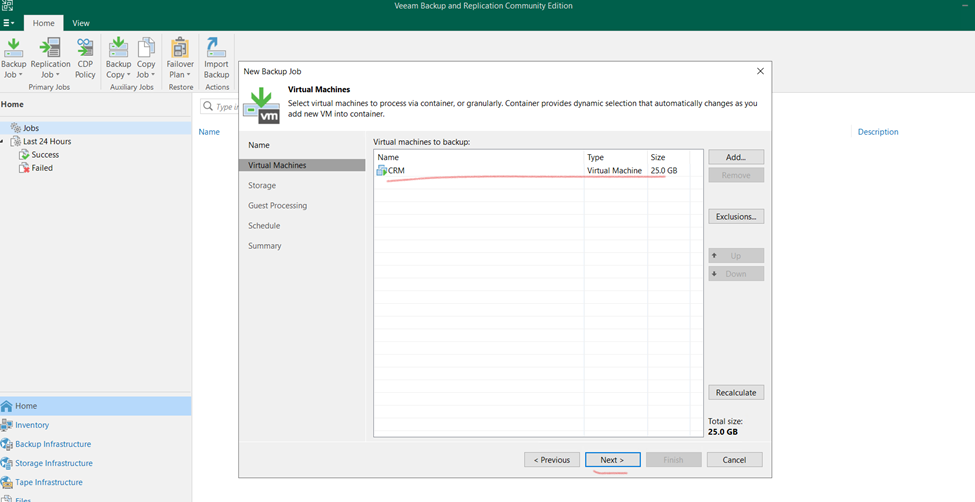
Virtual Machine Select EXSI Host and select VM for Backup and ADD that

Once done and click next

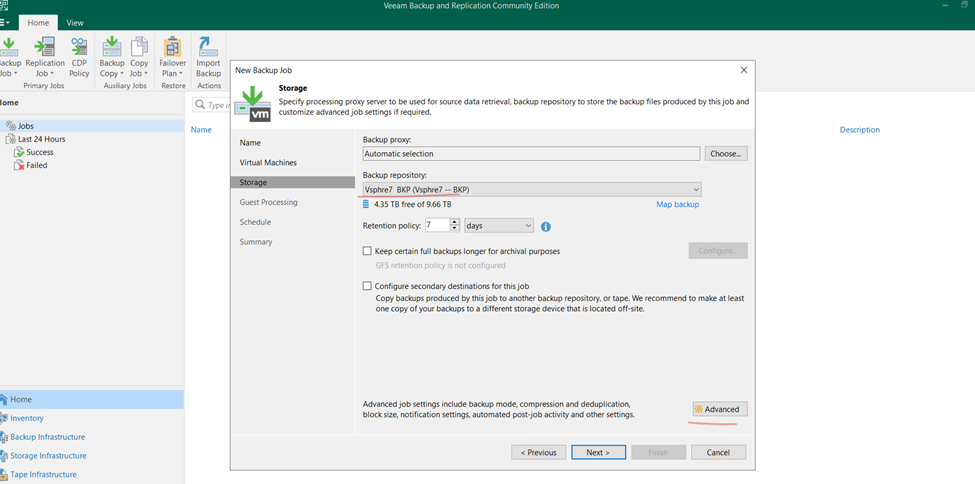
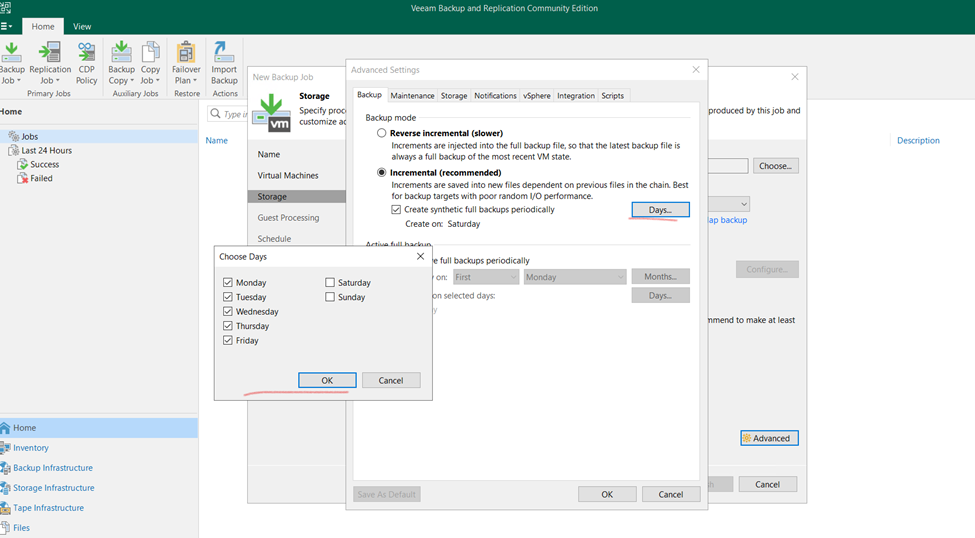
Select backup repositories and click to advanced for schedule backup time

Select Incremental backup days (it’s up to scenario)

And click too next

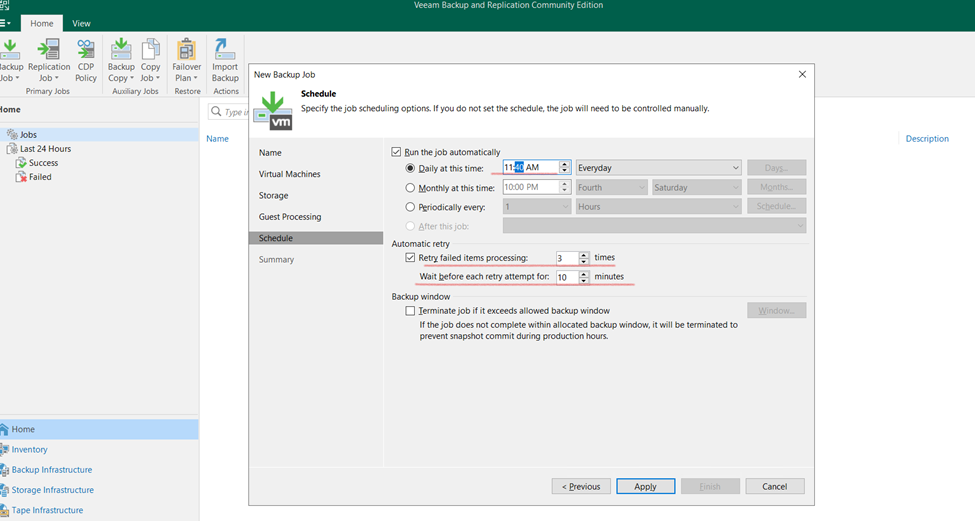
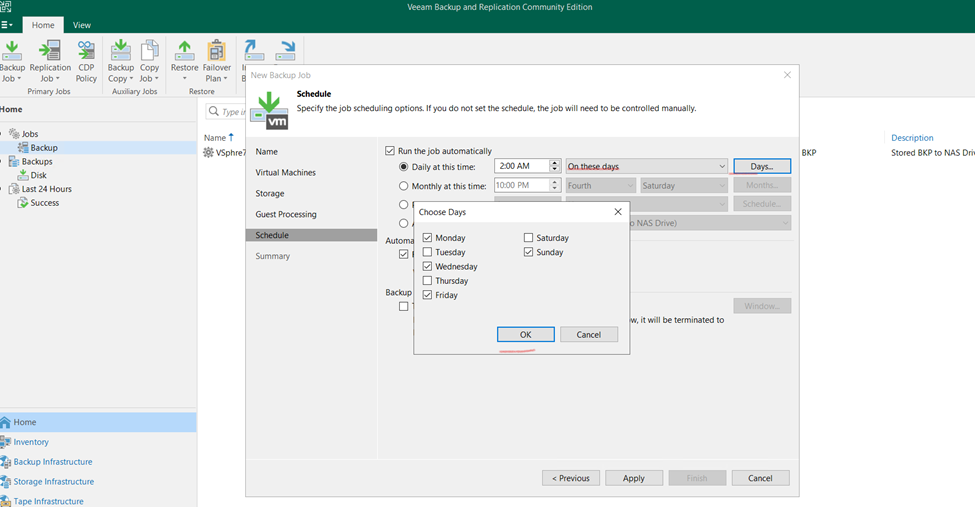
Here schedule time need to select click apply and finish

Or

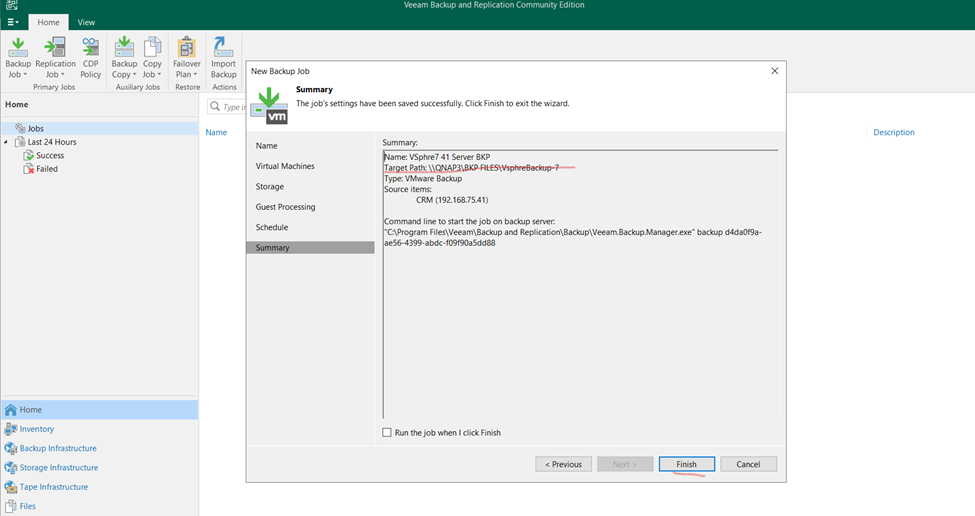
backup location and click to finish

So, schedule backup job is created

Now it’s started on schedule time.

Once schedule backup done will delete the current running machine and will restore server

BACKUP IS COMPLETED

Backup stored on Backup repositories attached

Here,

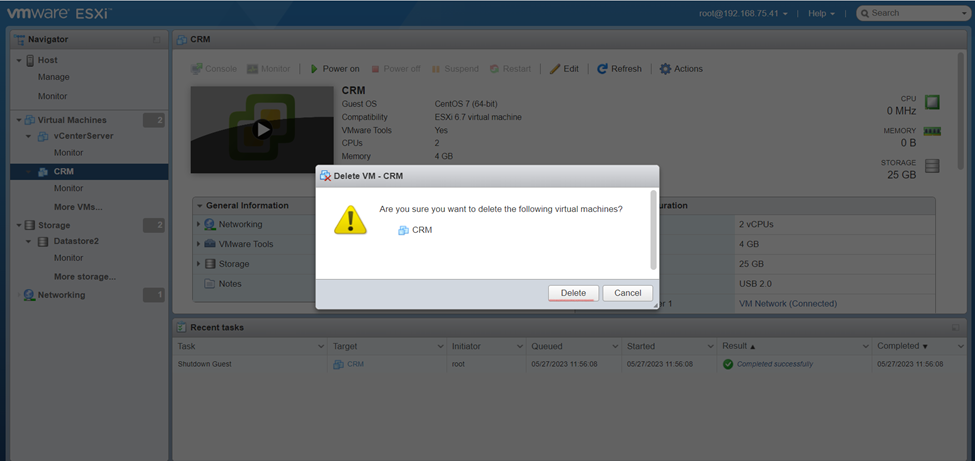
CRM Server Deleting

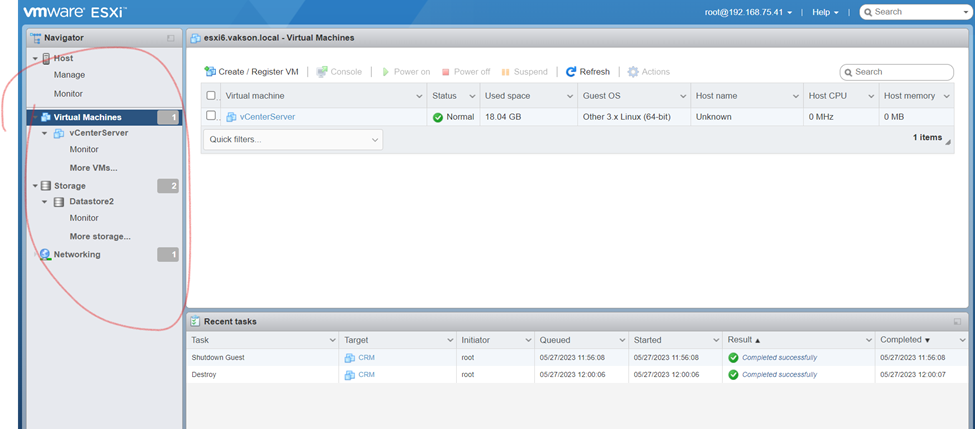
Deleted Server

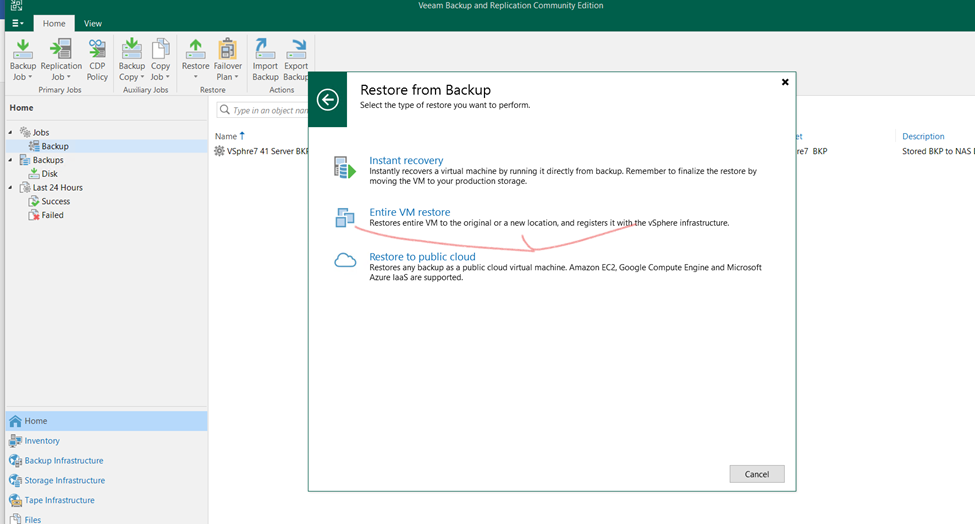
Restoring Entire VM

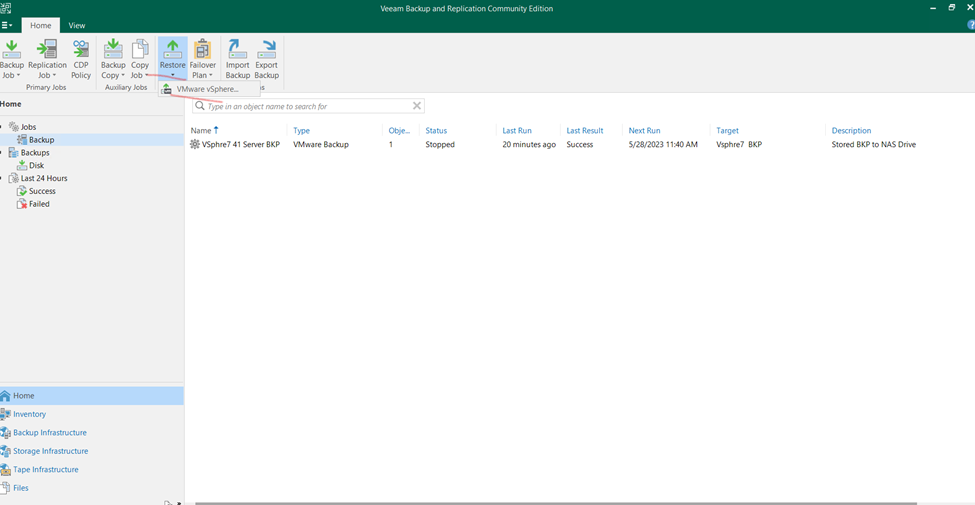
Click on Restore Select Vmware Vsphre

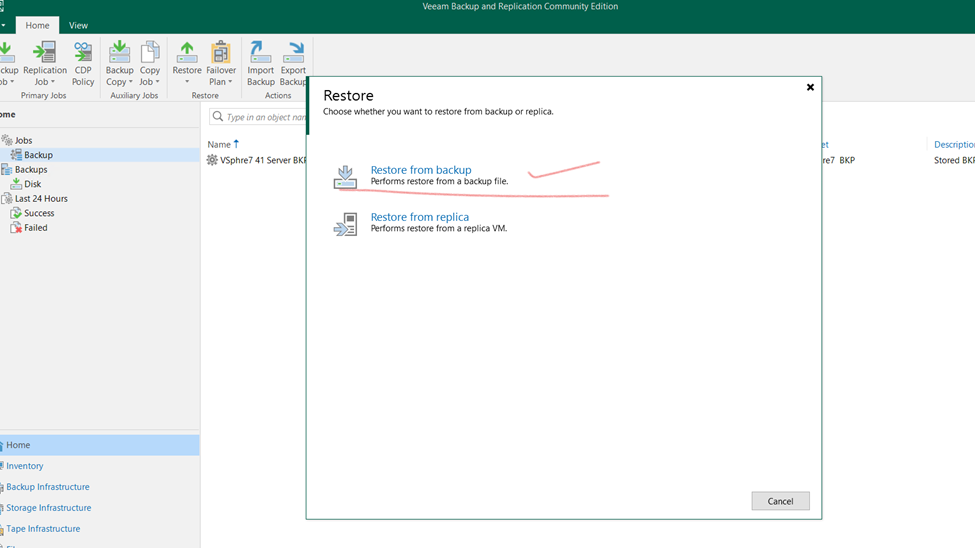
Select restore  from backup

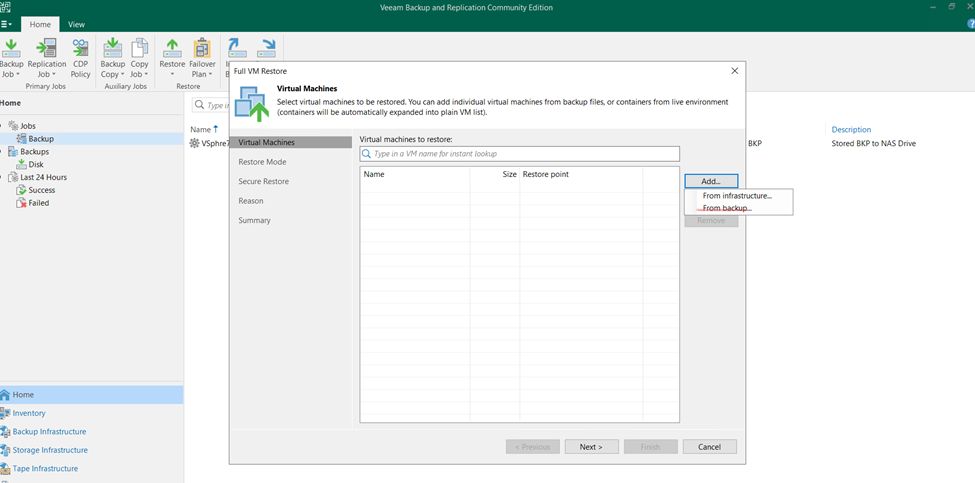
Restoring entire vm

Entire vm

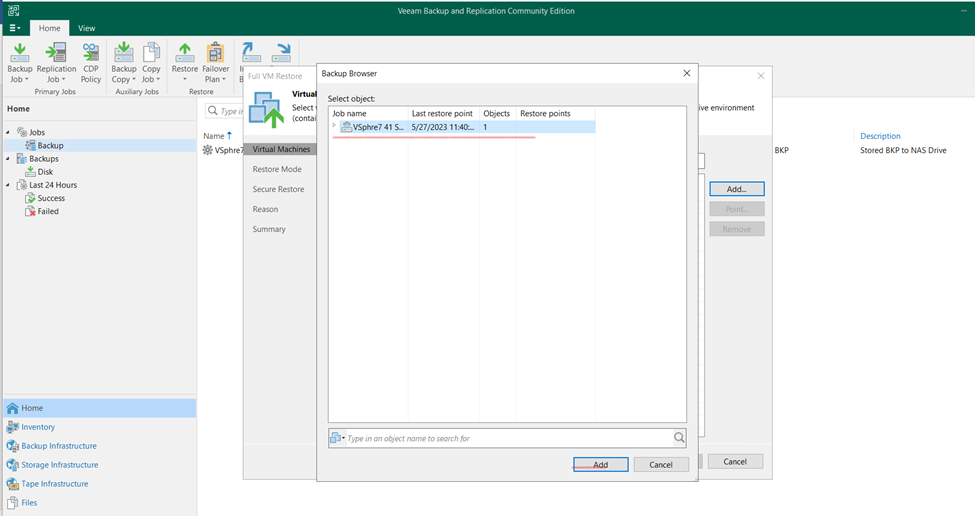
Click on from backup

Select the backup repositories and click to add

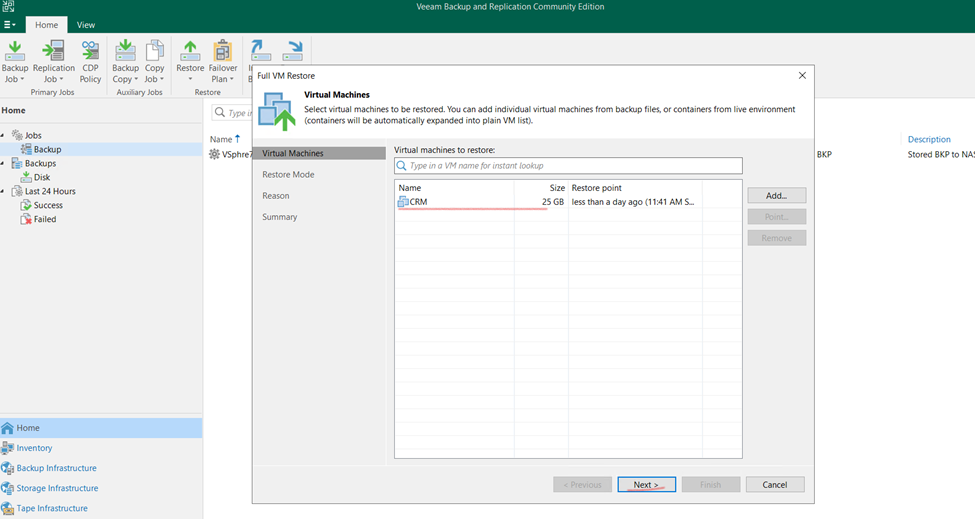
Click too next

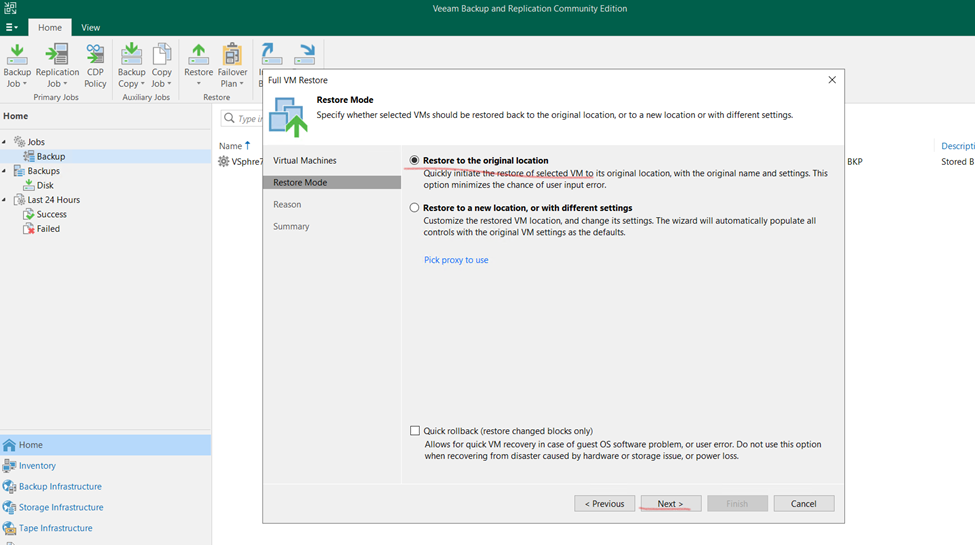
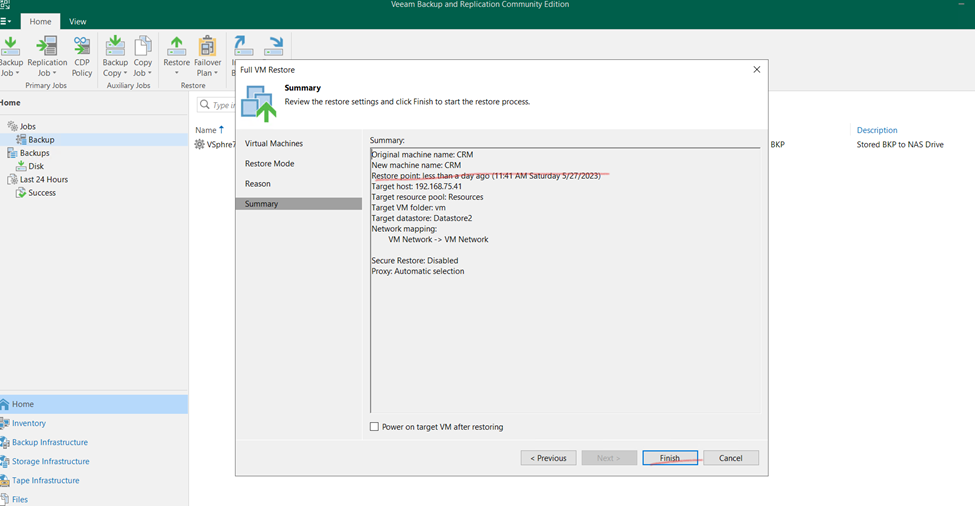
Select the restore to original location

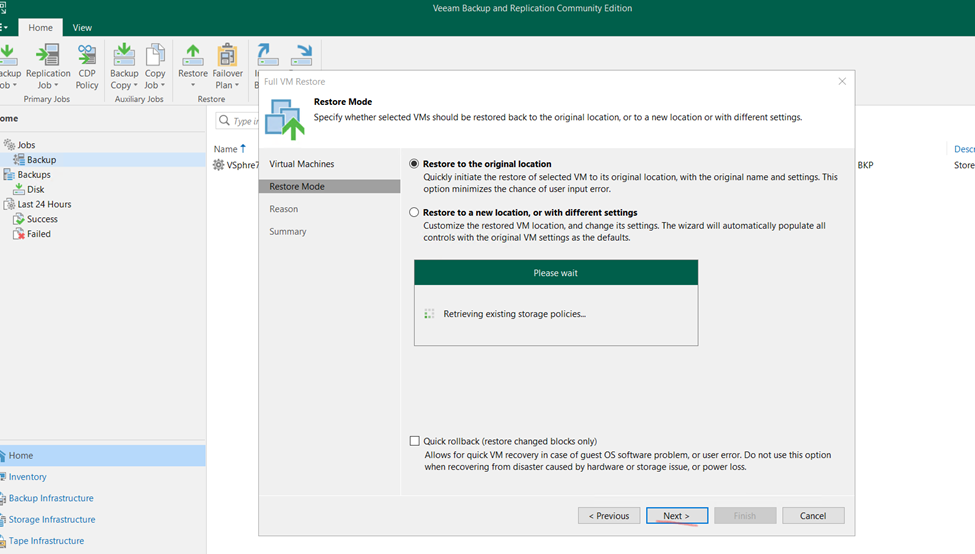
Click to next

Now checking files available in which location

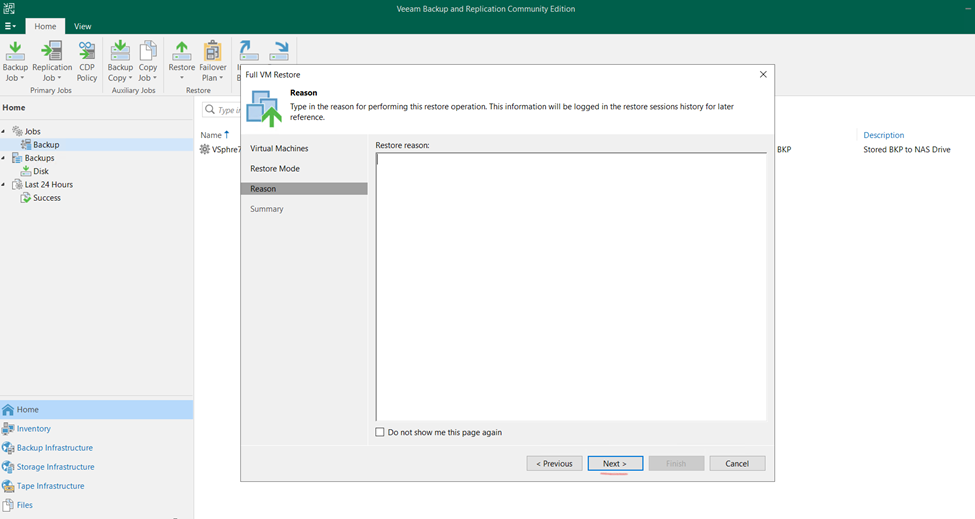
Now click next

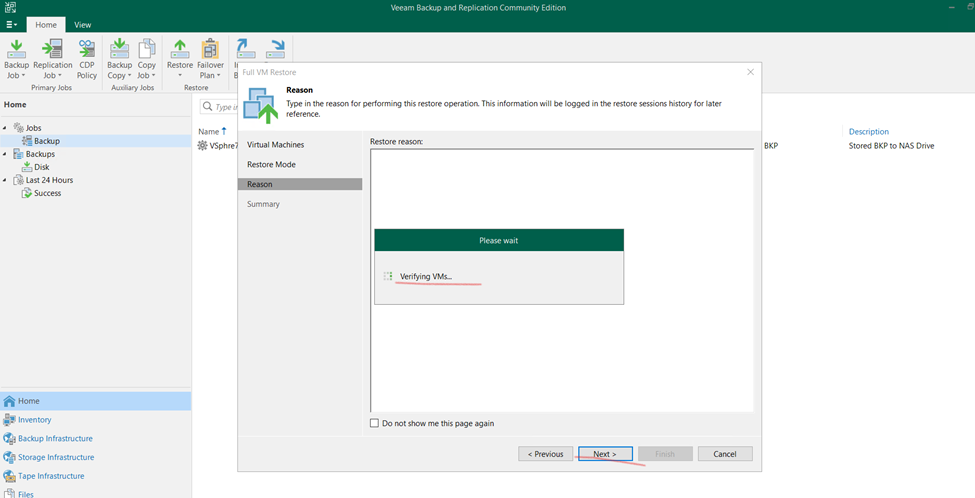
Verifying vm

And click to next

Now click to finish

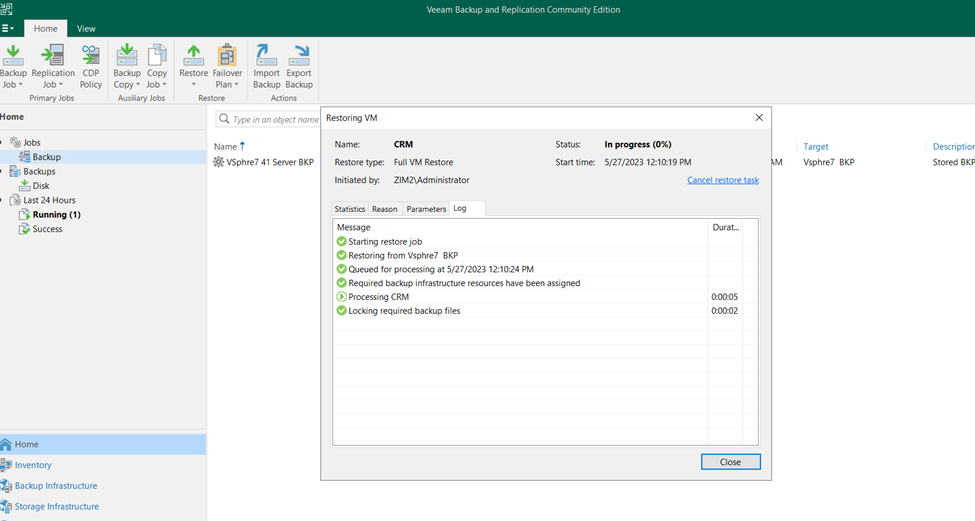
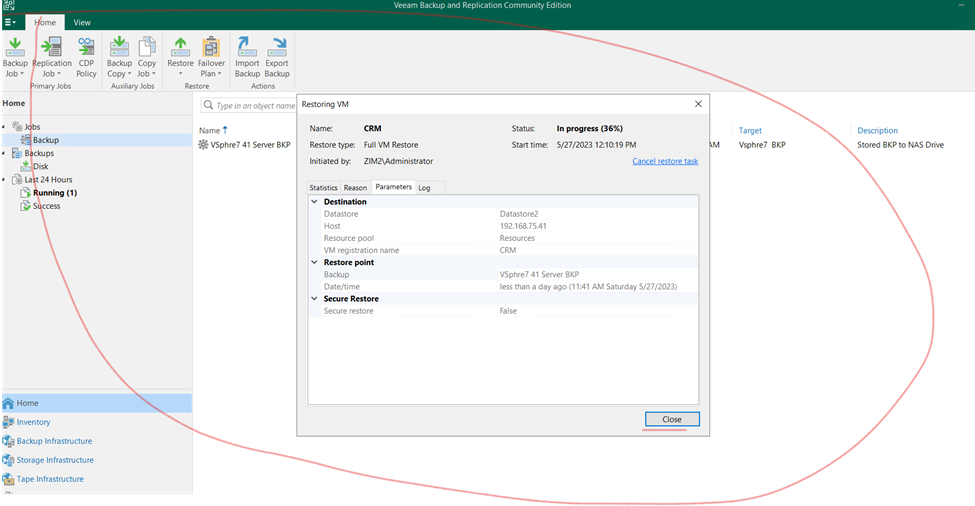
Now need to wait and once done recheck the machine

Process still running

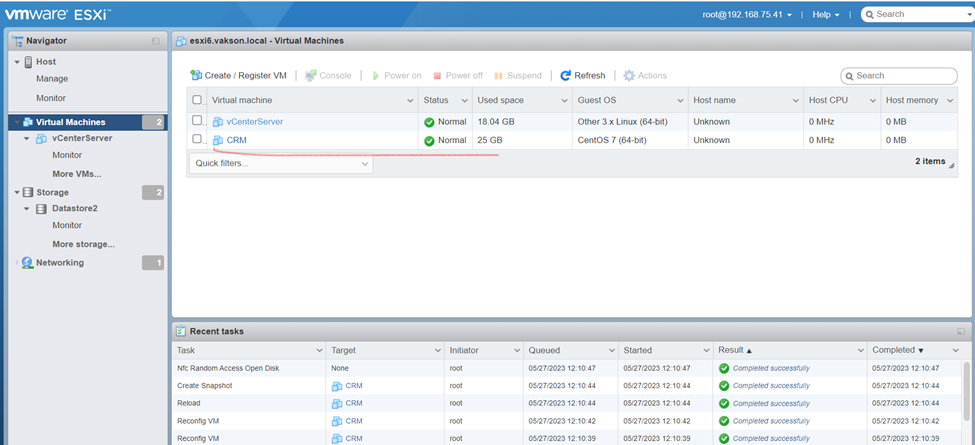
Restore done and close

Now, as you can check on exsi server same virtual machine restore

turn on restored server and checking the Server status

So, after restoration server running fine.

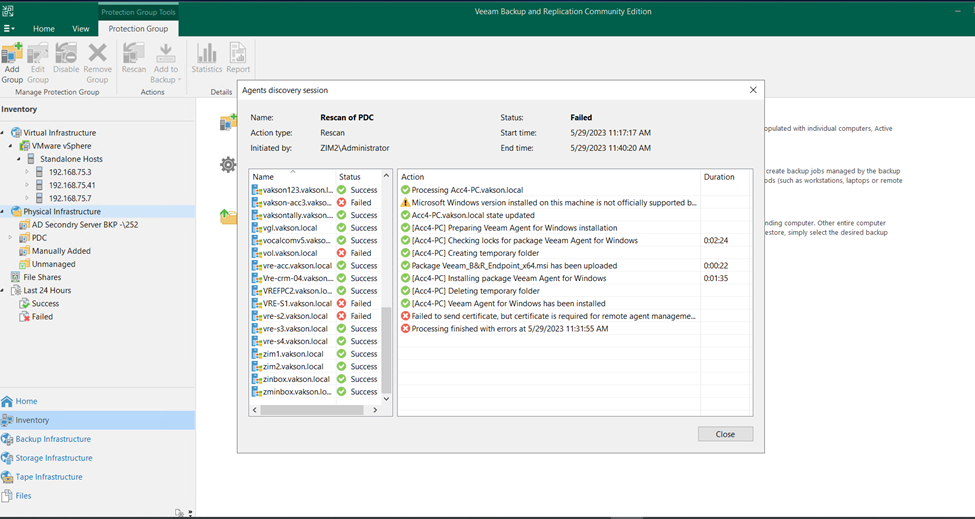
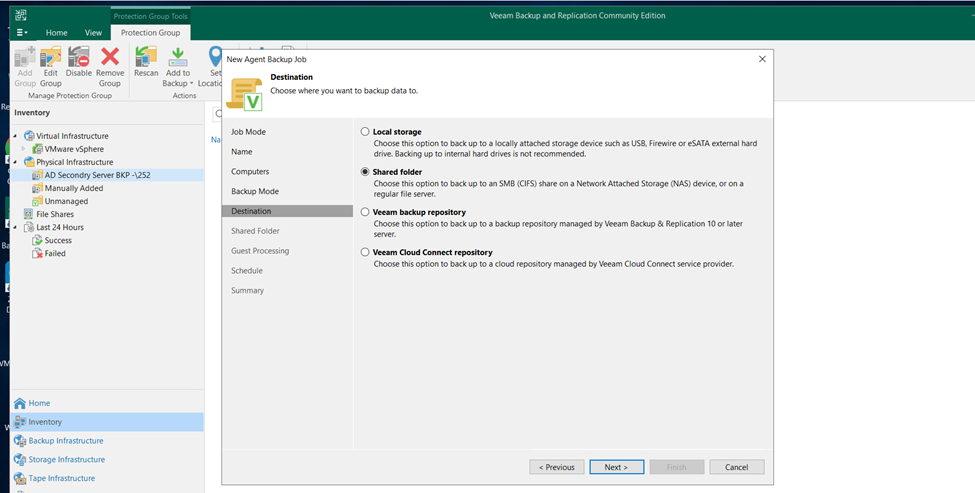
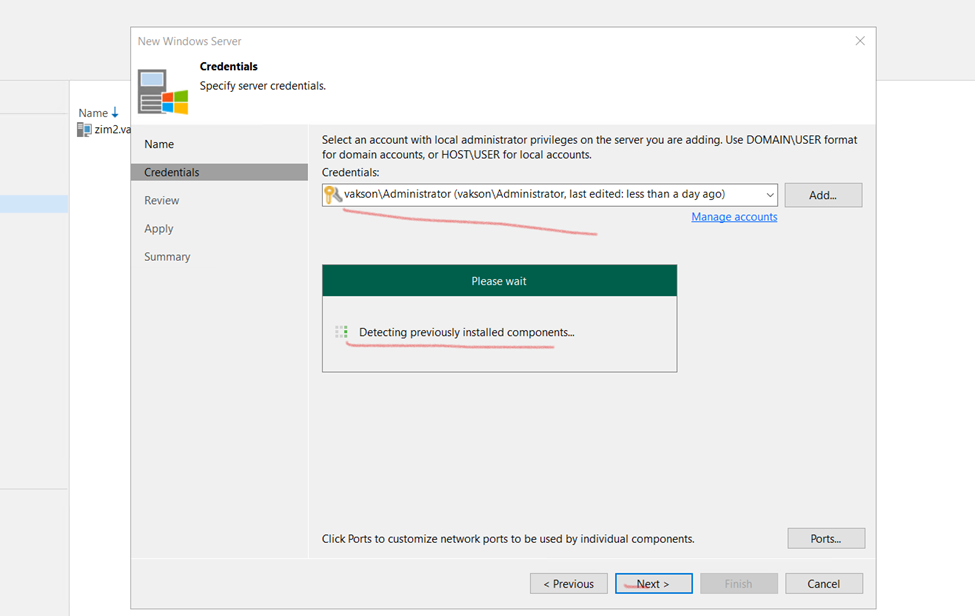
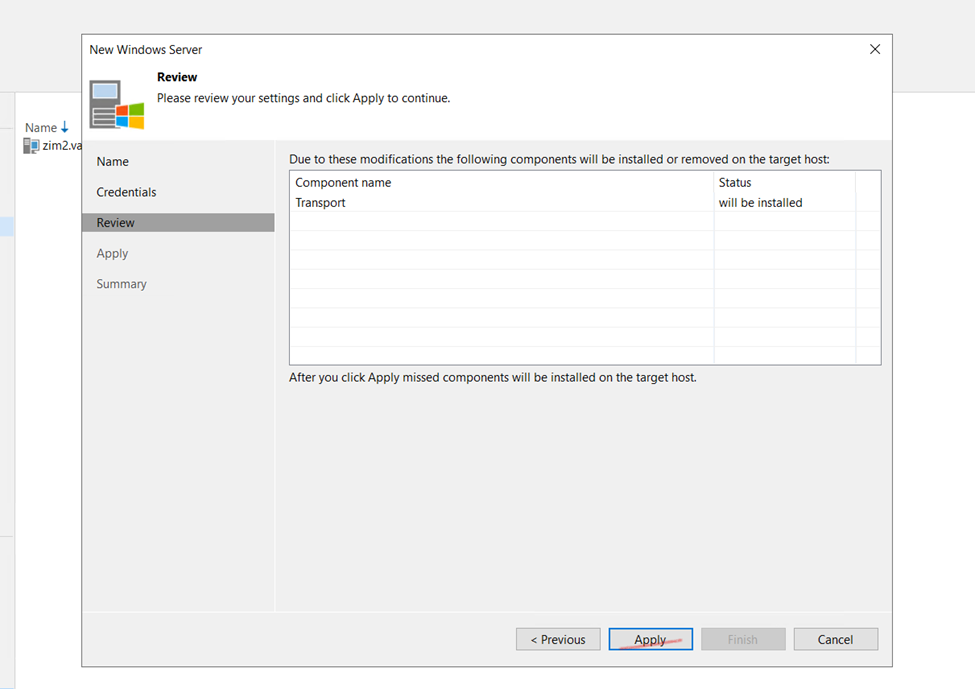
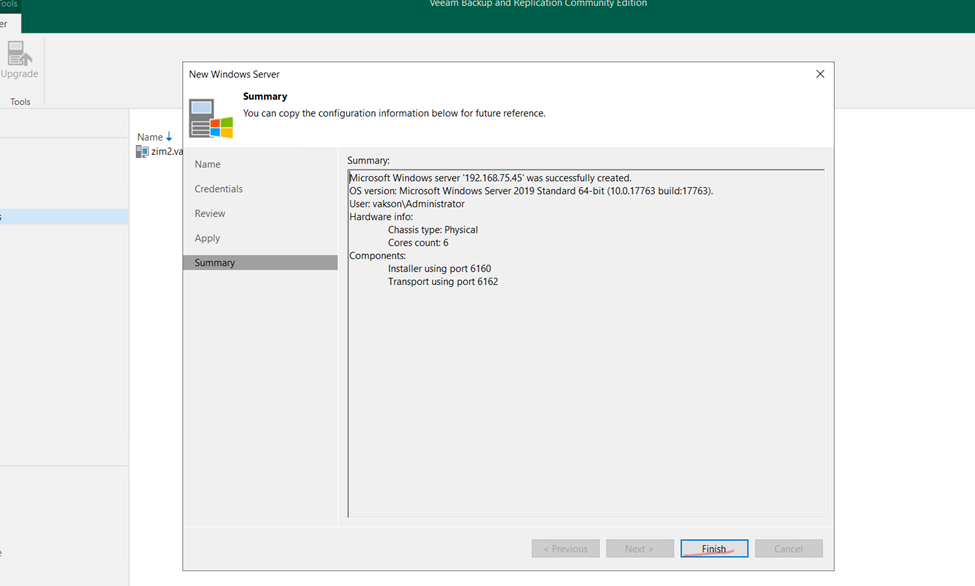
Physical Server Backup using Veeam Solution

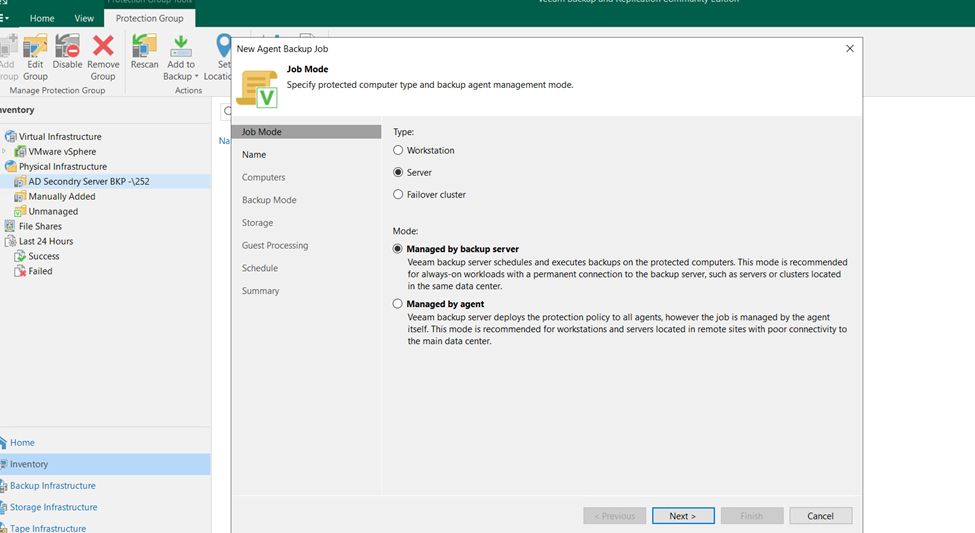
Click on Inventory and select Physical infrastructure click on

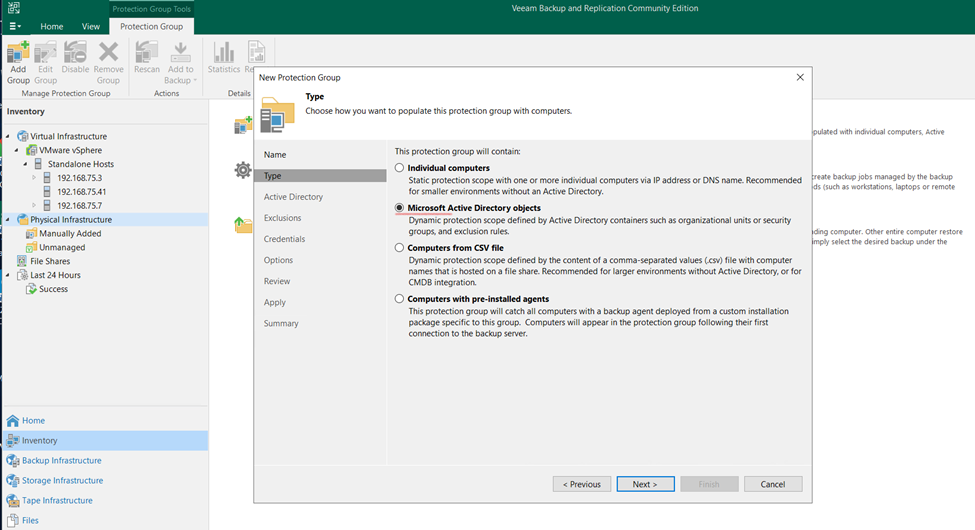
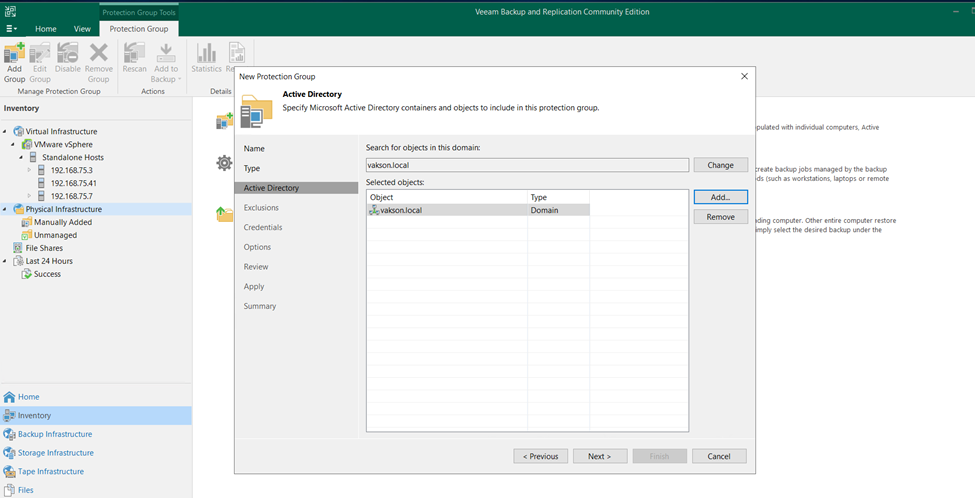
Click on Protection Group

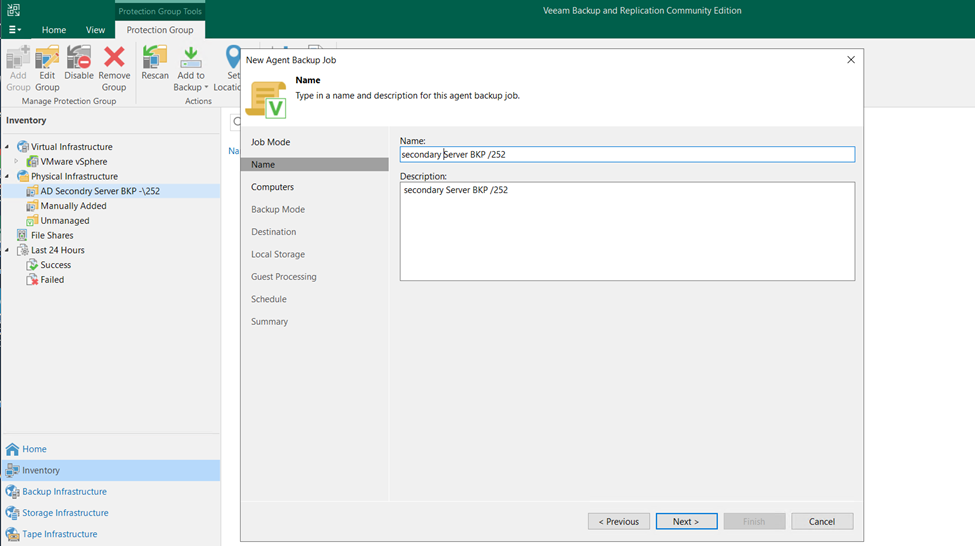
 Type the name and select to next

Here we can take Individual computer backup also but I need to take backup of Domain Controller

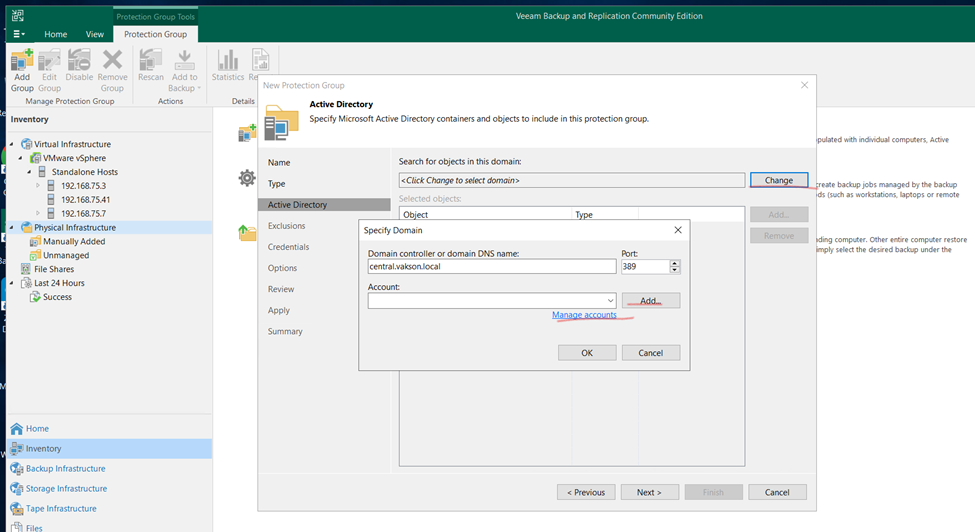
Select AD

Select DC and click to next

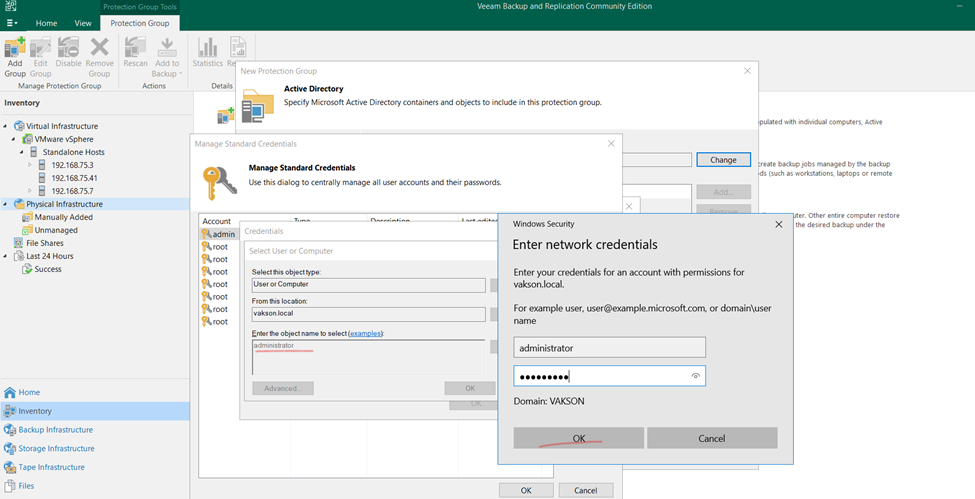
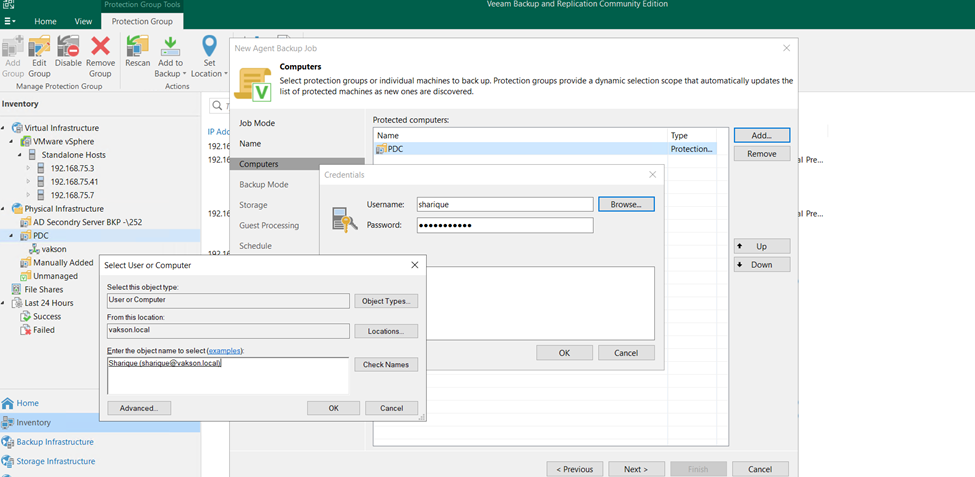
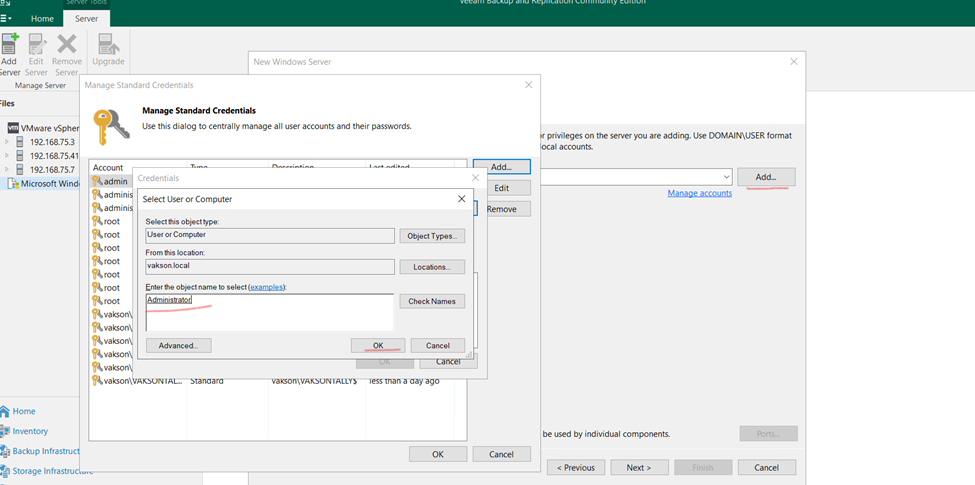
Click on add button

Click to Browse

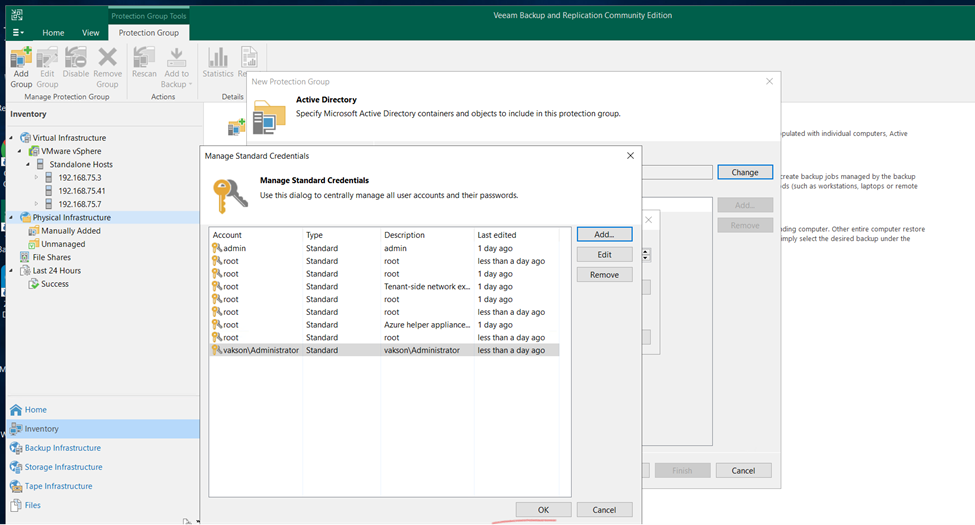
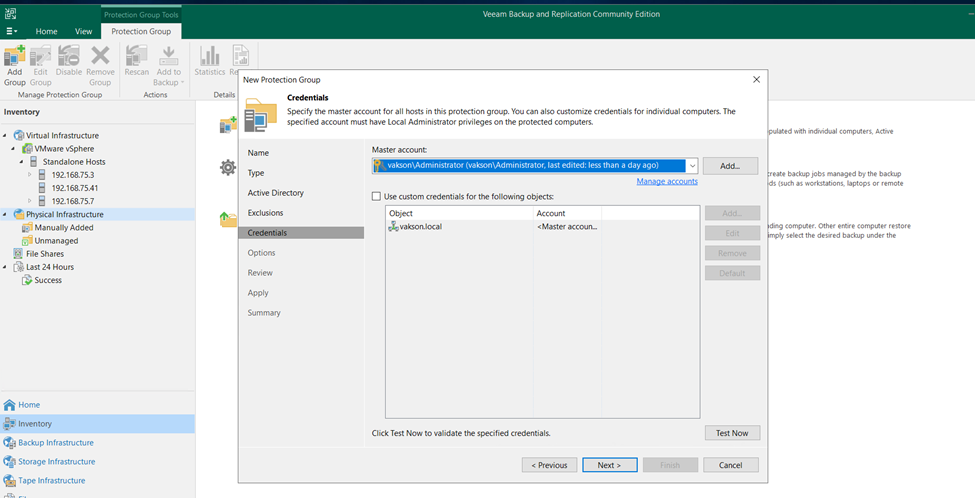
And type the Domain Controller username and password

Once added click okay and next

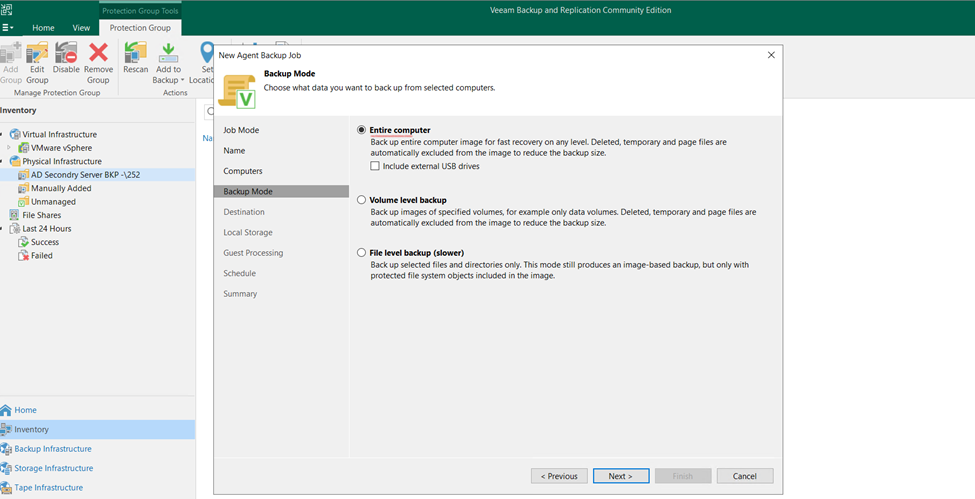
Click to next

If will select all AD  User it will Select all computer attached to DC

So here I’m selecting Only Secondary DC

Here selected all DC Infrastructure

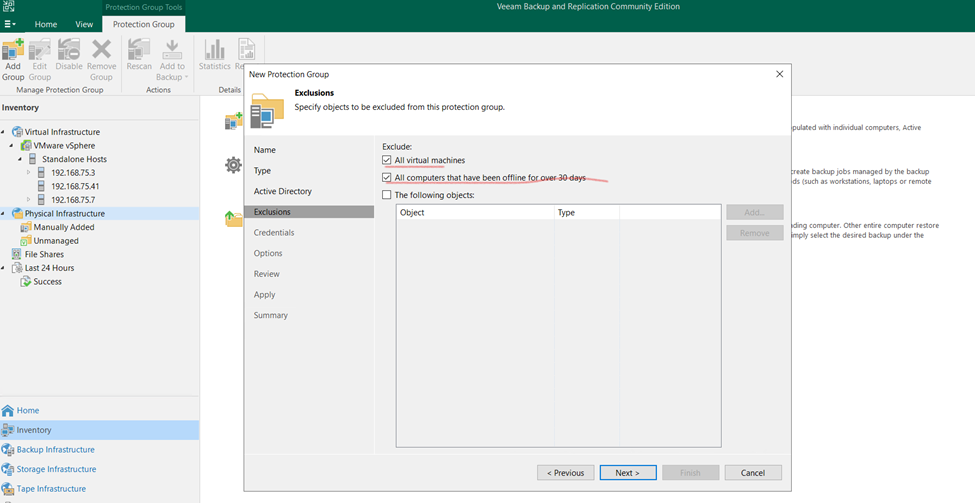
And click too next

Selected VM also if Hyper V if installed so it can take all Backup

Click next

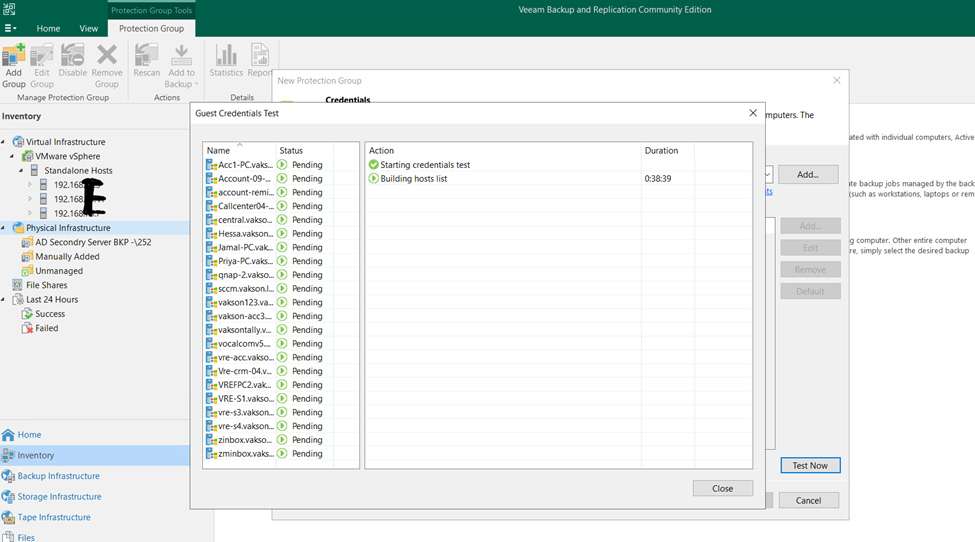
Test Now

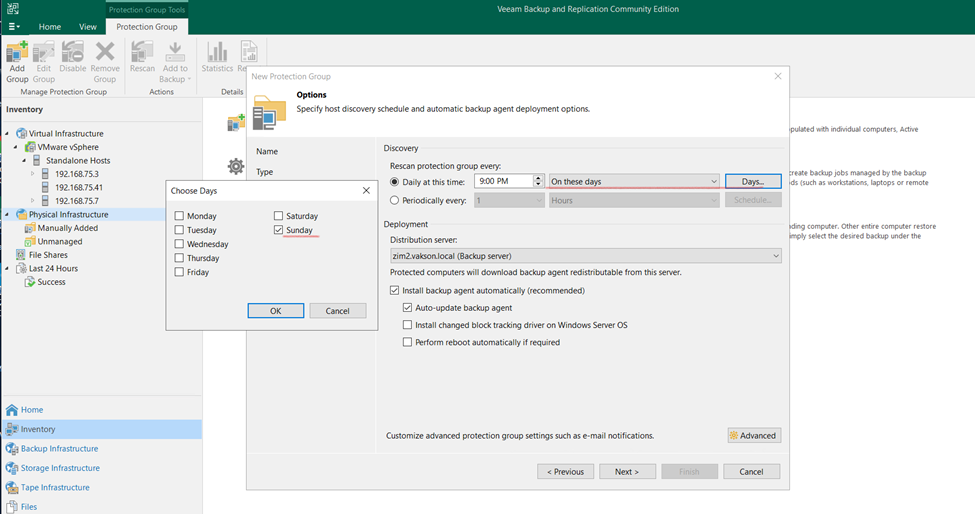
Selected Secondary DC Backup Days

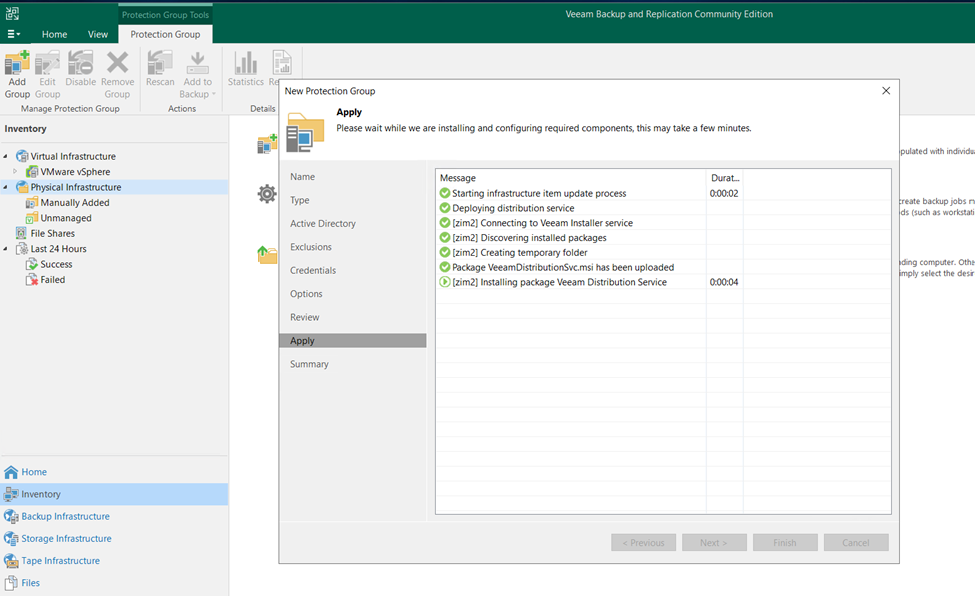
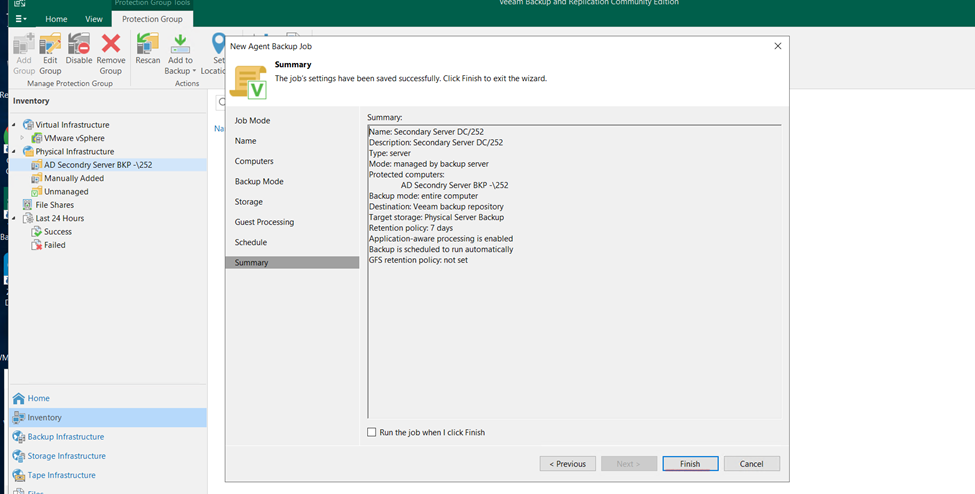
Click okay and apply and click to finish

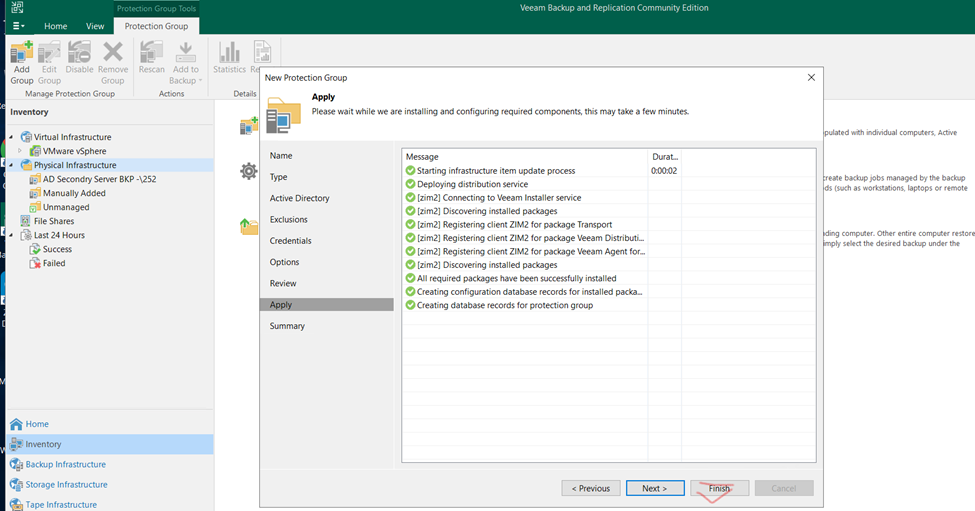
Now click to finish

Protection Group Created

Now Creating Back Schedule for Physical Server

Right click Select new backup job (Linux or Windows)

Click to new job and create

Or Individual Computer and Server

Veeam copy files

Veaam Files Level Backup

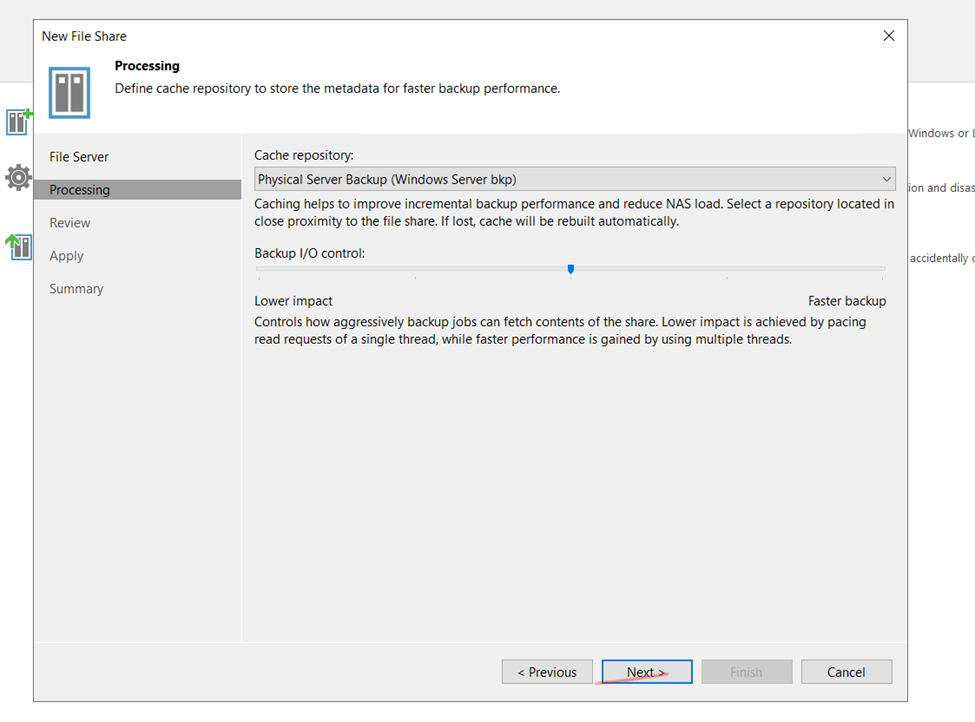
Adding Physical File Backup Server for backup.

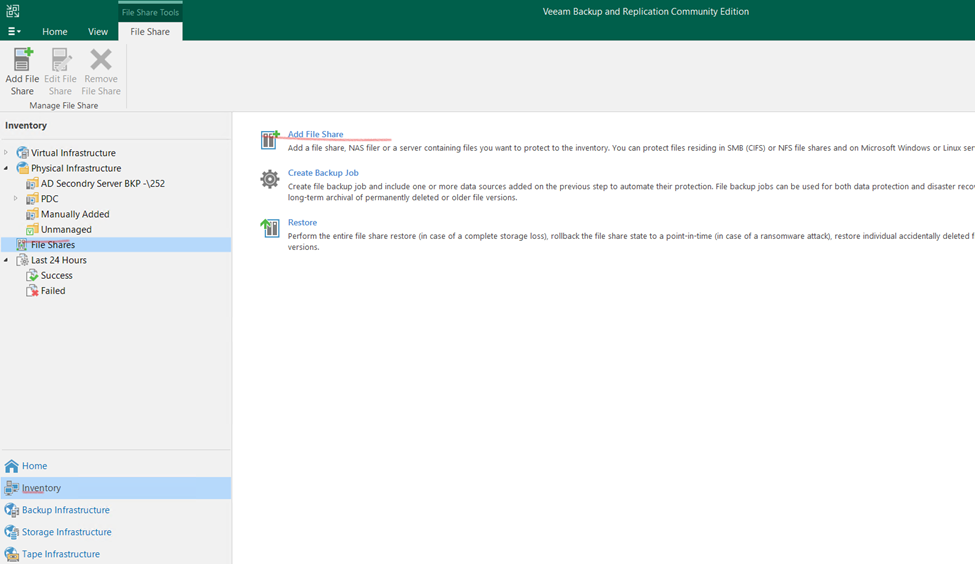
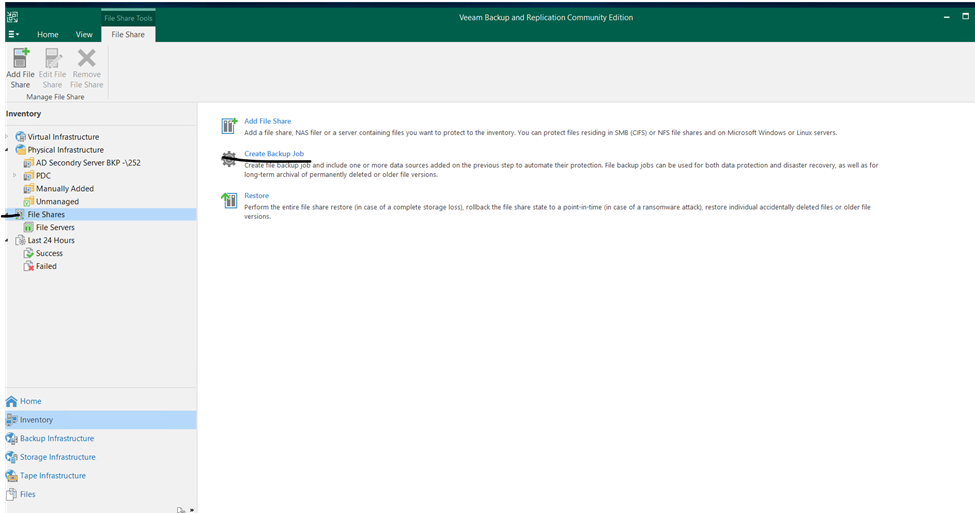
Click on Inventory the select File Shares and click to Add File Share

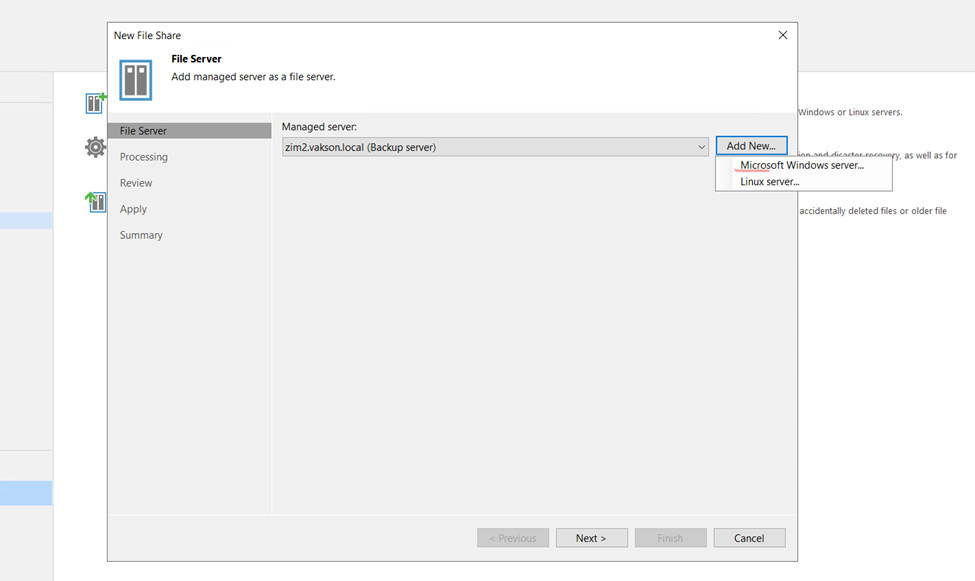
Here adding file Sever select that

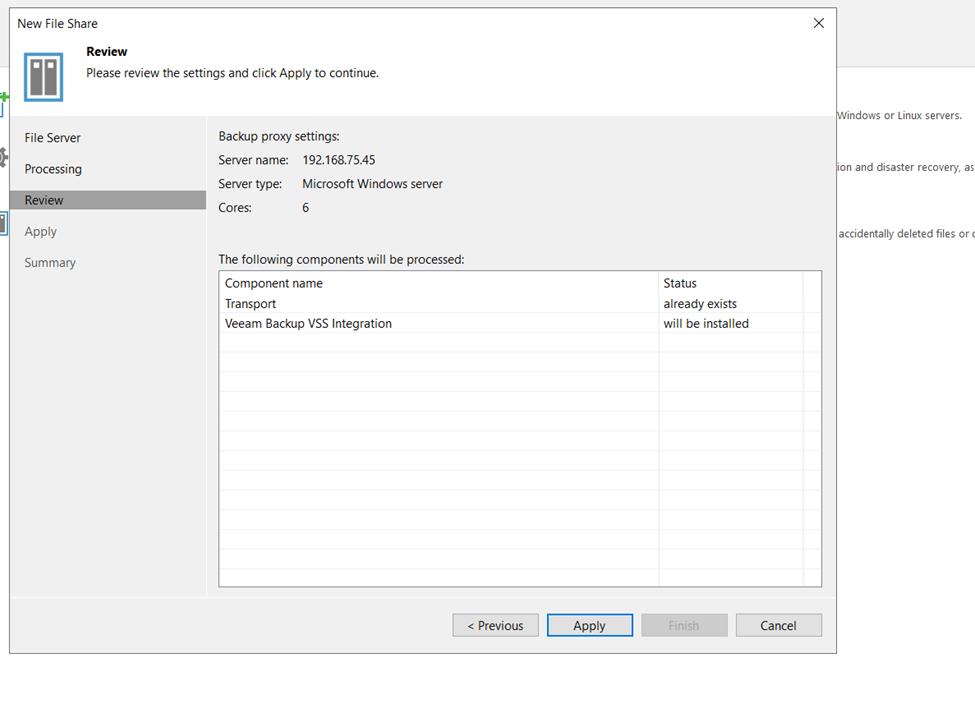
Add the file server Win or Linux

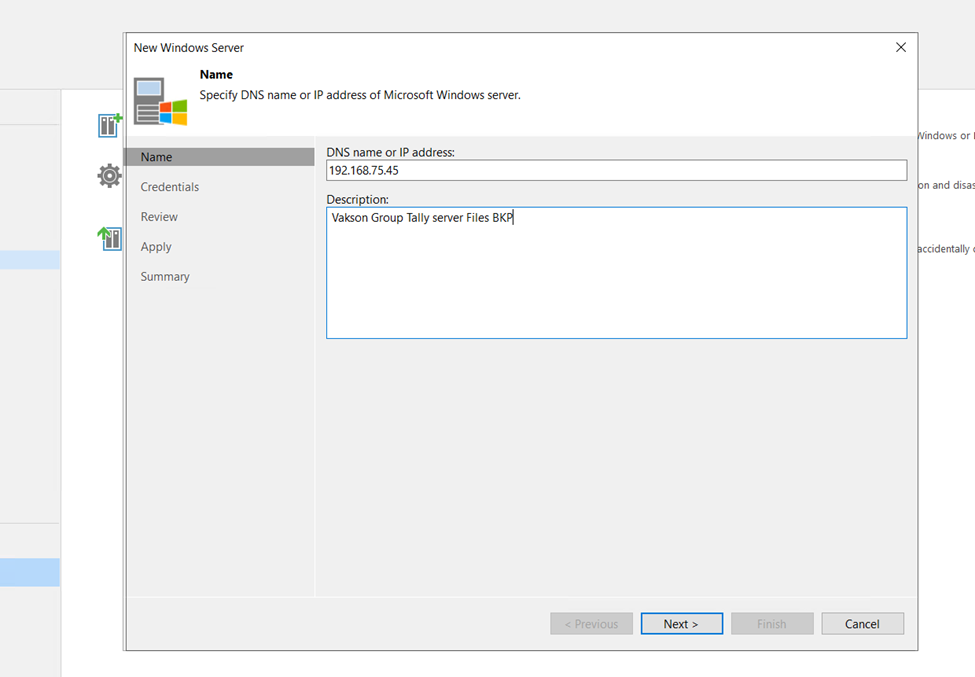
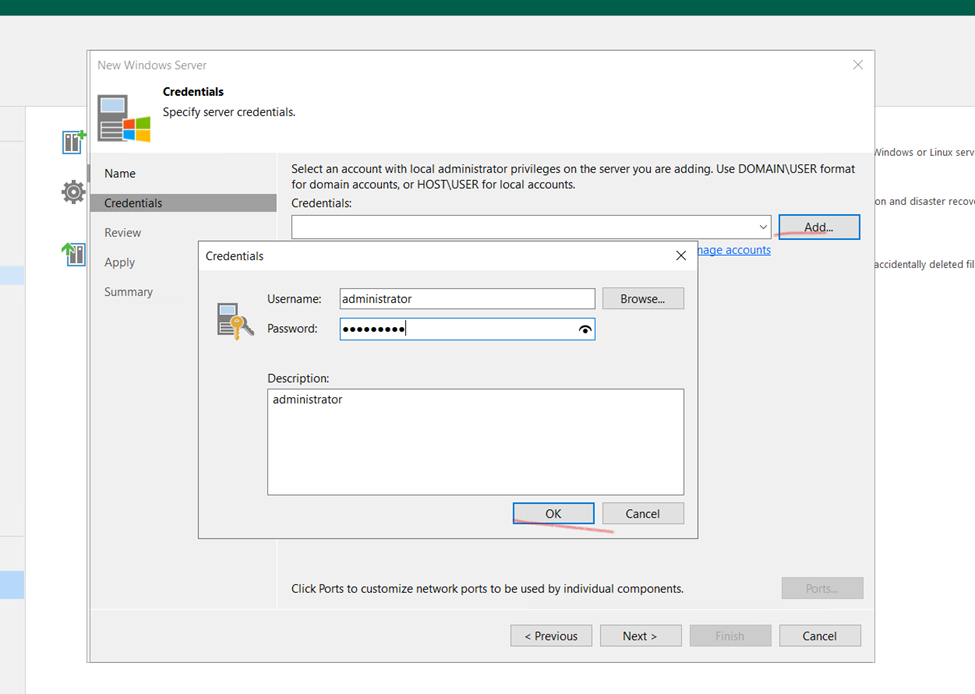
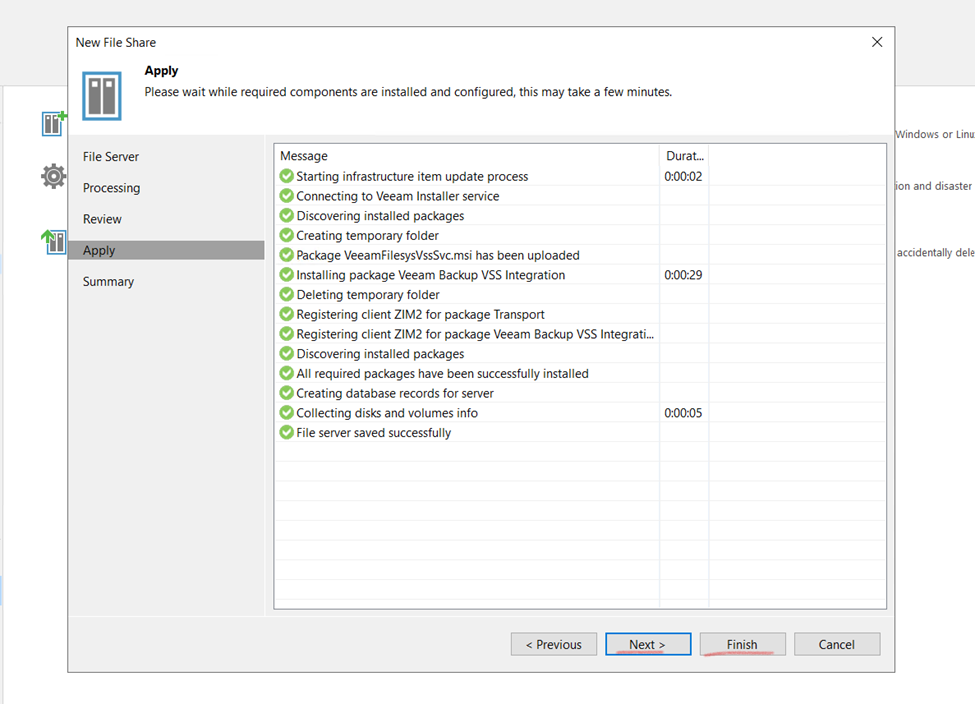
Server Identification

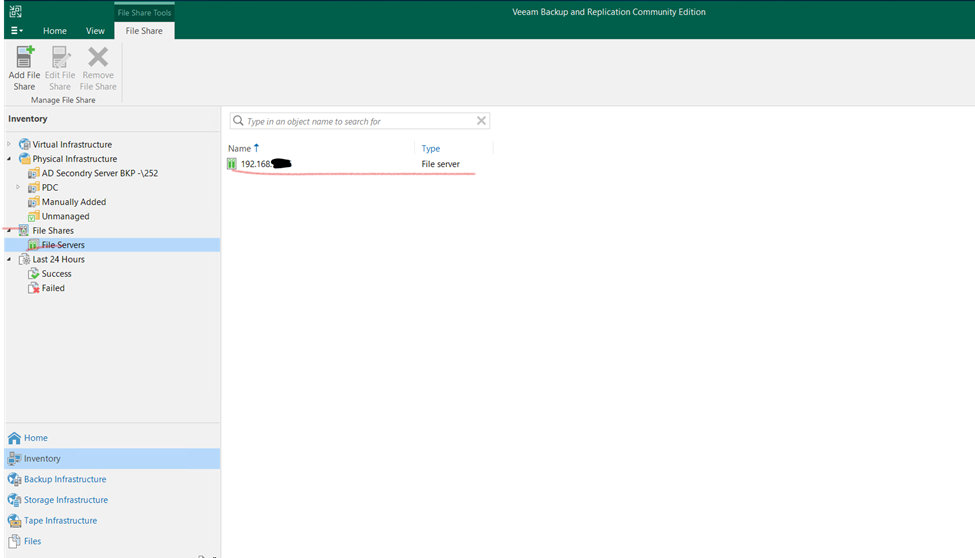
File Server Backup repositories is Added

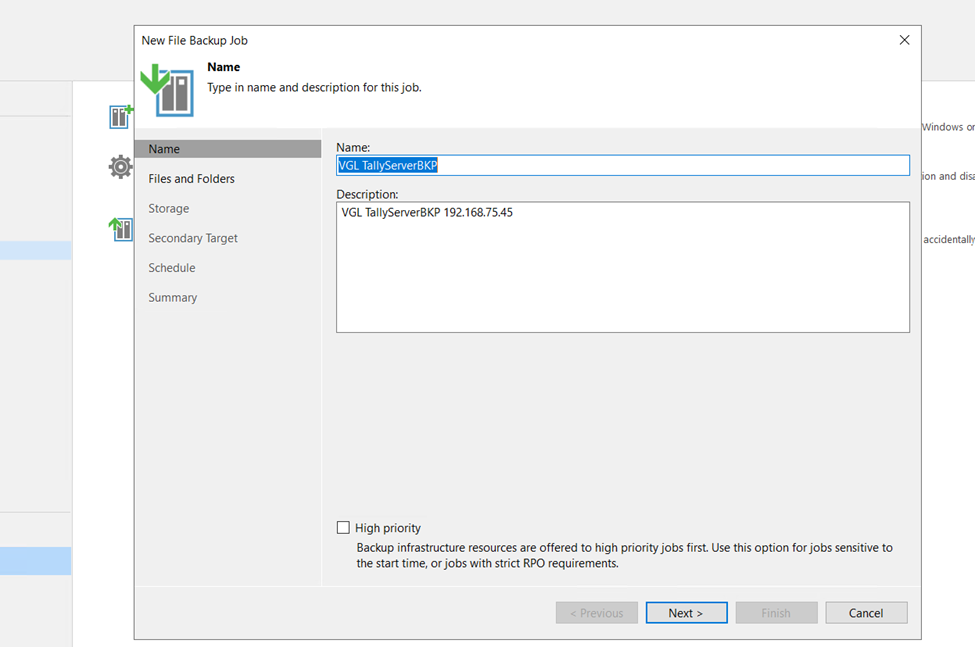
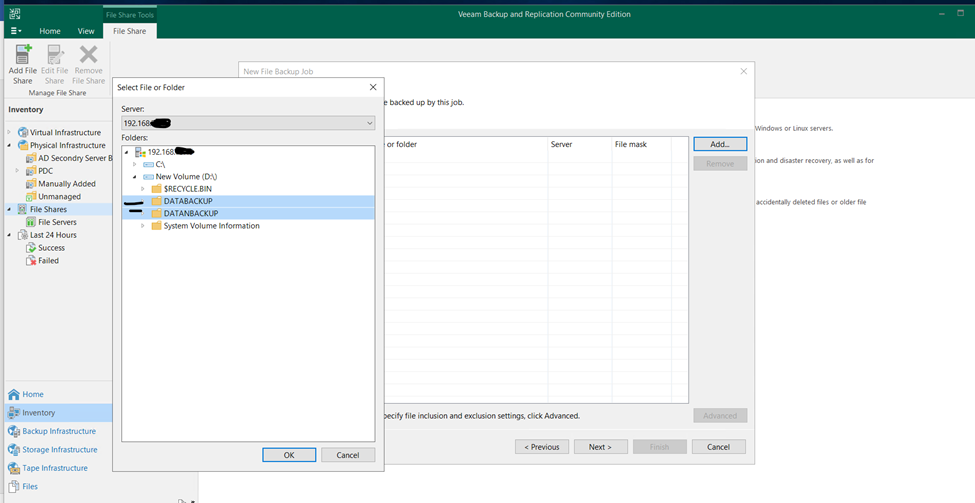
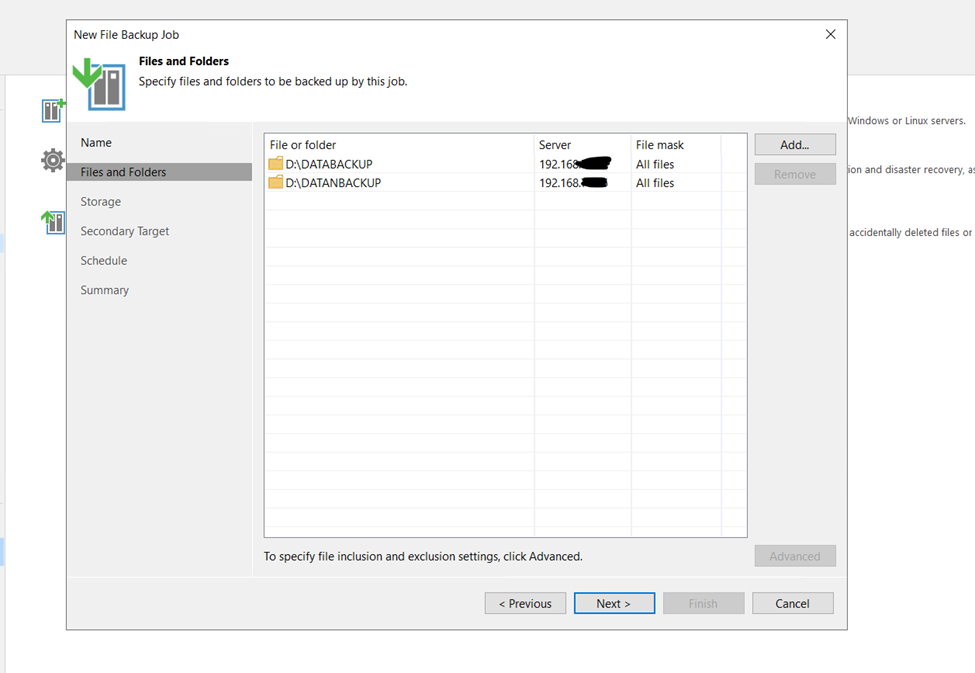
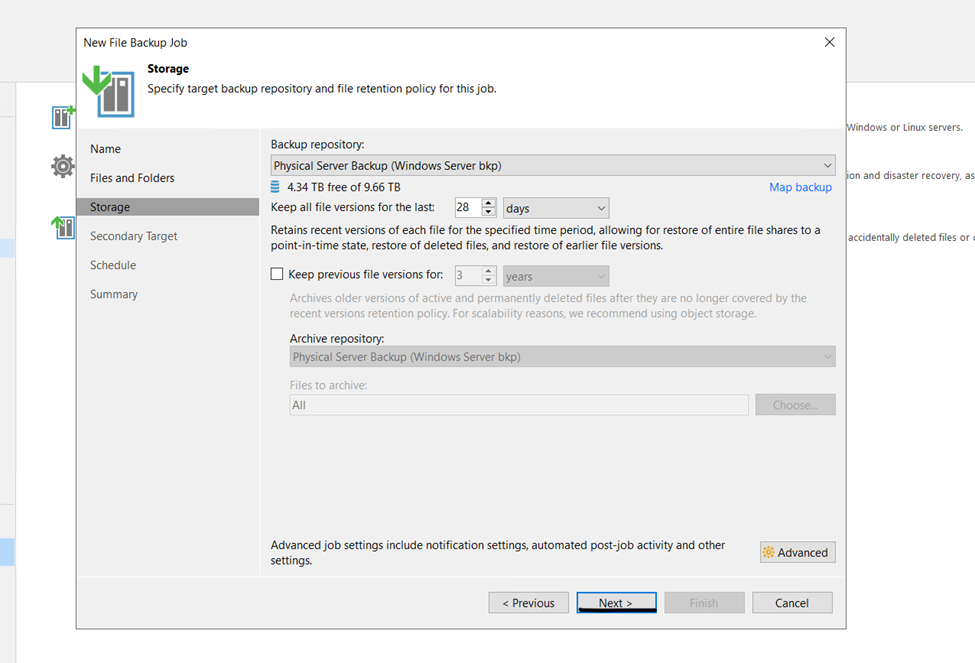
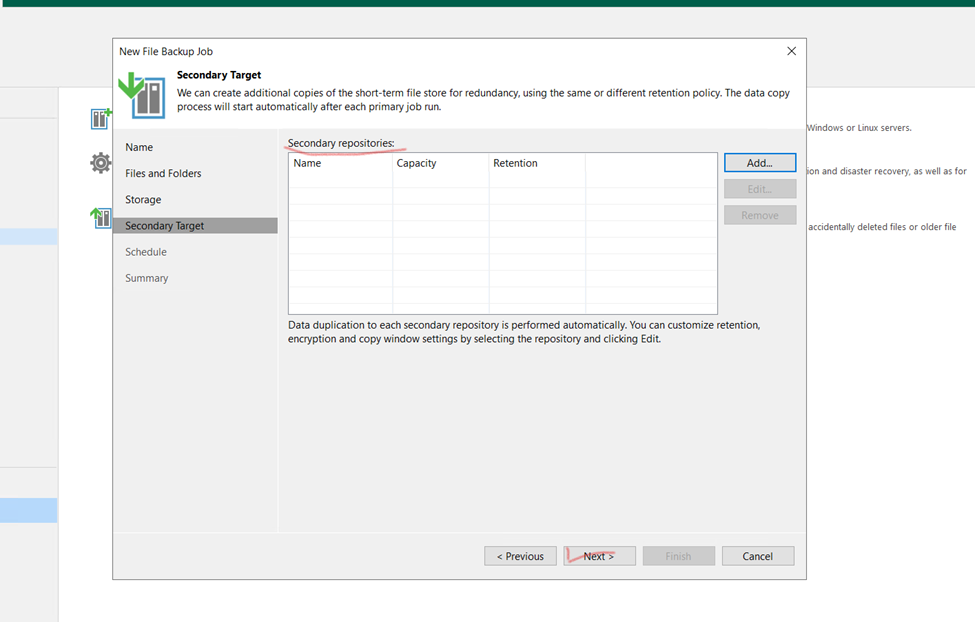
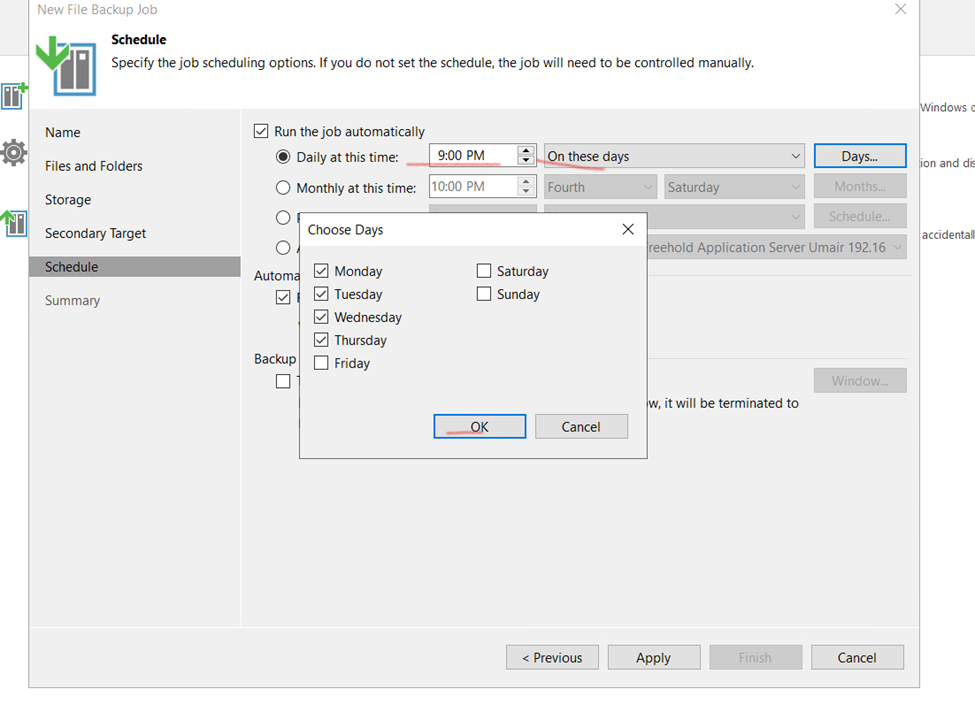
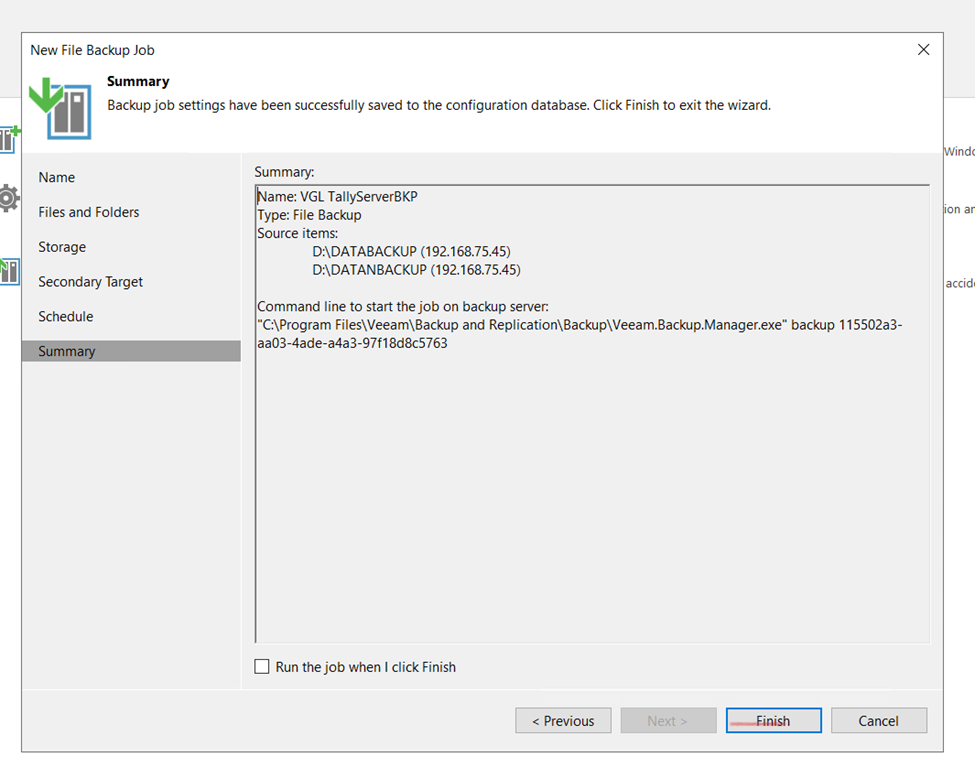
Now here creating and Scheduling File server Backup

Apache Installation

What Is Apache?

Apache is a free and open-source software that allows users to deploy their websites on the internet. It is one of the oldest and most reliable web server software maintained by the Apache Software Foundation, with the first version released in 1995.

The job of a web server is to serve websites on the internet. To achieve that goal, it acts as a middleman between the server and client machines. It pulls content from the server on each user request and delivers it to the web.

Here are some of the reasons why Apache is so popular:

  • It is free and open-source software.
  • It is very reliable and stable.
  • It is very scalable and can handle a large amount of traffic.
  • It is very extensible and can be customized to meet the needs of different websites.

If you are looking for a reliable, scalable, and extensible web server, Apache is a great choice.

How to Install Apache Server

Steps:

Update Centos/RedHAT Linux Server

sudo yum update – y

Apache Installation

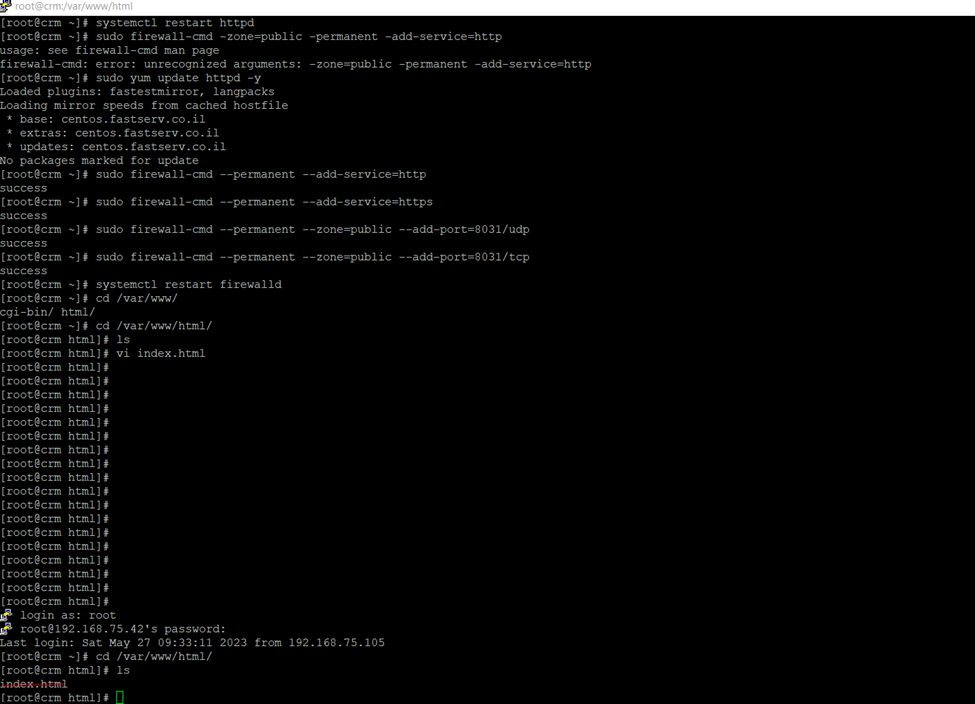
[root@qp ~]# sudo yum install httpd

Apache Services

Activate Apache

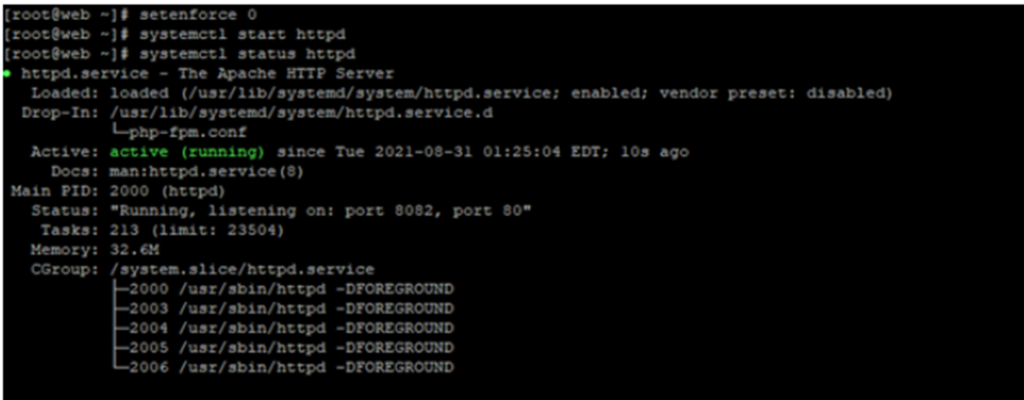
sudo systemctl start httpd

Start/ Restart/ stop

Enable

sudo systemctl enable httpd

Start Apache Services

Systemctl start httpd.services or systemctl start httpd

Verify Apache Service

Systemctl status httpd.services systemctl status httpd

Assign Ports to Apache Server

vi /etc/httpd/conf/httpd.conf

assign Public port and permanent

firewall-cmd –zone=public –permanent –add-service=http

firewall-cmd –zone=public –permanent –add-service=https

firewall-cmd –permanent –add-port=80/tcp

firewall-cmd –permanent –add-port=81/udp

firewall-cmd –permanent –add-port=81/tcp

firewall-cmd –permanent –add-port=80/udp

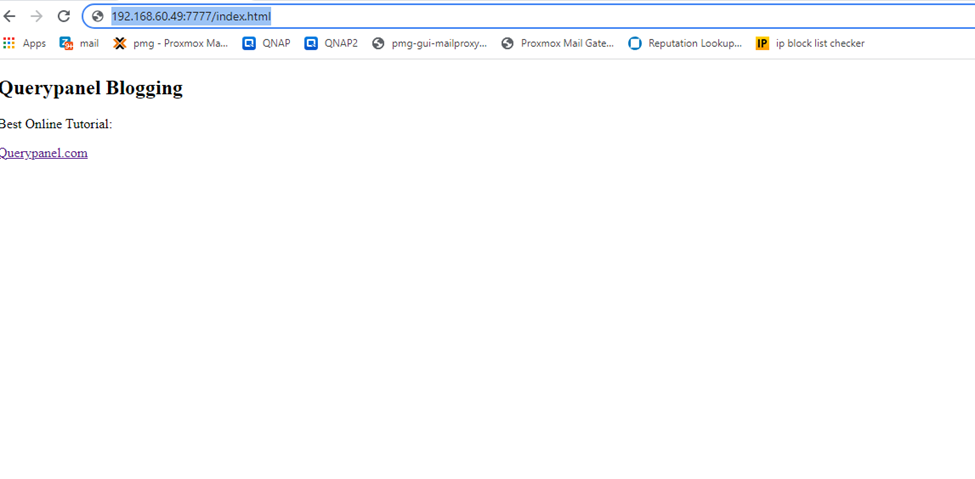
192.168.60.49/index.html

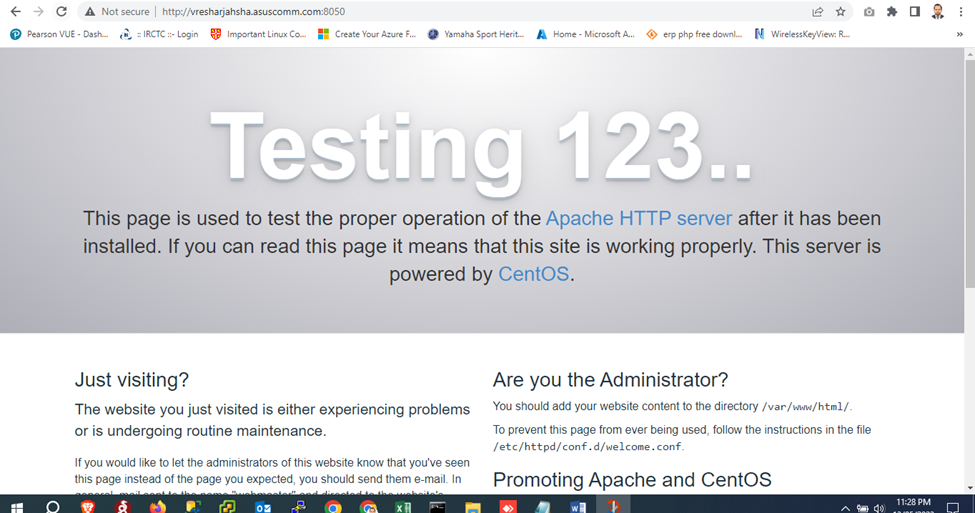
Public domain example

Configure firewalld to Allow Apache Traffic

Normal web traffic uses the http protocol on Port 80, while encrypted web traffic uses the https protocol, on Port 443.

Modify your firewall to allow connections on these ports

http

sudo firewall-cmd ––permanent ––add-port=80/tcp

sudo firewall-cmd ––permanent ––add-port=80/udp

https

sudo firewall-cmd ––permanent ––add-port=443/tcp

sudo firewall-cmd ––permanent ––add-port=443/tcp

Now reload the firewall

firewall-cmd –reload or sudo firewall-cmd ––reload

Tomcat Apache Installation

Tomcat Apache Installation on Centos 7

open-source Java servlet and Java Server Page container that lets developers implement an array of enterprise Java applications. Tomcat also runs an HTTP web server environment in which Java code can run.

[root@qp ~]# yum update  && upgrade -y

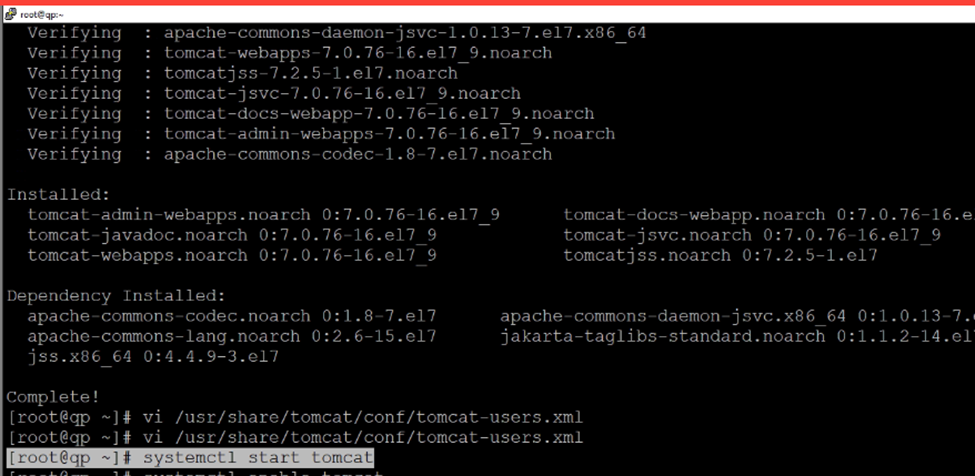
[root@qp ~]# yum install tomcat -y

now need to stop Apache Server

systemctl stop httpd or systemctl stop httpd.service

Next to edit

vi /usr/share/tomcat/conf/tomcat-users.xml

[root@qp ~]# vi /usr/share/tomcat/conf/tomcat.conf

At the last add these below commands java security

JAVA_OPTS=”-Djava.security.egd=file:/dev/./urandom -Djava.awt.headless=true -Xmx1026m -XX:MaxPermSize=256m -XX:+UseConcMarkSweepGC”

And save it

Now checking the all prerequisite and packages are install or not if just use * command to download like below

yum install tomcat*

[root@qp ~]# yum install tomcat*

Now add the admin user to controlling tomcat server

[root@qp ~]# vi /usr/share/tomcat/conf/tomcat-users.xml

Once edit and insert the below access scripts

Add the scripts below the line

You can use your password …

<tomcat-users>

<user username=”admin” password=”sharique” roles=”manager-gui,admin-gui”/>

Once done start the tomcat

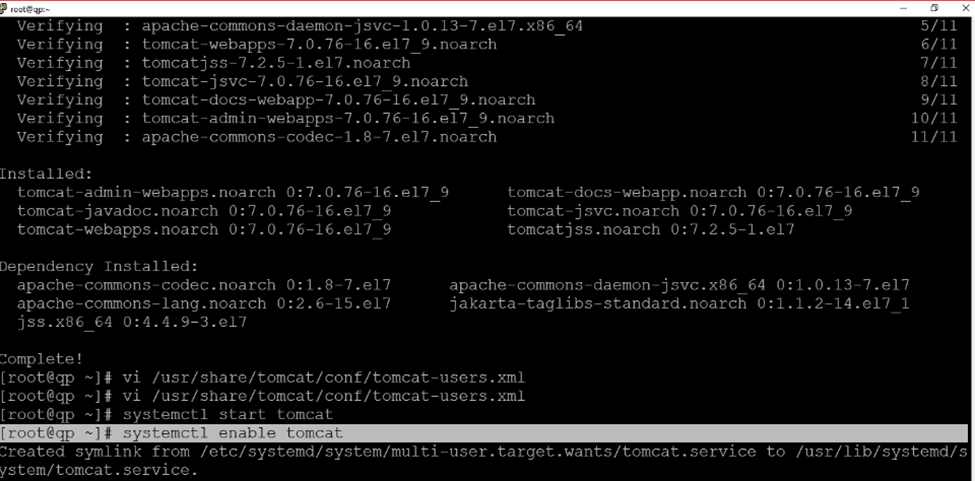
[root@qp ~]# systemctl start tomcat

Enable tomcat – enabling because once if we restart there is no need to start the services manually

[root@qp ~]# systemctl enable tomcat

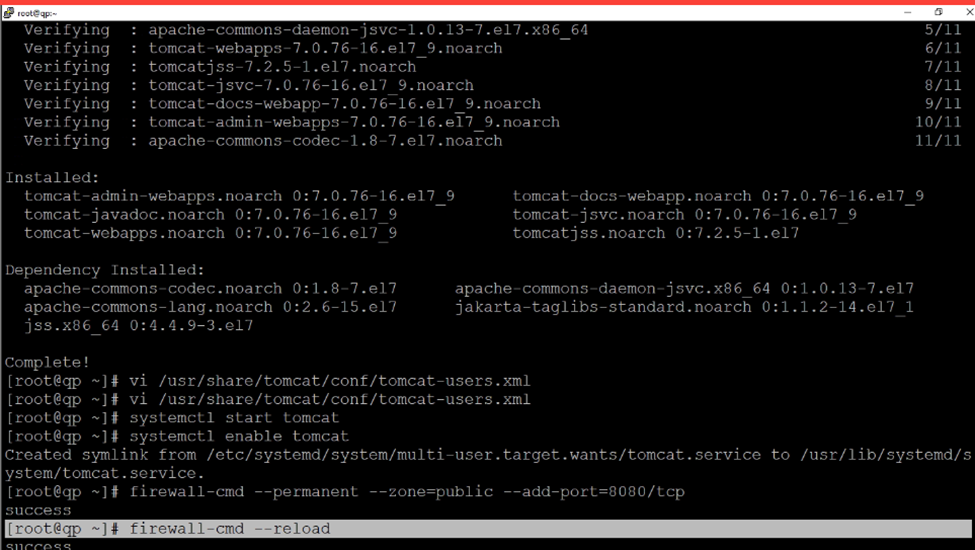
Now add the port – default port is 8080

[root@qp ~]# firewall-cmd –permanent –zone=public –add-port=8080/tcp

[root@qp ~]# firewall-cmd –permanent –zone=public –add-port=8080/udp

Reload firewall

[root@qp ~]# firewall-cmd –reload

[root@qp ~]# systemctl status tomcat

Web browser Tomcat status

Login to tomcat services

After login tomcat server status

Change Default port Tomcat

Default port Directory

/etc/tomcat/server.xml

[root@qp tomcat]# vi /etc/tomcat/server.xml

Replace with new port 8060

Once replaced

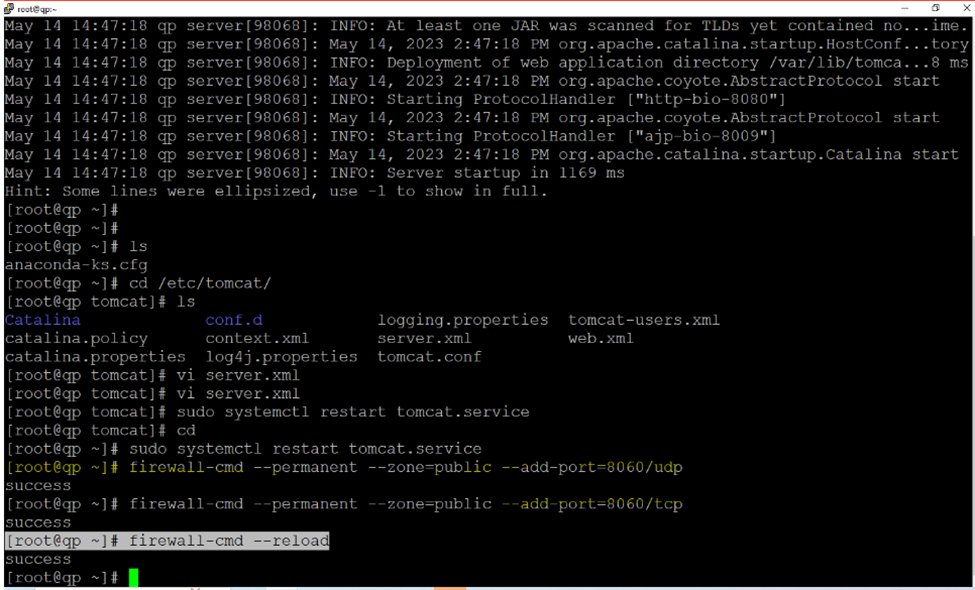
Now add the new port in firewall

[root@qp ~]# firewall-cmd –permanent –zone=public –add-port=8060/udp

[root@qp ~]# firewall-cmd –permanent –zone=public –add-port=8060/tcp

And reload firewall services

[root@qp ~]# firewall-cmd –reload

Restart the tomcat services

Systemctl restart tomcat.service

[root@qp ~]# sudo systemctl restart tomcat.service

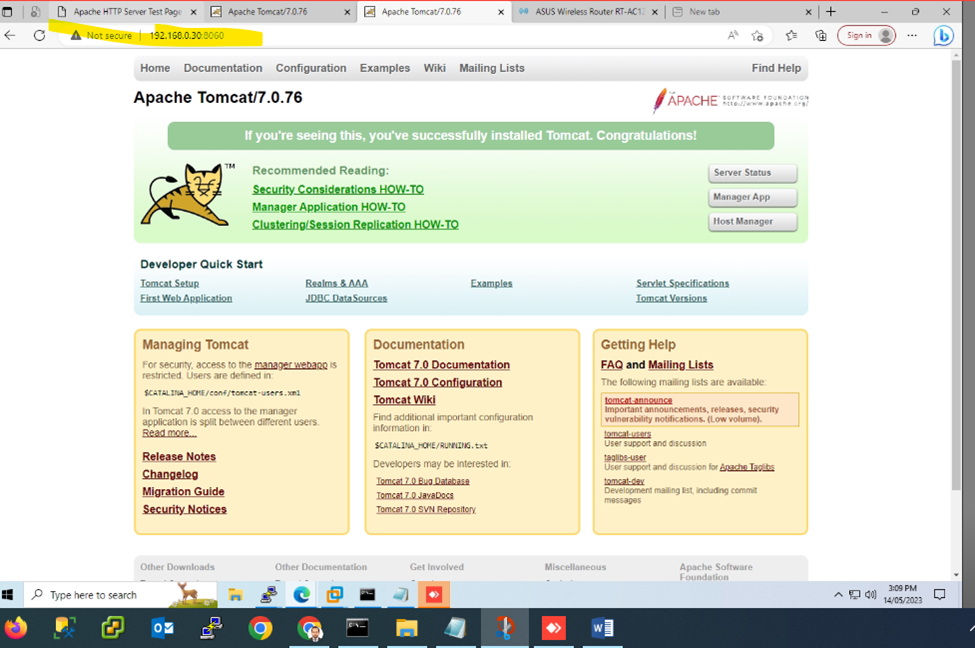
Now tomcat is running on new port

Additional DC

Backup DC (Additional Domain CONTROLLER)

\\\

Backup Domain Controller or Secondary Domain Controller

///

Steps:

Assign Static IP address

Change name Server  

Install Wins Server with Same existing Version

Join to Domain Controller

Go to Server Manager

Click to Add feature and Install

Active Directory Domain Services

DHCP Server

And DNS  Server

Required

And don’t need to uncheck any default Installation

Once Installation Done Click to Permote DC

And Select Existing DC and type administrator account name and Password

Once installation done

Go to Active Directory Sites and services

Click to Default first site name expand

Right Click to NTDS Setting select All Taks then Check Replication Topology

Once done click to Replicate now

You will get successfully popup message

These things have to done in both Primary and Secondary DC

Once both Primary and secondary DC replicated if we create or implemented any things even any Primary or Secondary both will get the result

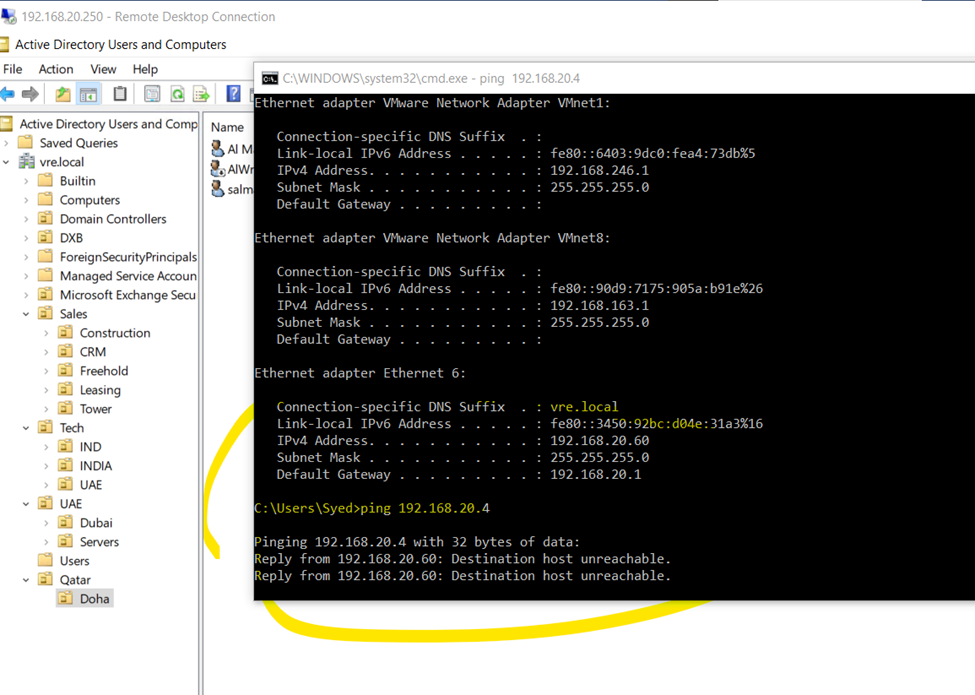
NOTE: Both Server Machine IP Have to Different not Same IP.

So,

In any-case Primary DC is Down need to assign active Secondary DC with Full Privileges

Need to Seize FSMO 5 Roles from Primary DC(FSMO having 5 roles)

FSMO Categories in two shapes –- Divided into two Categories

Forest Level

      —— Schema Master

      —— Domain Naming Master

And

Domain Level  

      —— Domain Level

      —— RID Master

      —— PDC emulator

So,

I need to seize the FSMO 5 roles form Primary DC and assign to Secondary DC

Open – PowerShell

Type commands

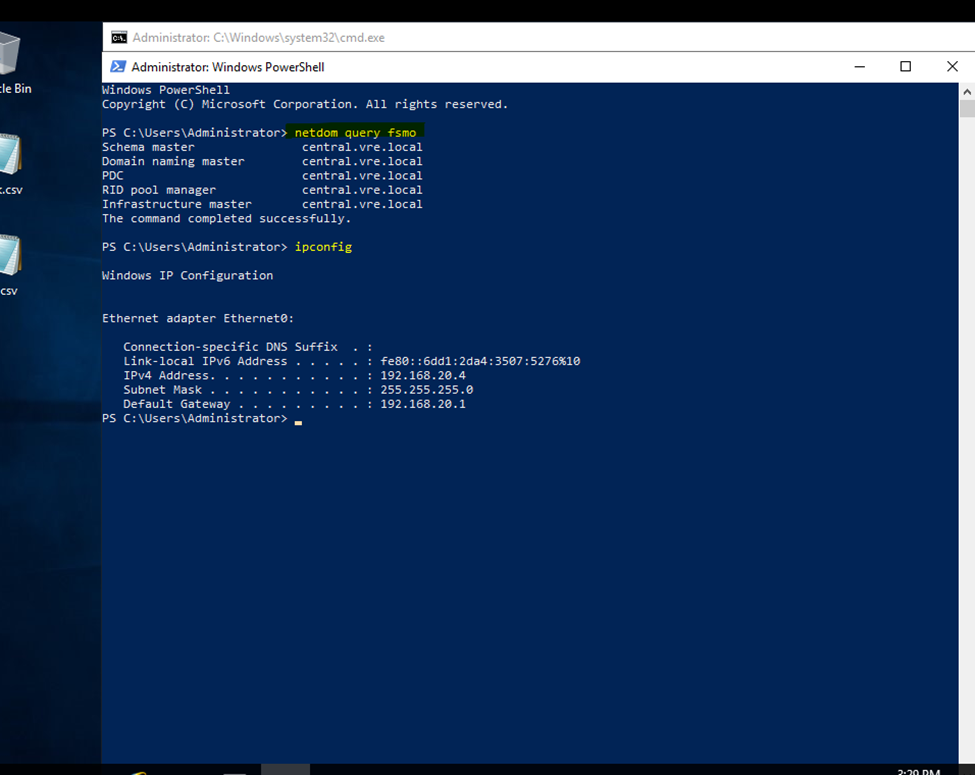
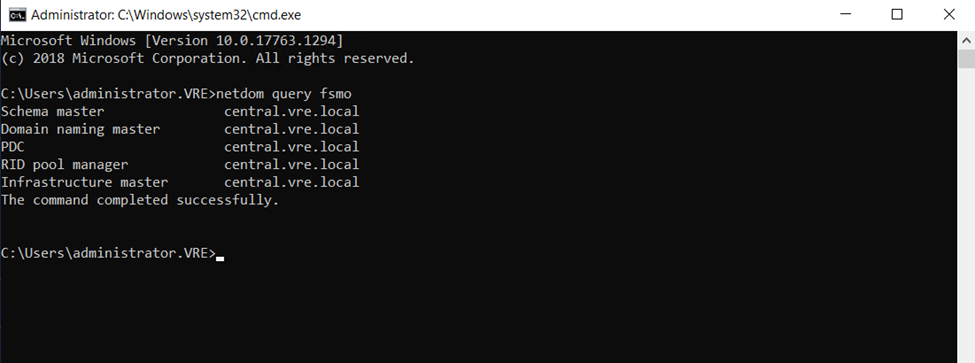
   First need to check the FSMO roles currently running

Netdom fsmo query

  • You will see 5 FSMO roles will be display

Now type

   Ntdsutil

And now

Question mark

? and press enter key

Select maintenance

Once maintenance then

Again, question mars

? and hit enter

So, now

Once roles are displaying type

Type like this cmds

Seize infracture master to all 5 FSMO roles

Install wins Server Change Name and assign Static IP Address

Primary DC IP is 192.168.20.4

Changing Default PC name press okay once done Server will be reboot

now this pc is connected to the particular domain environment.

So, after joining

open Server Manager and install Active Directory

So, now select Backup server

And click next

Select

Active Directory Domain Services

DHCP Server

DNS Server

And click next

And left or make as default click to next

Now click to install these selected features and check the restart the destination if required

once Installation done click to promote Domain Controller

So, need to configure it

Now click to promote this do domain controller

Or click to popup red flag bar promote from there also..

Select existing DC

And

Change the user perform credentials enter only Primary DC Administrator username and  Password

And click next

Now type restore mode password

why we need to Select DSRM?

BECAUSE if there is any issues generated to Domain Controller or Backup DC, DSRM always keeping one Server Images stored separately.

if this method required need to start Server as safe mode

Click next

after Directory Service Restore Mode set the password Click next

Select the primary domain

Click next

Here, database, log and sysvol directory structure

Complete Active directory Database store here.

NTDS.DIT DATABASE — NTDS is the Active Directory DATABASE – All user and computer Accounts and groups
you can say NTDS.DIT is the Backbone of any ADDS.

Ntds.dit is the main AD database file. NTDS stands for NT Directory Services. The DIT stands for Directory Information Tree.
The Ntds.dit file on a particular domain controller contains all naming contexts hosted by that domain controller, including the Configuration and Schema naming contexts.
A Global Catalog server stores the partial naming context replicas in the Ntds.dit right along with the full Domain naming context for its domain.
Command for checking NTDS details: ntdsutil

NTDS.DIT file represents the Active Directory Databases, which has the user, computer, and other AD objects including printer and faxes . It is located under C:windowssystem32NTDS.

LDAP (Lightweight Directory Access Protocol).
in the Simple Language you can say LDAP is a medium to communicate to ADDS
LDAP protocol is used for accessing directory services and provides a mechanism for applications and other systems to communicate and
interact with the directory servers. It is responsible for keeping track of what is on the network and applications can use LDAP to retrieve
any object and property of the Active Directory database and can even modify it. When we enumerate information from AD, LDAP is used in the backend.
Not only this, LDAP also allows us to modify objects, like modifying groups members, changing attributes of an object.
Many enumeration tools have used LDAP to query the information from AD- for example Powerview or Sharpound etc. Anyone who is working with active directory like administrators,
red team operators, or developers writing programs to interact with AD, then a thorough understanding of LDAP is very important to fully utilize Active Directory.

LDAP or Lightweight Directory Access Protocol is one of the oldest and most popular protocols used to retrieve information from directory services,
authenticate users, and build applications that don’t compare on security or speed. It’s one of the protocols to manage assets and data over a network
and provides secure access to them.

LDAP is one of the core protocols for developing internet applications. The protocol was designed to access and maintain directory services over the internet.

LDAP Ports
LDAP port is 389
LDAP Secure (LDAPS) port is 636

SYSVOL DIRECTORY DEFAULT: c:\windows\SYSVOL —

LOG FILE – NDTS

SYSVOL – SYSVOL Stored items suck as logon scripts and related files GPO.

SYSVOL DIRECTORY DEFAULT: c:\windows\SYSVOL —

Schema: Defines the attributes and types of objects that can be stored in the Directory.

Domain Naming: store computers and users daily operations like modification and creating directory and deleting directory or folder.
domain naming is basically monitoring daily activities.

Click next

click to install

Once installation done server will be logout

Once installation done

Two Domain Controller will appearing (Additional DC- BDC)

Now go to active Directory Sites and services

Need to apply replication in both server

First Applying in Primary Server — Central —192.168.20.4

So, here primary server replicates to secondary server.

REPLICATION: if we done the replication between servers, sometimes replicated servers will be implemented if any user or any changes appear between replicated servers.

Now..

Need to apply replication job to Secondary server

Successfully replicates

Ntds: is the main AD database file. NTDS stands for NT Directory Services. The DIT stands for Directory Information Tree.

NTDS: it’s Control complete process of DC/ADDS and Secondary DC and Replication method. an easy language you can say NT Directory Service is backbone of ADDS and any process and changes happen in DC Server having the responsibility to manages

Suppose, Creating new OU(Organizational Unit) to Secondary (Backup DC) Server

Have created new OU in Secondary DC

So, new OU Created to my Primary Server,

after replication between the Primary DC and Secondary DC: any OU ,users or any policies created in Primary or Secondary DC it will reflect in both Server

Created OU Structure and user to Backup DC – Secondary DC

So, it also replicating in Primary DC Server

If there are any problems on Primary server how to retain Secondary Backup Server

Flexible Single Master Operation (also known as FSMO or FSMO Roles).

Primary Server FSMO Roles

Netdom query fsmo

Secondary server will also getting same roles but secondary server not having complete authority like Primary DC

If Primary Server having issues need to seize the fsmo roles after that Backup DC will retain complete authority

So, here I used to power off Primary Server

Primary DC is not active (Server Down)

Now type in PowerShell

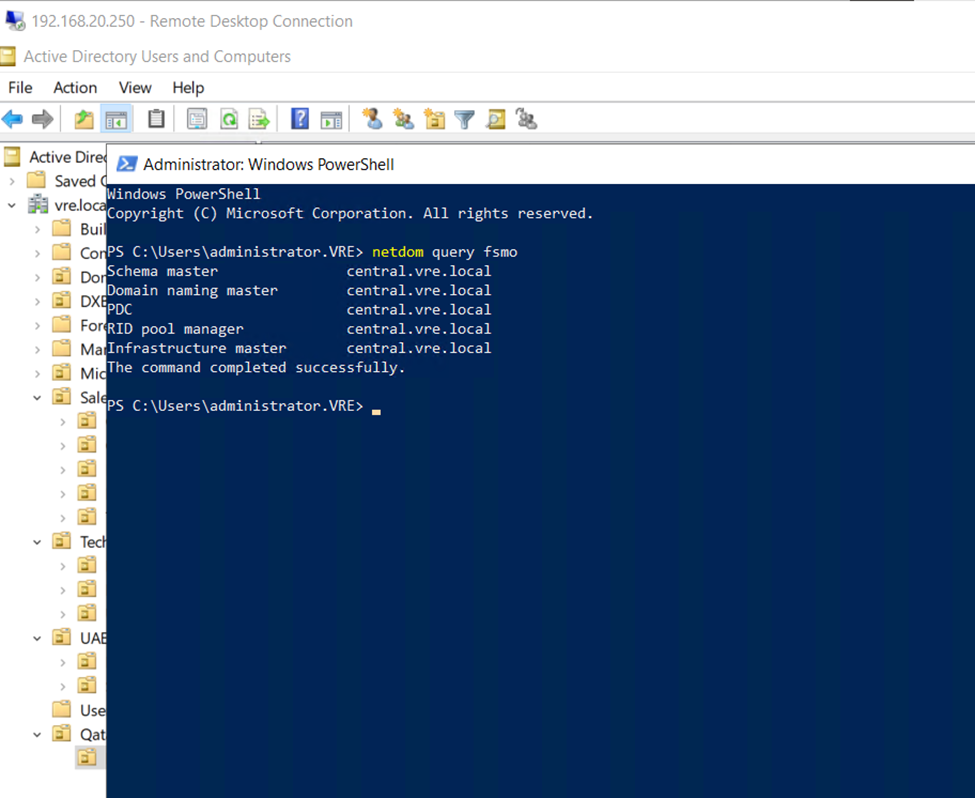
But still, I will get all 5 FSMO roles

In secondary server I am getting all 5 Roles

Type

In Backup DC

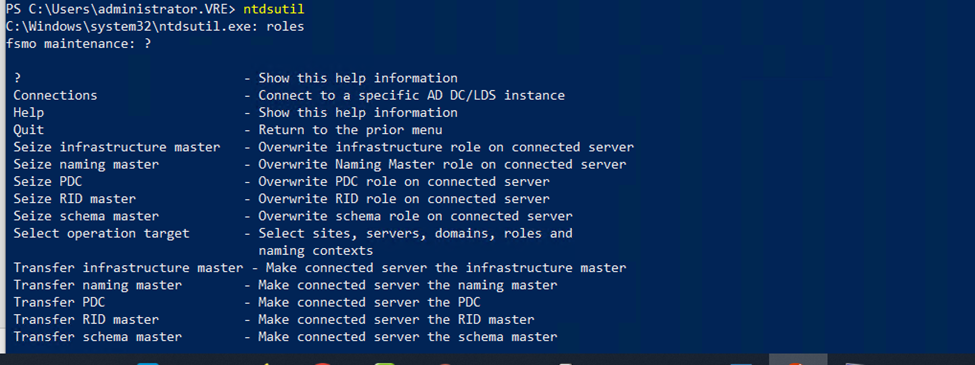
Ntdsutil

PS C:\Users\administrator.VRE> ntdsutil

Just type only roles  and press enter

Type connections

Now need to connect to in backup Domain Controller like—

Connect to server bdc.vre.local

Now quit from connection press type q and enter

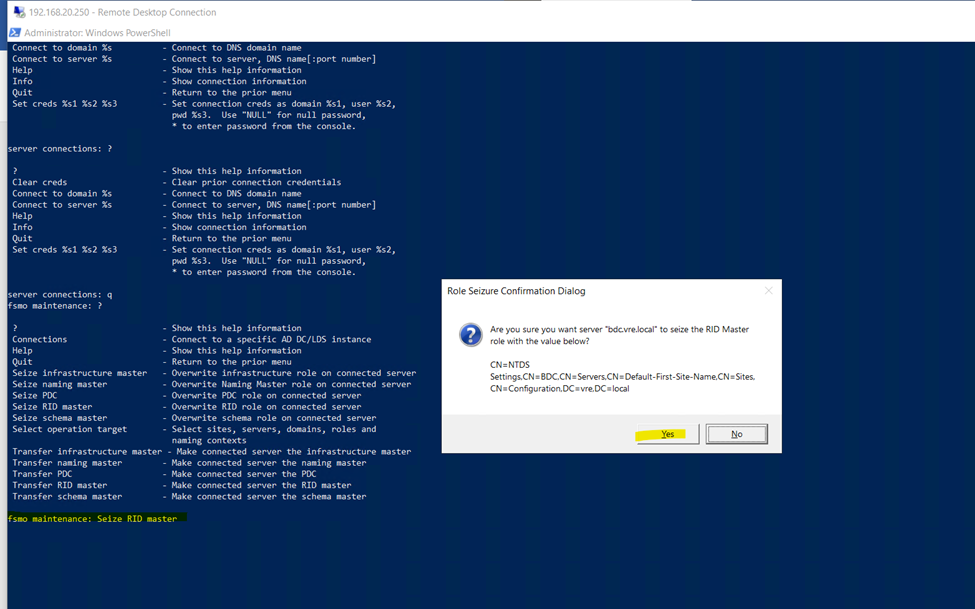
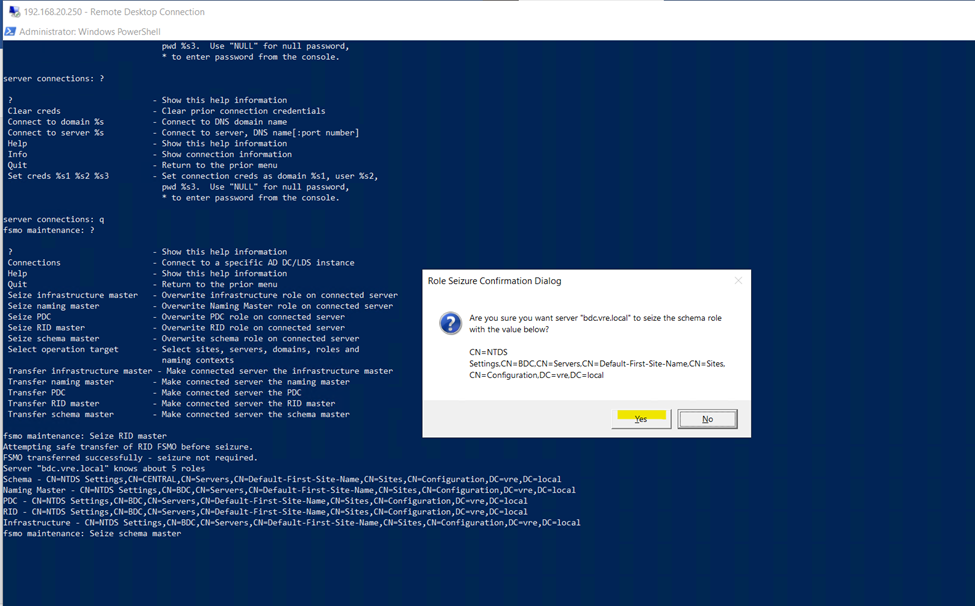
Here we need to seize all fsmo roles from primary server

Primary server is not running but fsmo roles with primary server need to seize the roles and allocate to secondary server

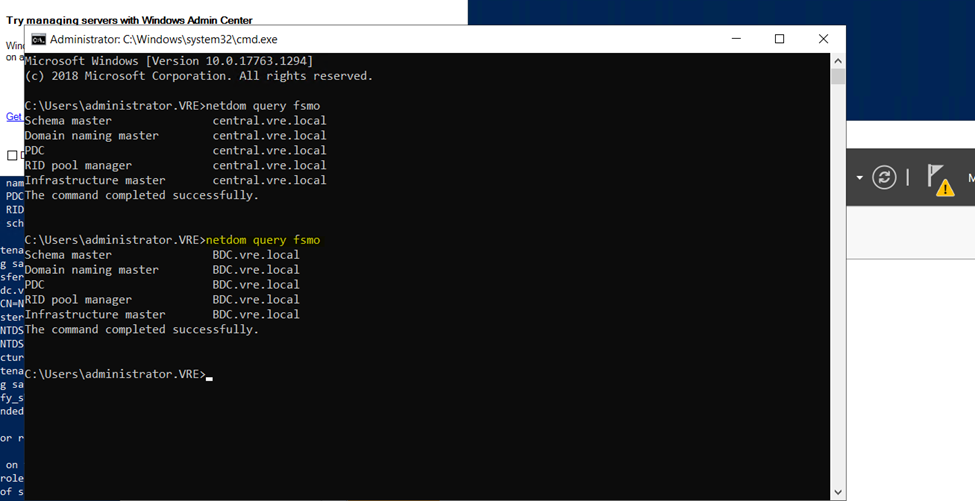
netdom query fsmo

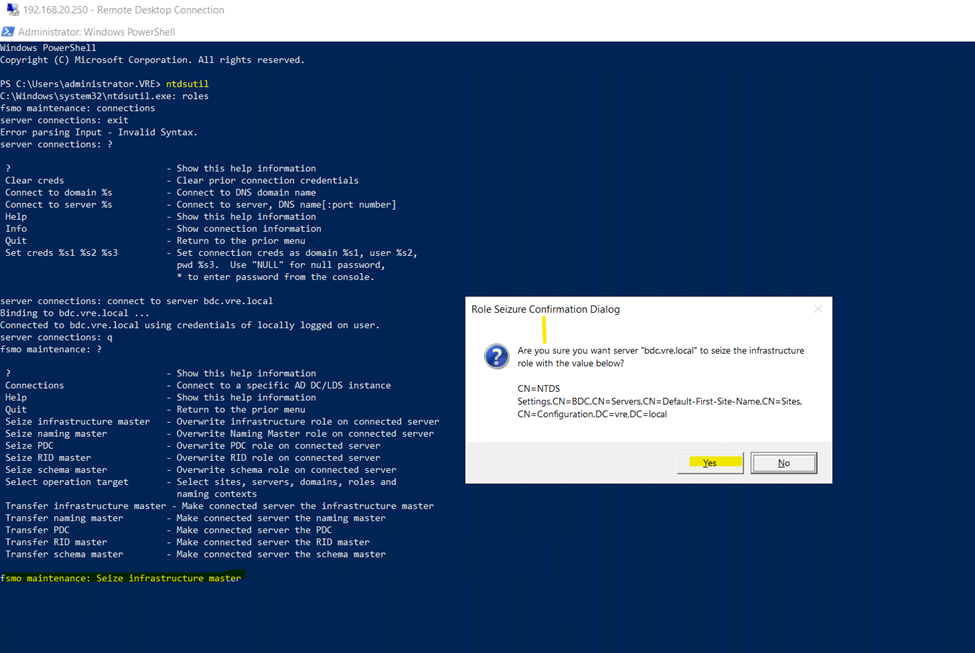
fsmo maintenance: Seize infrastructure master

And press

Yes

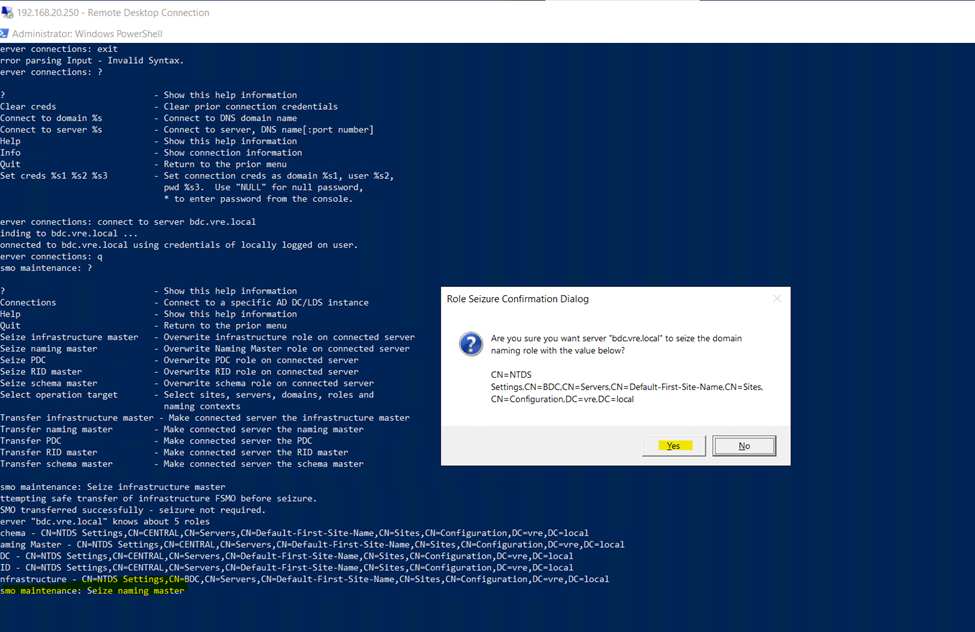
fsmo maintenance: Seize naming master

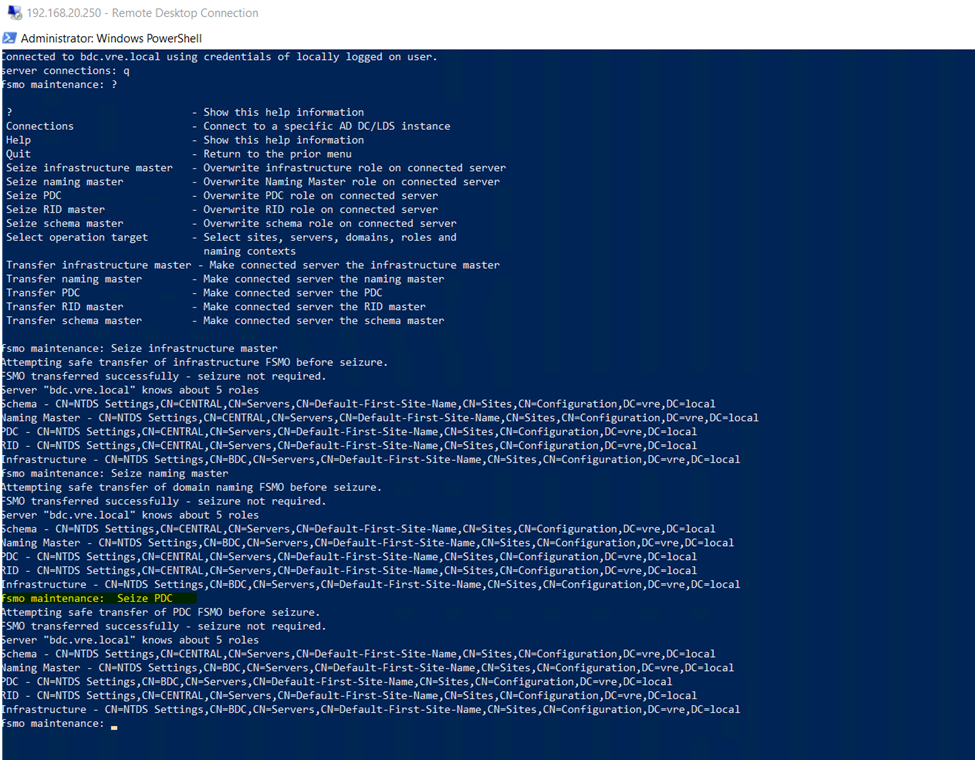
fsmo maintenance:  Seize PDC

Seize RID master

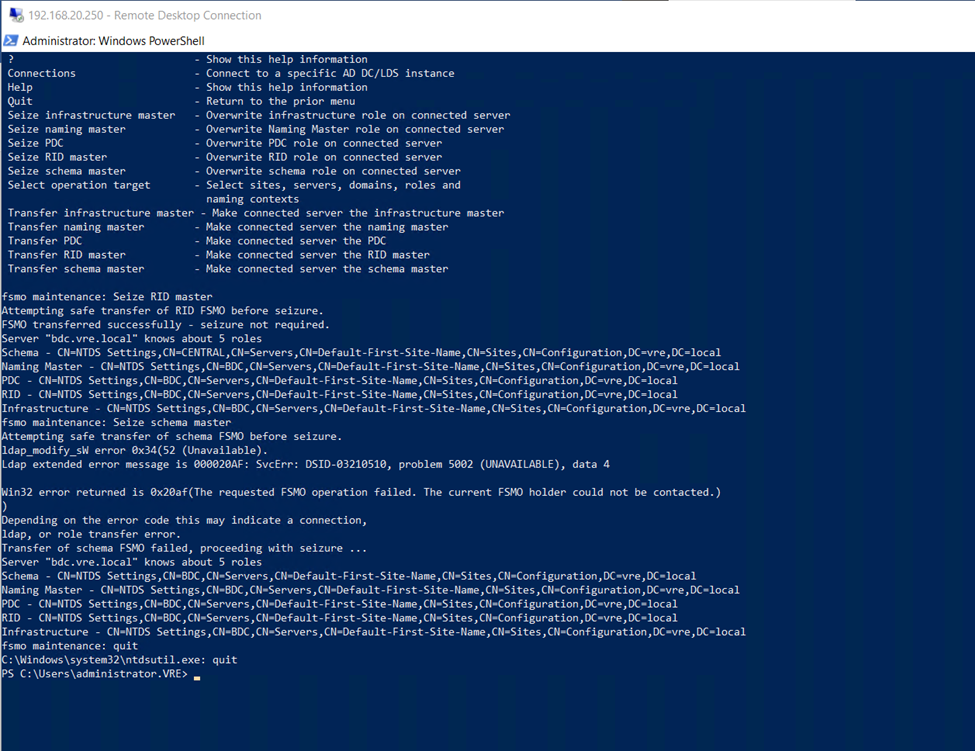
Seize schema master

Now type quit

And quite from fsmo maintenance

So, after seize all 5 roles from Primary DC and assign to Secondary dc

If you can check after seize all roles

Now Backup domain having all fsmo roles

netdom query fsmo

Go to Active Directory users and computers

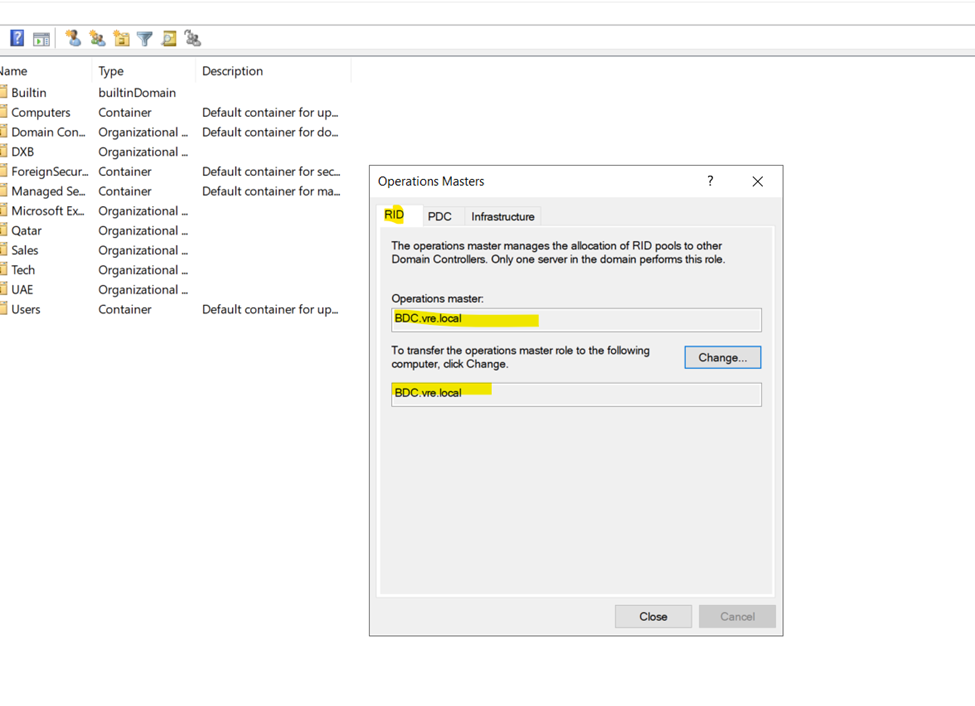
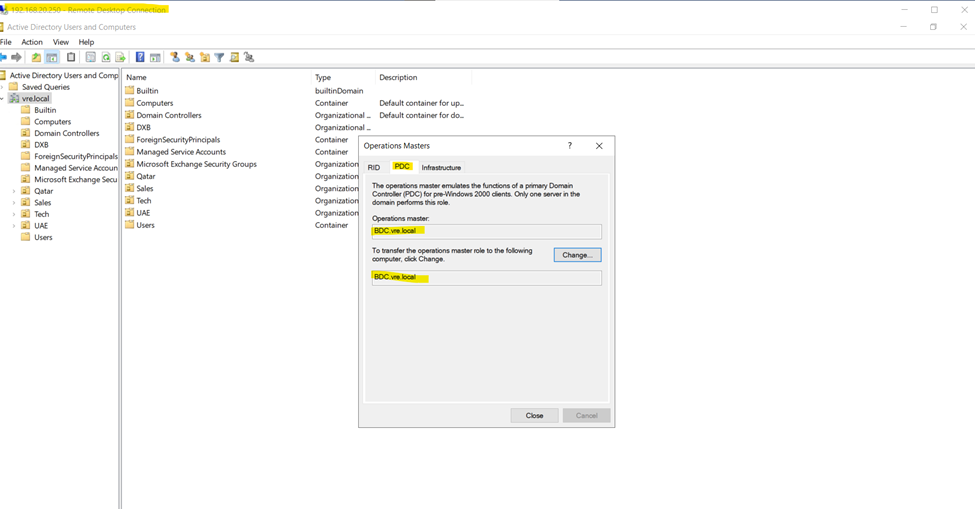
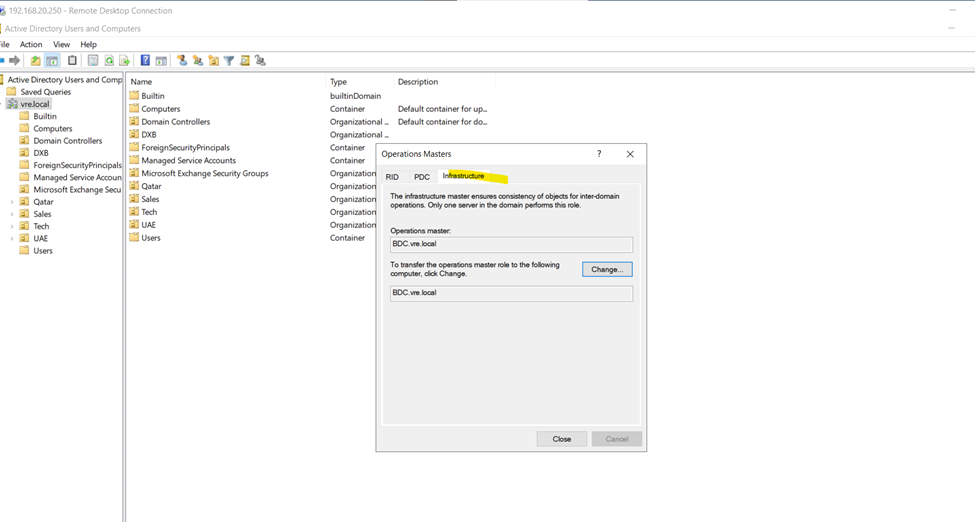
Right click on domain and click on operation masters

Now, check there

PDC

Infrastructure

KEY Based Auth

Centos/RedHat Server password less authentication

Using Centos 7

First Login to your Server

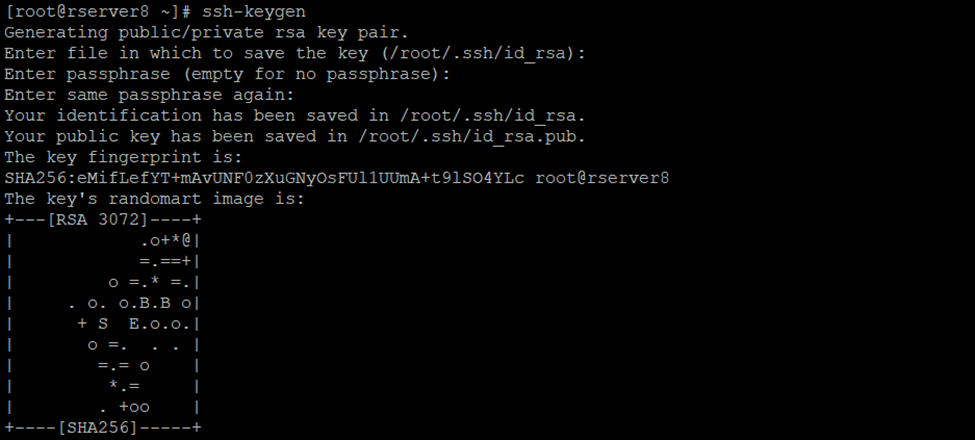
Generate Authentication keys

Authentication key cmds

[root@rserver8 ~]# ssh-keygen

Once you had executed the command

So, authorized keys are generated go to ~/.ssh/ directory or cd .ssh/

2 keys had generated

Id_rsa and id_rsa.pub

Using cat cmd display  id_rsa.pub keys

[root@rserver8 .ssh]# cat id_rsa.pub

Copy this key

Create new authorized_keys file

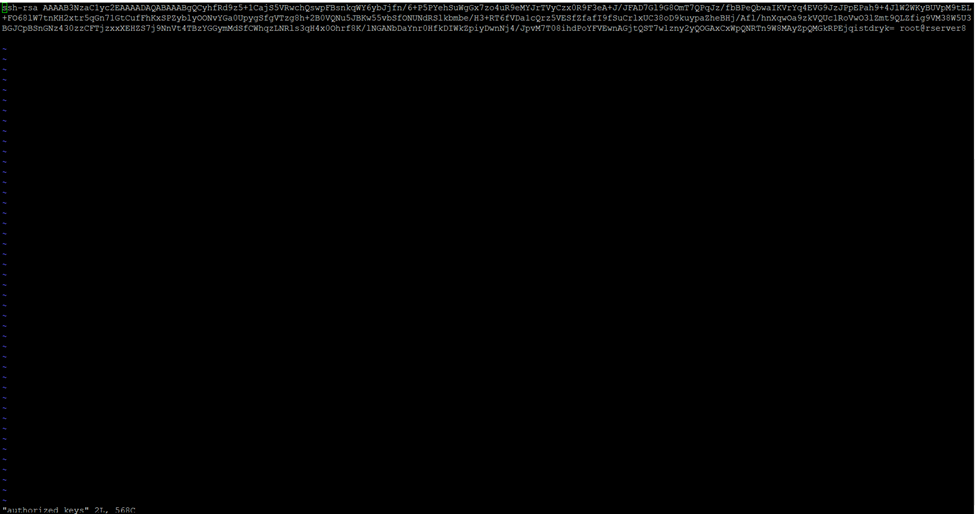
So, using vi or vim cmd we can create

[root@rserver8 .ssh]# vi authorized_keys

Paste it here id_rsa.pub keys which you have copied using cat id_rsa.pub

Chmod 600 sets permissions so that, user / owner can read, can write and can’t execute. Group can’t read, can’t write and can’t execute. others can’t read, can’t write and can’t

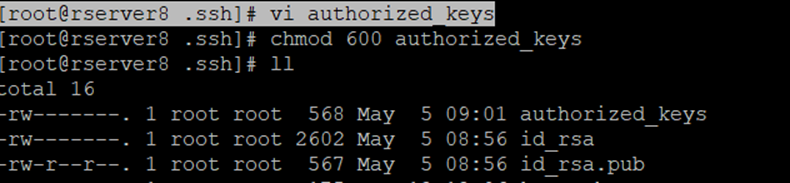
So, I had created the authorized_keys now assign the permission to this particular user

So in my case root is the owner you can create user and assign the privileges

[root@rserver8 .ssh]# chmod 600 authorized_keys

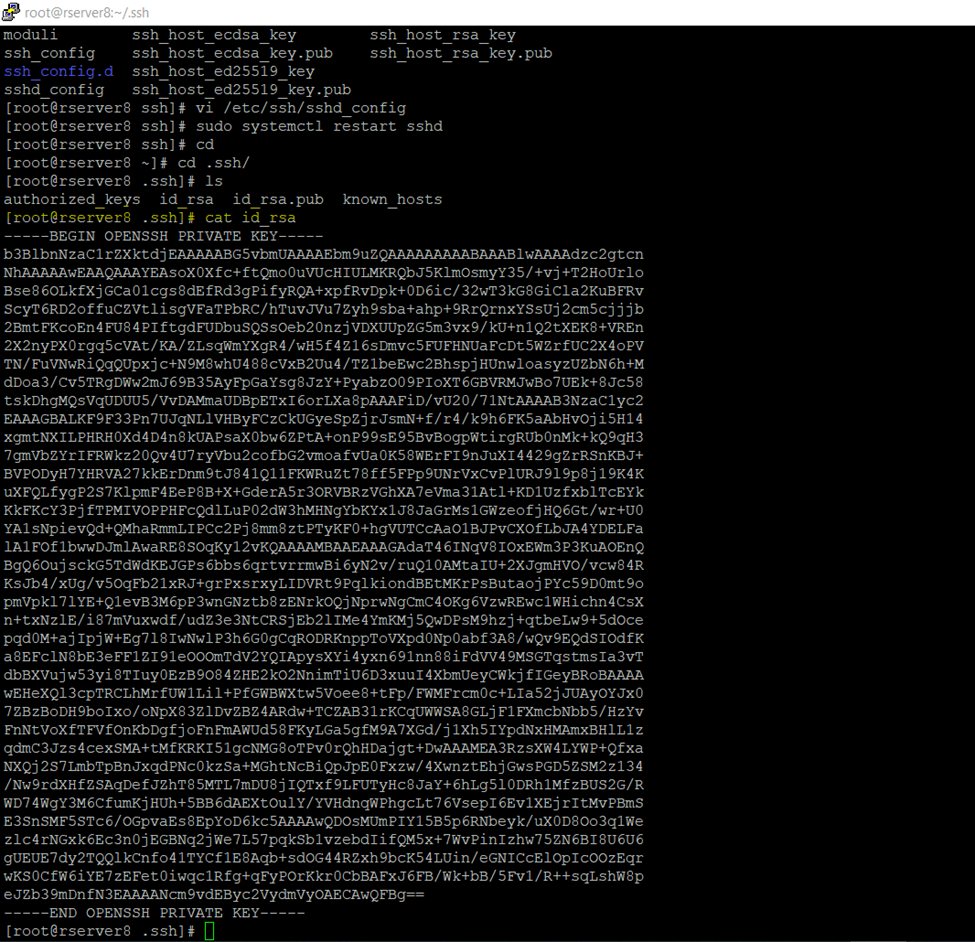
So, now need to copy private key

Again, go to .ssh folder

[root@rserver8 ~]# cd .ssh/

[root@rserver8 .ssh]# cat id_rsa

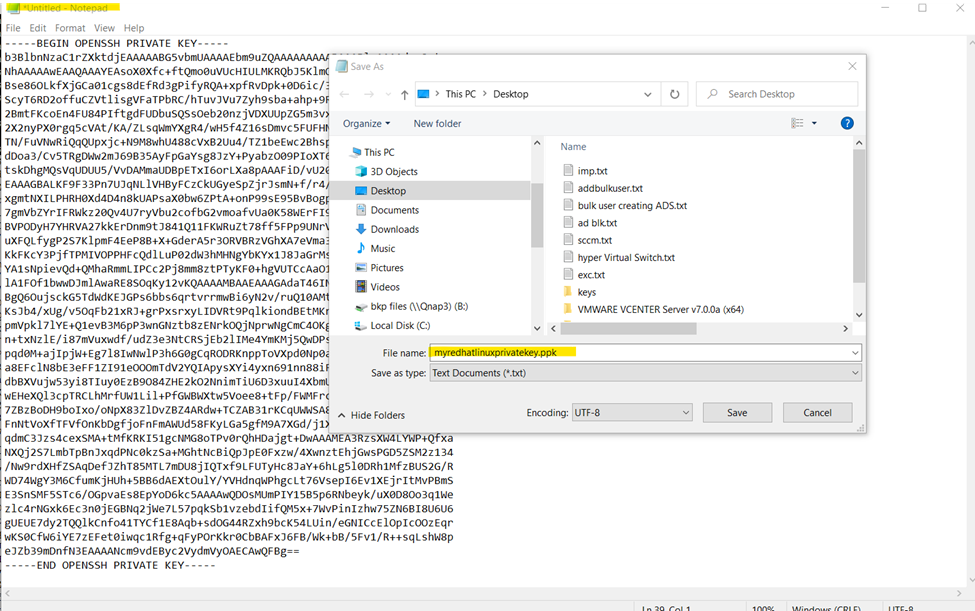
Copy this and paste it to any text editor

And save it to .ppk format

PuTTY Private Key

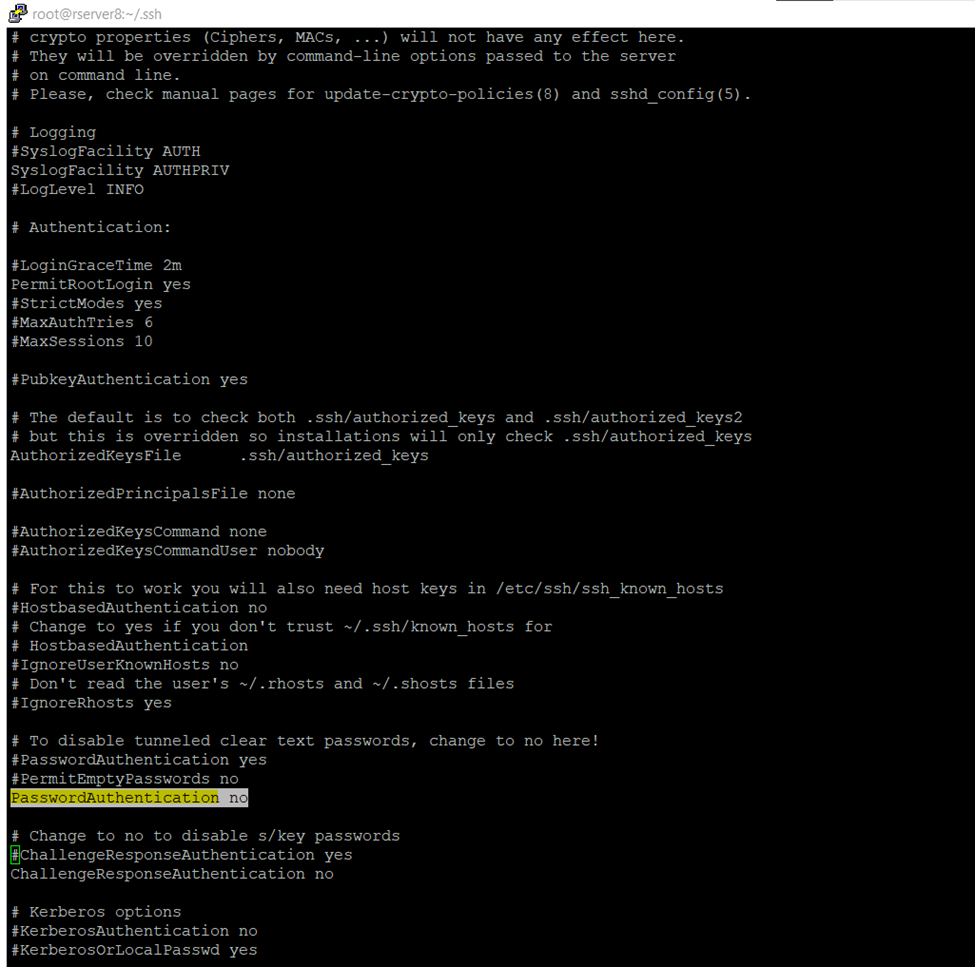
Now to to ssh_config and disable password authentication login

And if you are using any user you can also disable root login

[root@rserver8 .ssh]# vi /etc/ssh/sshd_config

So, once authentication done restart the sshd services (Secure Shell or Secure Socket Shell).

[root@rserver8 .ssh]# sudo systemctl restart sshd

I am saving private key in notepad text editor .ppk format
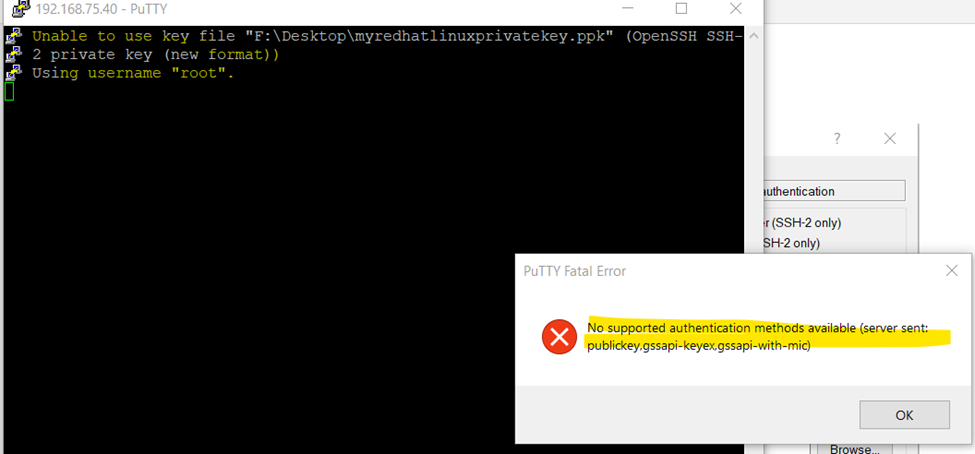
So here we need to convert in putty format if we don’t do it, we will get the error.
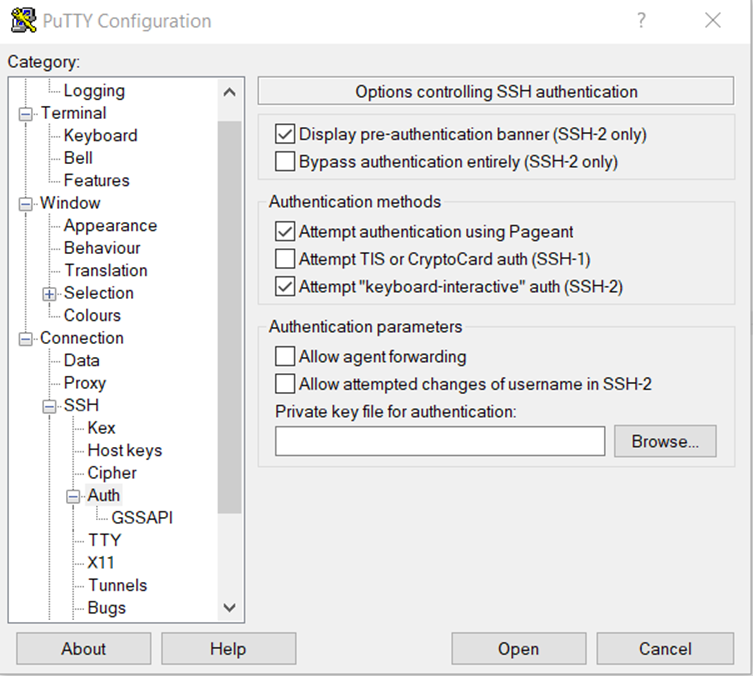
Go to ssh tab and browse the .ppk save private here we will get error because we are not using putty format

If you can check getting the format error

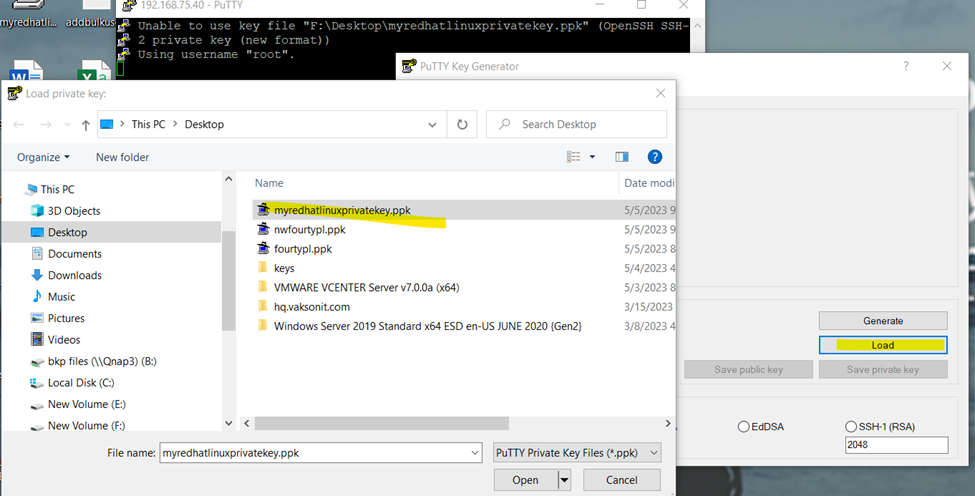
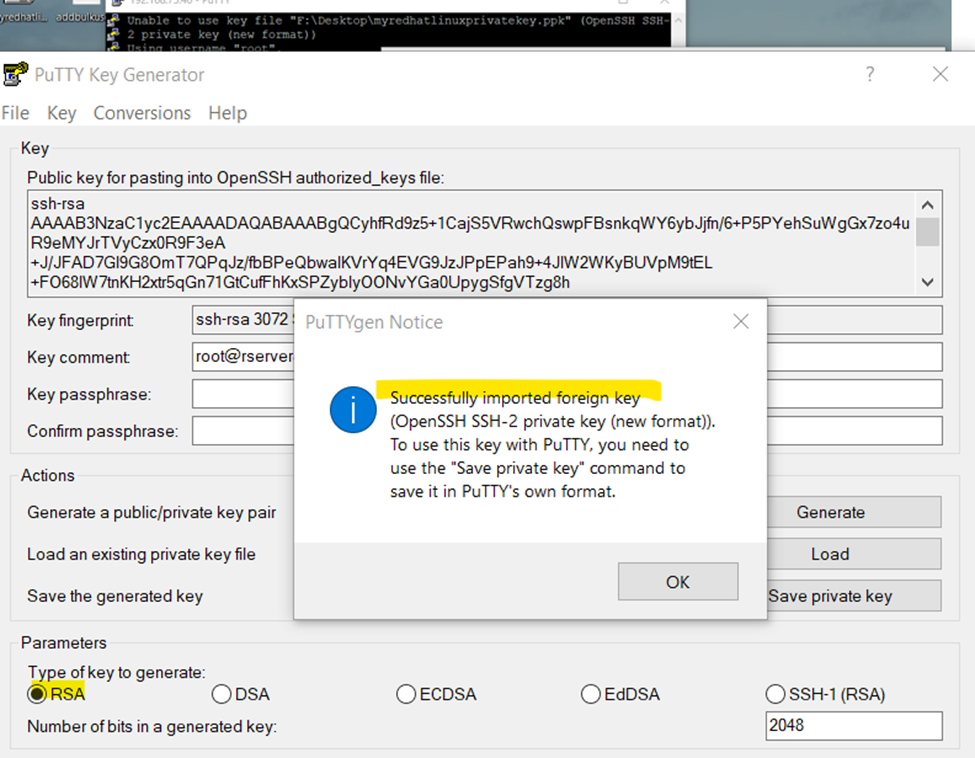
Now open the putty generator

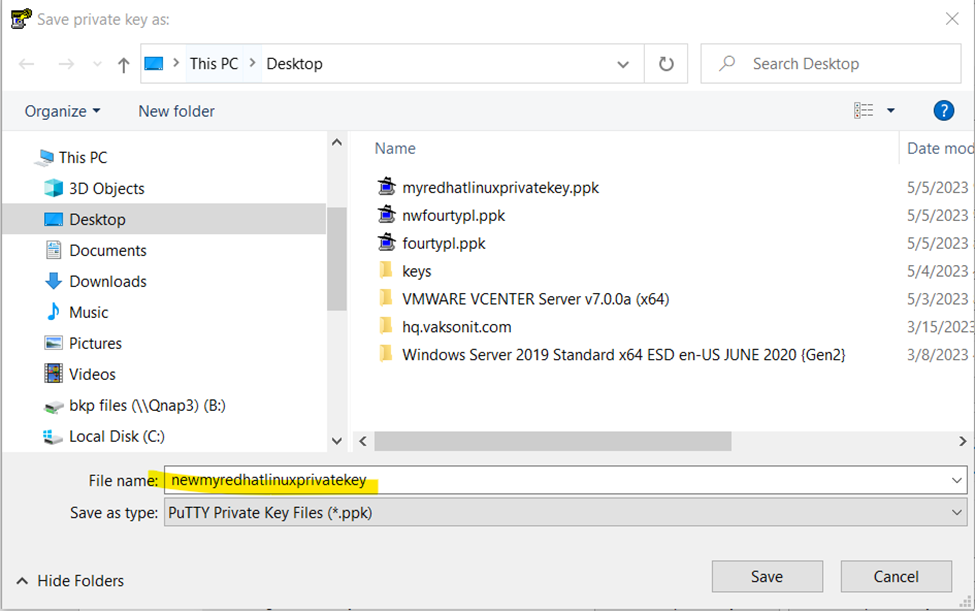
Once file .ppk is loaded save  it to same format with new or existing name

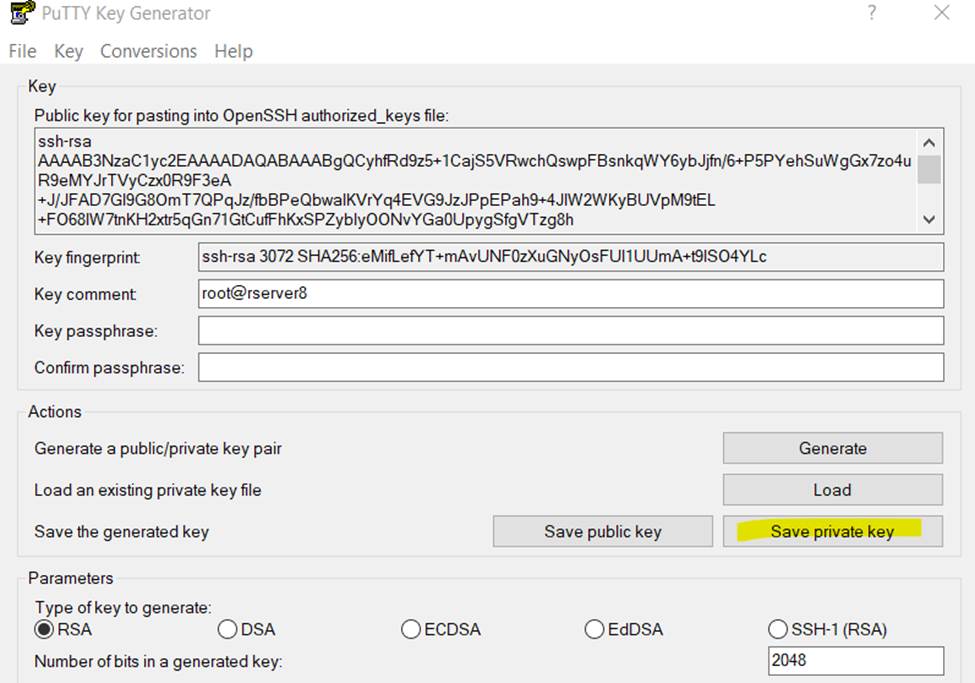
Click to save private key

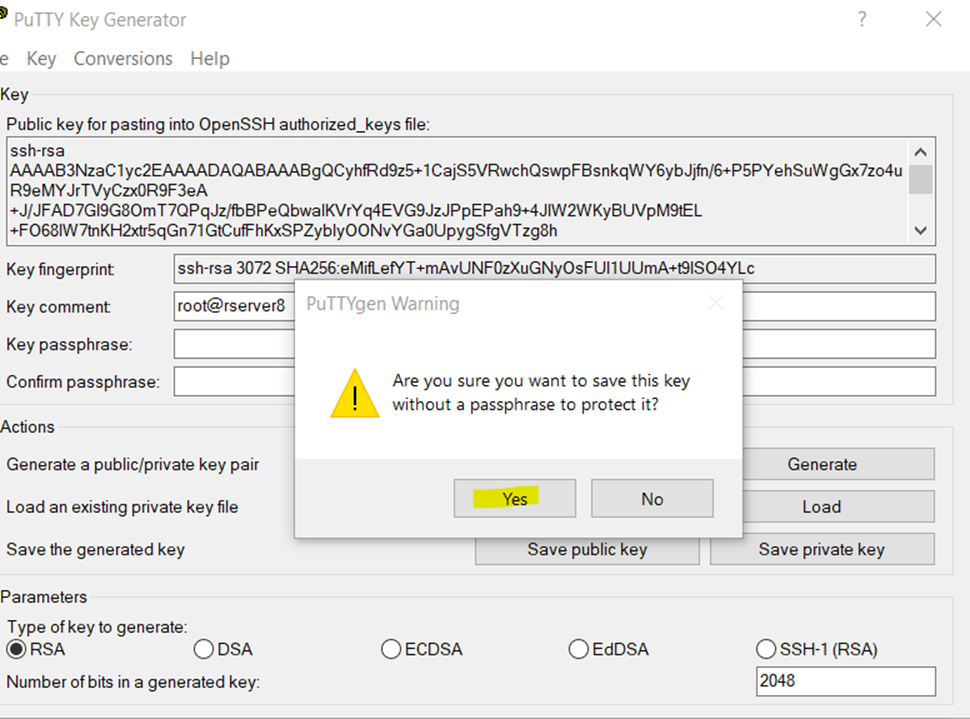
And click yes

And save it

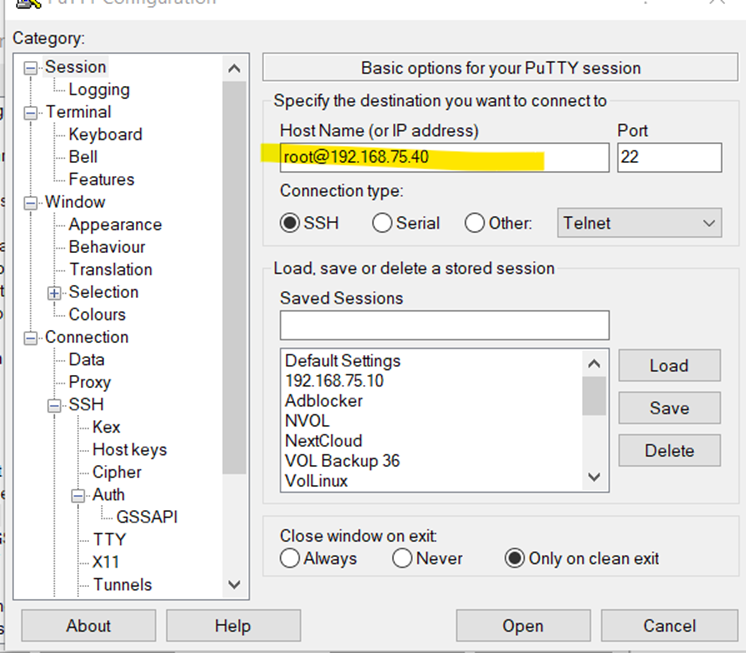
Now open the putty type username like sharique@192.168.60.10

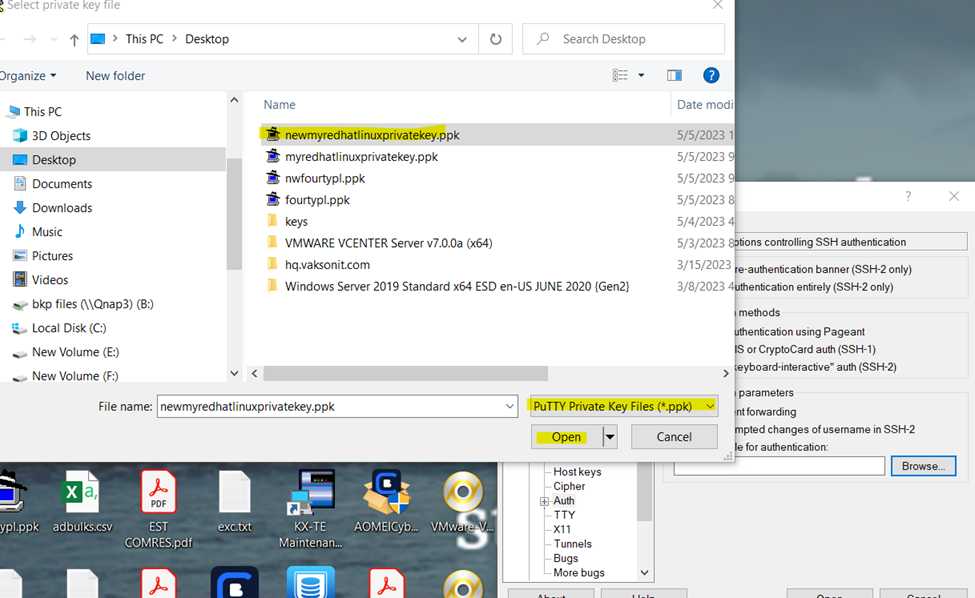
Browse the authenticate key

Open the putty for remember login

So. successfully configured password less authentication Linux server.

  • chmod 777 foldername will give read, write, and execute permissions for everyone.
  • chmod 700 foldername will give read, write, and execute permissions for the user only.
  • chmod 327 foldername will give write and execute (3) permission for the user, w (2) for the group, and read, write, and execute for the users.
777anyone can do anything (read, write, or execute)
755you can do anything; others can only read and execute
711you can do anything; others can only execute
644you can read and write; others can only read
  Chmod 600 sets permissions so that, user / owner can read, can write and can’t execute. Group can’t read, can’t write and can’t execute. others can’t read, can’t write and can’t         

PV | VG | LV

How to Increase Logical Volume size in RedHAT/Centos

Steps to Create Logical Volume in Centos or RedHat Linux Server.

First

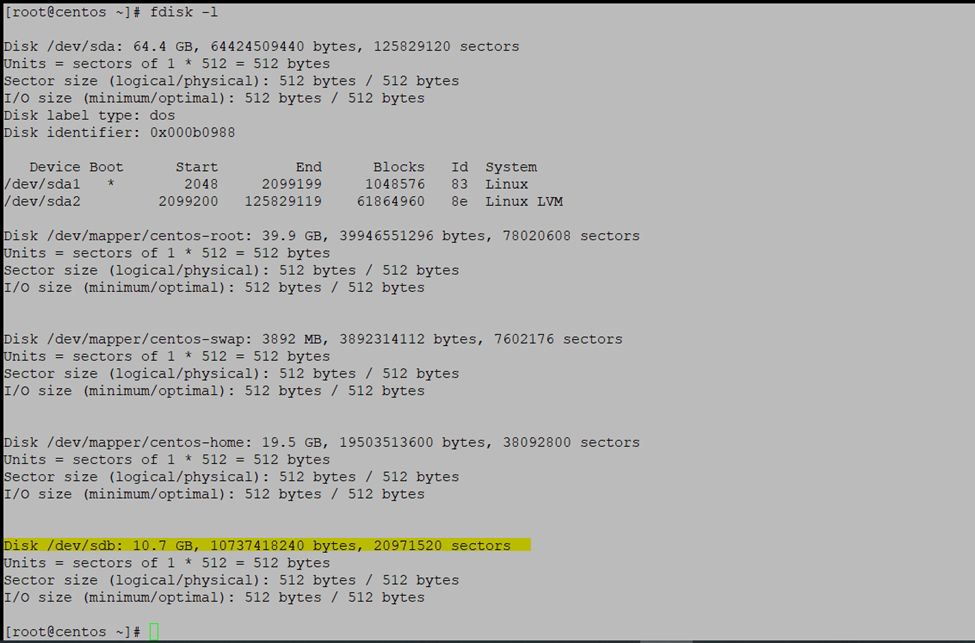
check the already associated disks

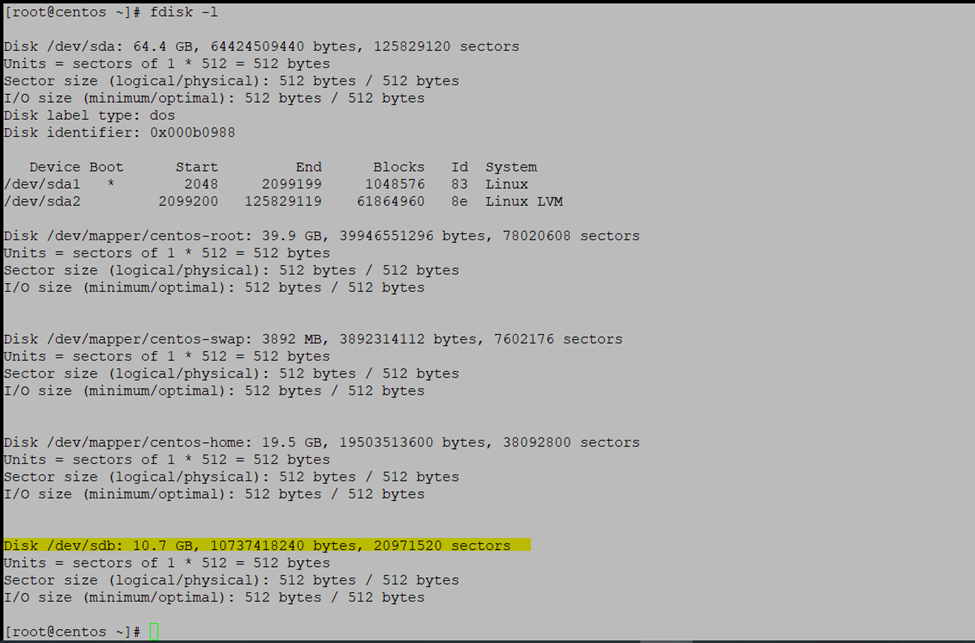
fdisk -l

Add the new Virtual Disk to Server

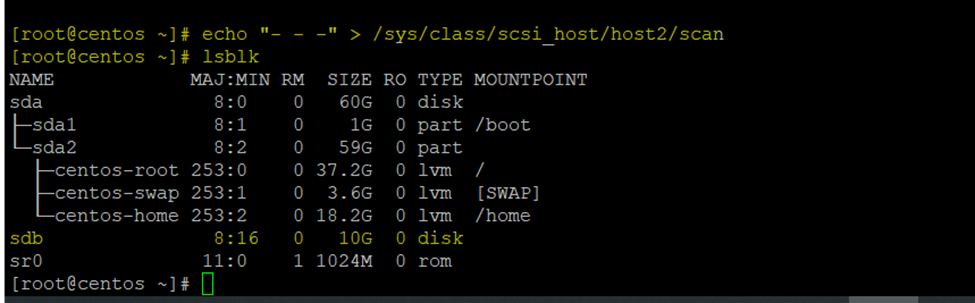
–Scan the new created disks- if you are having host1 or till host2 disk scan according to that.

i am having only host1 disk active need to scan host2 disk like

echo “- – -” > /sys/class/scsi_host/host2/scan

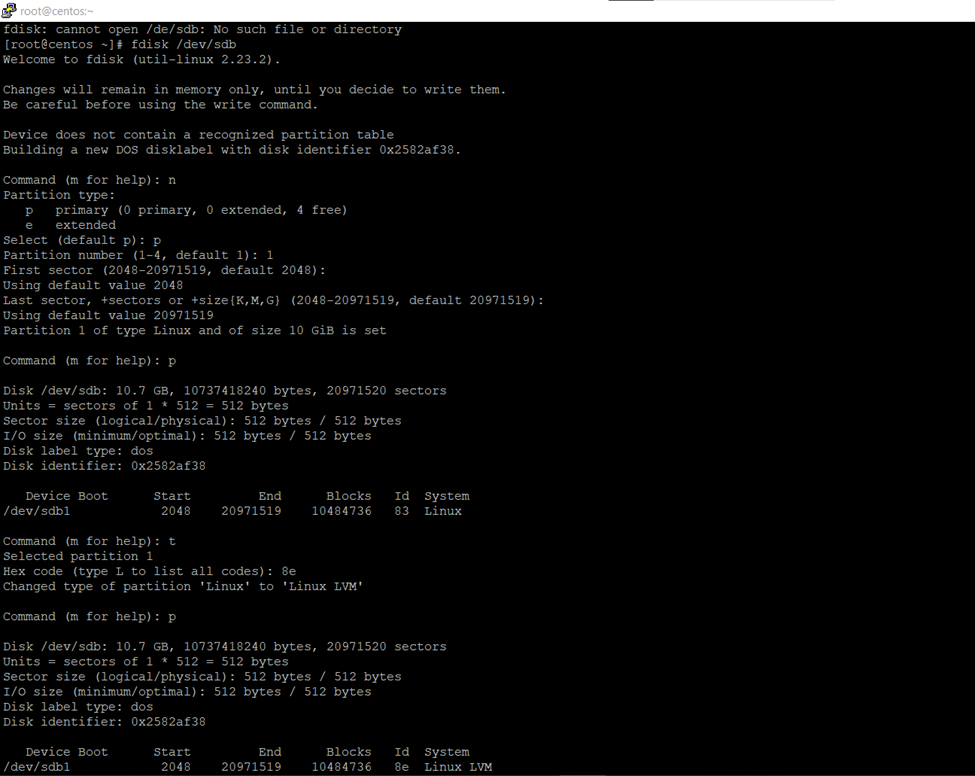
–now creating new partition

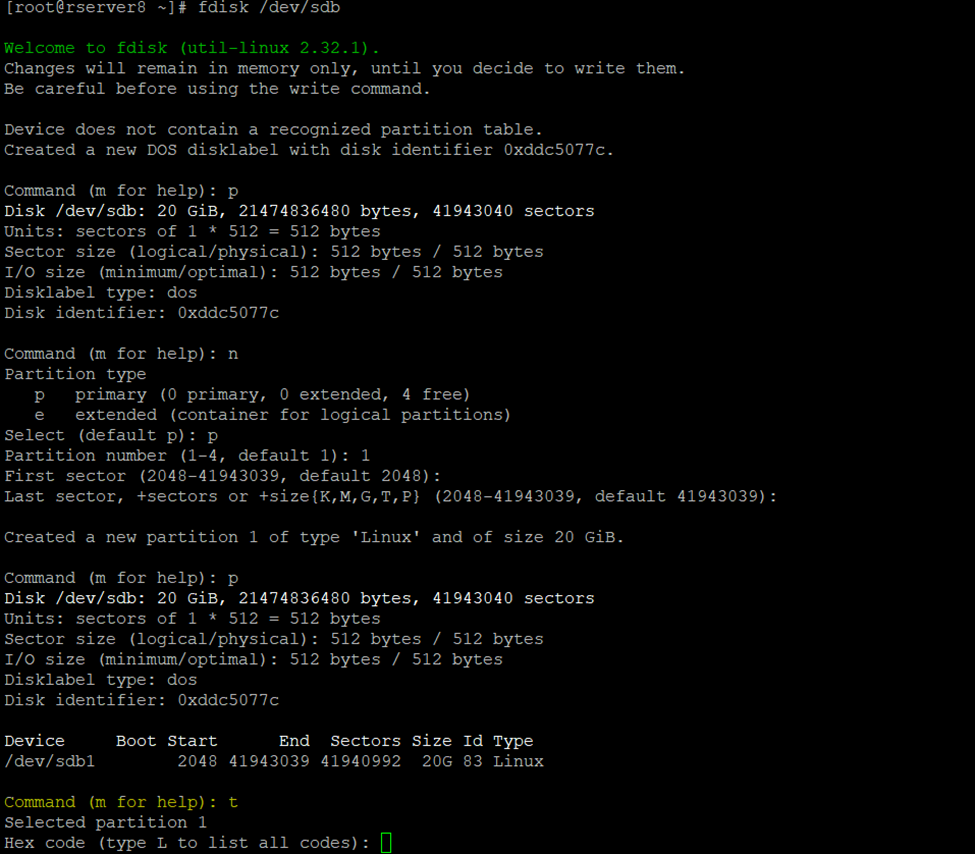
fdisk /dev/sdb

and follow the instruction

–now creating Physical Volume

pvcreate /dev/sdb1

— extending VG – Volume group (working on default centos – So, VG Group is centos)

vgextend centos /dev/sdb1

–now increasing the Logical volume

vgextend centos /dev/sdb1

— Increasing the Logical Volume size

lvresize -L +5G /dev/centos/home

Adding 5GB to Home Directory and 5GB to Root Directory

Extend Disk Size

Add the New Drive and scan it

Fdisk -l

[root@centos ~]# fdisk -l

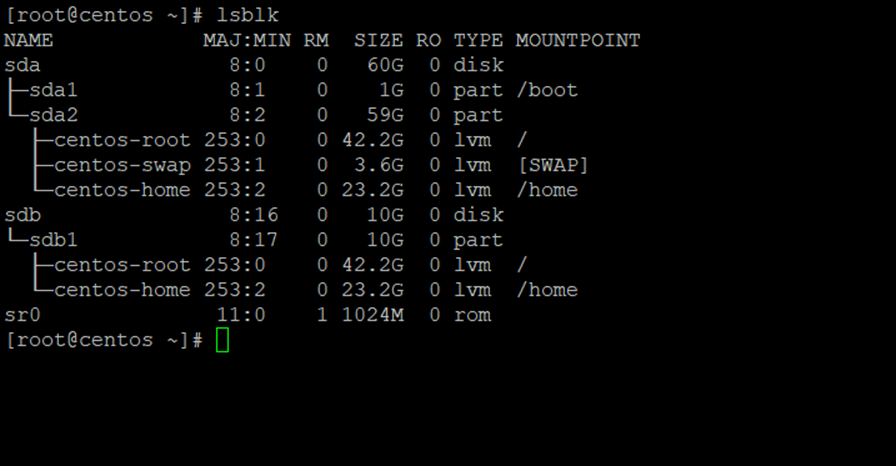
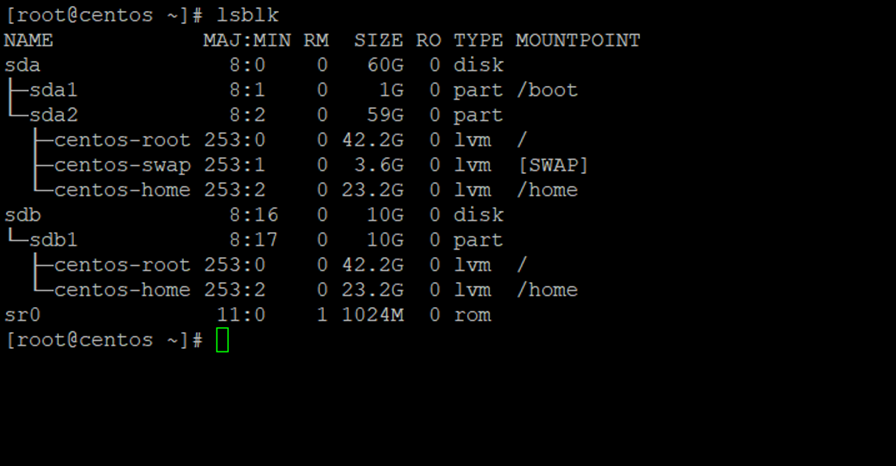
[root@centos ~]# lsblk

Now scanning the new added drive

[root@centos ~]# echo “- – -” > /sys/class/scsi_host/host2/scan

New added drive sdb

lblsk

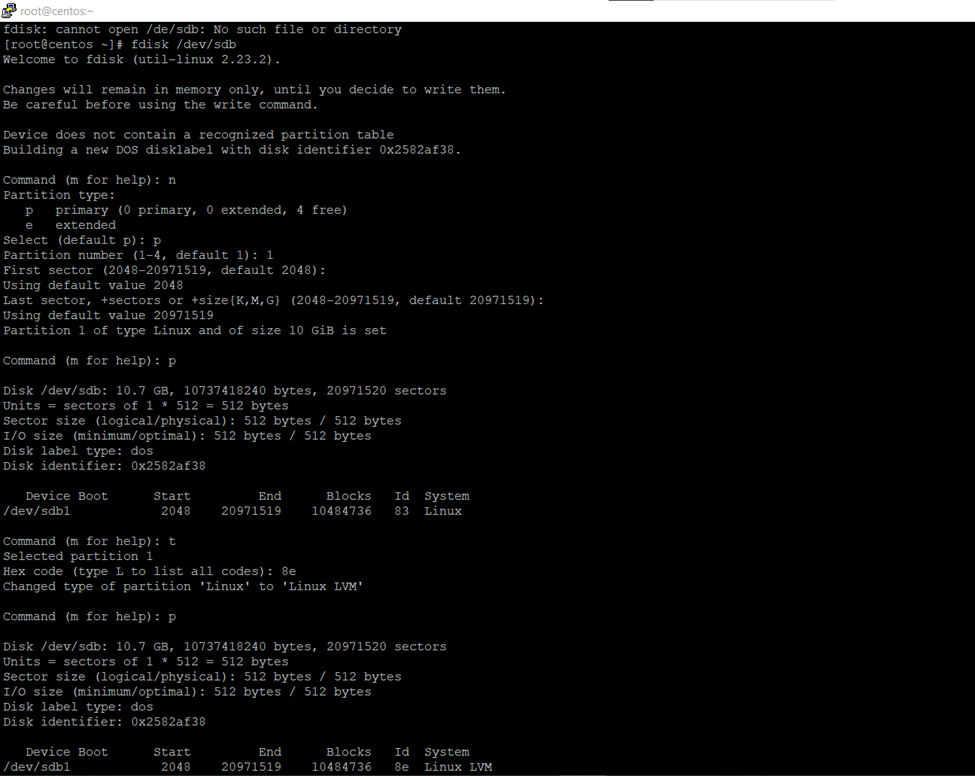
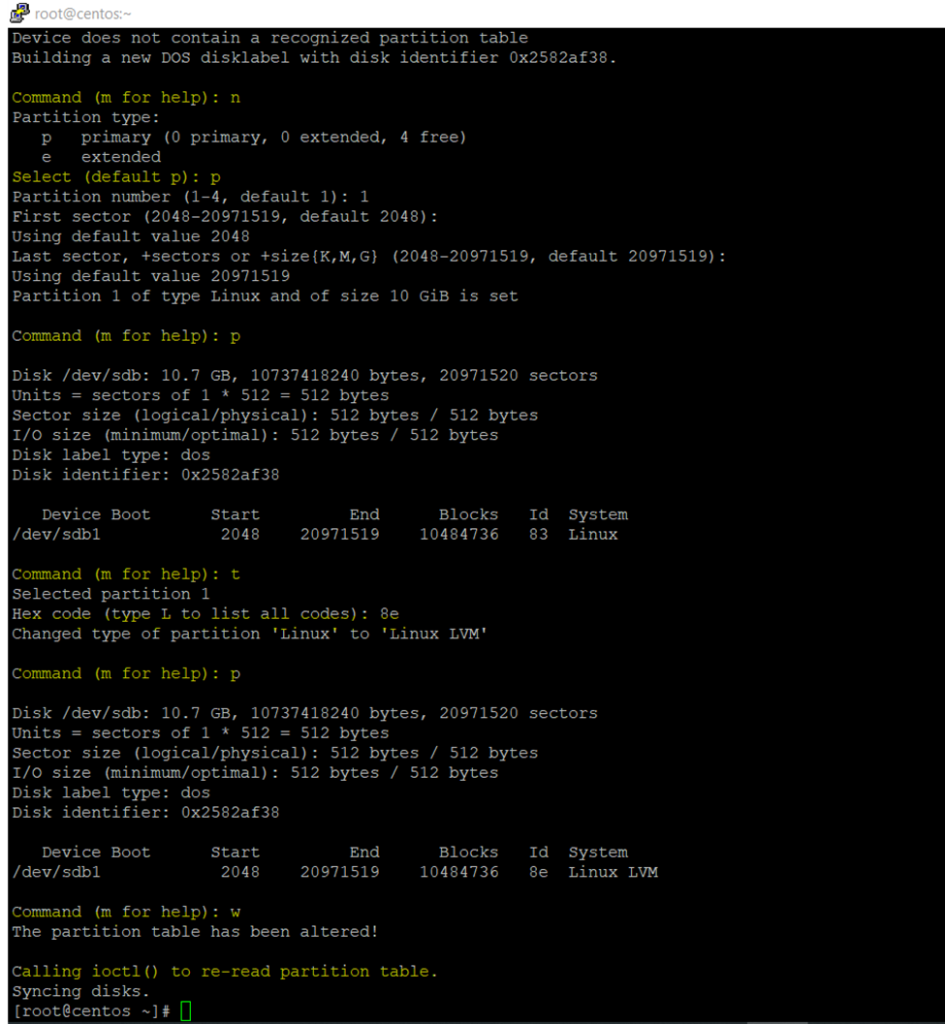
Now creating the partition

Fdisk /dev/sdb

Create a new partition type n

Create primary partition type p

In the single disk can create 4 partation so here creating only 1 partation

Type 1 single partition

And just press enter

And giving complete size

Just press enter

And type p for checking the created disk type

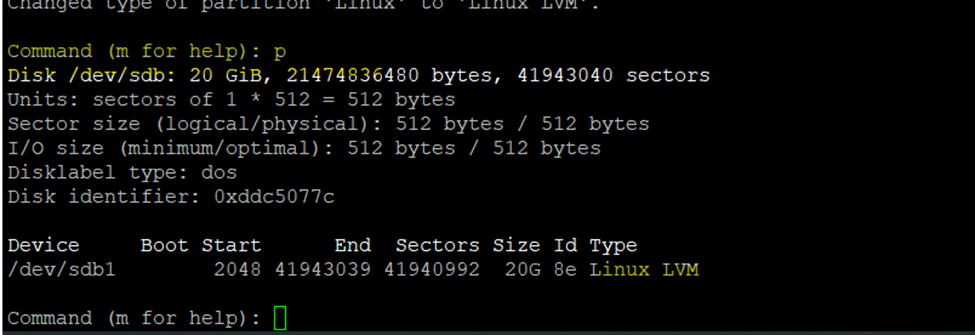
So, we want linux LVM type type

Type t and enter

And type p and check the type

Now press w and enter

To check newly created disk

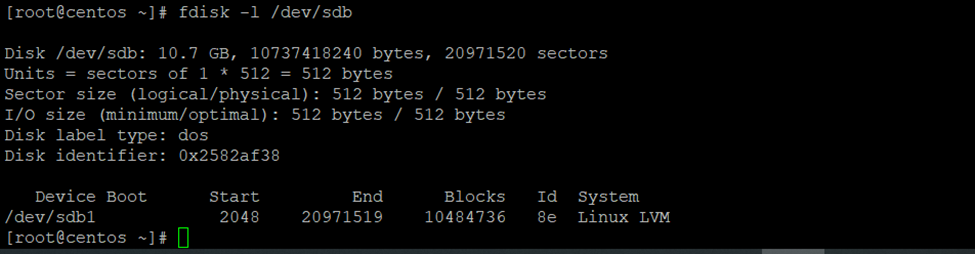
Fdisk -l /dev/sdb

[root@centos ~]# fdisk -l /dev/sdb

So here I will increase the centos-home dir size

Will use xfs (because very fast processing speed)

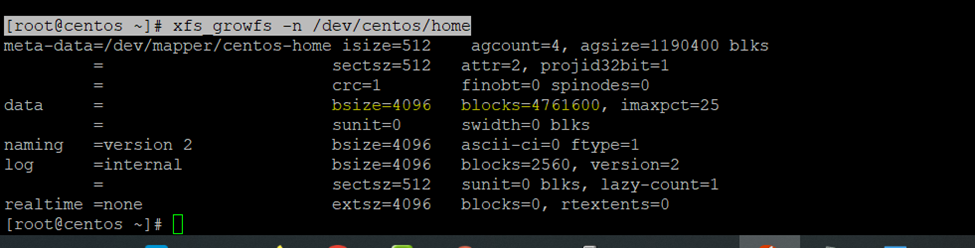
Checking the current blocks size

[root@centos ~]# xfs_growfs -n /dev/centos/home

Now creating the PHYSICAL VOLUME

PVCREATE –

Pvcreate /dev/sdb1

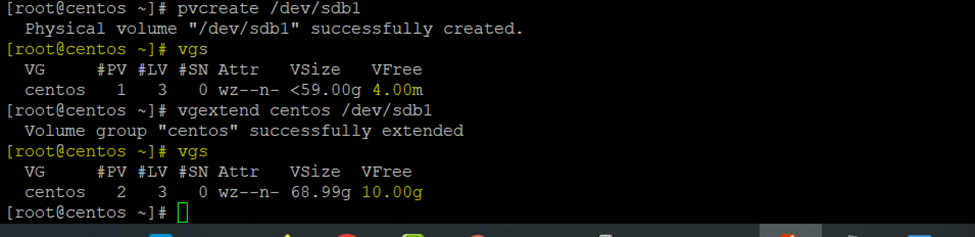
[root@centos ~]# pvcreate /dev/sdb1

Check the volume group

[root@centos ~]# vgs

Extending logical volume size

Vgextend— volume group name / logical volume directory

[root@centos ~]# vgextend centos /dev/sdb1

After increased size

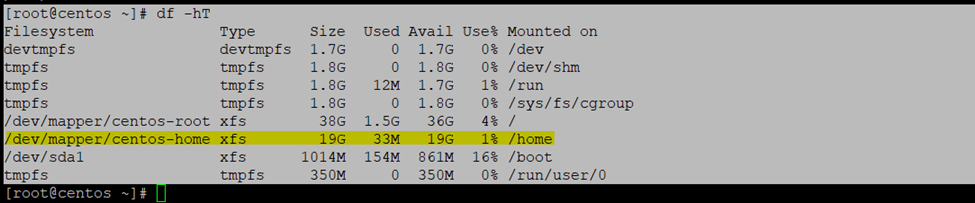
So, if you can check now having 10GB Volume Group free size

vgs

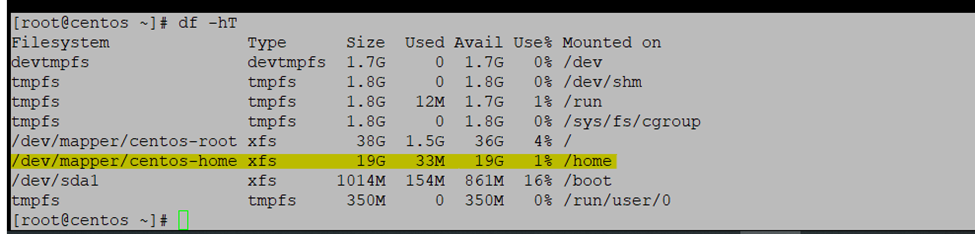
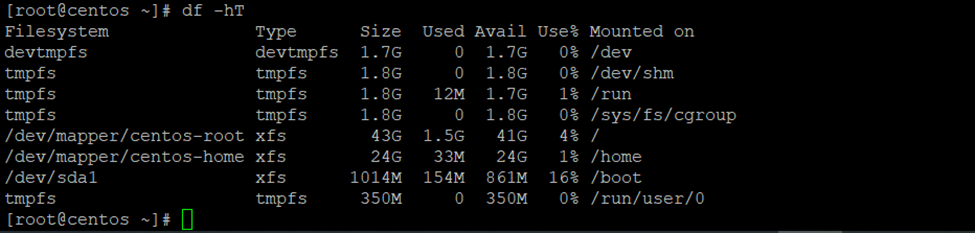
Df -h T

Increase the Home directory Size

Volume group : centos

Directory : home

Increasing disk size 5GB – Home Directory

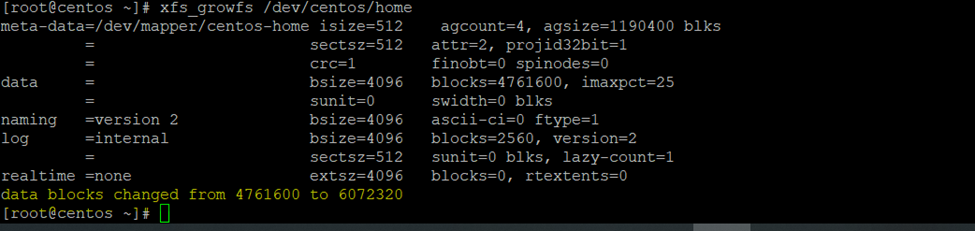
[root@centos ~]# lvresize -L +5G /dev/centos/home

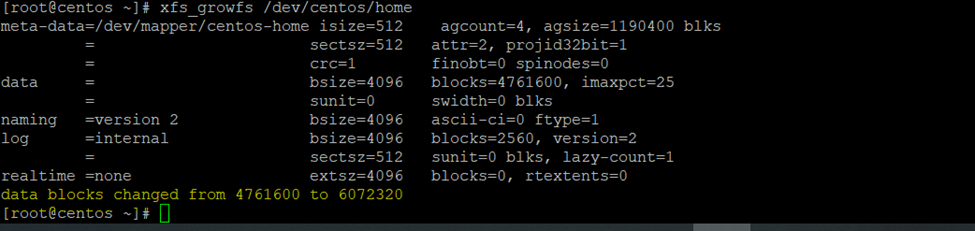
[root@centos ~]# xfs_growfs /dev/centos/home

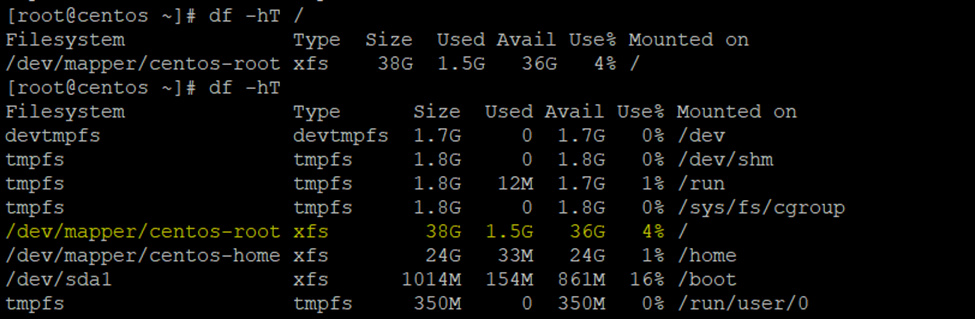
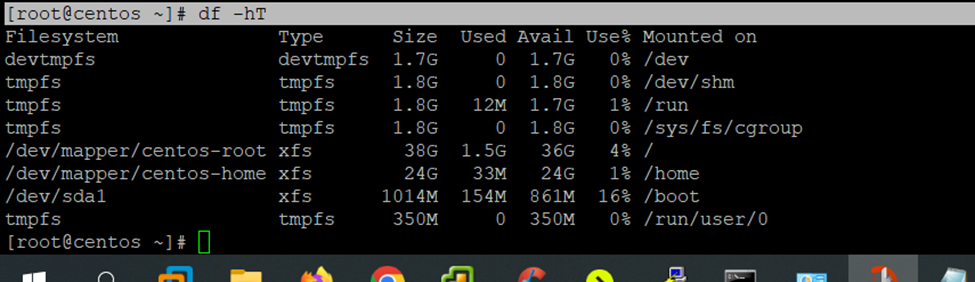
[root@centos ~]# df -hT /home

[root@centos ~]# df -hT

Extending root size

Steps to Create Logical Volume in Centos or RedHat Linux Server.

First

check the already associated disks

fdisk -l

Add the new Virtual Disk to Server

–Scan the new created disks- if you are having host1 or till host2 disk scan according to that.

i am having only host1 disk active need to scan host2 disk like

echo “- – -” > /sys/class/scsi_host/host2/scan

–now creating new partition

fdisk /dev/sdb

and follow the instruction

–now creating Physical Volume

pvcreate /dev/sdb1

— extending VG – Volume group (working on default centos – So, VG Group is centos)

vgextend centos /dev/sdb1

–now increasing the Logical volume

vgextend centos /dev/sdb1

— Increasing the Logical Volume size

lvresize -L +5G /dev/centos/home

)

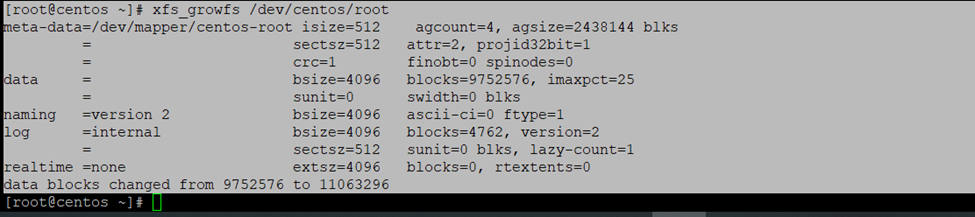
Increasing disk size 5GB – Root Directory

[root@centos ~]# lvresize -L +5G /dev/centos/root

[root@centos ~]# xfs_growfs /dev/centos/root

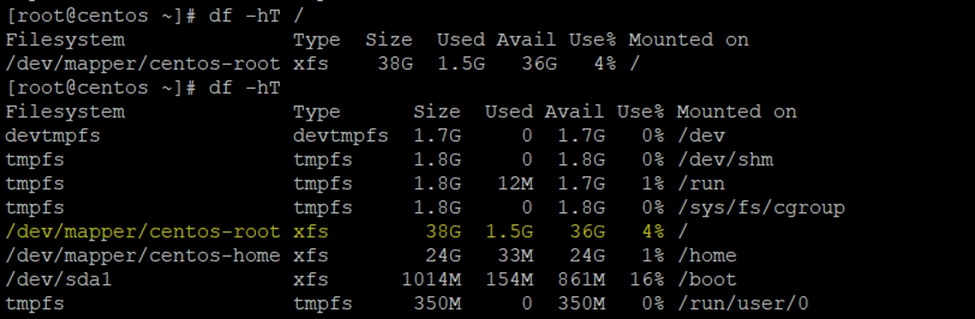
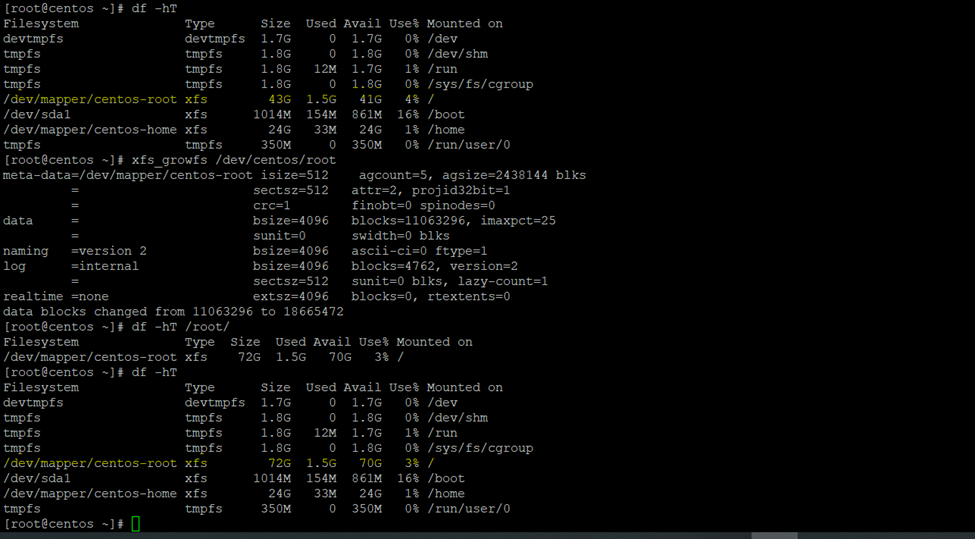
[root@centos ~]# df -hT /root/

Df -Ht

After extend root

Before extended root

How to Increase Logical Volume size in RedHAT/Centos

Here I am increasing the Root 30 GB size

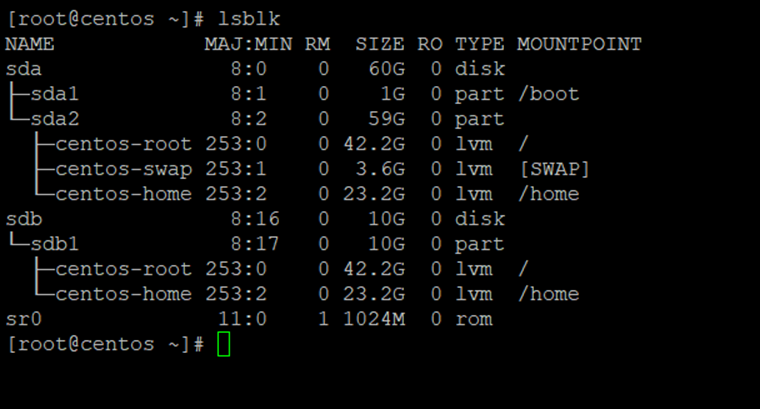
Current Disk Structure

lsblk

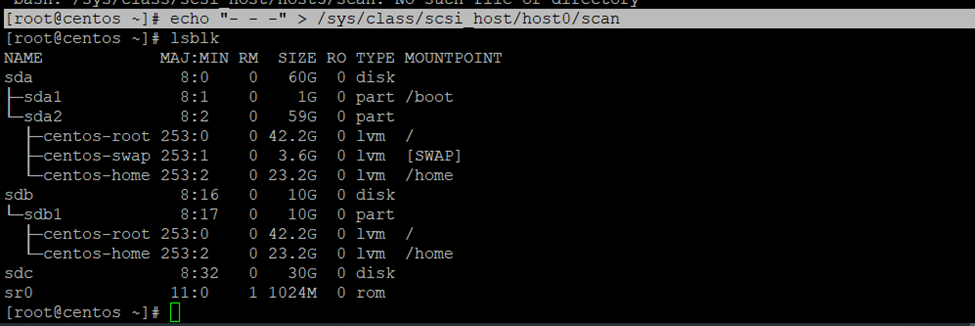
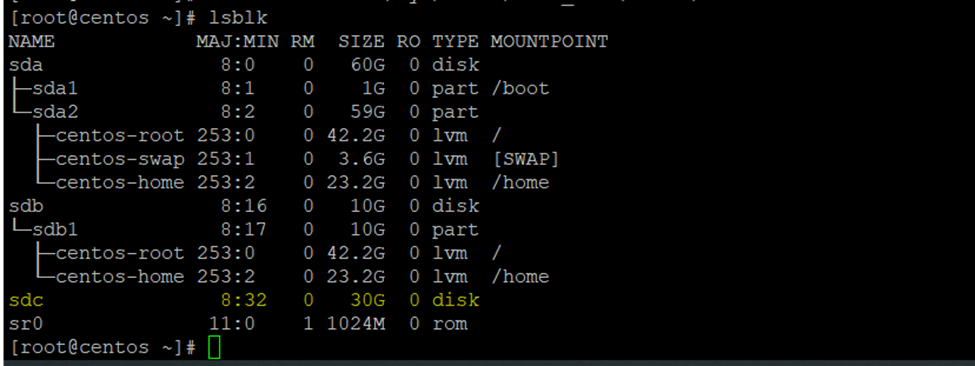
[root@centos ~]# echo “- – -” > /sys/class/scsi_host/host0/scan

Lblsk

Fdisk -l

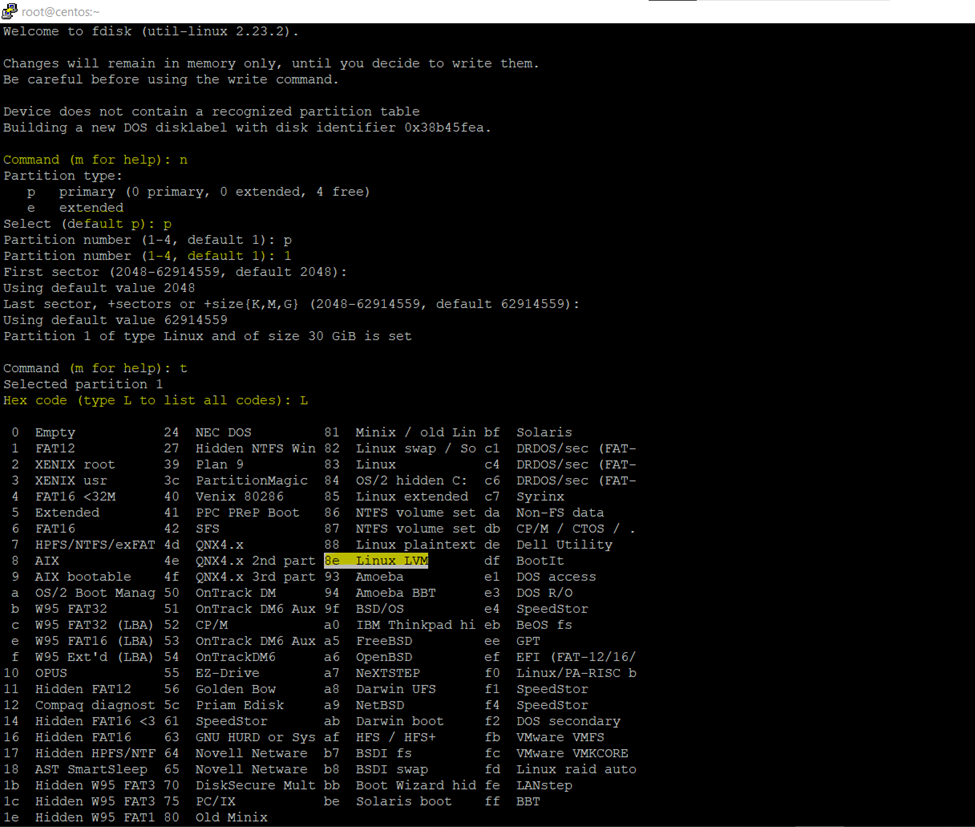
[root@centos ~]# fdisk /dev/sdc

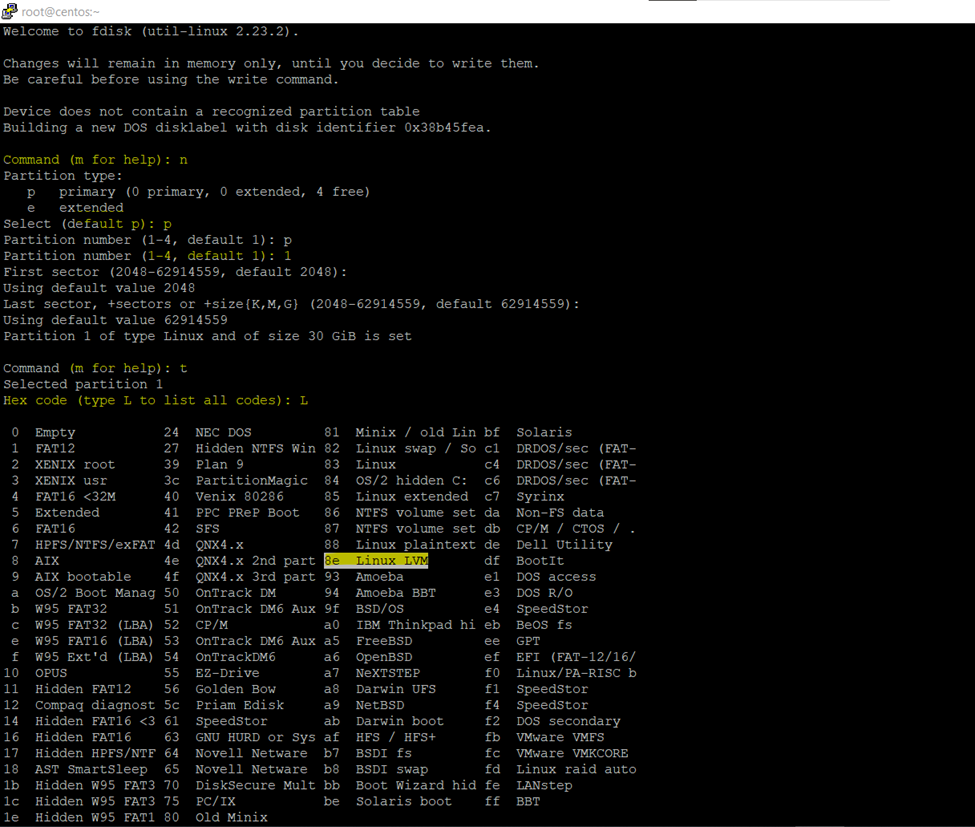
Type n

Then p

Then 1

Then enter and enter

Then t

Then L

Then 8e

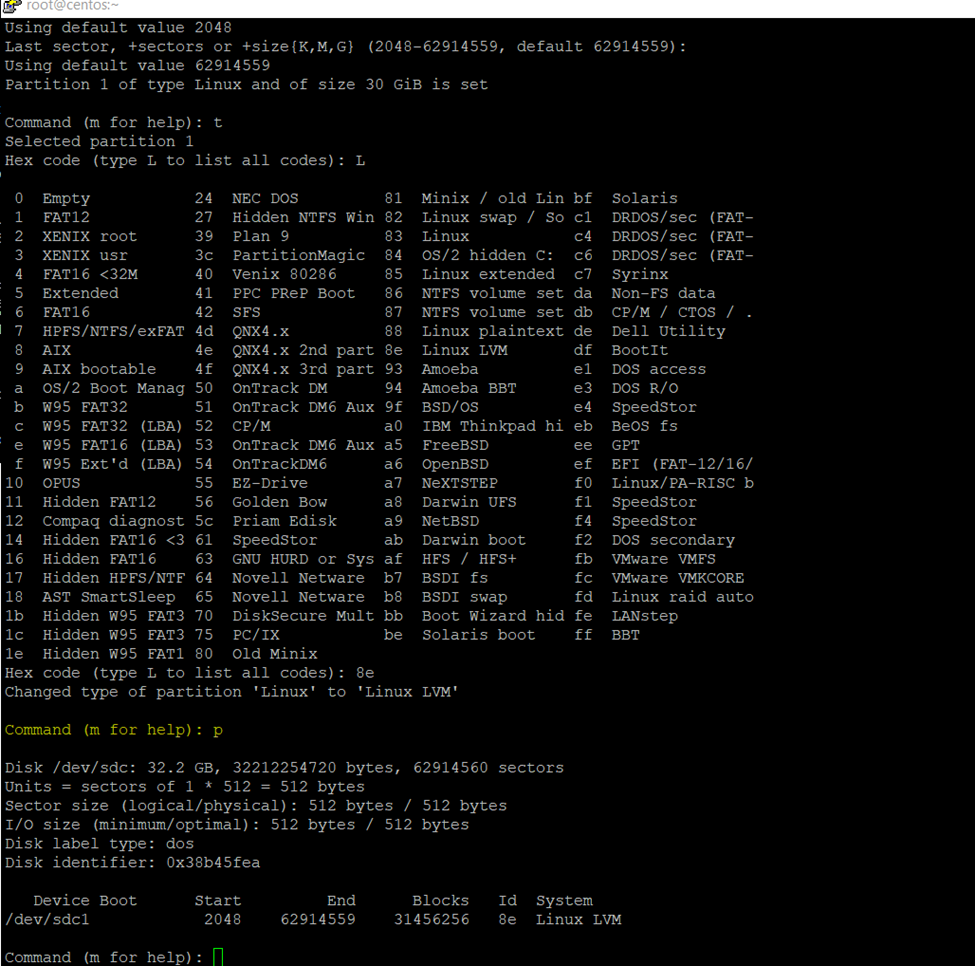
Then type p to check system type

8e

Then p

Then w exit

Now Checking the status newly created disk

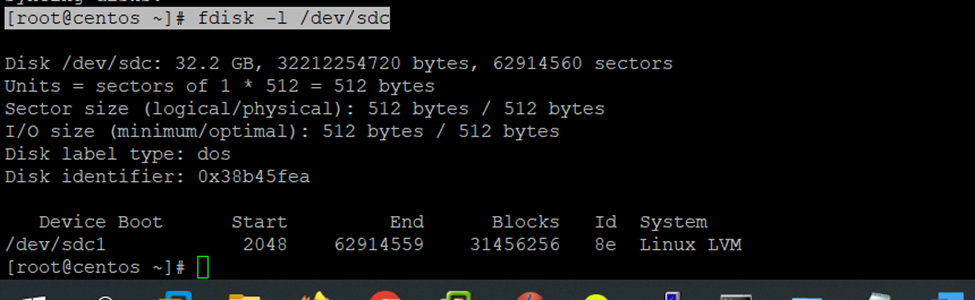
[root@centos ~]# fdisk -l /dev/sdc

So, I have decided to add the disk size in root directory

Checking the blocks size

[root@centos ~]# xfs_growfs -n /dev/centos/root

Creating physical volume

Pvcreate /dev/sdc1

[root@centos ~]# pvcreate /dev/sdc1

Current volume group details

[root@centos ~]# vgs

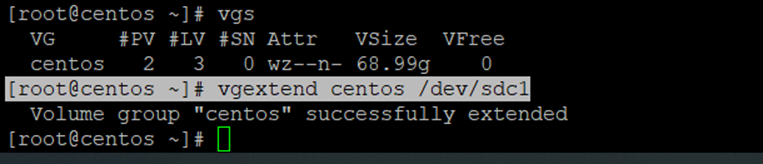
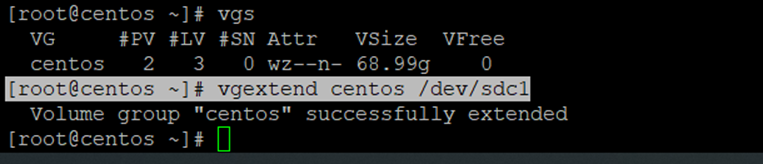
Now increasing the volume size to volume group

[root@centos ~]# vgextend centos /dev/sdc1

After extended the volume size

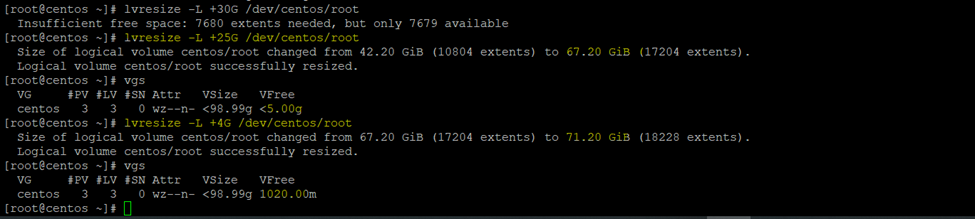
So, here increasing the root directory disk size

[root@centos ~]# lvresize -L +25G /dev/centos/root

[root@centos ~]# lvresize -L +4G /dev/centos/root

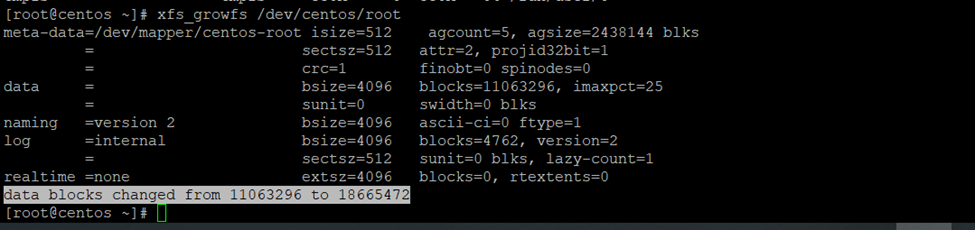
Xfs_growfs /dev/centos/root

[root@centos ~]# df -hT /root/

[root@centos ~]# df -hT

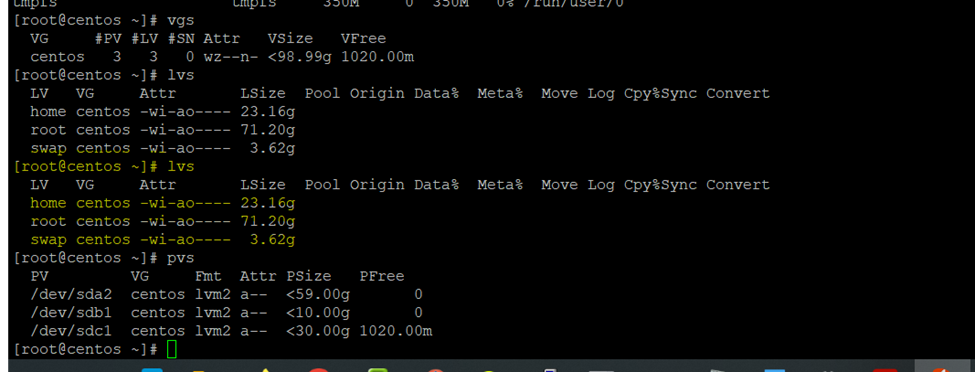
Physical Volume current scenario structure

Pvs

[root@centos ~]# pvs

Volume Group current scenario structure

Vgs

Logical Volume current scenario structure

Lvs

Logical Volume Manager

Logical Volume Manager (LVM) is a Linux mechanism for dynamically managing disks and disk partitions.

How to Configure LUN or Datastore to exsi host

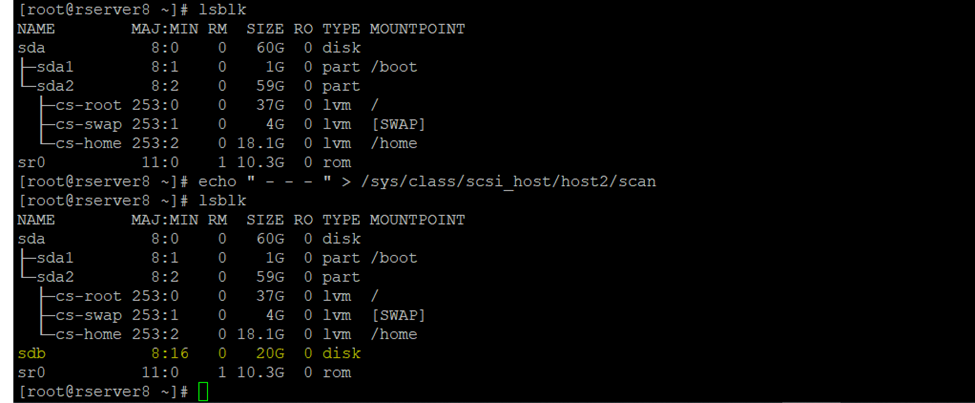
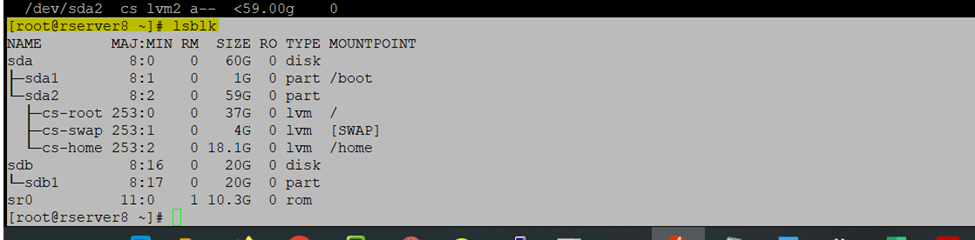
Check Disks

lsblk - list block devices

Check the Disk

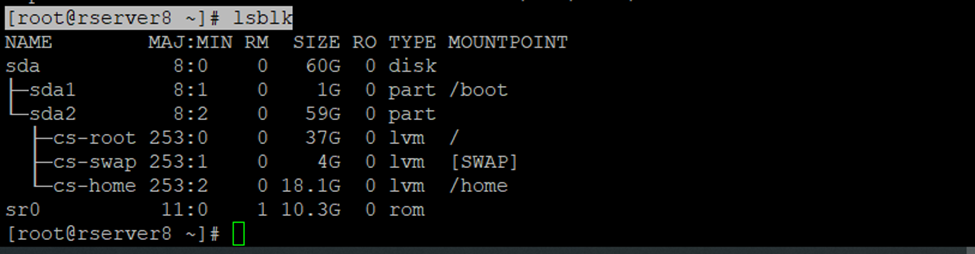
[root@rserver8 ~]# lsblk

Need to Scan disk drive to add new storage in RedHAT/Centos Linux.

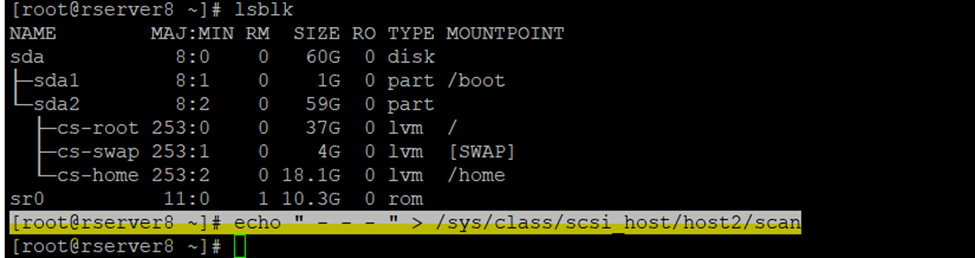
Echo “ – – – “ > /sys/class/scsi_host/host2/scan

  • (scan the channel)
  • (scan the scsi target)
  • (scan the LUN)

Here I have mention host 2 because I am having only 1 datastore activated currently so now I am adding 2nd datastore so, have selected host2 if I am having already two disk then need to target on host3

[root@rserver8 ~]# echo ” – – – ” > /sys/class/scsi_host/host2/scan

So, now after scanning disk checking the disk using lsblk

..

I am getting new disk sdb 2

Fdisk -l

[root@rserver8 ~]# fdisk -l

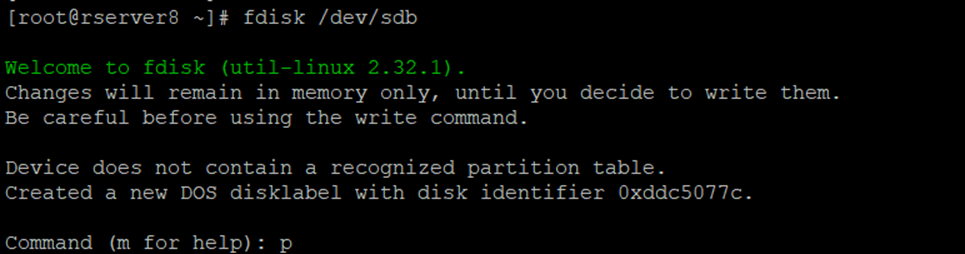
Now Creating the Partition for sdb drive

And press enter command

[root@rserver8 ~]# fdisk /dev/sdb

Once enter

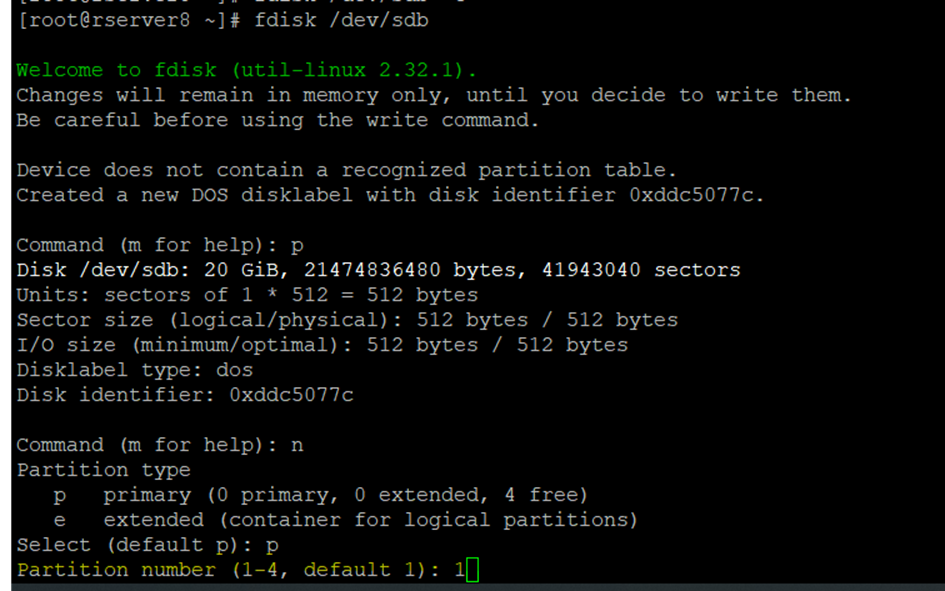
Then press p

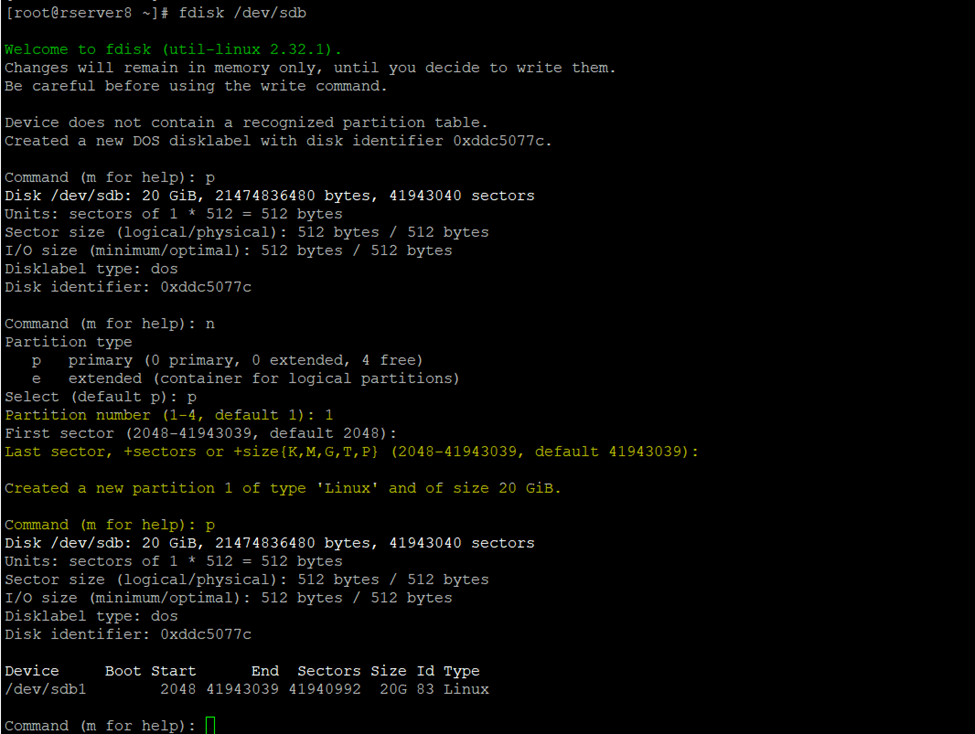
Then and press n

And select partition type

So here creating the default partition

And press p

Press 1 because I am creating the complete disk as default

And press 1 as default and enter and enter

Verify created Disk

Now converting to LVM Format currently this is only linux format now

So, press t

Now press L – capital L type for checking the ID (LVM ID)

Select Linux LVM

Now type 8e

Now press w for exit;

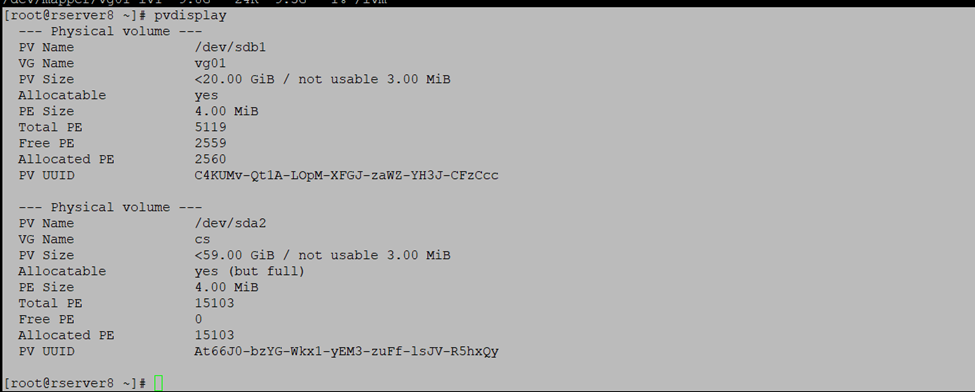
Physical Volume

PVS

[root@rserver8 ~]# pvs

Creating new Physical volume

Pvcreate /directorystrucure/and_volume_name

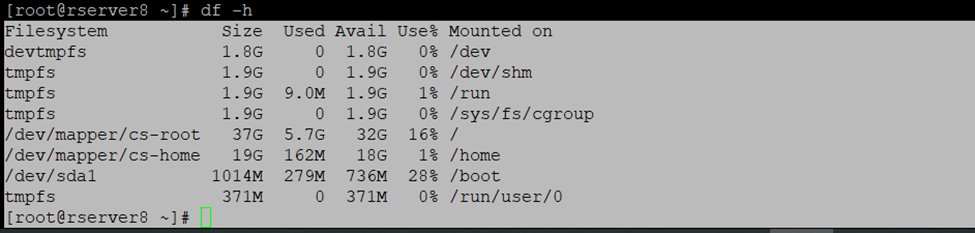
Df -h

Pvcreate /dev/sdb1 /dev/sdc1

[root@rserver8 ~]# pvcreate /dev/sdb1 /dev/sdc1

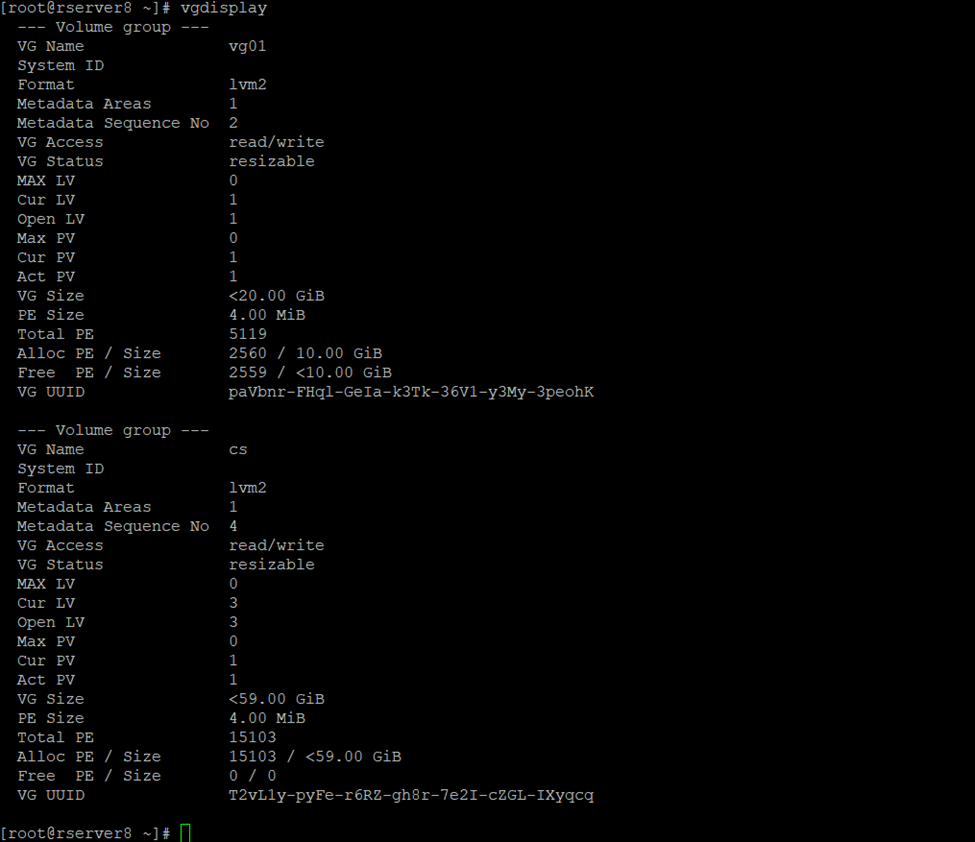
Creating Volume Group

Vgs

[root@rserver8 ~]# vgs

So, here I am having 59GB Volume group

Now creating new volume group

Vgcreate  volumegroup(name) /directorystructure

[root@rserver8 ~]# vgcreate vg01 /dev/sdb1

So, as you can check created volume group is appearing — vg01

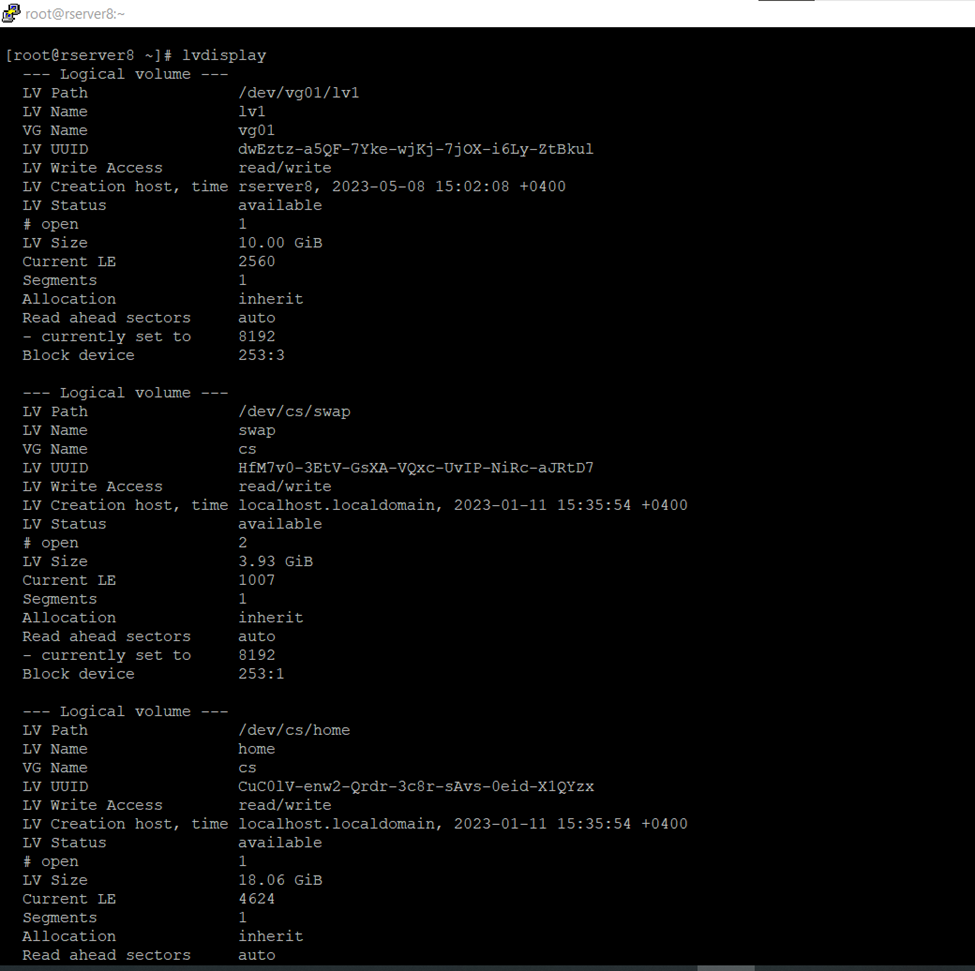
Logical Volume

So,

Here creating Logical Volume

Lvcreate -L +VolumeSize -n LogicalVolumeName and created volume Group name

Like

Lvcreate -L +10G -N lv1 vg01

Logical volume created

[root@rserver8 ~]# lvcreate -L +10G -n lv1 vg01

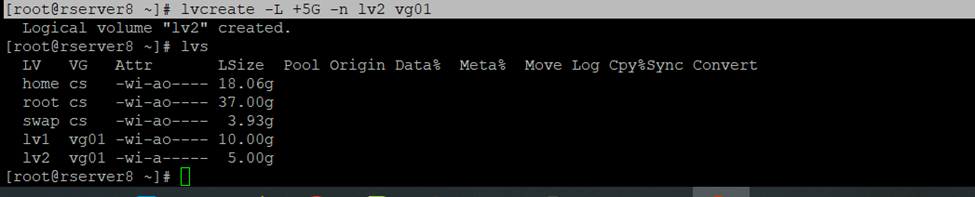
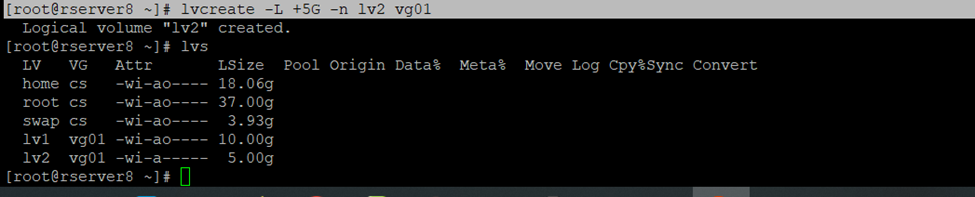
[root@rserver8 ~]# lvcreate -L +5G -n lv2 vg01

[root@rserver8 ~]# lvs

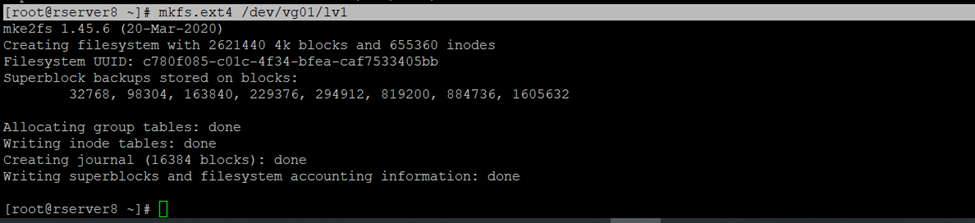
Now formating Created Logical Volume

Mkfs.ext4 /dev/vg01/lv1

[root@rserver8 ~]# mkfs.ext4 /dev/vg01/lv1

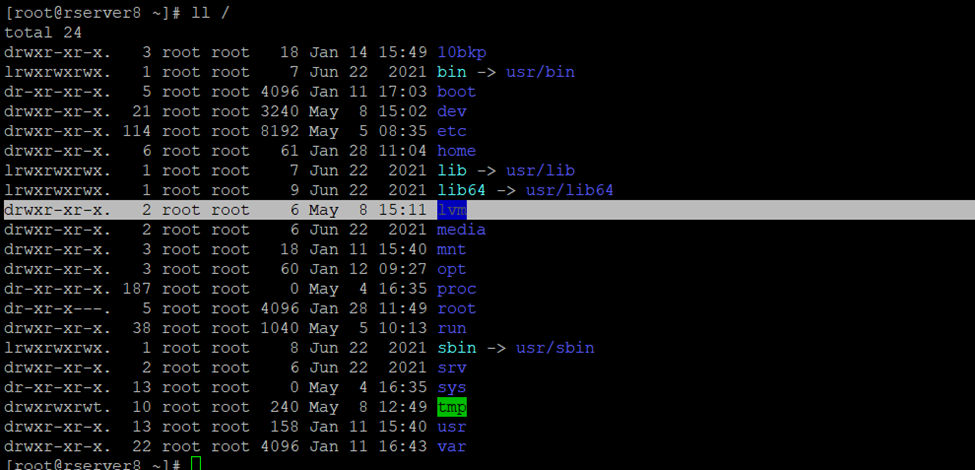
Now need to create a directory or folder to mount the logical volume

Mkdir folder name

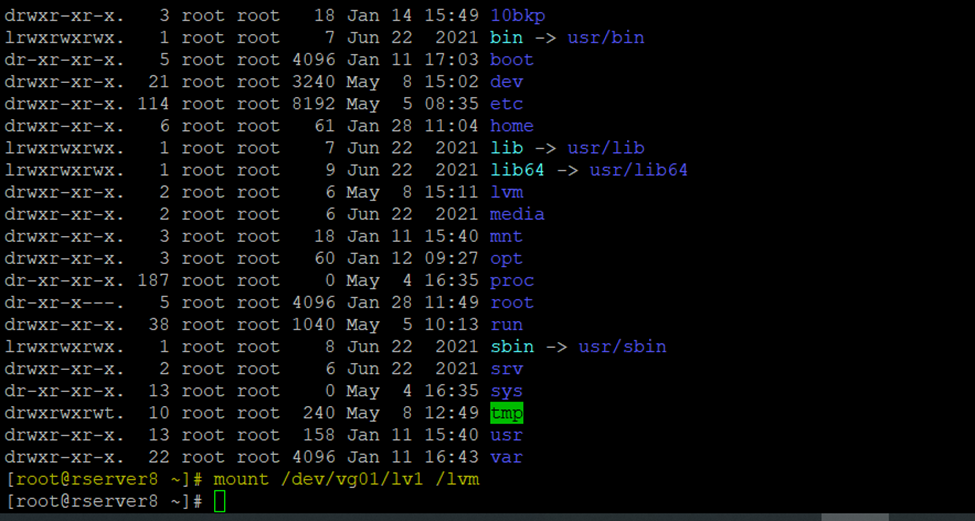
[root@rserver8 ~]# mkdir /lvm

Created directory

Now,need to mount the created directory

Mount /direcotry(dev)/volumegroup/logicalVolume /direcotry

Mount /dev/vg01/lv1 /lvm

[root@rserver8 ~]# mount /dev/vg01/lv1 /lvm

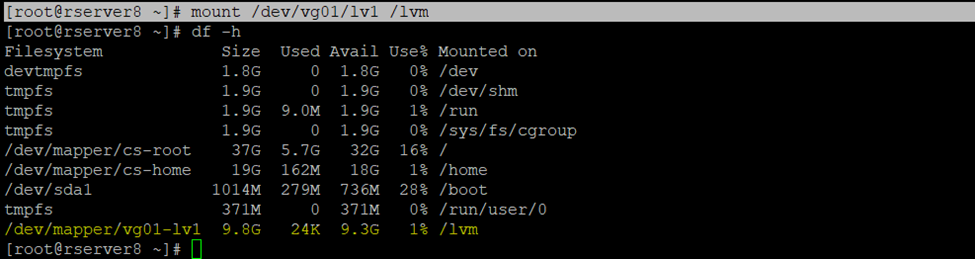
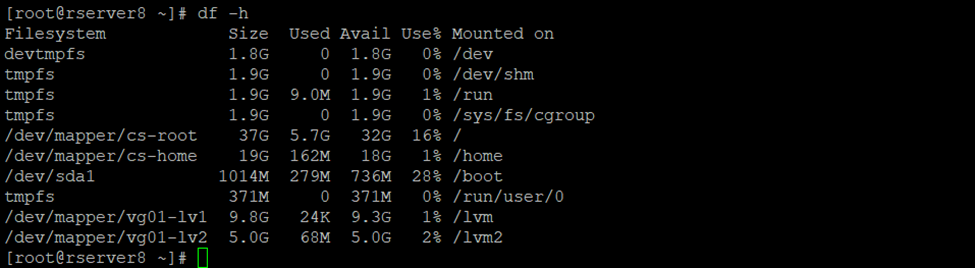
Df -h

Currently this is temporary mount

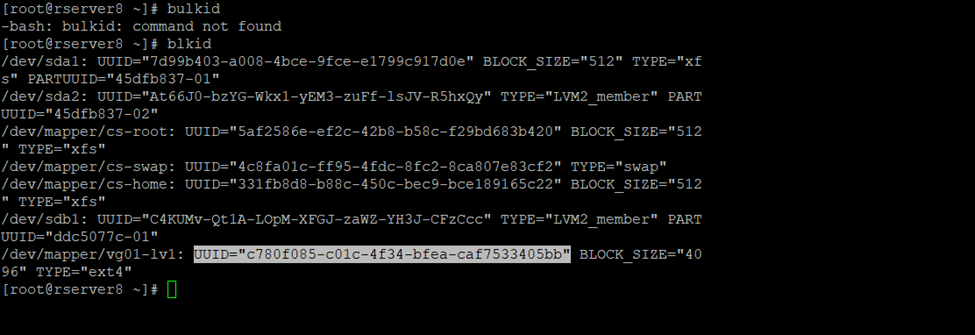
Using bulkid make permanent mount

Blkid

[root@rserver8 ~]# blkid

UUID=”c780f085-c01c-4f34-bfea-caf7533405bb”

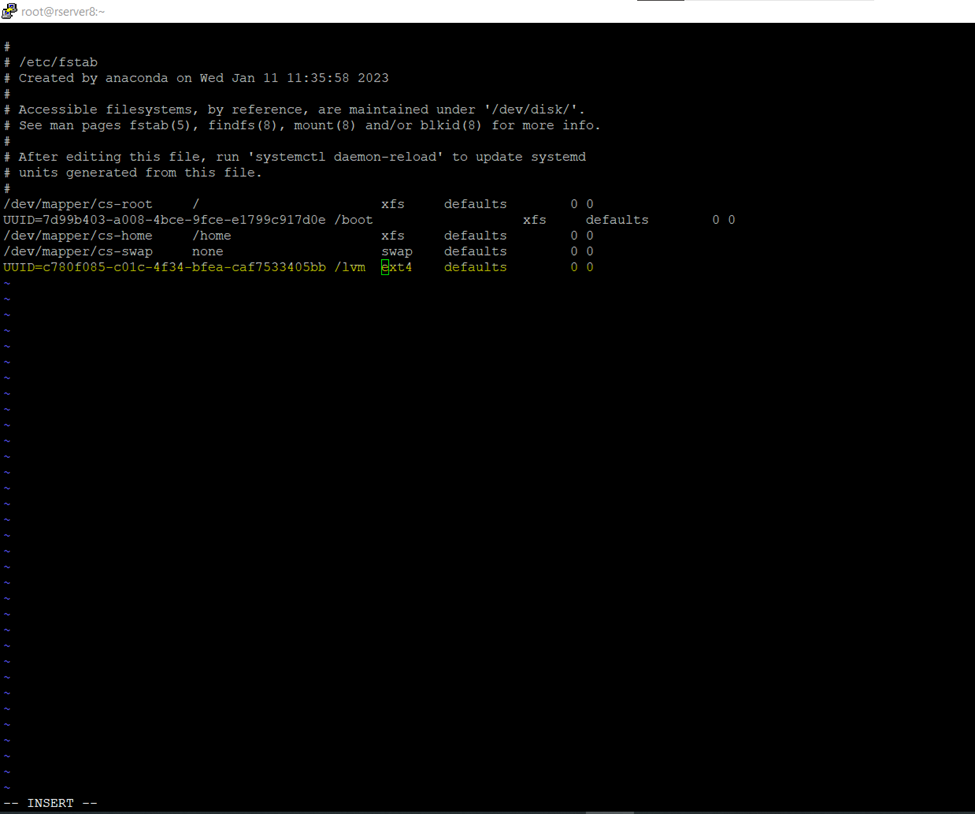
So now mounting the permanent disks using uuid

Go to etc/fstab

[root@rserver8 ~]# vi /etc/fstab

Now updating the file

Mount -a

[root@rserver8 ~]# mount -a

Df -h

Pvdisplay

Volume gorup

[root@rserver8 ~]# vgdisplay

Lvdisplay

How to Increase Logical Volume size in RedHAT/Centos

Steps to Create Logical Volume in Centos or RedHat Linux Server.

First

check the already associated disks

fdisk -l

Add the new Virtual Disk to Server

–Scan the new created disks- if you are having host1 or till host2 disk scan according to that.

i am having only host1 disk active need to scan host2 disk like

echo “- – -” > /sys/class/scsi_host/host2/scan

–now creating new partition

fdisk /dev/sdb

and follow the instruction

–now creating Physical Volume

pvcreate /dev/sdb1

— extending VG – Volume group (working on default centos – So, VG Group is centos)

vgextend centos /dev/sdb1

–now increasing the Logical volume

vgextend centos /dev/sdb1

— Increasing the Logical Volume size

lvresize -L +5G /dev/centos/home

Adding 5GB to Home Directory and 5GB to Root Directory

Extend Disk Size

Add the New Drive and scan it

Fdisk -l

[root@centos ~]# fdisk -l

[root@centos ~]# lsblk

Now scanning the new added drive

[root@centos ~]# echo “- – -” > /sys/class/scsi_host/host2/scan

New added drive sdb

lblsk

Now creating the partition

Fdisk /dev/sdb

Create a new partition type n

Create primary partition type p

In the single disk can create 4 partation so here creating only 1 partation

Type 1 single partition

And just press enter

And giving complete size

Just press enter

And type p for checking the created disk type

So, we want linux LVM type type

Type t and enter

And type p and check the type

Now press w and enter

To check newly created disk

Fdisk -l /dev/sdb

[root@centos ~]# fdisk -l /dev/sdb

So here I will increase the centos-home dir size

Will use xfs (because very fast processing speed)

Checking the current blocks size

[root@centos ~]# xfs_growfs -n /dev/centos/home

Now creating the PHYSICAL VOLUME

PVCREATE –

Pvcreate /dev/sdb1

[root@centos ~]# pvcreate /dev/sdb1

Check the volume group

[root@centos ~]# vgs

Extending logical volume size

Vgextend— volume group name / logical volume directory

[root@centos ~]# vgextend centos /dev/sdb1

After increased size

vgs

So, if you can check now having 10GB Volume Group free size

Df -h T

Increase the Home directory Size

Volume group : centos

Directory : home

Increasing disk size 5GB – Home Directory

[root@centos ~]# lvresize -L +5G /dev/centos/home

[root@centos ~]# xfs_growfs /dev/centos/home

[root@centos ~]# df -hT /home

[root@centos ~]# df -hT

Extending root size

Steps to Create Logical Volume in Centos or RedHat Linux Server.

First

check the already associated disks

fdisk -l

Add the new Virtual Disk to Server

–Scan the new created disks- if you are having host1 or till host2 disk scan according to that.

i am having only host1 disk active need to scan host2 disk like

echo “- – -” > /sys/class/scsi_host/host2/scan

–now creating new partition

fdisk /dev/sdb

and follow the instruction

–now creating Physical Volume

pvcreate /dev/sdb1

— extending VG – Volume group (working on default centos – So, VG Group is centos)

vgextend centos /dev/sdb1

–now increasing the Logical volume

vgextend centos /dev/sdb1

— Increasing the Logical Volume size

lvresize -L +5G /dev/centos/home

)

Increasing disk size 5GB – Root Directory

[root@centos ~]# lvresize -L +5G /dev/centos/root

[root@centos ~]# xfs_growfs /dev/centos/root

[root@centos ~]# df -hT /root/

Df -Ht

After extend root

Before extended root

How to Increase Logical Volume size in RedHAT/Centos

Here I am increasing the Root 30 GB size

Current Disk Structure

lsblk

[root@centos ~]# echo “- – -” > /sys/class/scsi_host/host0/scan

Lblsk

Fdisk -l

[root@centos ~]# fdisk /dev/sdc

Type n

Then p

Then 1

Then enter and enter

Then t

Then L

Then 8e

Then type p to check system type

8e

Then p

Then w exit

Now Checking the status newly created disk

[root@centos ~]# fdisk -l /dev/sdc

So, I have decided to add the disk size in root directory

Checking the blocks size

[root@centos ~]# xfs_growfs -n /dev/centos/root

Creating physical volume

Pvcreate /dev/sdc1

[root@centos ~]# pvcreate /dev/sdc1

Current volume group details

[root@centos ~]# vgs

Now increasing the volume size to volume group

[root@centos ~]# vgextend centos /dev/sdc1

After extended the volume size

So, here increasing the root directory disk size

[root@centos ~]# lvresize -L +25G /dev/centos/root

[root@centos ~]# lvresize -L +4G /dev/centos/root

Xfs_growfs /dev/centos/root

[root@centos ~]# df -hT /root/

[root@centos ~]# df -hT

Physical Volume current scenario structure

Pvs

[root@centos ~]# pvs

Volume Group current scenario structure

Vgs

Logical Volume current scenario structure

Lvs

SSH KEY Based Authentication

Centos/RedHat Server password less authentication

First Login to your Server

Generate Authentication keys

Authentication key cmds

[root@rserver8 ~]# ssh-keygen

Once you had executed the command

So, authorized keys are generated go to ~/.ssh/ directory or cd .ssh/

2 keys had generated

Id_rsa and id_rsa.pub

Using cat cmd display  id_rsa.pub keys

[root@rserver8 .ssh]# cat id_rsa.pub

Copy this key

Create new authorized_keys file

So, using vi or vim cmd we can create

[root@rserver8 .ssh]# vi authorized_keys

Paste it here id_rsa.pub keys which you have copied using cat id_rsa.pub

Chmod 600 sets permissions so that, user / owner can read, can write and can’t execute. Group can’t read, can’t write and can’t execute. others can’t read, can’t write and can’t

So, I had created the authorized_keys now assign the permission to this particular user

So in my case root is the owner you can create user and assign the privileges

[root@rserver8 .ssh]# chmod 600 authorized_keys

So, now need to copy private key

Again, go to .ssh folder

[root@rserver8 ~]# cd .ssh/

[root@rserver8 .ssh]# cat id_rsa

Copy this and paste it to any text editor

And save it to .ppk format

PuTTY Private Key

Now to to ssh_config and disable password authentication login

And if you are using any user you can also disable root login
[root@rserver8 .ssh]# vi /etc/ssh/sshd_config

password authentication change it make it no.

So, once authentication done restart the sshd services (Secure Shell or Secure Socket Shell).

[root@rserver8 .ssh]# sudo systemctl restart sshd

I am saving private key in notepad text editor .ppk format

So here we need to convert in putty format if we don’t do it, we will get the error.

Go to ssh tab and browse the .ppk save private here we will get error because we are not using putty format

If you can check getting the format error

Now open the putty generator

Once file .ppk is loaded save  it to same format with new or existing name

Click to save private key

And click yes

And save it

Now open the putty type username like sharique@192.168.60.10

Browse the authenticate key

Open the putty for remember login

So, Now you have successfully configured password less authentication Linux server.