CREATE TABLESPSCE

A tablespace is a storage location where the actual data underlying database objects can be kept. It provides a layer of abstraction between physical and logical data, and serves to allocate storage for all DBMS managed segments.

A tablespace is a logical group of data files in a database. A database typically contains at least one tablespace, and usually two or more. Within the database, the tablespace plays a role similar to that of a folder on the hard drive of a computer.

Datafile : Describe all database files , Datafiles are physical files stored on your disk created by Oracle database and has .dbf extension.

CREATE DBA DATA FILES TABLESPACE

We have to find the file location in DBA DATA FILES

Now here describing dba data files

SQL> desc dba_data_files;

We can use one of them

SQL> describe dba_data_files;

Here Selection Specific columns

DBA DATA FILES Selecting the  FILE_NAME

SQL> SELECT FILE_NAME FROM dba_data_files;

TABLESPACENAME describe including with Created files name users

If we will create new TABLESPACENAME it will also reflect in File Name.

SQL> SELECT FILE_NAME, TABLESPACE_NAME FROM dba_data_files;

Now I am going to change the Bytes into MB

Now you can see here I have converted BYTES in MB.

SQL> select FILE_NAME,TABLESPACE_NAME,BYTES/1024 as size_in_mb from dba_data_files;

Now converting BYTES size in GB

SQL> select FILE_NAME,TABLESPACE_NAME,BYTES/1024/1024/1024 as size_in_gb from dba_data_files;

Now started to create tablespace

We need to know in which directory tablespace file used to create

So here

SQL> Select FILE_NAME from dba_data_files;

So We found the tablespace directory .

Whenever we are creating tablespace we used to create tablespace in oracle default directory including with path in string format.

(extention of tablespace .dbf)

SQL> create tablespace querypanel26 datafile ‘/u01/app/oracle/oradata/q

ueryp/querypanel26.dbf’ size 400m autoextend on;

Now you can see one tablespace is included in tablespace directory.

DATAFILE : before add datafile in tablespace we must have to aware about data files create location . How do we find datafiles storage location

SQL> desc dba_data_files;

Now we are looking for File Name and tablespace

so we promote a select query

SQL> select FILE_NAME,TABLESPACE_NAME from dba_data_files;

Here ADD datafile

SQL> alter tablespace q04 add datafile ‘/u01/app/oracle/oradata/queryp/q04datafile.dbf’ size 5m autoextend on;

we can also assign unlimited tablespace

sql>grant unlimited tablespace to q02;

Lock & Unlock Users

How do lock users account and unlock account.

SQL> alter user query1 account lock;

Now we need to find the user account status.

SQL> select USERNAME,ACCOUNT_STATUS from dba_users;

Here you can see query1 user account is locked

Now need to unlock user account

SQL> alter user query1 account unlock;

Now here user is unblock

SQL> select USERNAME,ACCOUNT_STATUS from dba_users;

User password Expire

We could not login via old password

SQL> alter user query1 password expire;

Whenever we will used to expire password need to set a new password during the user login

User session

Note: When it is in read/write mode, the status will simply say “ONLINE”

Rename Tablespace

SQL> alter tablespace Q05 OFFLINE normal;

SQL> alter tablespace Q05 RENAME TO QP05;

Assign Tablespace while creation of new users

here i have mention specific tablespace to user

SQL> create user q3 identified by q3 default tablespace sept_q3;

we can check here default tablespace to user

Q3 User default tablespace is sept_q3 because i used to mention this particular user carry this tablespace

we can also tablespace while we create table

easy to assign tablespace also like this

SQL> create table q3_insert_1(q_id INT NOT NULL PRIMARY KEY,NAME VARCHAR(20)) tablespace sept_q3;

A temporary tablespace, as its name implied, stores the temporary data that only exists during the database session.

Oracle uses temporary tablespaces to improve the concurrency of multiple sort operations which do not fit in memory. On top of this, Oracle stores temporary tables, temporary indexes, temporary B-trees, and temporary LOBs in temporary tablespaces.

By defeault, Oracle creates a single temporary tablespace named TEMP for each new Oracle Database installation. This TEMP tablespace can be shared by multiple users.

Now here we are going to create temporary tablespace

SQL> CREATE TEMPORARY TABLESPACE q3temp_1 TEMPFILE ‘/u02/app/oracle/oradata/sept/q3temp_1.dbf’ SIZE 40m;

now we can check temporary tablespace in dba_temp_files

we can see temporary tablespace is created

Oracle Database Privilege

Oracle Database Privilege Users

Step 1:

Login to oracle

Create user

Sql> create user query1 identified by query1;

: Set Privilege

SQL> Grant connect, resource to query1;

Now here start the connection

SQL> conn query1/query1;

Display Current User

SQL> show user;

Create table

SQL> CREATE Table Del_metro(m_id int primary key not null, name varchar(20));

SELECT CREATED TABLE

SQL> SELECT * FROM TAB;

Table Architecture

SQL> DESC Del_metro;

Descries line length

SQL> col Name for a10;

Describe Table

SQL> desc tab;

Another table creation

SQL> create table del_metro_east(em_id int primary key not null, NAME VARCHAR(20));

SQL> select * from tab;

:Insert Values in Table

SQL> INSERT INTO del_metro_east values (’01’,’SHA’);

COMMIT Command used to complete the tasks

Now here we’re going to check values inserted or not

SQL> Select * from del_metro_east;

How do we connect user to admin ( still we are login with new user so now going to connect with system admin)

SQL> conn / as sysdba

Connected.

How many user are available

SQL> desc dba_users;

Distinct command use to find the different values

Sql>select distinct username,account_status from dba_users;

SQL> SELECT DISTINCT USERNAME FROM DBA_USERS;

System admin sysdba accessing the user table

SQL> conn / as sysdba

Connected.

SQL> select * from query1.DEL_METRO_EAST;

Now here Query2 user can insert and select table

We have assign only SELECT & INSERT COMMAND

SQL> GRANT SELECT,INSERT ON QUERY1.DEL_METRO TO QUERY2;

Here Different user can insert values

Available data in query1 user but query2 user can insert and select

User query2 can also see the Architecture of query1 user

DISPLAY DATABASE OBJECTS

SQL> DESC DBA_OBJECTS;

Display Owner

SQL> SELECT owner FROM DBA_OBJECTS WHERE OWNER =’QUERY1′;

DISPLAY OBJECT NAME

SQL> SELECT OBJECT_NAME FROM DBA_OBJECTS WHERE OWNER = ‘QUERY1’;

Display Current Object ID

SQL> SELECT OBJECT_ID FROM DBA_OBJECTS WHERE OWNER = ‘QUERY1’;

HOW DO WE CREATE ORACLE USERS PROFILE

Create Profiles

SQL> create PROFILE QUERY_USER LIMIT SESSIONS_PER_USER UNLIMITED CPU_PER_SESSION UNLIMITED CPU_PER_CALL 3000 CONNECT_TIME 15;

Now here assign the Profile to users

SQL> alter user Q04 IDENTIFIED BY Q04 PROFILE QUERY_USER;

We can also create new user and alter user to assign PROFILE

So displaying user profile

SQL> select username,profile from dba_users where profile=’QUERY_USER’;

SQL> select username,profile from dba_users where username=’Q04′;

SQL> select username,profile from dba_users where username=’Q04′ or username=’Q05′;

Oracle database Start sqlplus

SQL*Plus is an interactive and batch query tool that is installed with every Oracle Database Server or Client installation. It has a command-line user interface

SQL*Plus has its own commands and environment, and it provides access to the Oracle Database.

First Step to start sqlplus in oracle database

Need to login with root directory

[root@3sept ~]# vi /etc/hosts

Edit host parameter and insert into host configuration file

127.0.0.1   localhost localhost.localdomain localhost4 localhost4.localdomain4

::1         localhost localhost.localdomain localhost6 localhost6.localdomain6

127.0.0.1       3sept

192.168.1.7   3sept

( Here : 127.0.0.1 –  is a localhost IP

            192.168.1.7   – system current IP

3sept :  is the system hosts name )

So here I have configure both IP with hosts

Save it with :wq command

Before Start sqlplus we need to configure listener according to created directory

listener file location /u02/app/oracle/product/11.2.0/dba_1/network/admin/listener.ora

we will used to edit via vi editor listener.ora file

paste in listener one of them

Example 1

LISTENER =
(DESCRIPTION_LIST =
(DESCRIPTION =
(ADDRESS_LIST =
(ADDRESS = (PROTOCOL = TCP)(HOST = 127.0.0.1)(PORT = 1521))
)
)
)

SID_LIST_LISTENER =
(SID_LIST =
(SID_DESC =
(SID_NAME = sept)
(ORACLE_HOME = /u02/app/oracle/product/11.2.0/dba_1)
)
)

Directory appear as per created directory options u02/app/oracle/product/11.2.0/dba_1 , u01/app/oracle/product/11.2.0/da_1 like this

Example 2

LISTENER =
(DESCRIPTION_LIST =
(DESCRIPTION =
(ADDRESS = (PROTOCOL = IPC)(KEY = EXTPROC1521))
(ADDRESS = (PROTOCOL = TCP)(HOST = 127.0.0.1)(PORT = 1521))
)
)

SID_LIST_LISTENER =
(SID_LIST =
(SID_DESC =
(GLOBAL_DBNAME = sept)
(ORACLE_HOME = /u02/app/oracle/product/11.2.0/dba_1)
(SID_NAME = sept)
)
)

How do we connect sqlplus

How do we start Sqlplus after Installation Oracle

Before starting sqlplus

We need to check oraInstRoot.sh  file is available or not

[oracle@3sept ~]$ cd  /u02/app/oraInventory/

if we will run this command in oracle directory

[oracle@3sept oraInventory]$ ./orainstRoot.sh

This script must be executed as root

so we have to switch in root directory

Here need to run ./orainstRoot.sh command

[root@3sept oraInventory]# ./orainstRoot.sh

Now here also need to check root.sh file which we have created during installation

[root@3sept ~]# cd /u02/app/oracle/product/11.2.0/dba_1/

We need to check root.sh file available or not

[root@3sept dba_1]# ./root.sh

After execution root.sh now instance is running

Check the connection

Before starting we need to switch in oracle user

[oracle@3sept dba_1]# cat /etc/oratab

After this

If we will create database via DBCA Command we need to run netca command

[oracle@3sept ~]$ netca

if we will face Network Configuration Errors during the new creation of database vi DBCA commands

we need to perform this

we used to check listener status before updating

[oracle@querypanel ~]$ lsnrctl status

if the connection is successfully run we don’t need to update anythings if no we have to check the listener configuration

How to configure listener after netca setup in-case if getting issue in lsnrctl status – ‘NO listener supported’
cd $ORACLE_HOME/network/admin

SQL> select ‘alter system set local_listener=”(ADDRESS=(PROTOCOL=TCP)(HOST=’ || host_name || ‘)(PORT = 1521))” scope=both;’ from v$instance;

Steps:-

Login to PuTTY or Mobaterm

PuTTY Login via Oracle User

Step 2: follow the Commands

CMD> cat /etc/oratab

after the cat /etc/oratab

oratab is a file created by Oracle

Step 3: [oracle@querypanel] . oraenv

. oraenv

after [oracle@querypanel] . oraenv command have you seen there is three database you need to select one database so here i am selecting arick database

SELECT DATABASE
SELECTED Database

Step 4: Promote [oracle@querypanel] : sqlplus

sqlplus

after the command you need to type : / as sysdba

now SQL is connected

Step 5 : now we need to start sqlplus so here just type SQL> startup

step 6: so if we wanted to know which database are running so here

cmd : ps -eaf | grep pmon

in the window appearing two database

Step 7 :- wanted to know which database currently we are working

SQL> SHOW parameter db_name;

If we need to create another database

We used to follow these steps

[oracle@3sept ~]$ cd /u02/app/oracle/product/11.2.0/dba_1/bin

In bin directory there is a dbca file we need to run it for create new database

If we will check via ls –rtl cmd

[oracle@3sept bin]$ ls -rtl

We can see dbca is available so need to run it for create new database

Like this

[oracle@3sept bin]$ ./dbca

New window will be apper after the command

Oracle Database 11g Release 2 (11.2) Installation On Oracle Linux 6.8

For installing Oracle 11gR2 Enterprise Edition on Linux 6 (RHEL 6, CentOS 6, OEL 6), first, you have to download the Oracle database software from the Oracle Database Software Downloads. The database software is Operating System (OS) specific and OS architecture (32-bit or 64-bit) specific. In my case I will use a 64-bit Linux Operating System, so I will download the following files: linux.x64_11gR2_database_1of2.zip and linux.x64_11gR2_database_2of2.zip files. Download and unzip them into a stage directory.

In this Steps, you will learn how to install Oracle 11g on your Linux 64-bit PC. This article will guide you through the installation steps especially when you are a fresher.

An example of this type of Linux installations can be seen here. Alternative installations may require more packages to be loaded, in addition to the ones listed below.

Step 1:

Login to your Root User:

Move to the Directory

change the hosts name before execute any scripts

vi /etc/hosts

[root@oracle]# vi /etc/sysconfig/network

[root@oracle]# vi /etc/hosts

[root@oracle]# vi /etc/selinux/config

Cmd->    cd /etc/yum.repos.d 

After the command you will locate yum.respos.d directory

Run this source link

Cmd -> wget http://yum.oracle.com/public-yum-ol6.repo

Step 2:

Install Yum preinstall Repository

Cmd ->  yum install oracle-rdbms-server-11gR2-preinstall

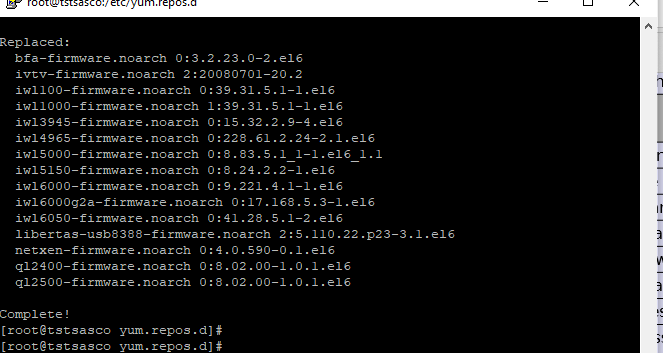
It will take some times we have to wait until pre-installer completed.

Types y to yes to next step

After completed

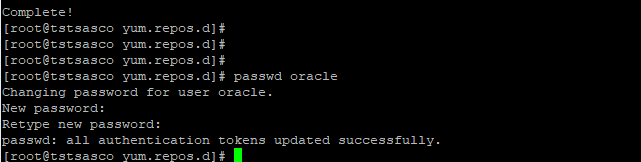
We will used to create a new password

cmd> passwd oracle

We need to install rpm packages

If you have not used the “oracle-rdbms-server-11gR2-preinstall” package to perform all prerequisites, you will need to manually perform the following setup tasks.

(copy and paste rpm packages)

yum install binutils-2x86_64
yum install glibc-2x86_64 nss-softokn-freebl-3x86_64
yum install glibc-2i686 nss-softokn-freebl-3i686
yum install compat-libstdc++-33x86_64
yum install glibc-common-2x86_64
yum install glibc-devel-2x86_64
yum install glibc-devel-2i686
yum install glibc-headers-2x86_64
yum install elfutils-libelf-0x86_64
yum install elfutils-libelf-devel-0x86_64
yum install gcc-4x86_64
yum install gcc-c++-4x86_64
yum install ksh-x86_64
yum install libaio-0x86_64
yum install libaio-devel-0x86_64
yum install libaio-0i686
yum install libaio-devel-0i686
yum install libgcc-4x86_64
yum install libgcc-4i686
yum install libstdc++-4x86_64
yum install libstdc++-4i686
yum install libstdc++-devel-4x86_64
yum install make-3.81x86_64
yum install numactl-devel-2x86_64
yum install sysstat-9x86_64
yum install compat-libstdc++-33i686
yum install compat-libcap*

(copy and paste rpm packages)

rpm install binutils-2x86_64
rpm install glibc-2x86_64 nss-softokn-freebl-3x86_64
rpm install glibc-2i686 nss-softokn-freebl-3i686
rpm install compat-libstdc++-33x86_64
rpm install glibc-common-2x86_64
rpm install glibc-devel-2x86_64
rpm install glibc-devel-2i686
rpm install glibc-headers-2x86_64
rpm install elfutils-libelf-0x86_64
rpm install elfutils-libelf-devel-0x86_64
rpm install gcc-4x86_64
rpm install gcc-c++-4x86_64
rpm install ksh-x86_64
rpm install libaio-0x86_64
rpm install libaio-devel-0x86_64
rpm install libaio-0i686
rpm install libaio-devel-0i686
rpm install libgcc-4x86_64
rpm install libgcc-4i686
rpm install libstdc++-4x86_64
rpm install libstdc++-4i686
rpm install libstdc++-devel-4x86_64
rpm install make-3.81x86_64
rpm install numactl-devel-2x86_64
rpm install sysstat-9x86_64
rpm install compat-libstdc++-33i686
rpm install compat-libcap*

(copy and paste rpm packages)

yum install binutils-2x86_64 -y
yum install glibc-2x86_64 nss-softokn-freebl-3x86_64 -y
yum install glibc-2i686 nss-softokn-freebl-3i686 -y
yum install compat-libstdc++-33x86_64 -y
yum install glibc-common-2x86_64 -y
yum install glibc-devel-2x86_64 -y
yum install glibc-devel-2i686 -y
yum install glibc-headers-2x86_64 -y
yum install elfutils-libelf-0x86_64 -y
yum install elfutils-libelf-devel-0x86_64 -y
yum install gcc-4x86_64 -y
yum install gcc-c++-4x86_64 -y
yum install ksh-x86_64 -y
yum install libaio-0x86_64 -y
yum install libaio-devel-0x86_64 -y
yum install libaio-0i686 -y
yum install libaio-devel-0i686 -y
yum install libgcc-4x86_64 -y
yum install libgcc-4i686 -y
yum install libstdc++-4x86_64 -y
yum install libstdc++-4i686 -y
yum install libstdc++-devel-4x86_64 -y
yum install make-3.81x86_64 -y
yum install numactl-devel-2x86_64 -y
yum install sysstat-9x86_64 -y
yum install compat-libstdc++-33i686 -y
yum install compat-libcap* -y

Step 3:

Cmd >   yum update  

Cmd > yum install

Step 4:  we need to create a directory   and need to move the root folder

Just type cmd  cd you will on root folder

mkdir used for create directory

chown used for acess permission

Commands –    mkdir -p /u01/app/oracle/product/11.2.0/db_1

Commands–            chown -R oracle:oinstall /u01

Commands           chmod -R 775 /u01

Step 4: change the directory

su oracle

Step 5:

Now we also need to download Oracle 11g r2 from https://www.oracle.com/database/technologies/112010-linx8664soft.html

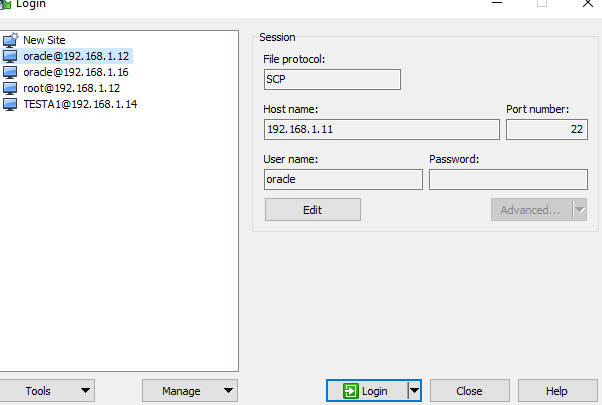
download WinSCP

Winscp used for tranfer windows os files in linux os

we can make the connection via IP Address example blew

user name : and password

We are using winScp for file Transfer window to Linux login via IP

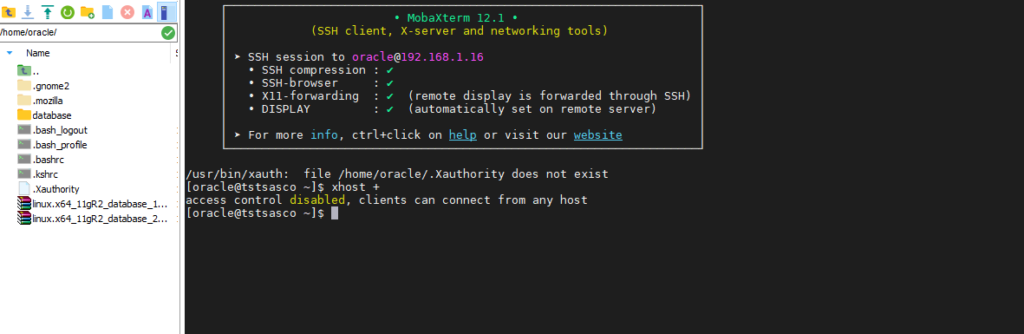
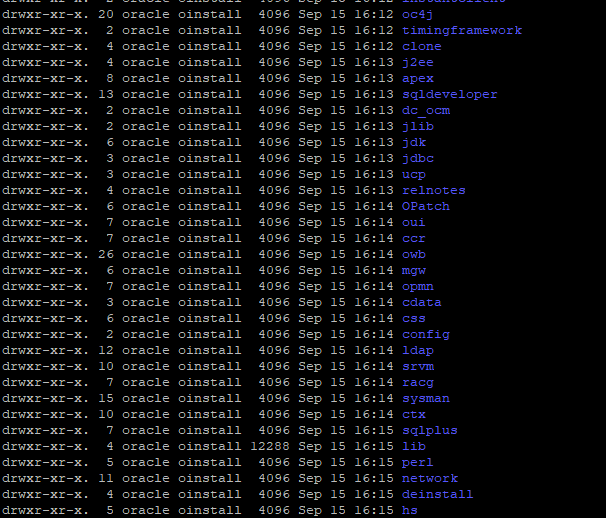
After uploading we will get the both file in oracle directory

Just type over there

ls 

Set access file permission

Chmod 775 linux.x64_11gR2_database_1of2.zip

(We need to give the access to both zip file)

Chmod 775 linux.x64_11gR2_database_1of2.zip

After permission zip file color will change

Step 6:

Now we need to unzip both file

Unzip and filename1

Unzip and filename2

After unzipped we will get database directory

Now we are connected to mobaXtrem

We can check the connection via

cmd > xhost +

Cmd if client can be connect to any host

Step 7: move to database directory

cd database 

Step 8:     ./runInstaller

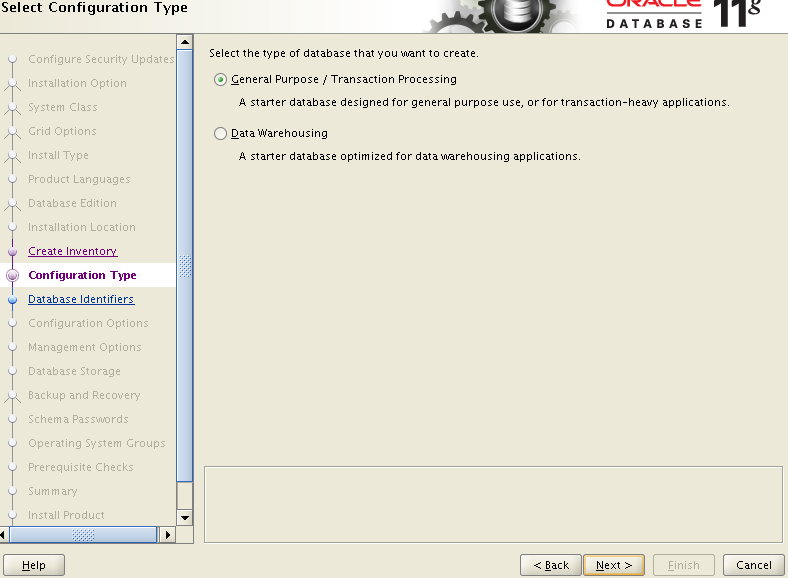
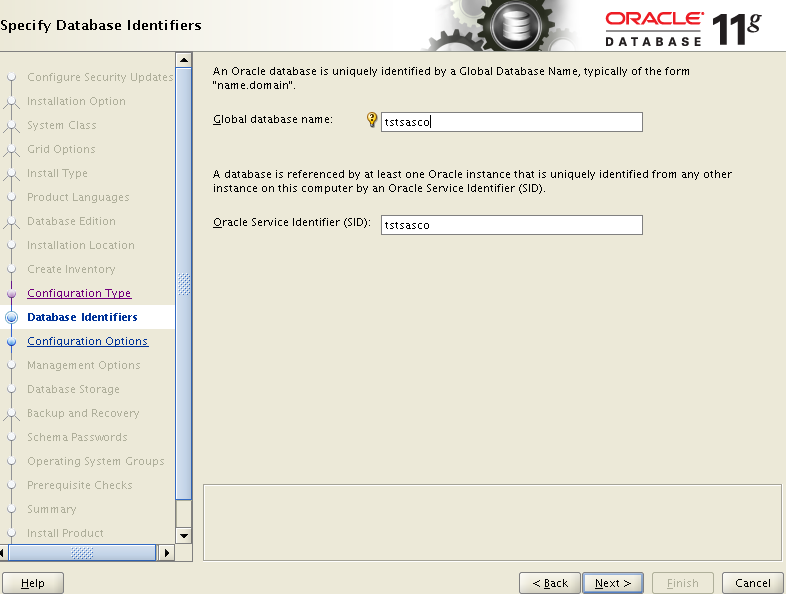
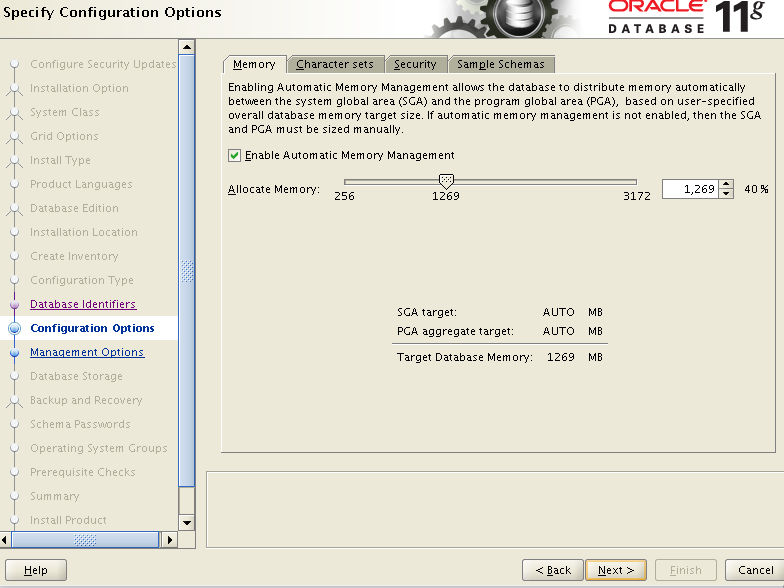
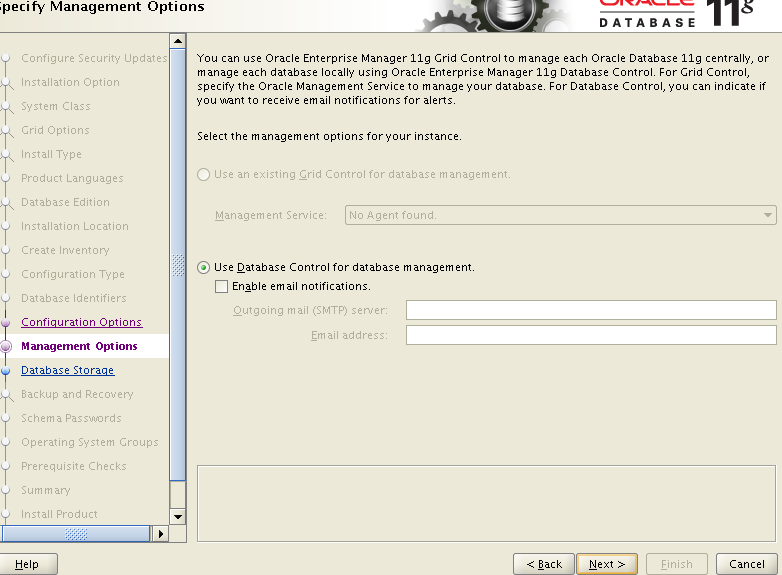
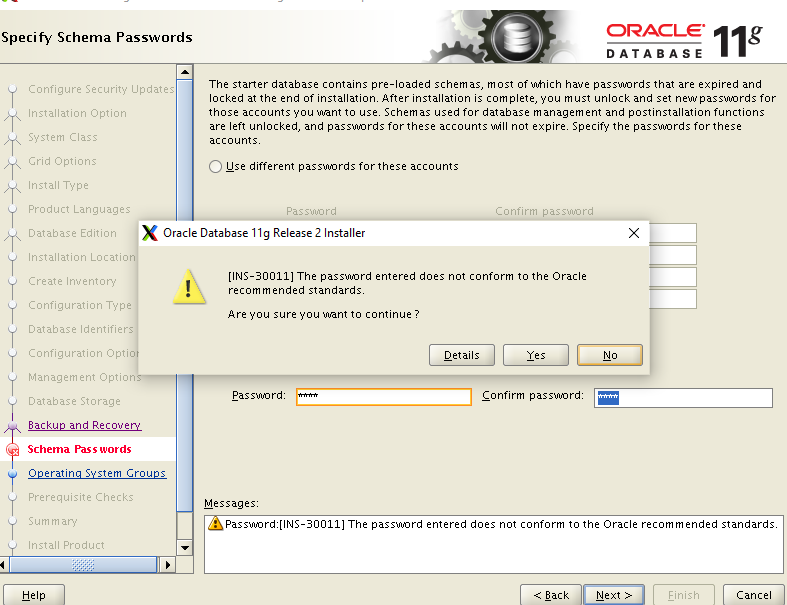
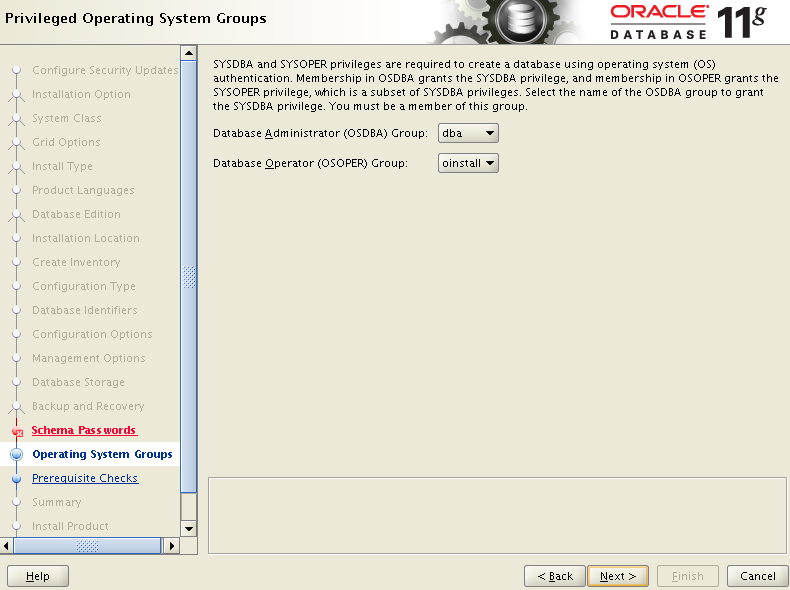
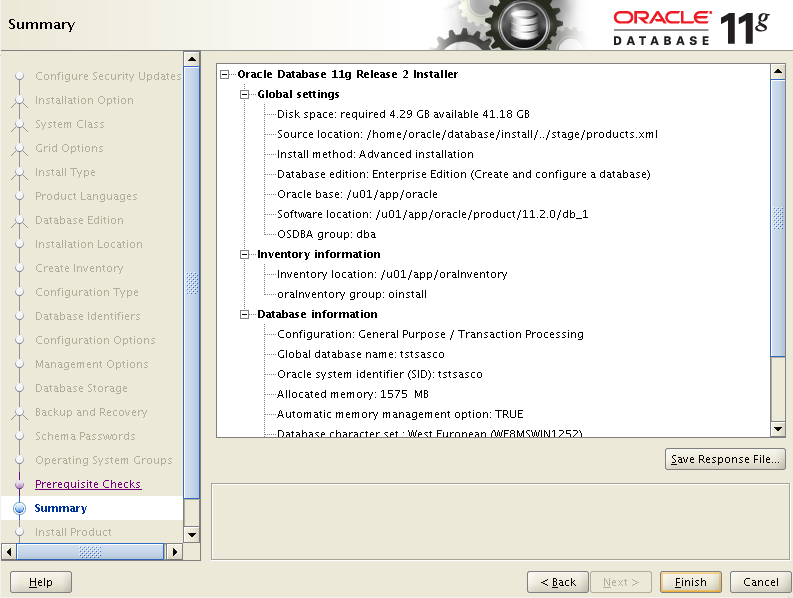
After ./runInstaller oracle 11g r2 datanase installer popup open

After that just follow the screenshot

After complete installation database popup will open.

Important Notice : after complete installation you need to check the root.sh file .

Steps :

[oracle@querypanel] cd /u01/app/oracle/product/11.2.0/db_a

cd /u01/app/oracle/product/11.2.0/db_1

[oracle@querypanel] ls -rtl

Here we don’t found root.sh file
need to move this directory and check root.sh is there or not if not you must have to install root.sh file

now we have to move root directory for install root.sh

root directory

[root@querypanel~] yum install root.sh

after installation completed

move to via su oracle and password your oracle directory

move to [oracle@querypanel] cd /u01/app/oracle/product/11.2.0/db_1

[oracle@querypanel] ls or ls –rtl you will find the files

now here root.sh file

Oracle 11g Installation

To install Oracle Database Client perform the following steps:

Oracle DBA Installation Guide

How to install linux using oracle virtualbox

Steps:

Oracle VM VirtualBox is a free and open-source hosted hypervisor for x86 virtualization, developed by Oracle Corporation.

First Download Virtual box (Virtual Machine )

(Example :  VirtualBox-6.0.10-132072-Win )

 Custom Setup Just Next

Network Interface just next to it

click on Install and Next to finish

Installation Completed Oracle Virtual Box

Virtual Box after installation Display

Go to machine tab click over there add machine and select the Driver where you wanted to install Linux

add location specified where you wanted to install Linux and in Drop down menu Select Operating system and version

Click to next

Allocate RAM Space in your system & Allocate Hard disk (HDD) Space

Select Virtual Box Disk Image

Storage Section we can Assign Physical Hard Disk Space( we can select any of one now I am selected Dynamically

After the Following Steps User created in Virtual Box

Right click on user select Setting Tab

Click on Add button

After that click on empty and select disk option ,select Downloaded Linux Version file and click okay

Right click on user normal start tab after that booting just click to next

After that click on web server

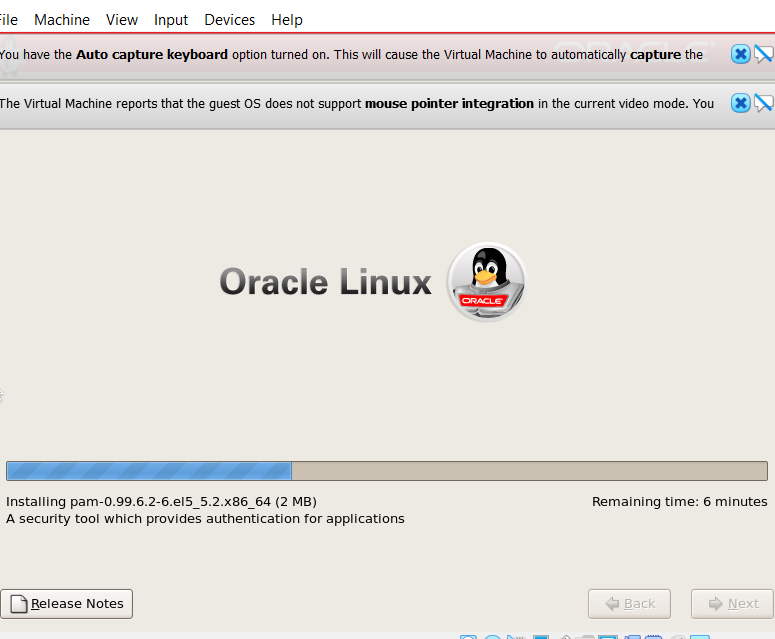
We have to wait until the installation Will completed

Completed Installation

We need to follow the steps

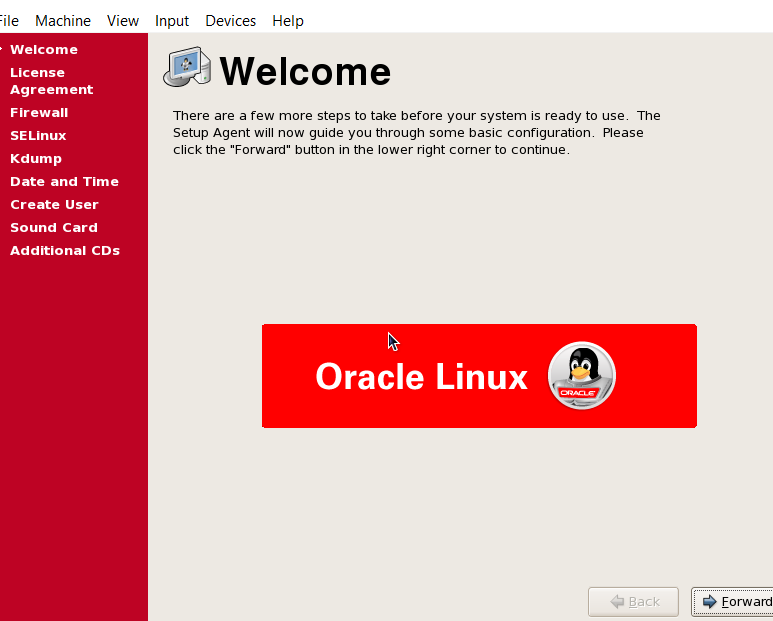
During the Oracle step we will also used to create User

And password

Now we need to create login username : root : and password :   12345 if we will skip the user we can also login via root

Now Oracle Linux is ready to use after valid username & password & Window will be appear like this

now go to Linux Application tab and Click on Terminal tab

and Terminal Window we will used to write ifconfig cmd

Now we need to download some of Specific Software Download PuTTY – a free SSH and telnet client PuTTY for Linux

PuTTY is a free and open-source terminal emulator, serial console and network file transfer application. 

PuTTy Configuration we need to Connect PuTTy Via IP Address

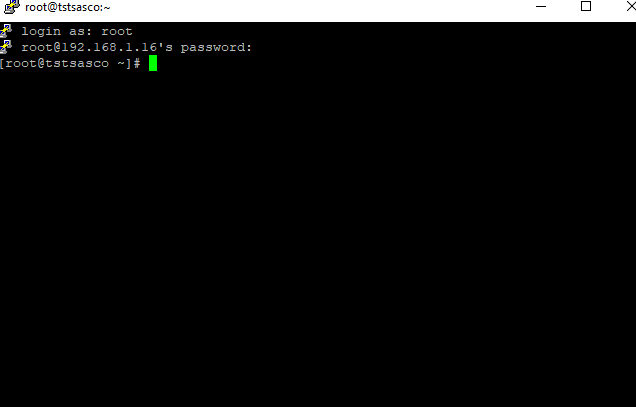
connected via puTTy we will get New Black Window login as : username( root)
puTTy Password what we have used during Linux Installation

Now we need to Specific Software for Download

ALTER

Using Alter Statement we Can Modify column name Add column and Change Data Types

ADD Statement

ALTER TABLE QueryPanel_Employees ADD COLUMN shift VARCHAR(255);

MODIFY Statement

ALTER TABLE QueryPanel_employees MODIFY COLUMN shift char(25);

CHANGE NAME

ALTER TABLE QueryPanel_employees CHANGE COLUMN shift shift_time varchar(225);

DROP COLUMN

ALTER TABLE QueryPanel_employees DROP COLUMN Shift_time;

MULTIPLE COLUMN ADD

ALTER TABLE QueryPanel_employees ADD COLUMN Shift VARCHAR(255),ADD COLUMN Timing DATETIME(6);