Opensource Elastix 2.4 Free VOIP Server – Elastix IP PBX
And Configuration.
We can install it on Virtual Machine and Any Physical Server
Now here I am installing it in VmWare
Elastix VoIP is based on CentOS Operating System
How to Install Elastix PBX VoIP Call step by steps
Steps
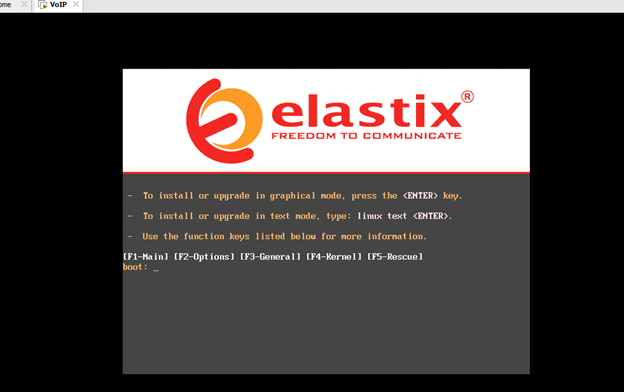
Now Started the Installation
Press enter to install
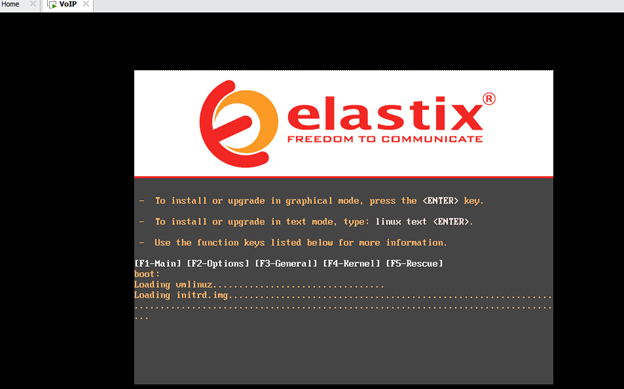
Loading is started
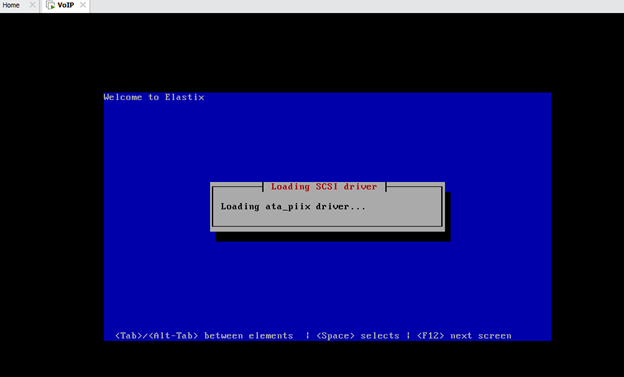
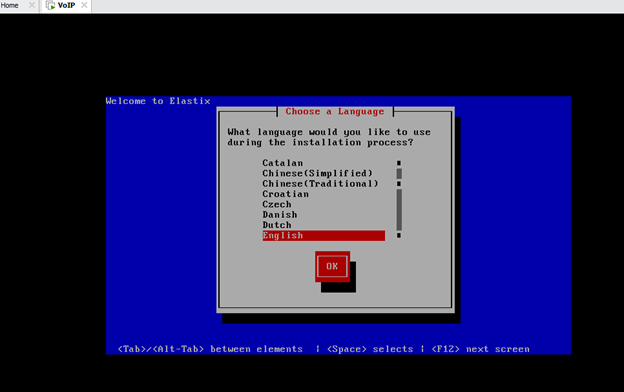
Select the Language
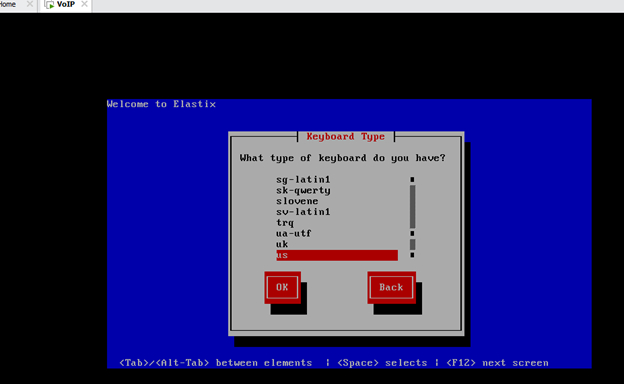
Keyboard type
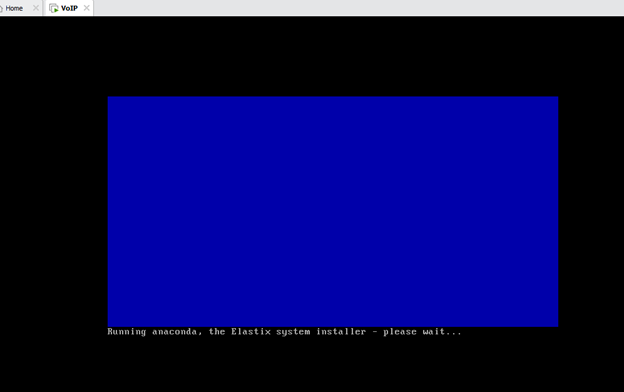
After that screen will be appear
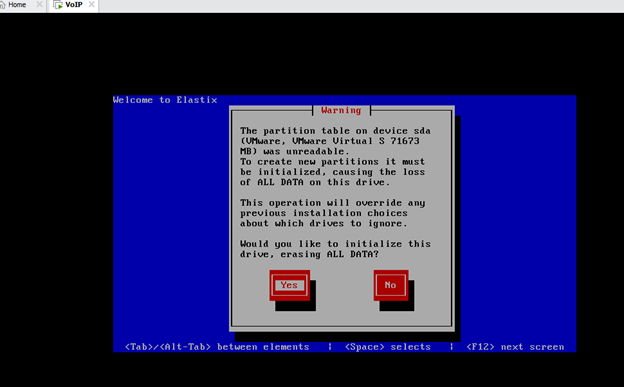
Select the Drive
Press your keyboard’s right arrow to select Yes to remove all old partitions and press Enter
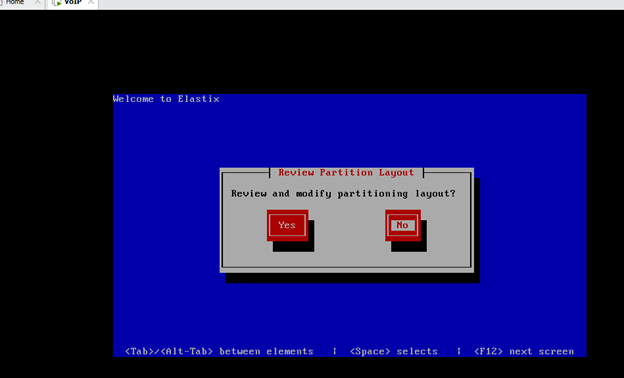
Check the patriation
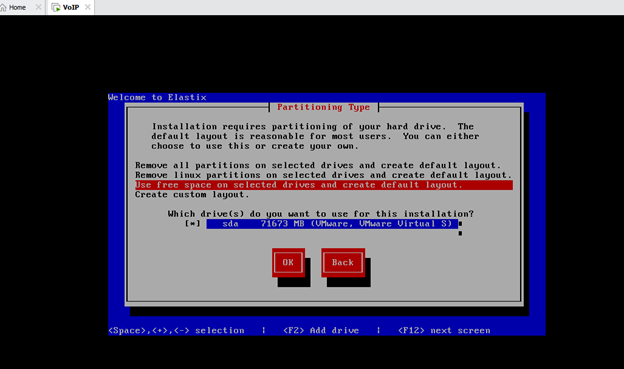
Press your keyboard’s right arrow to select No to keep default partition layout
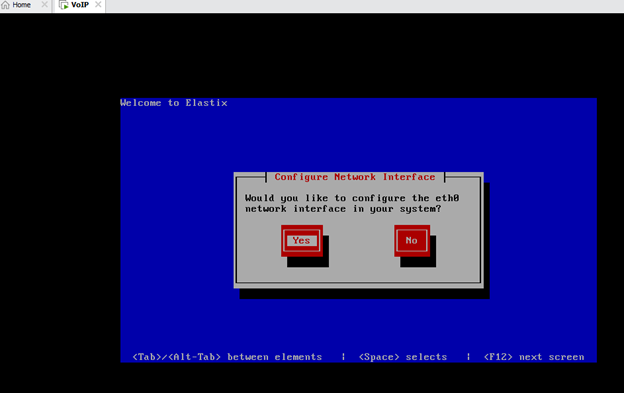
Press Yes/Enter to configure network
Enable IPV4 network support and press OK
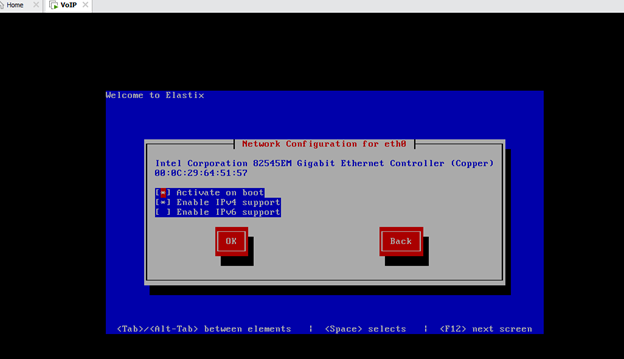
Provide your Static IP address details to access Elastix server. You can also select DHCP for Dynamic IP my Suggestion select Static IP(Manually IP)
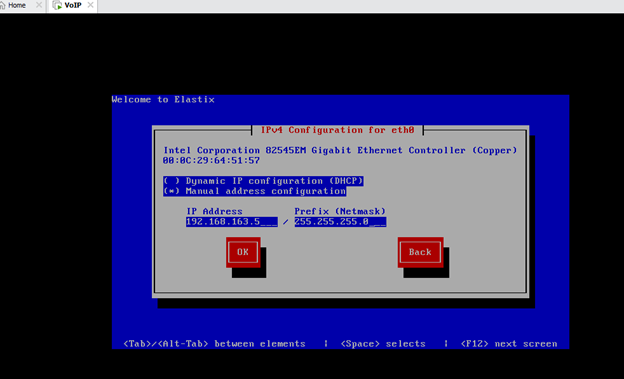
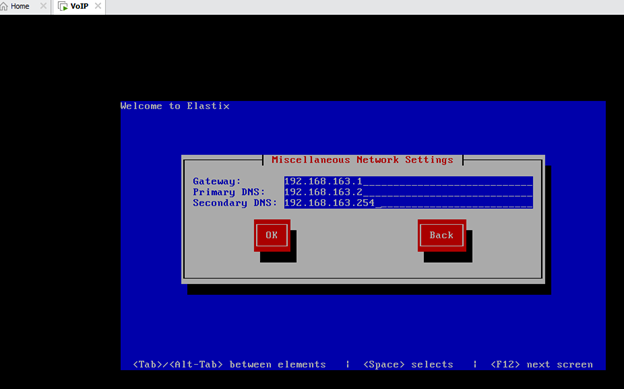
Enter DNS name and default your network
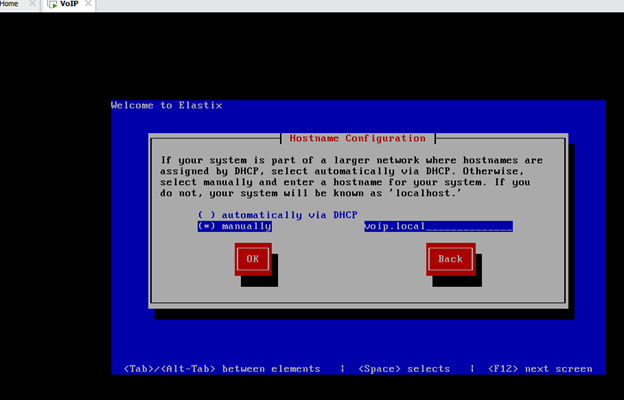
Please assign a hostname to your Elastix server
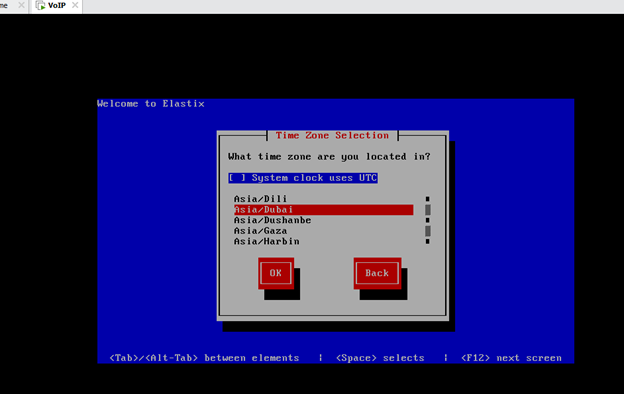
Select time zone
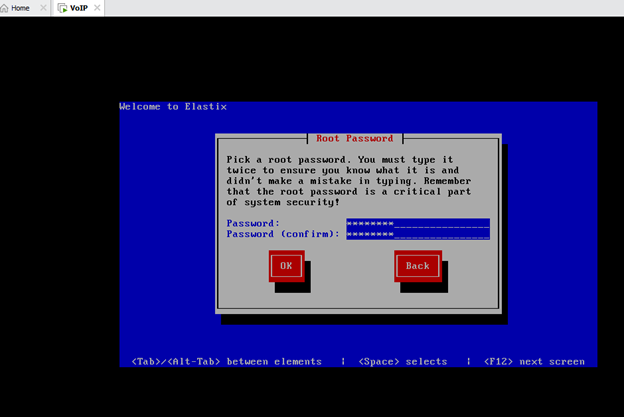
Provide a root password to access your CentOS Linux system server
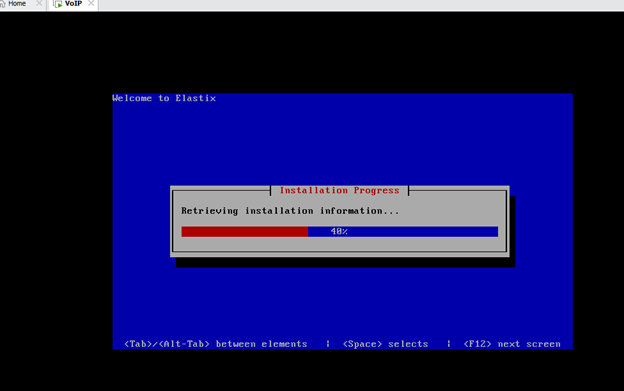
After that installation process will be started
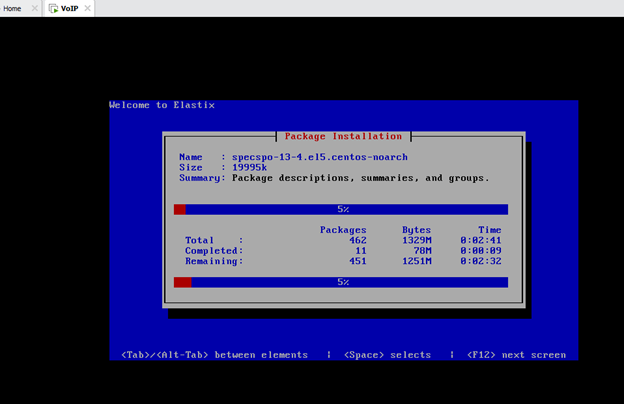
It will take little time to complete packages installation
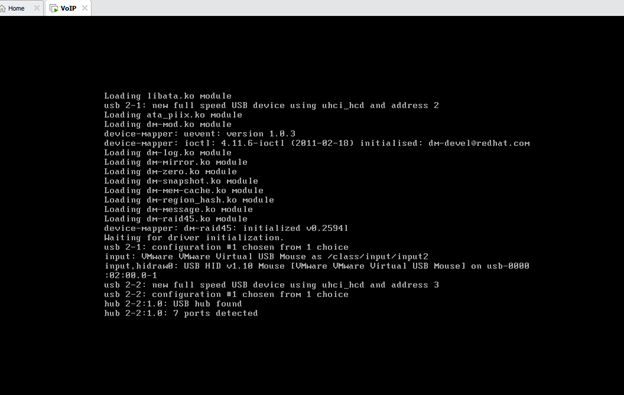
Completed installation after that screen will be appear
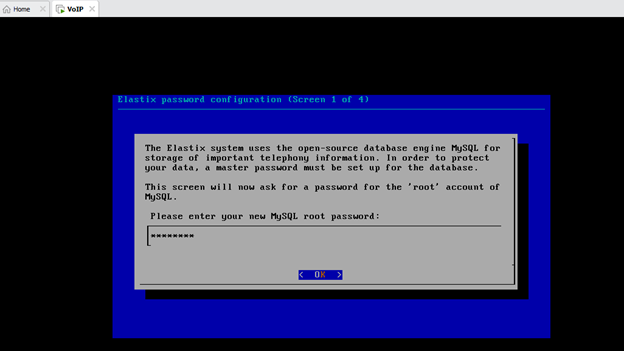
Enter the MySQL password
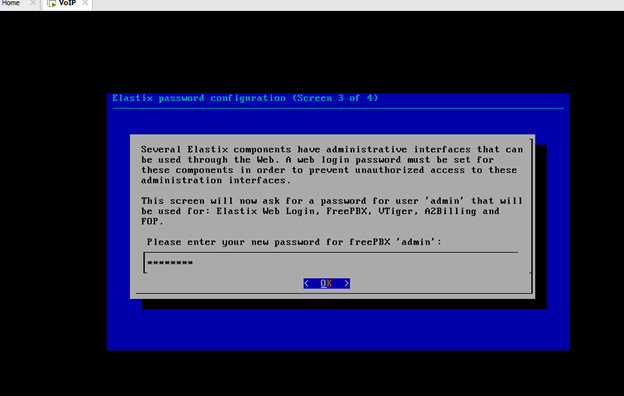
Enter the web login password
Installation done. Now you can login to your Elastix from another computer by visiting your real IP address
After successfully installation you need to customize according to your need
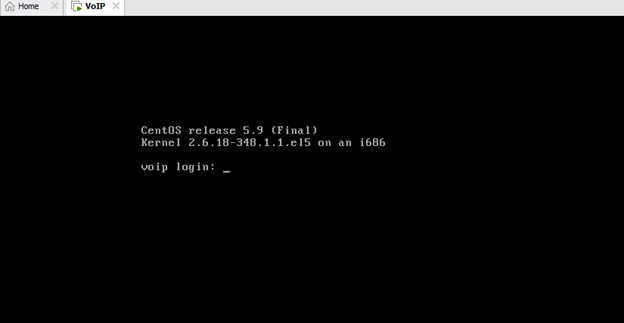
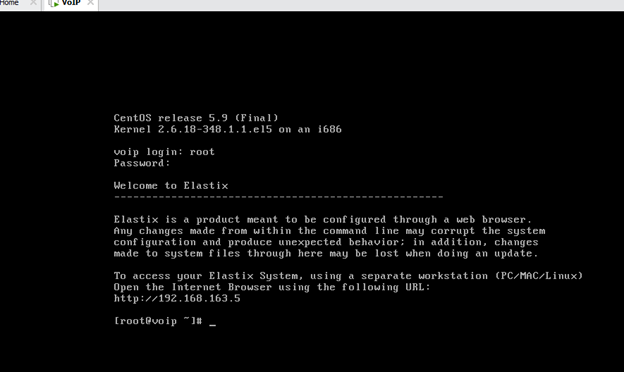
Login 192.168.163.5 your static server IP
After the login screen Dashboard
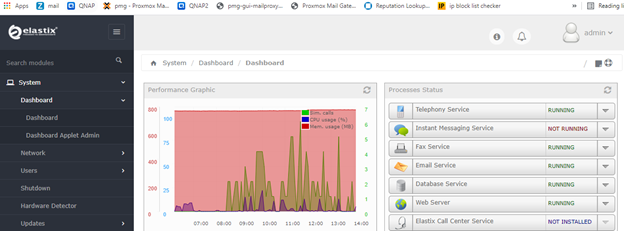
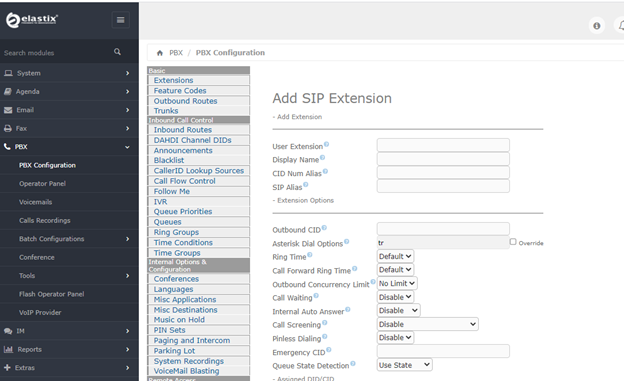
Click to PBX menus
Select PBX Configuration
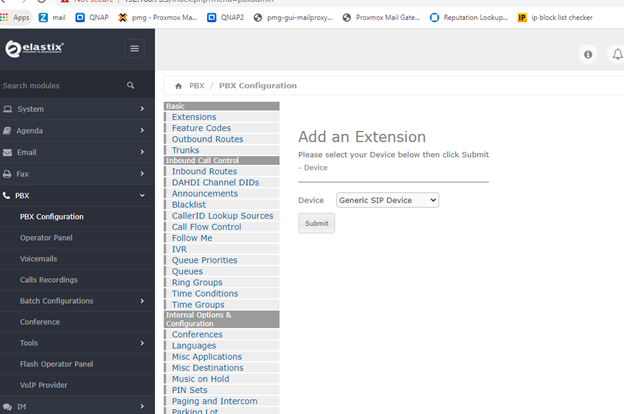
Click to outbound routes
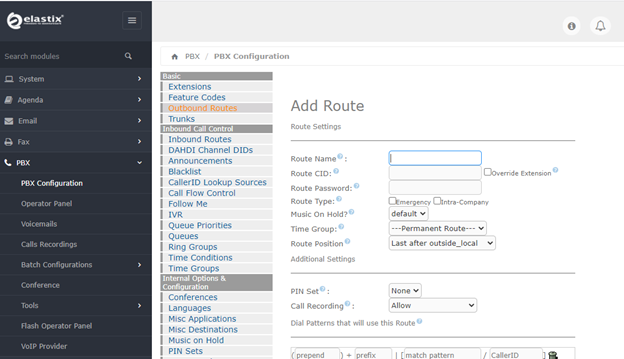
And add the outgoing call
Already have created music on hold and time group so we can create letter also
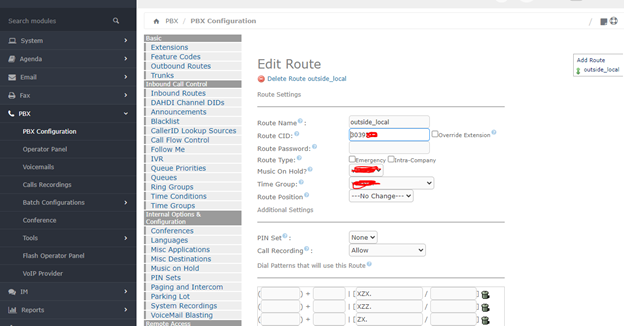
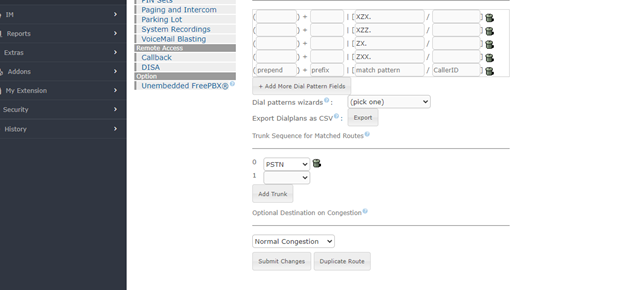
Click to trunks
Add trunk
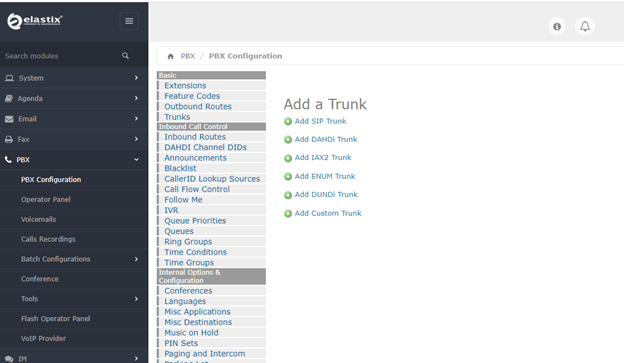
DAHDI Trunk
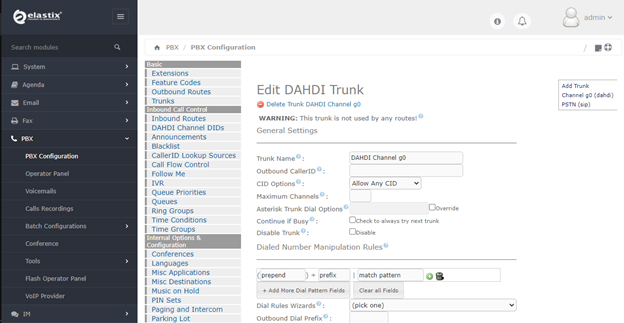
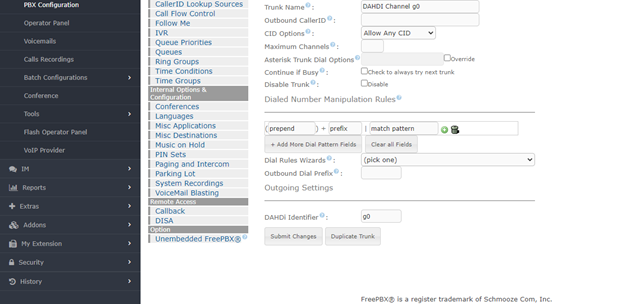
Click to SIP Trunk
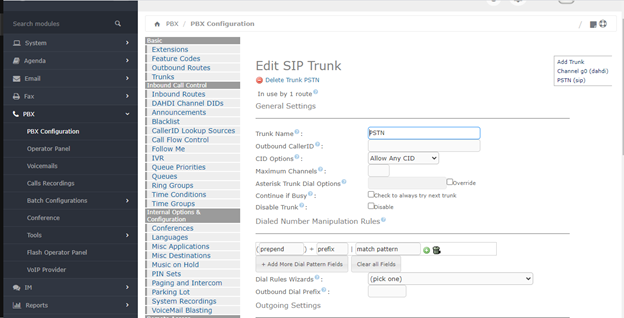
Add the SIP Trunk
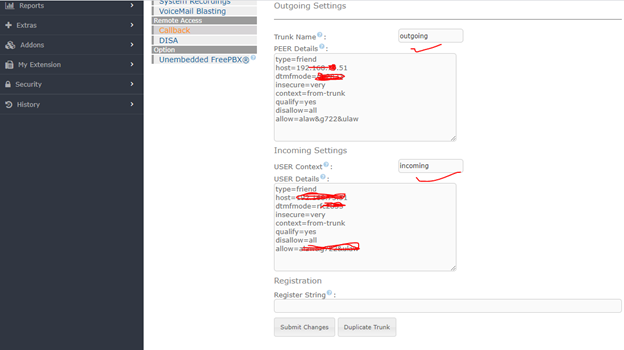
Inbound Routes
Add incoming route
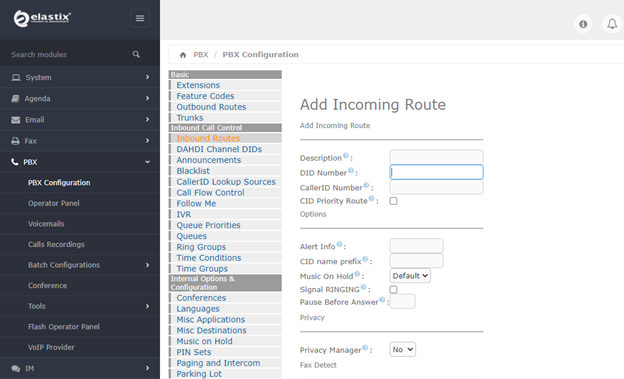
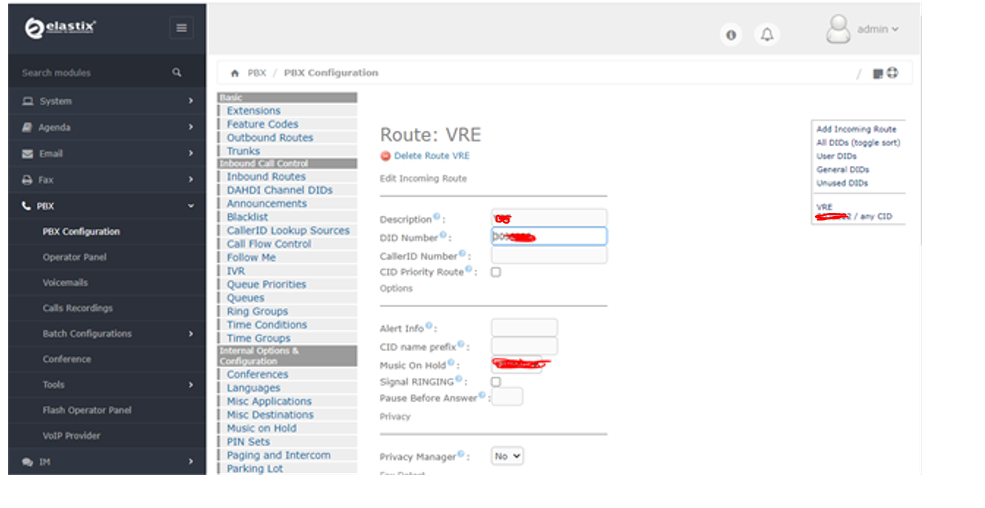
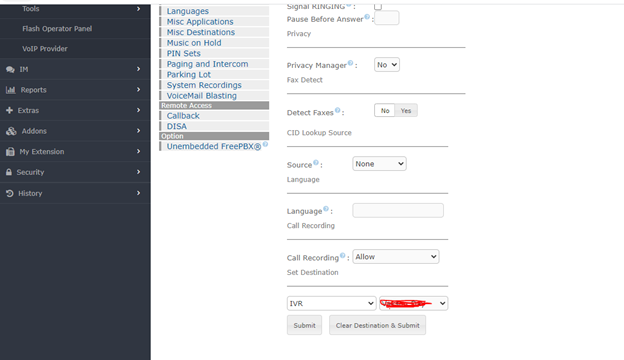
How to make IVR Recording
So, we need to add the recording
System Recordings
Recorded file format must be
the file must be PCM Encoded, 16 Bits
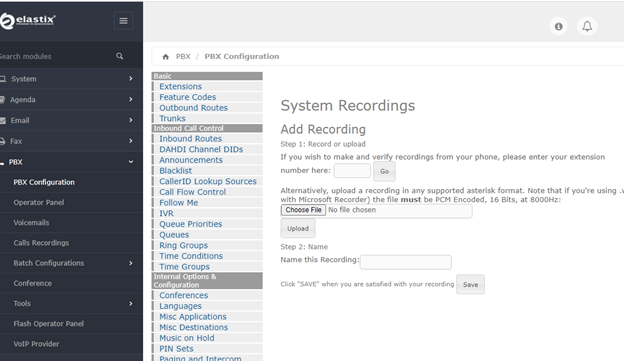
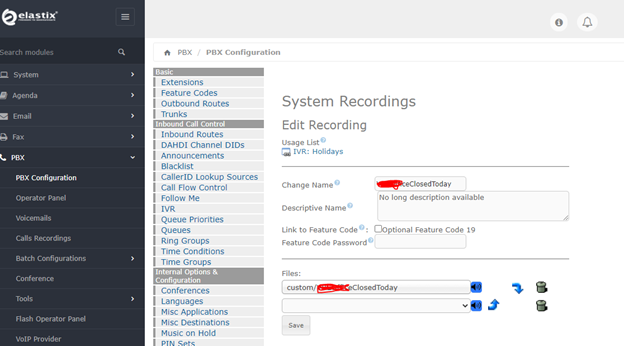
After added your System RECORDING check it
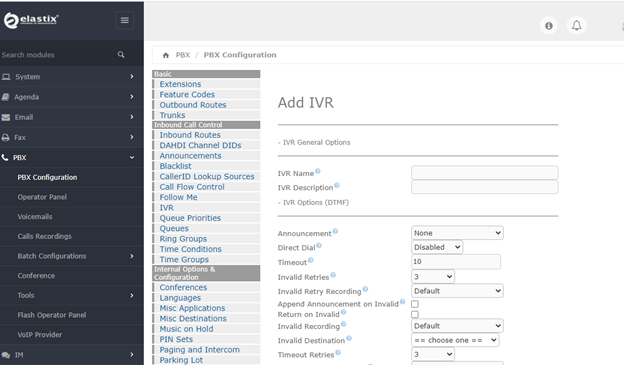
So now go to IVR Menu Click to Add IVR
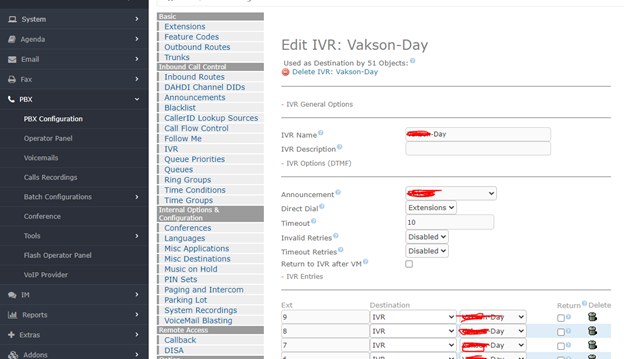
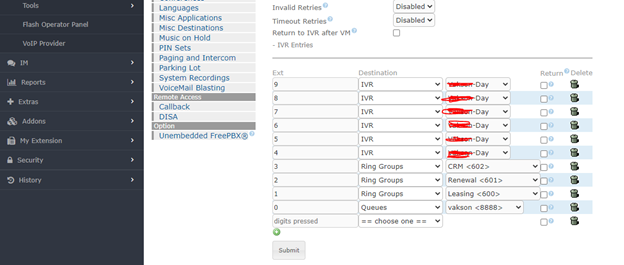
If we need to Terminate call, we also need to make the System Recording if we needed
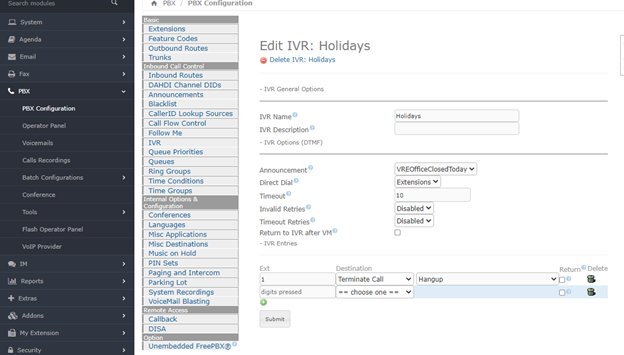
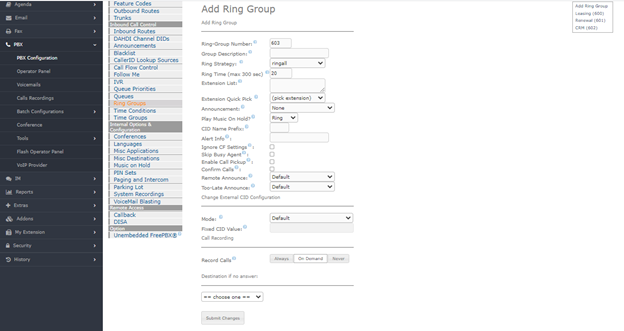
So, if we require ring group we can create
We can create multiple ring groups
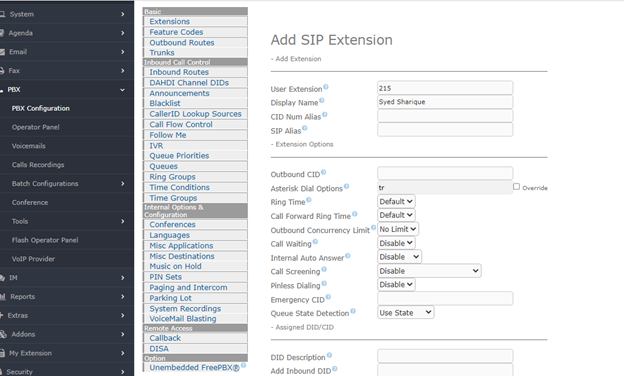
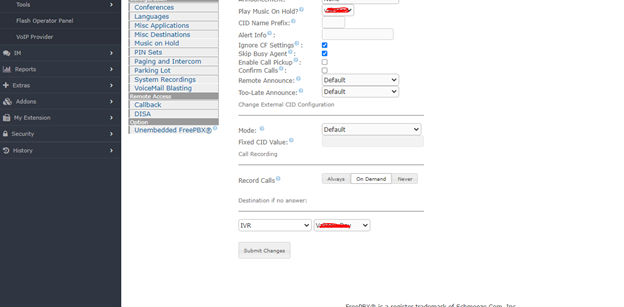
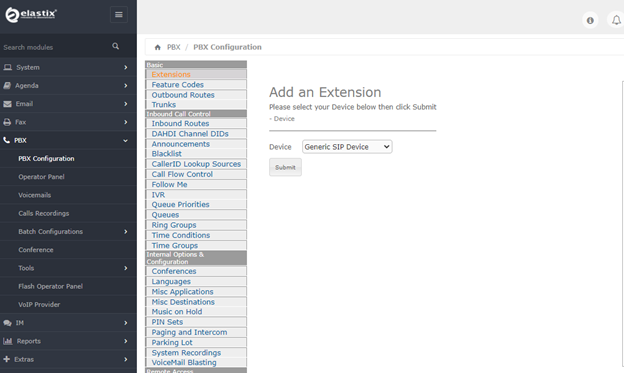
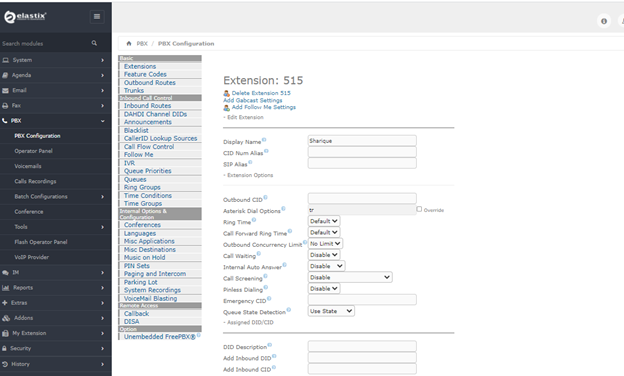
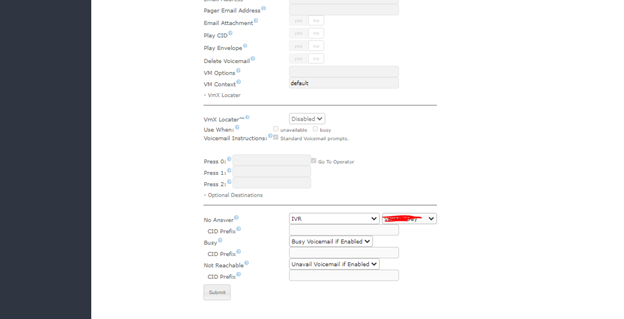
Click to add Extension
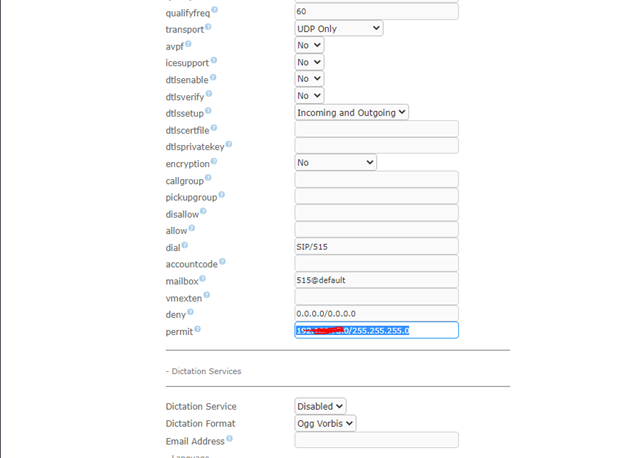
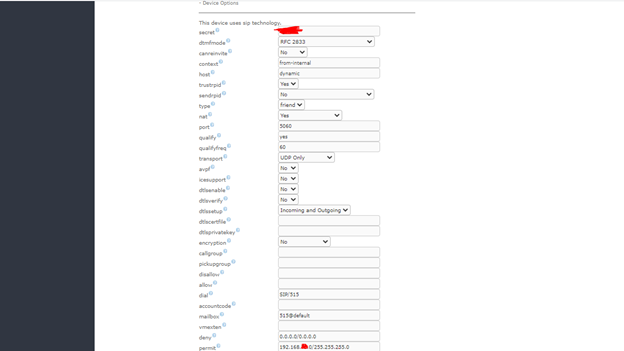
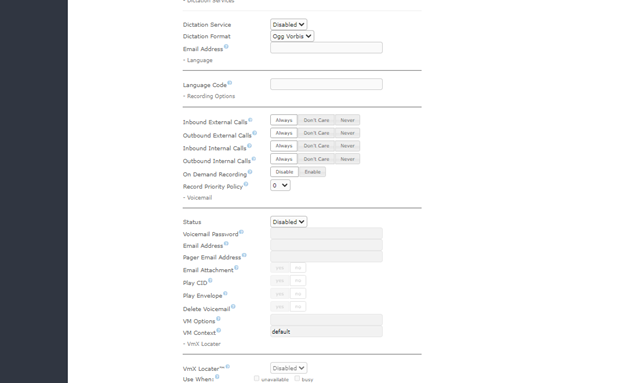
Click to add after that edit and type Permit : network – like – 192.168.70.0/255.255.255.0