How to Install Mariadb/Mysql phpMyAdmin on CentOS 8
Here I am going to explains the process of installing open-source applications for managing MySQL databases – phpMyAdmin. phpMyAdmin is a free and open-source web-based application written in PHP.
First need to update & upgrade the packages.
[ root@wp ~]# yum install update -y

Dnf installation also can use in centos.
WGET: wget is a computer program that retrieves content from web servers. It is part of the GNU Project.
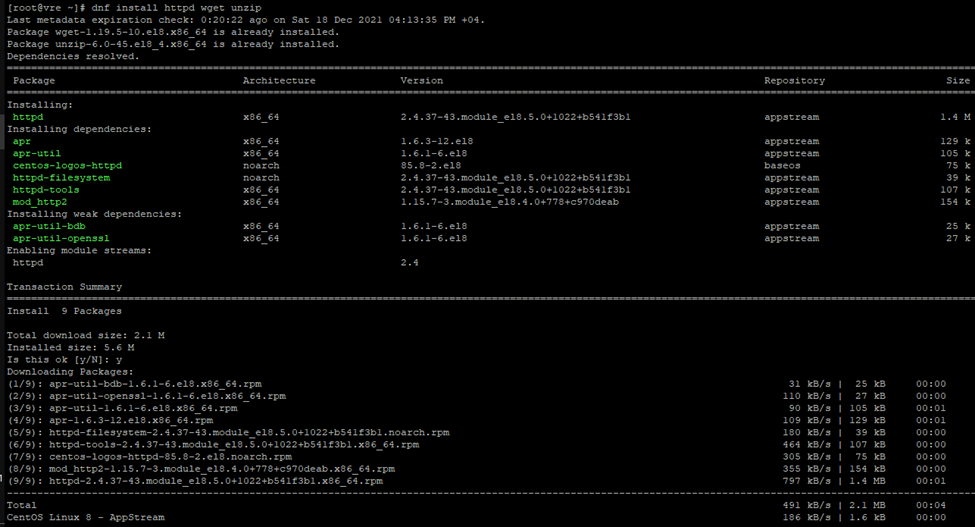
[ root@wp ~]# dnf install httpd wget unzip
[ root@wp ~]# yum install httpd wget unzip
Installation PHP including with PHP Extensions.
[ root@wp ~]# dnf install php php-pdo php-pecl-zip php-json php-mbstring php-mysqlnd php-json php-mbstring -y
Or
[ root@wp ~]# yum -y install php php-common php-mbstring php-gd php-pdo php-pecl-zip php-json php-mysqlnd


[ root@wp ~]# systemctl enable httpd.service
or
[ root@wp ~]# systemctl enable httpd

[ root@wp ~]# systemctl enable httpd.service

[ root@wp ~]# yum -y install mariadb mariadb-server

[ root@wp ~]# systemctl start mariadb
[ root@wp ~]# systemctl enable mariadb

[ root@wp ~]# mysql_secure_installation


[ root@wp ~]# cd /opt
[ root@wp ~]# cd /opt

[ root@wp opt]# wget https://files.phpmyadmin.net/phpMyAdmin/5.0.2/phpMyAdmin-5.0.2-all-languages.zip

[ root@wp opt]# unzip phpMyAdmin-5.0.2-all-languages.zip

[root@wp opt]# mv phpMyAdmin-5.0.2-all-languages /usr/share/phpmyadmin
[root@wp phpmyadmin]# cp config.sample.inc.php config.inc.php

[root@wp opt]# mkdir /usr/share/phpmyadmin/tmp

[root@wp opt]# chown -R apache:apache /usr/share/phpmyadmin
[ root@wp opt]# chmod 777 /usr/share/phpmyadmin/tmp

yum -y install epel-release
yum -y install phpmyadmin
options if completed not install once
( yum -y install phpmyadmin –skip-broken
yum -y install phpmyadmin –skip-broken rpm -Va –nofiles –nodigest
yum -y install php php-opcache )
If you like to use same file name as default phpMyAdmin you can use no need to change
You will browse on your browser according to your Alias
So here I have used Alias /phpmyadmin you can you anythings yourname anythings.
[ root@wp opt]# vi /etc/httpd/conf.d/phpmyadmin.conf
Alias /phpmyadmin /usr/share/phpmyadmin
<Directory /usr/share/phpmyadmin/>
AddDefaultCharset UTF-8
<IfModule mod_authz_core.c>
# Apache 2.4
<RequireAny>
Require all granted
</RequireAny>
</IfModule>
</Directory>
<Directory /usr/share/phpmyadmin/setup/>
<IfModule mod_authz_core.c>
# Apache 2.4
<RequireAny>
Require all granted
</RequireAny>
</IfModule>
</Directory>


[ root@wp phpmyadmin]# cp config.sample.inc.php config.inc.php

[ root@wp phpmyadmin]# vi config.inc.php

Find this add your password
$cfg[‘blowfish_secret’] = ‘asdf@123asdf’; /* YOU MUST FILL IN THIS FOR COOKIE AUTH! */

[ root@wp phpmyadmin]# systemctl restart httpd

[ root@wp phpmyadmin]# sudo chcon -Rv –type=httpd_sys_content_t /usr/share/phpmyadmin/*

[ root@wp ~]# sudo firewall-cmd –state
[ root@wp ~]# systemctl stop firewalld
[ root@wp ~]# systemctl disable firewalld
[ root@wp ~]# sudo firewall-cmd –state

[ root@wp ~]# systemctl status httpd
[ root@wp ~]# systemctl restart httpd.service

[ root@wp conf.d]# php -v

[ root@wp ~]# mysql -V

[ root@wp ~]# vi /etc/httpd/conf/httpd.conf

192.168.60.49:7777/phpmyadmin/

Here I have customized phpmyadmin landing page via Alias option we can do like that also

own.querypanel.com:7777/phpmyadmin/


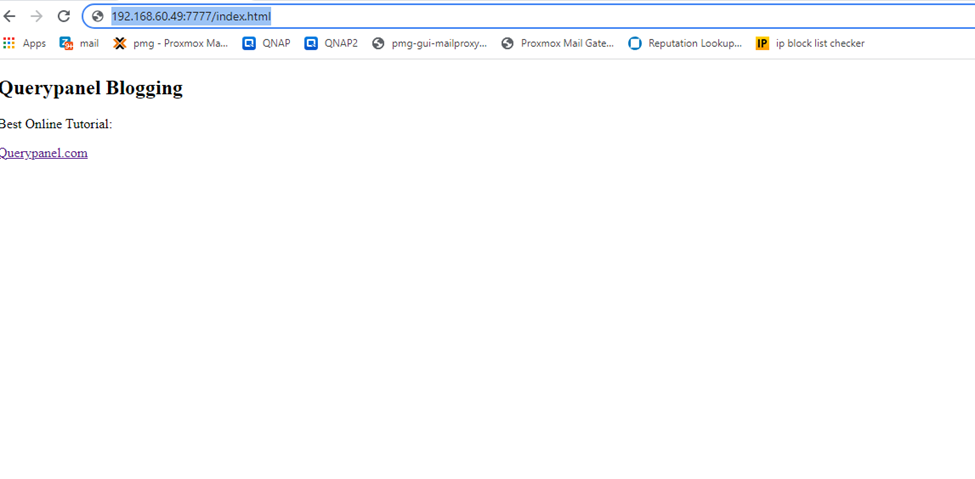
192.168.60.49:7777/index.html