
RedHAT/Centos – Linux Firewall
How To Set Up a Firewall Using FirewallD on RedHAT/CentOS
Here I am explaining how to active Firewall using Linux server
[root@sharique ~]# sudo yum install firewalld
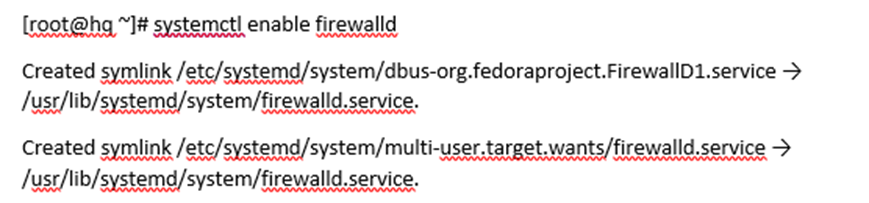
[root@sharique ~]# systemctl enable firewalld
[root@sharique ~]# systemctl start firewalld
[root@sharique ~]# systemctl status firewalld
Testing Https and http services
Allow HTTP/s in Firewalld
You can allow and deny incoming traffic based on predefined services in firewalld. You can find the complete list of services in /etc/services file.
Let’s allow HTTP and HTTPS service via the firewalld.
Adding http and https in firewall
sudo firewall-cmd –zone=public –add-service=http
sudo firewall-cmd –zone=public –add-service=https
sudo firewall-cmd –zone=public –list-services


Once you have tested that everything is working as it should, you will probably want to modify the permanent firewall rules so that your service will still be available after a reboot. We can make our “public” zone change permanent
Port will be assign as per your ports.
The above rules will be removed after system reboot. Use the --permanent option to add rules permanent in firewalld.
sudo firewall-cmd –zone=public –permanent –add-service=http
sudo firewall-cmd –zone=public –permanent –add-service=https

[sharique@centos ~]$ sudo firewall-cmd –zone=public –add-port=6162/tcp
[sharique@centos ~]$ sudo firewall-cmd –zone=public –add-port=6162/udp
[sharique@centos ~]$ sudo firewall-cmd –zone=public –add-port=2023/tcp

Permanent assign TCP/UDP ports to firewall
[sharique@centos ~]$ sudo firewall-cmd –zone=public –permanent –add-port=6162/udp
[sharique@centos ~]$ sudo firewall-cmd –zone=public –permanent –add-port=6162/tcp

We can see which zone is currently selected as the default
[syed@rserver8 ~]$ firewall-cmd –get-default-zone
[syed@rserver8 ~]$ firewall-cmd –get-active-zones

Changing the SSH Port
sudo firewall-cmd –permanent –add-port=2023/tcp
[sharique@centos ~]$ sudo firewall-cmd –permanent –add-port=2023/udp


sudo firewall-cmd –reload

[sharique@centos ~]$ sudo systemctl status firewalld

[root@app ~]# systemctl start firewalld
Removing Firewalld from the Server
If you don’t want Firewalld to start when your computer boots, that is you want to disable Firewalld, then run the following command
sudo systemctl disable firewalld
[syed@rserver8 ~]$ sudo systemctl disable firewalld

If Firewalld is running, and you want to stop it, run the following command
sudo systemctl stop firewalld
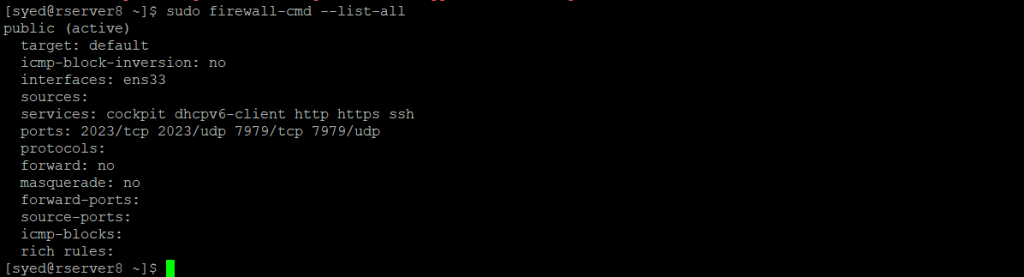
sudo firewall-cmd –list-all
Removing Ports from Firewalld:
You can remove a TCP port, let’s say port 80 from Firewalld with the following command
sudo firewall-cmd –remove-port=80/tcp –permanent
sudo firewall-cmd –remove-port=80/udp –permanent
Reload Firewalld Configuration
Once you’re done configuring Firewalld, you must run the following command to reload the new configuration:
sudo firewalld –reload
[syed@rserver8 ~]$ sudo firewall-cmd –list-all
[syed@rserver8 ~]$ sudo firewall-cmd –list-services

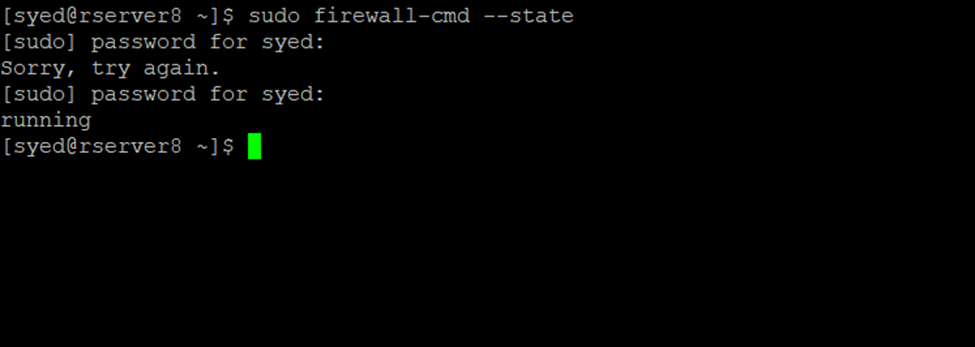
[syed@rserver8 ~]$ firewall-cmd –state
