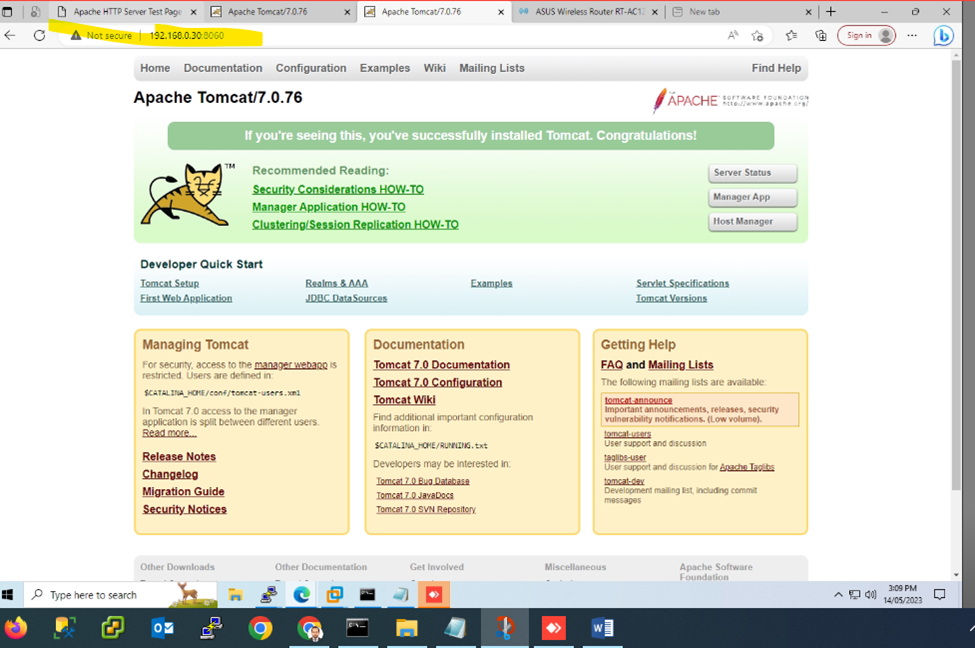
Tomcat Apache Installation on Centos 7
open-source Java servlet and Java Server Page container that lets developers implement an array of enterprise Java applications. Tomcat also runs an HTTP web server environment in which Java code can run.
[root@qp ~]# yum update && upgrade -y
[root@qp ~]# yum install tomcat -y

now need to stop Apache Server
systemctl stop httpd or systemctl stop httpd.service
Next to edit
vi /usr/share/tomcat/conf/tomcat-users.xml
[root@qp ~]# vi /usr/share/tomcat/conf/tomcat.conf

At the last add these below commands java security
JAVA_OPTS=”-Djava.security.egd=file:/dev/./urandom -Djava.awt.headless=true -Xmx1026m -XX:MaxPermSize=256m -XX:+UseConcMarkSweepGC”

And save it
Now checking the all prerequisite and packages are install or not if just use * command to download like below
yum install tomcat*
[root@qp ~]# yum install tomcat*

Now add the admin user to controlling tomcat server
[root@qp ~]# vi /usr/share/tomcat/conf/tomcat-users.xml
Once edit and insert the below access scripts
Add the scripts below the line
You can use your password …
<tomcat-users>
<user username=”admin” password=”sharique” roles=”manager-gui,admin-gui”/>

Once done start the tomcat
[root@qp ~]# systemctl start tomcat
Enable tomcat – enabling because once if we restart there is no need to start the services manually
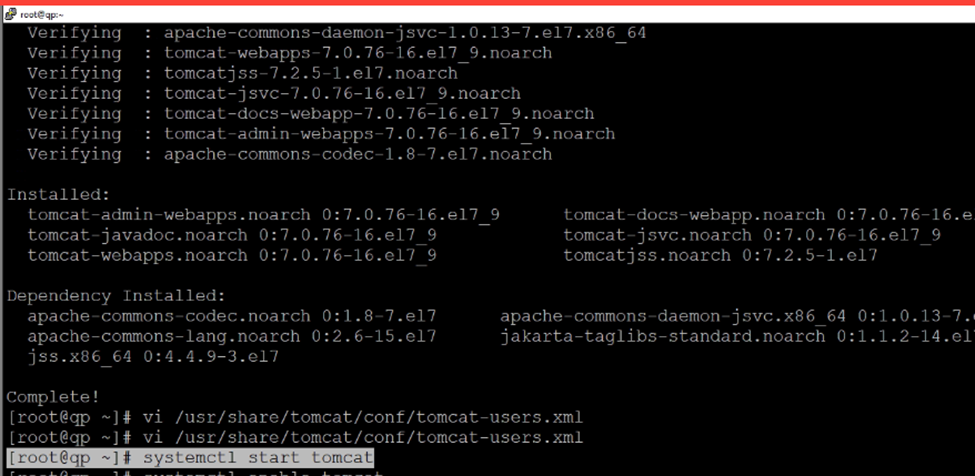
[root@qp ~]# systemctl enable tomcat
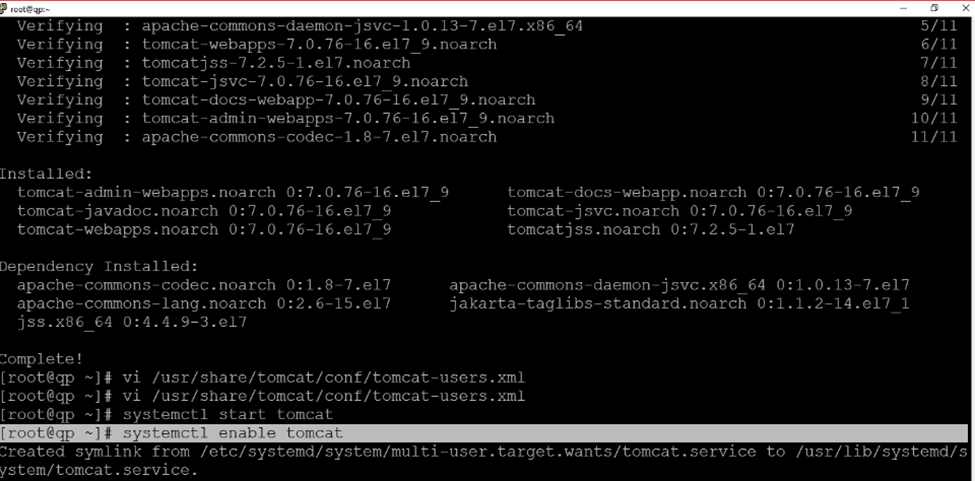
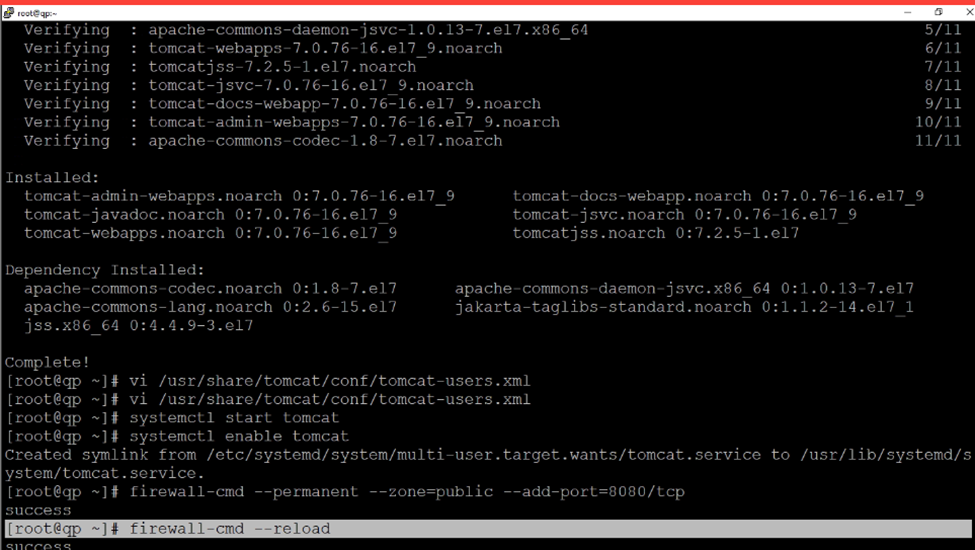
Now add the port – default port is 8080
[root@qp ~]# firewall-cmd –permanent –zone=public –add-port=8080/tcp
[root@qp ~]# firewall-cmd –permanent –zone=public –add-port=8080/udp

Reload firewall
[root@qp ~]# firewall-cmd –reload
[root@qp ~]# systemctl status tomcat

Web browser Tomcat status

Login to tomcat services

After login tomcat server status

Change Default port Tomcat
Default port Directory
/etc/tomcat/server.xml
[root@qp tomcat]# vi /etc/tomcat/server.xml

Replace with new port 8060
Once replaced

Now add the new port in firewall
[root@qp ~]# firewall-cmd –permanent –zone=public –add-port=8060/udp
[root@qp ~]# firewall-cmd –permanent –zone=public –add-port=8060/tcp
And reload firewall services
[root@qp ~]# firewall-cmd –reload
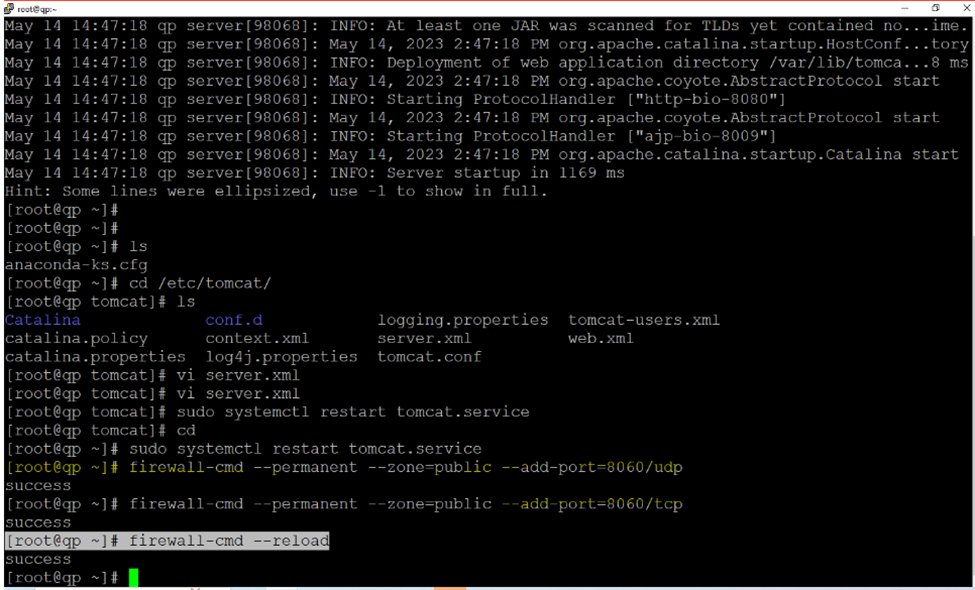
Restart the tomcat services
Systemctl restart tomcat.service
[root@qp ~]# sudo systemctl restart tomcat.service

Now tomcat is running on new port