
Check User Login & Logoff History in Windows Active Directory
Steps to check the users Login and logoff history
Create a Folder in C Directory
Shared this folder to authenticated
Example Like LogData

Have Shared Logdata folder with Authenticated users

Now need to create login and logoff script files
Like example:
Open any text editor like notepad or notepad++
Login.bat file — saving file extension will be .bat (windows Batch file)
Echo %Computername% %username% %date% %time% >>\\WindowsServerName\Logdata\login.txt
// so, my Windows server name is central just mention the name and save it.
Echo %Computername% %username% %date% %time% >>\\CENTRAL\Logdata\login.txt


Logoff.bat
Echo %Computername% %username% %date% %time% >>\\CENTRAL\Logdata\logoff.txt

Save it .bat script extension

Now create Group Policy for user’s login and logoff history.
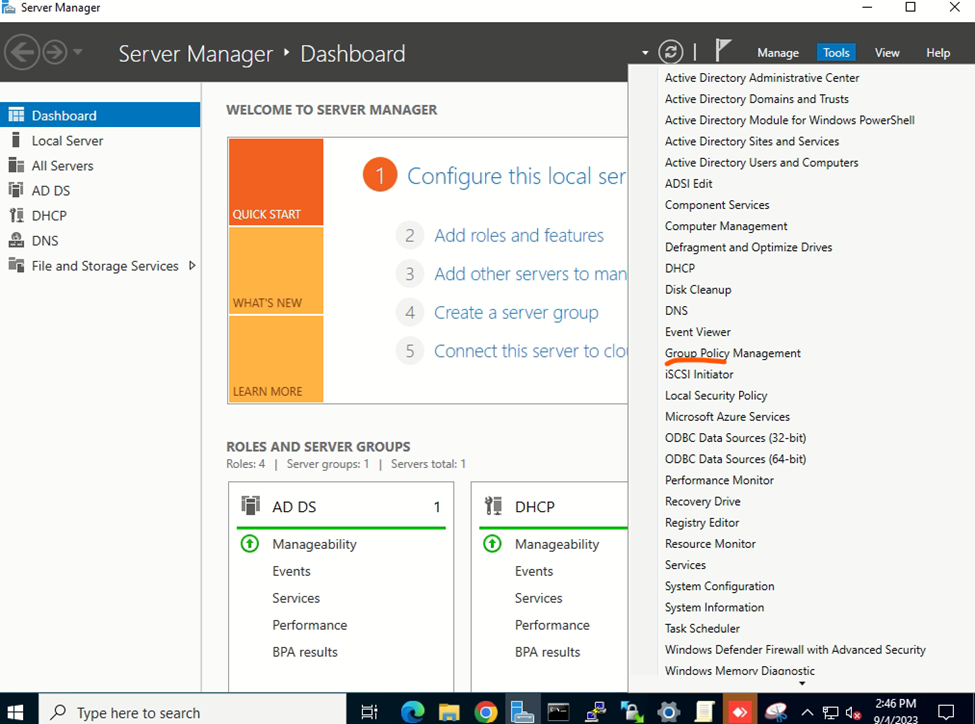
Right click on local domain and creating new GPO

Edit Group policy

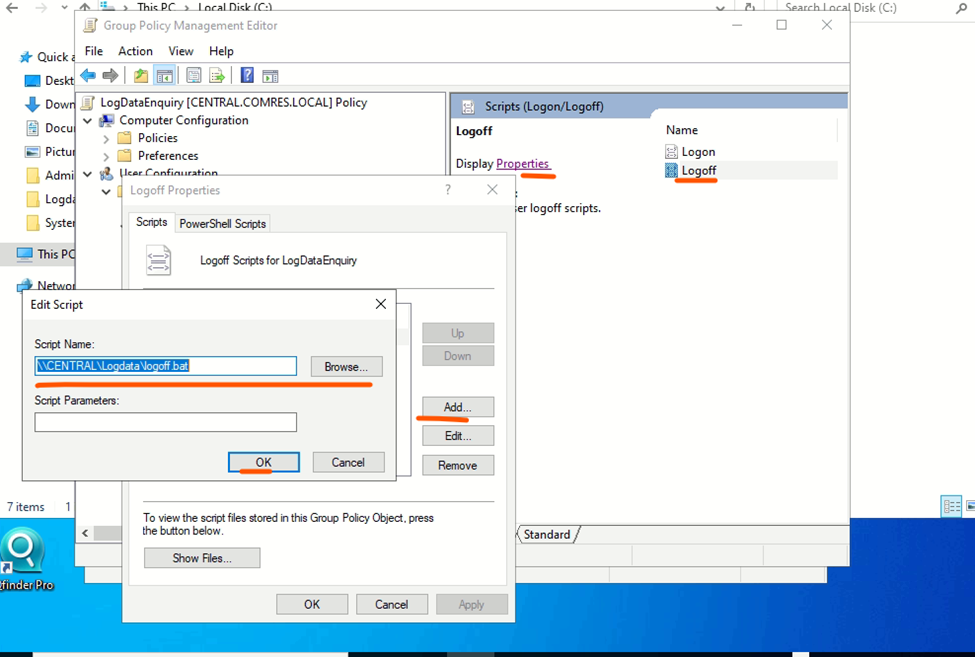
Users Configuration-> Policies ->windows settings-> Script(Logon/Logoff)
Click to Properties and click to add
Click on Browser and type the login.bat script

Now select logoff and click to Browse the Logoff script file.
Now need to update the group policy.
Open CMD Prompt
Run gpupdate /force

Login and logoff the Domain Controller users
In same directory logdata there will be create two files
Login.txt and logoff.txt –logon users and logoff users’ detail in text files.

Login Users History
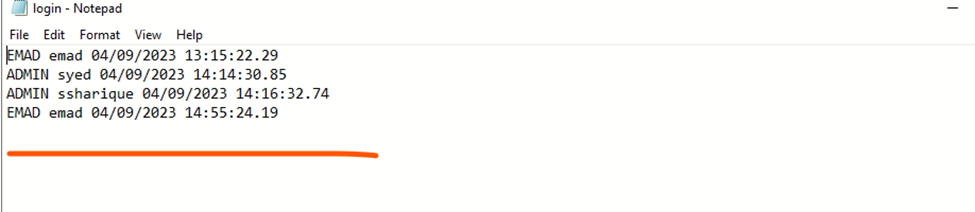
Logoff Users History
