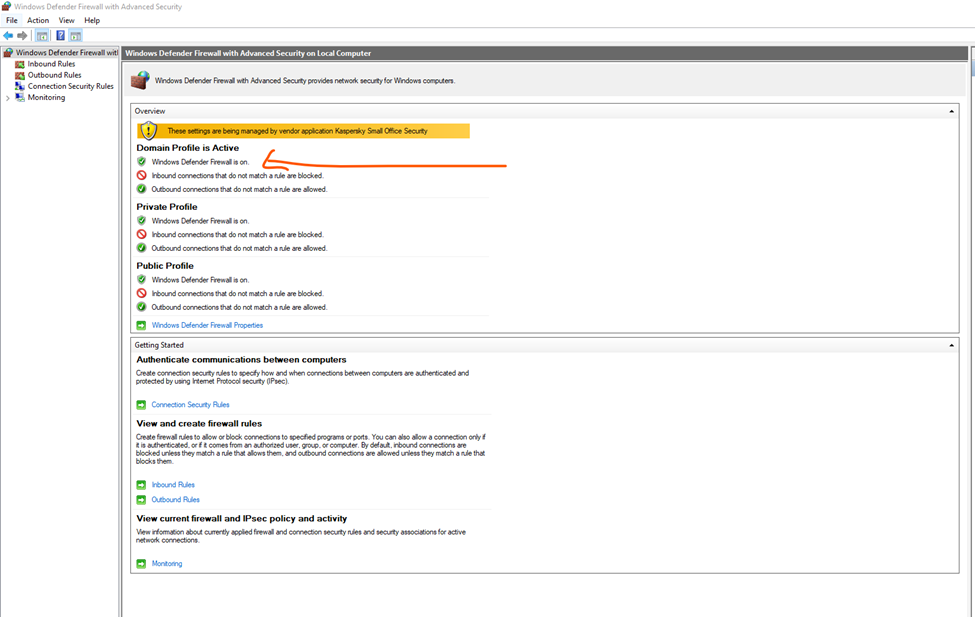
How To Disable Firewall on Windows
Windows key + r: type in search box firewall.cpl
//
Once Windows Defender Firewall open click to – Advanced Settings-now click to Windows Defender Firewall Properties
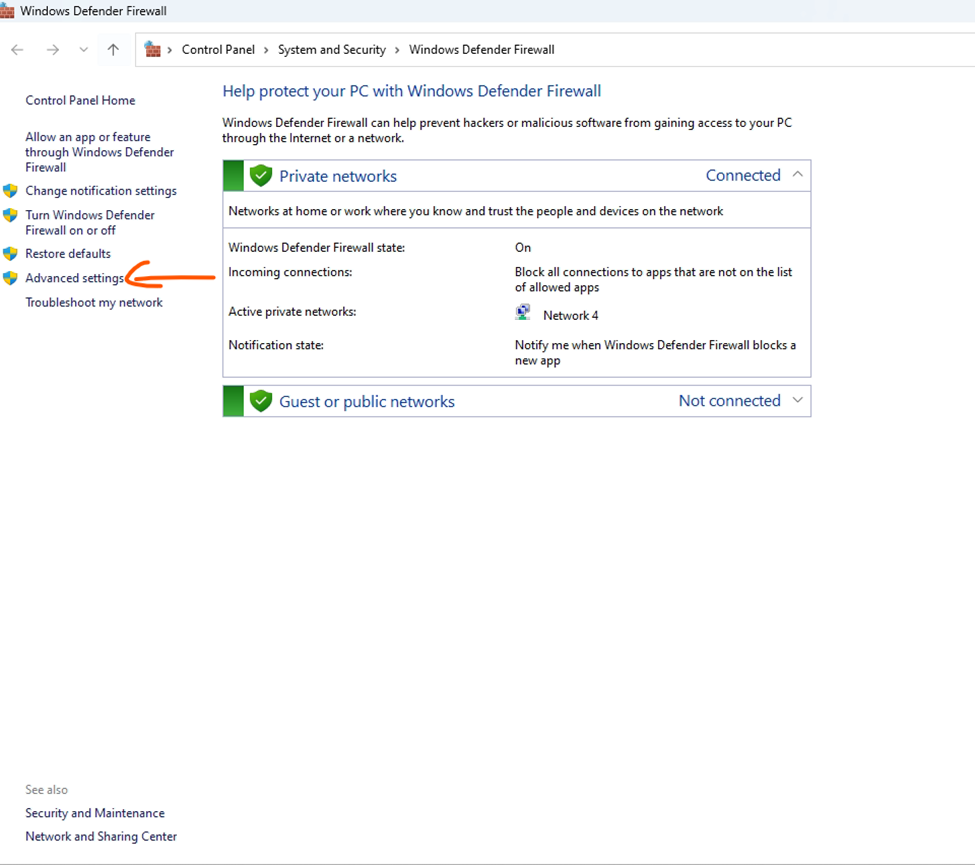
Click to Advanced Settings
Windows Firewall
How To Disable Firewall on Windows
Windows key + r: type in search box firewall.cpl
//
Once Windows Defender Firewall open click to – Advanced Settings-now click to Windows Defender Firewall Properties
Click to Advanced Settings
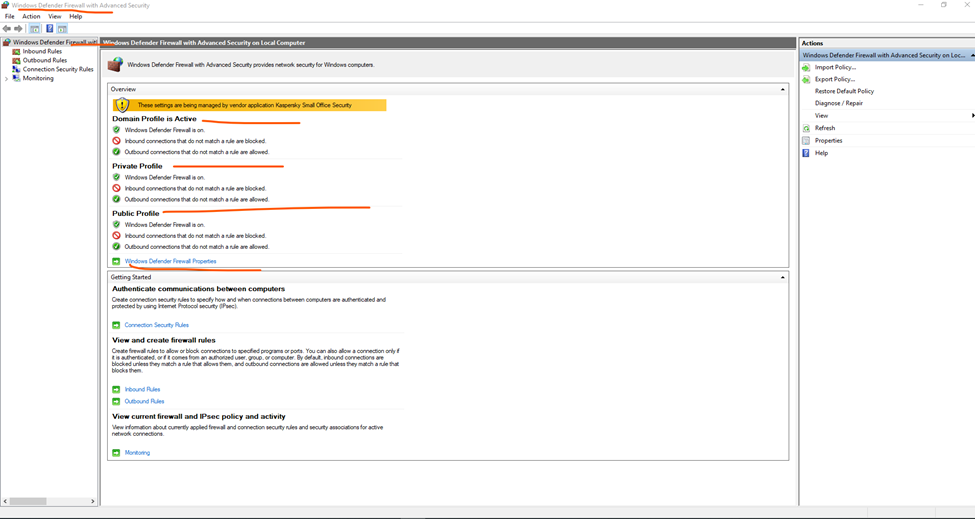
Select windows defender firewall properties
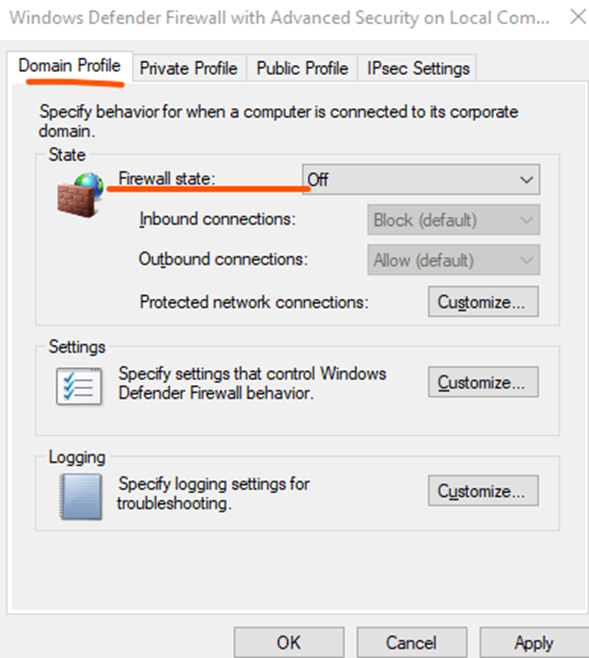
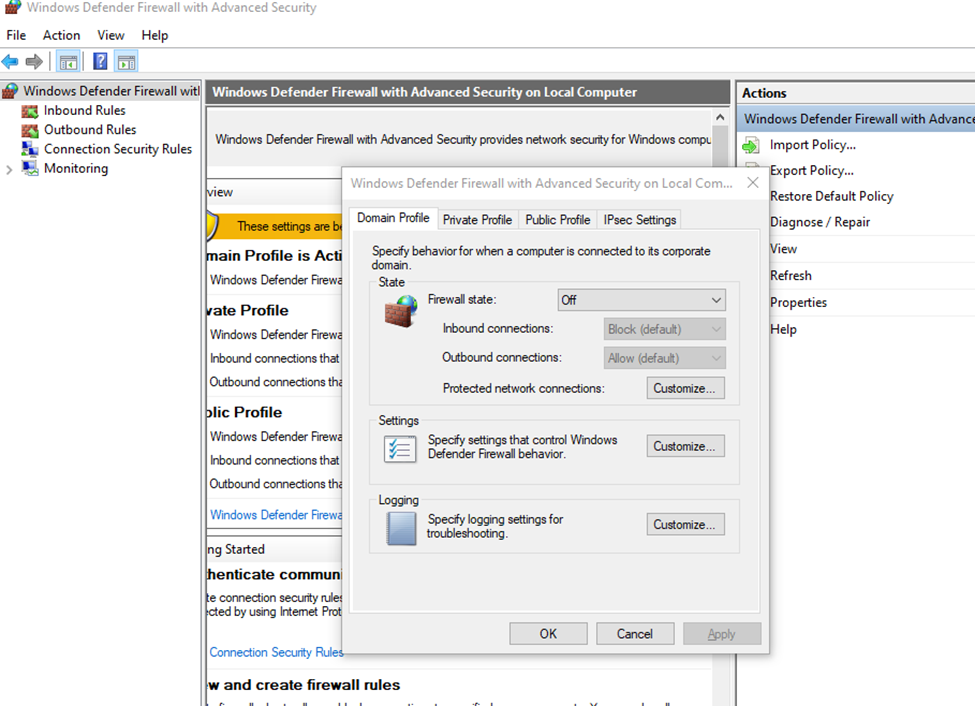
Domain Profile
Firewall State: off
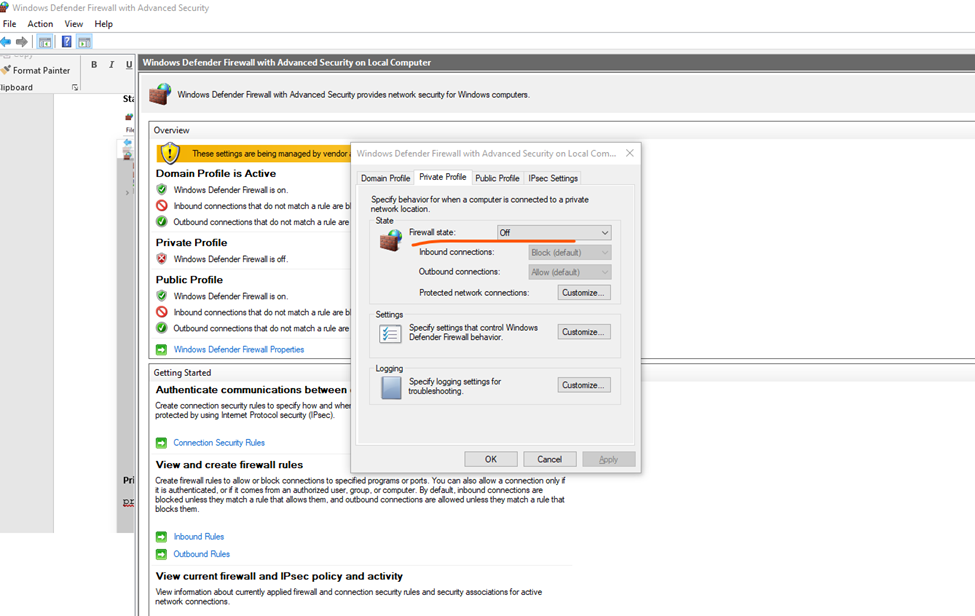
Private Profile
Firewall State: off
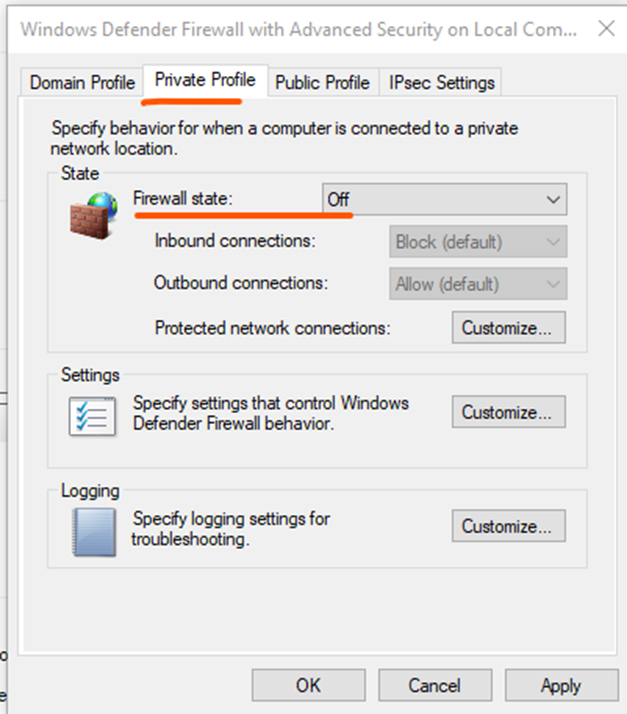
Public Profile:
Firewall State: off

How to Disable Windows Firewall from Command Prompt
Press windows key and search Command Prompt run as administrator
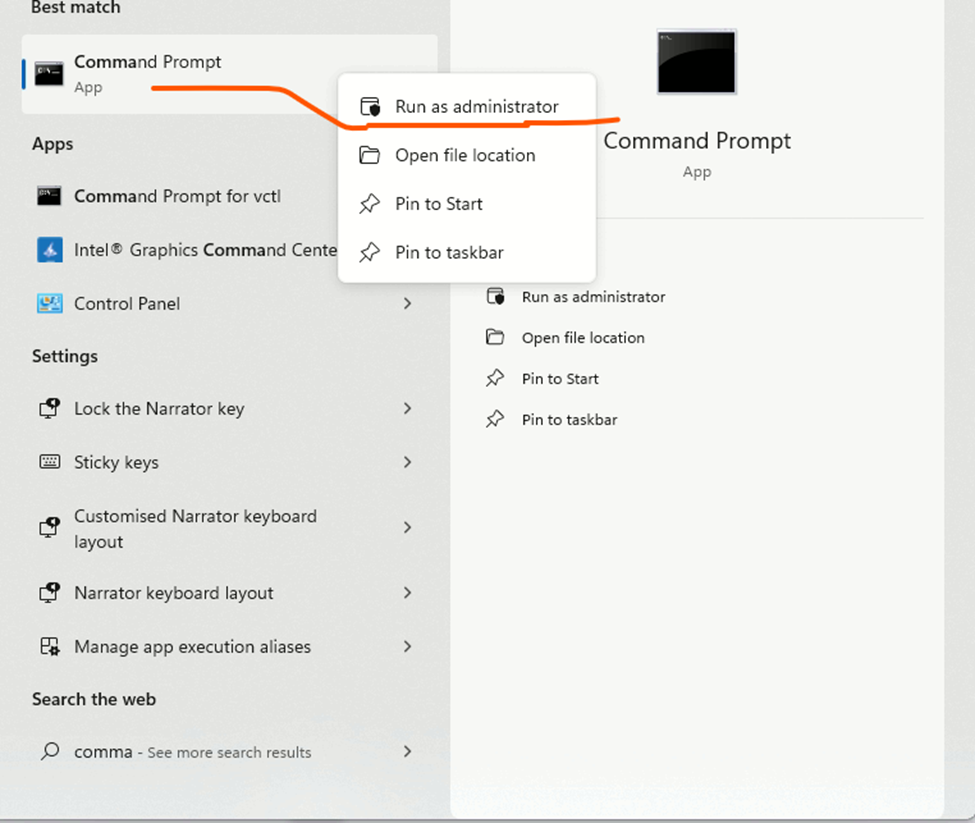
Firewall State
Type to enable Firewall state
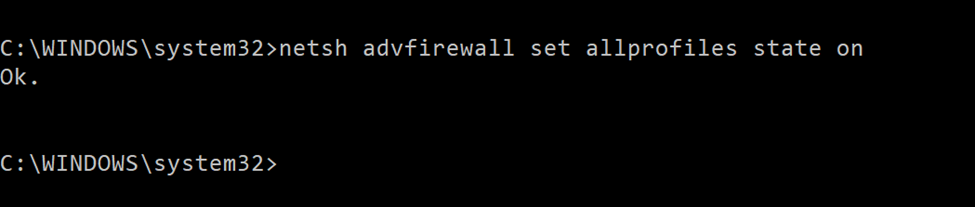
Enable the firewall for all network profiles (domain, private, and public) on Windows and press Enter
netsh advfirewall set allprofiles state on
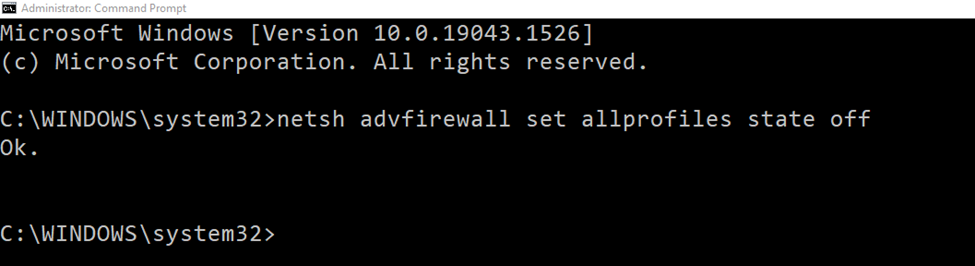
Disable the firewall for all network profiles (domain, private, and public) on Windows and press Enter
netsh advfirewall set allprofiles state off
Domain Network
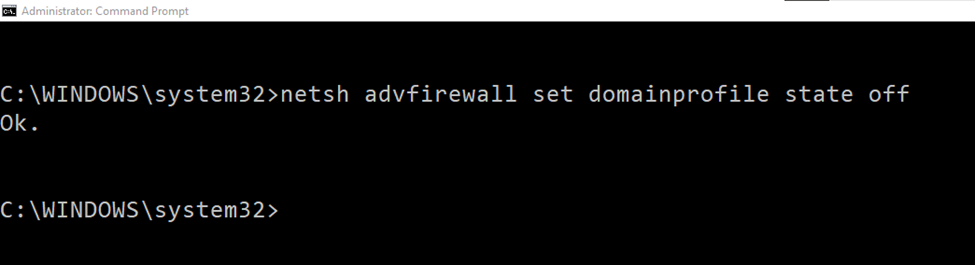
disable the firewall for the domain network profile and press Enter:
netsh advfirewall set domainprofile state off
Status after Disabled Domain Profile
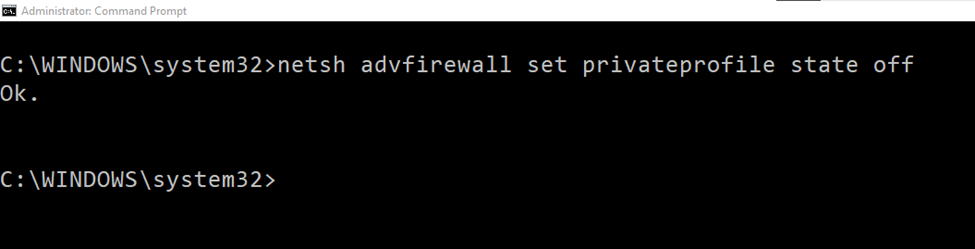
Private Profile Enable/Disable privateprofile
netsh advfirewall set privateprofile state off
After Disable Private profile state
Enable Private Profile
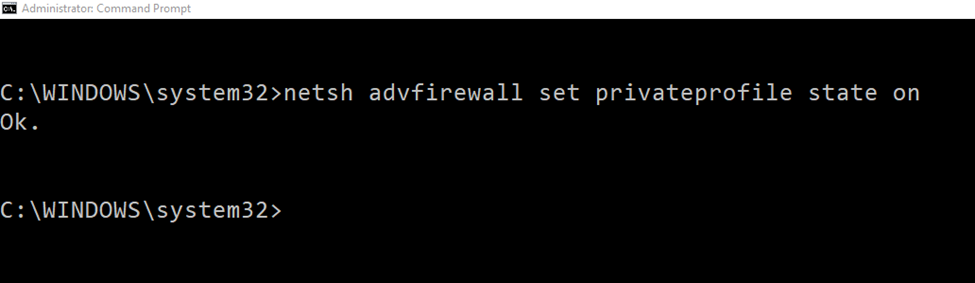
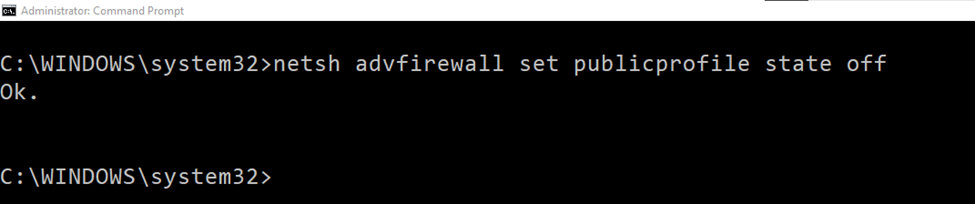
Public Profile Enable/Disable
Disable Public Profile
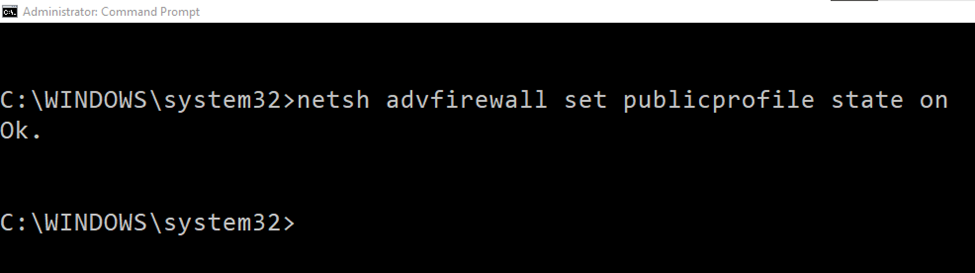
Enable Public Profile
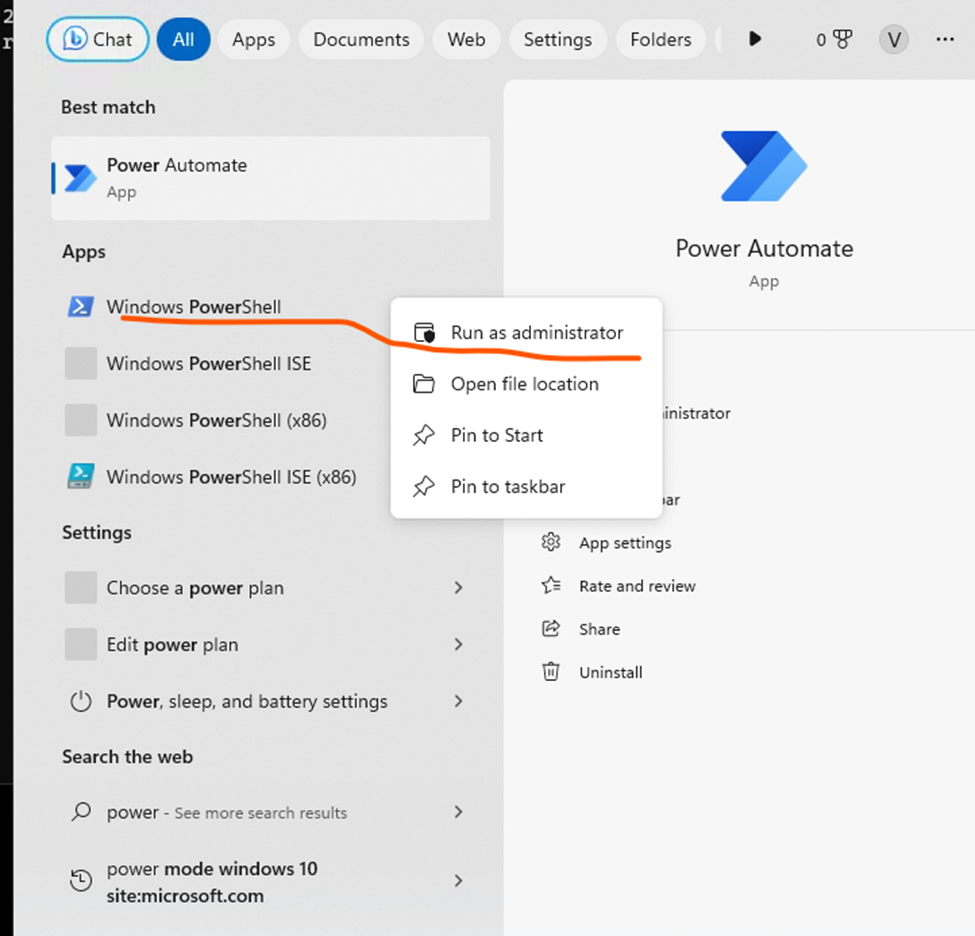
Disable Windows Firewall from PowerShell
Press windows key and type PowerShell right click open as Administrator
Disable the firewall for the current network profile
Set-NetFirewallProfile -Profile Domain,Public,Private -Enabled False
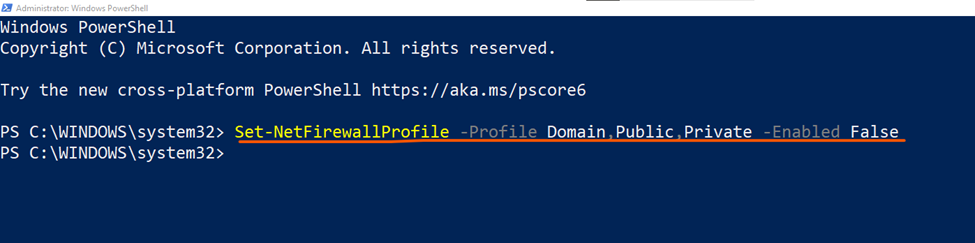
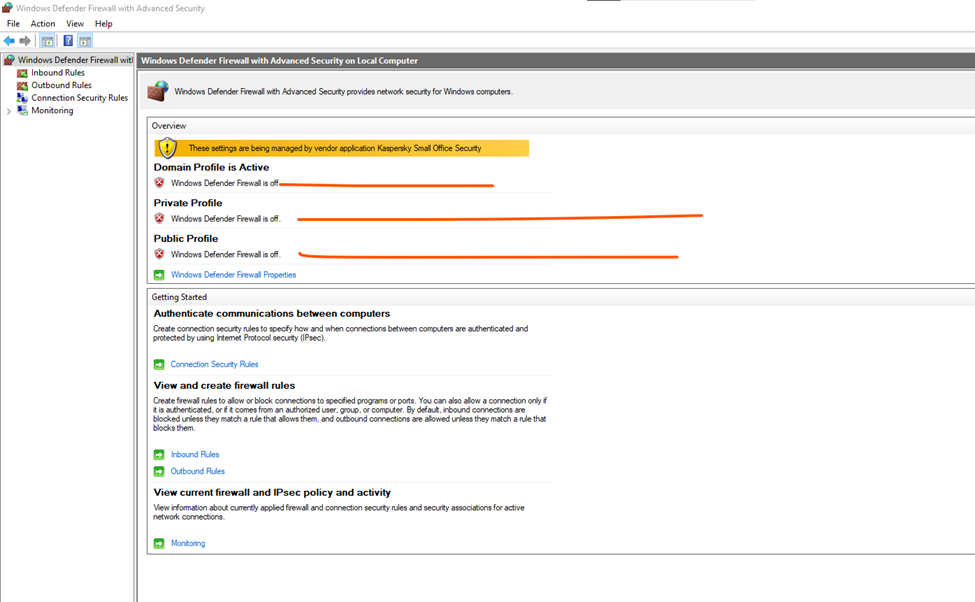
Status after applied Disabled Query
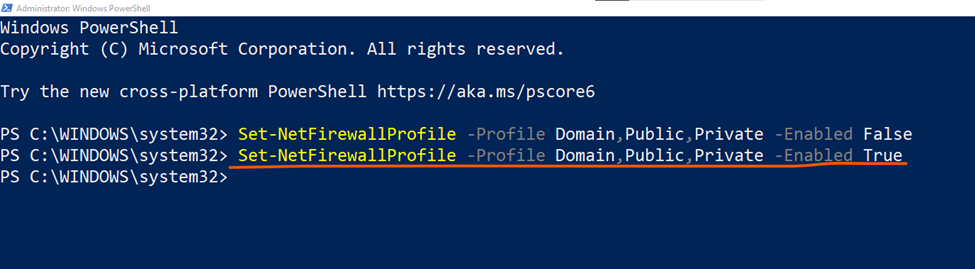
Enable the firewall for the current network profile
Set-NetFirewallProfile -Profile Domain,Public,Private -Enabled True
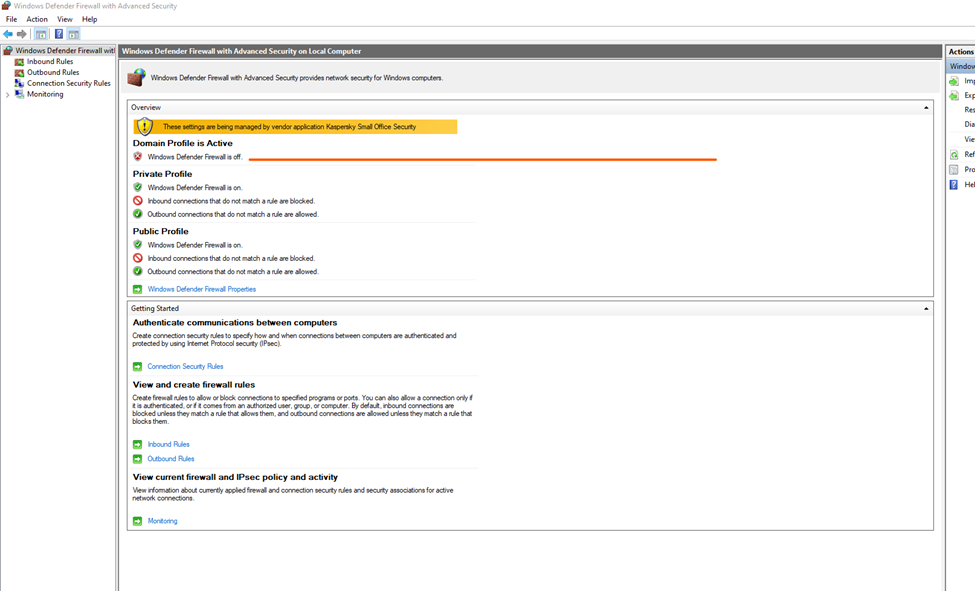
Disable Domain Profile
Set-NetFirewallProfile -Profile Domain -Enabled False

Status Domain Firewall Profile
Enable Domain Profile

Status Domain Profile