Configure Account Lockout Policies in Windows Server 2019
How to Enable Account Lockout Policy and Troubleshoot
Login to your DC
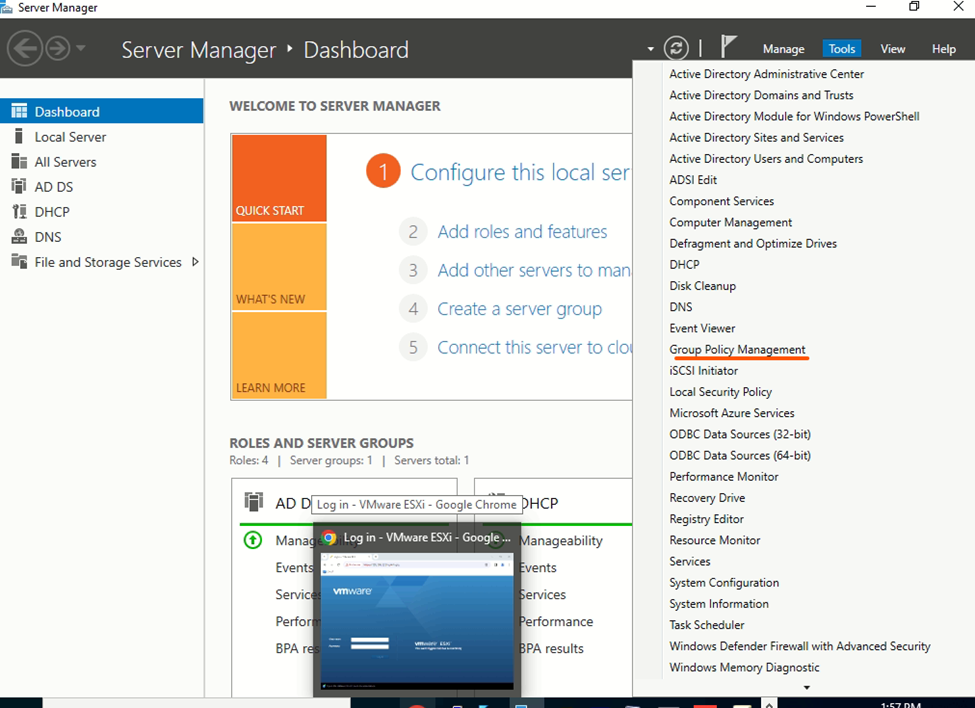
Go to Server manager click to tools
Now click to Group Policy Management
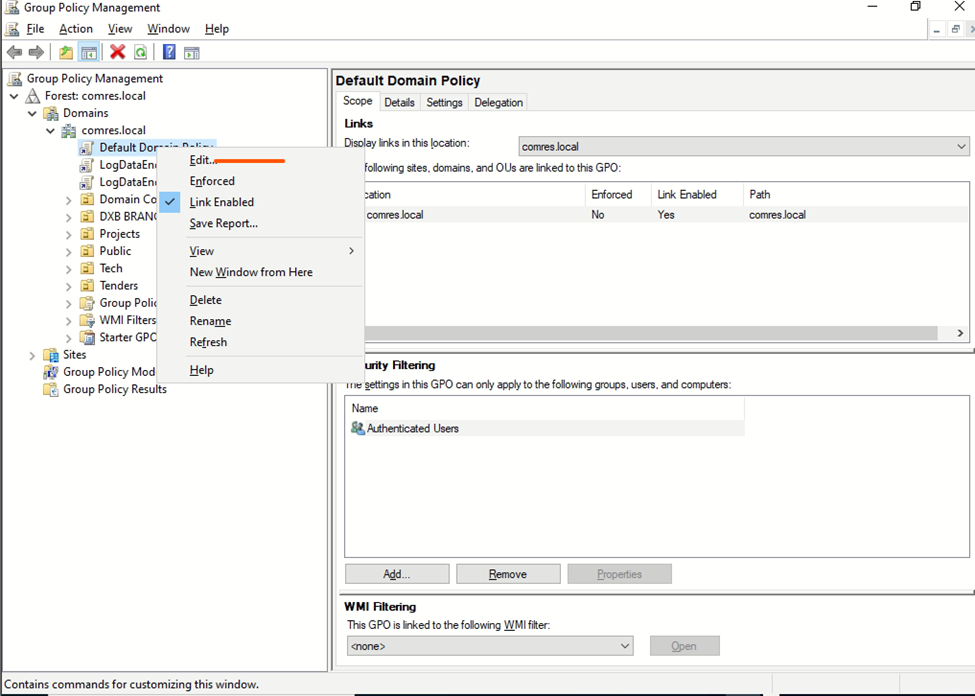
Edit Default Group Policy
Click to Computer Configuration->Policies->Windows Settings ->Security Settings->Account Policies -> Account Lockout Policy

So, here enable Account lockout duration
And enable the policy and apply
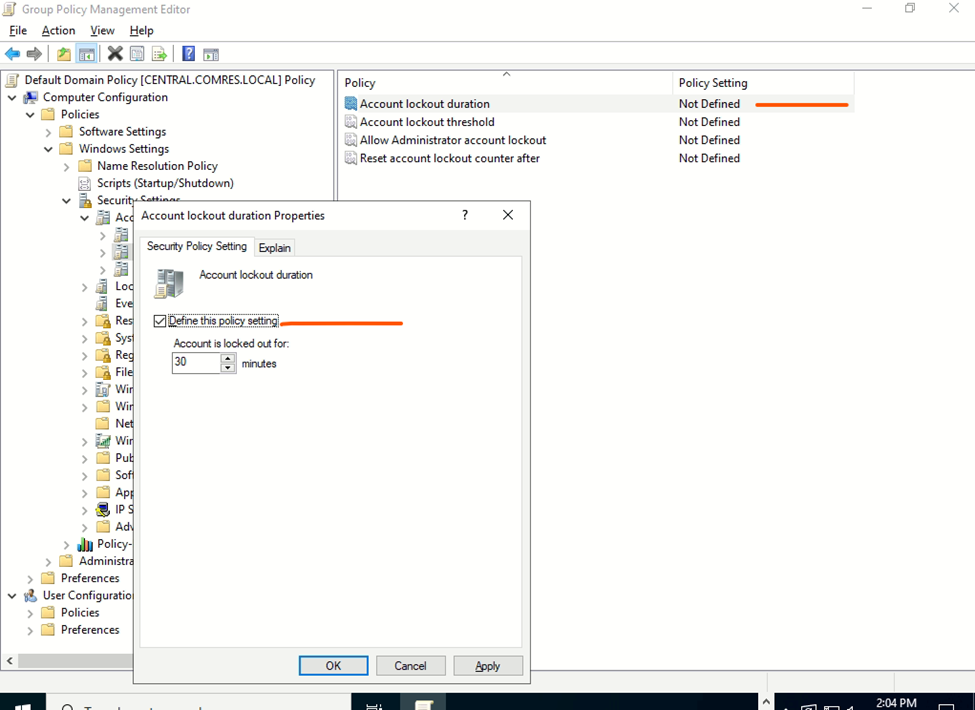
Active account policies
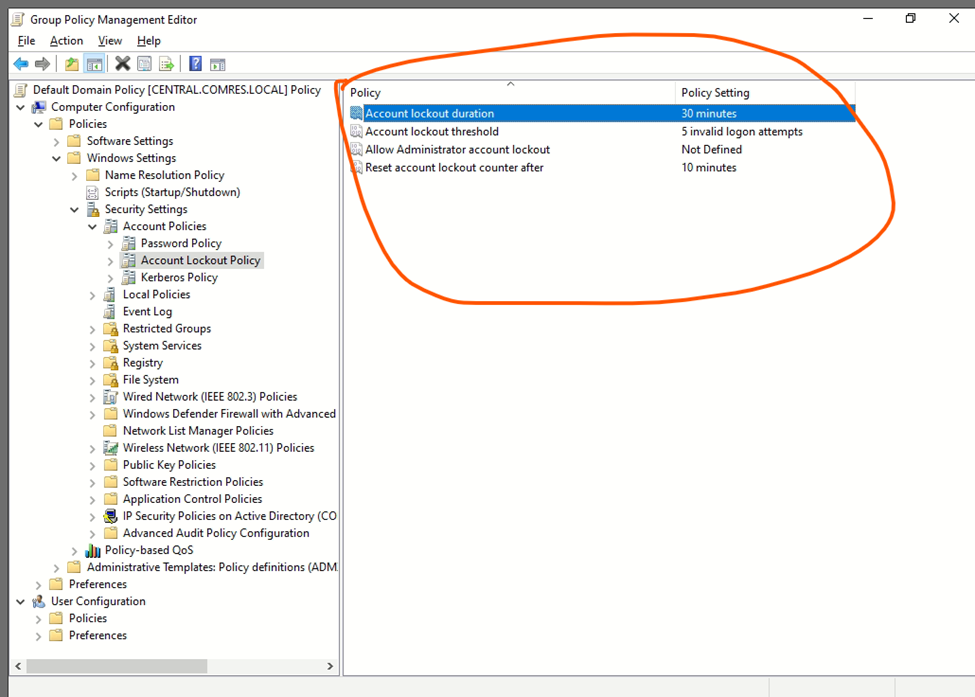
So, these are the process to enable lockout policy in AD
Active Directory Account Lockout issue and how to Troubleshoot

Open your event viewer
Lockout Event ID- 4740,
SO HERE I will filter and check the status
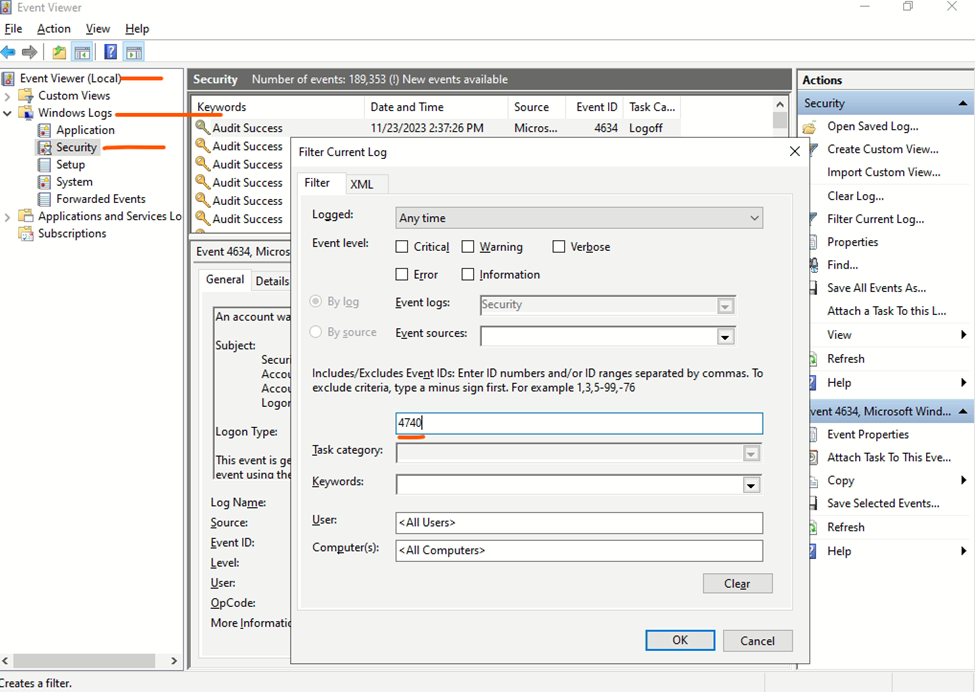
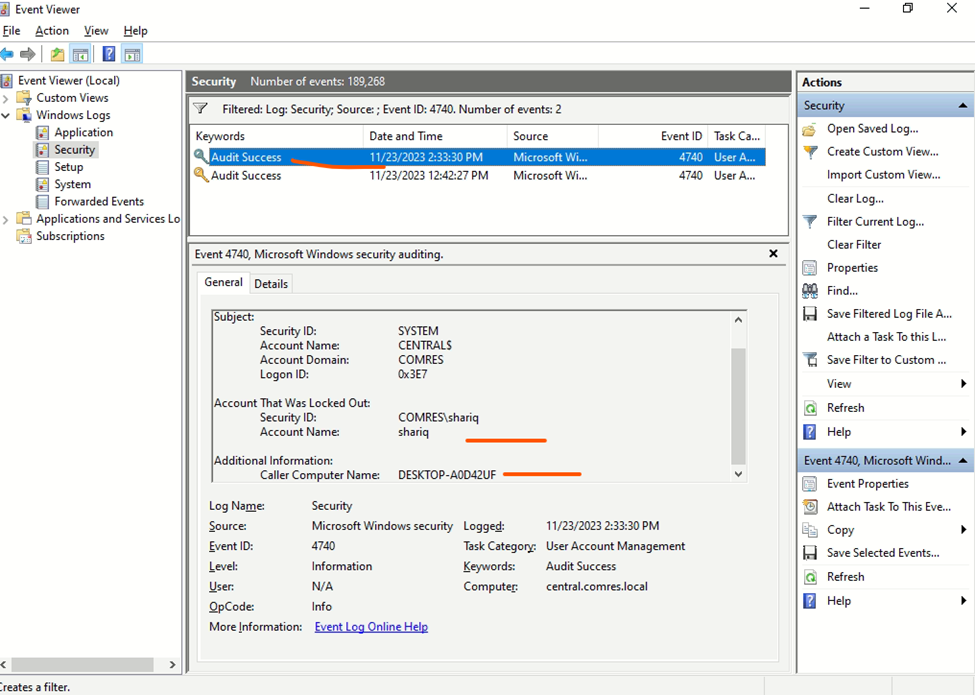
Here I am getting complete details about Lockout issues with user and computer name and time.
Open active directory users and computers console select the user go to properties and click to account Check here this user is locked as per the login policy

If you wanted to enable user, just check to enable or user will automatically enable after 30 Minutes
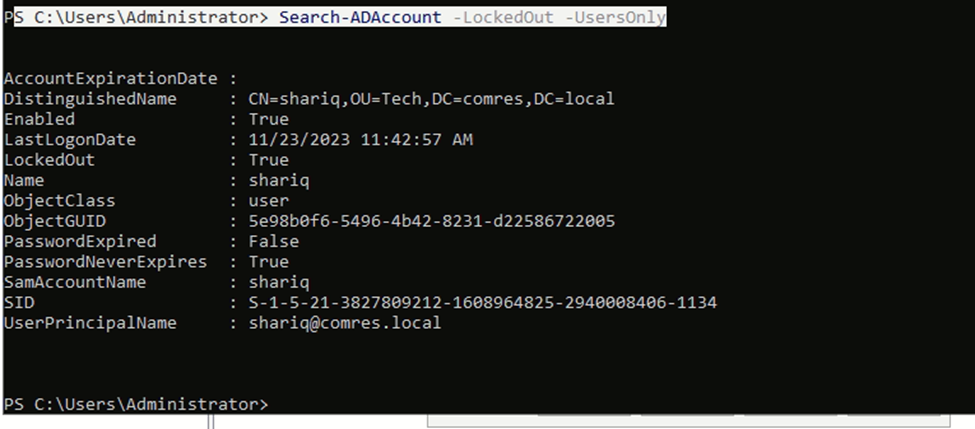
Second method to check via PowerShell
Type the command and press enter
Search-ADAccount -LockedOut
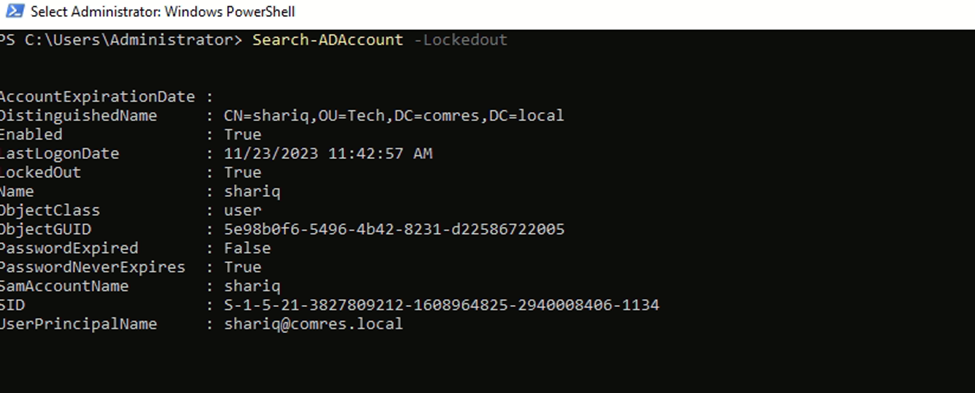
Search-ADAccount -LockedOut -UsersOnly